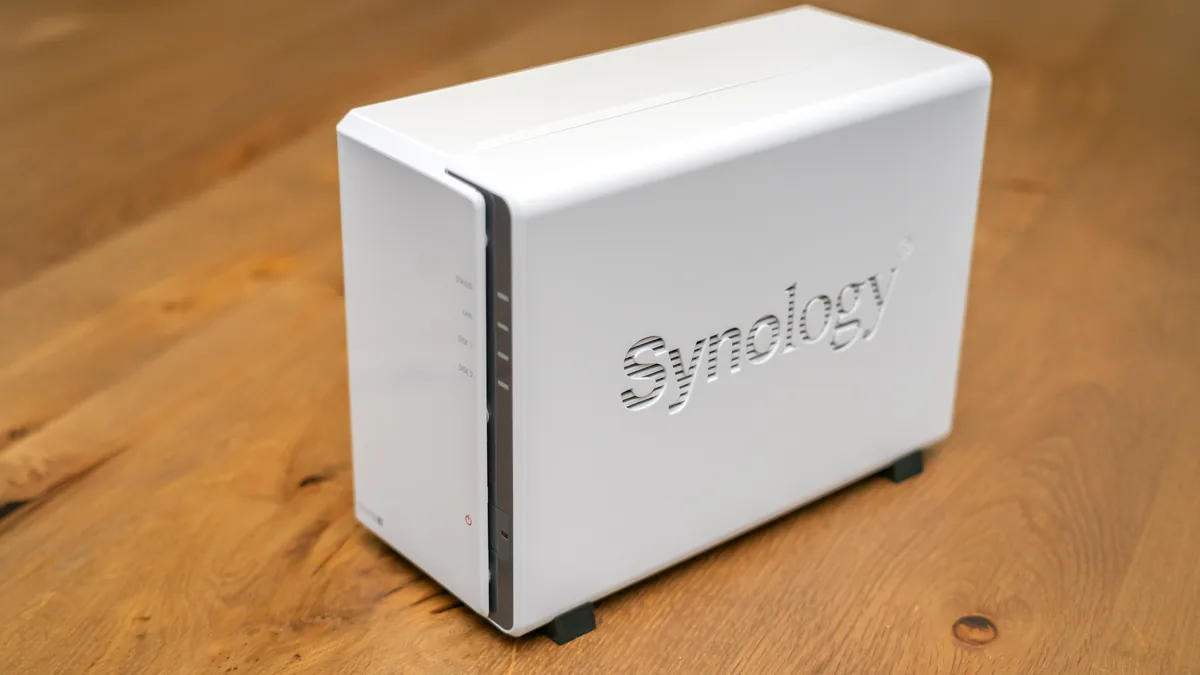
NAS vs Cloud Storage for Small Business Files in 2027
A small business choosing where to keep its files in 2027 faces a choice that looks simple and is not: a NAS box in the office, or cloud storage somewhere else entirely. Both hold the same invoices, photos, contracts, and project folders. The difference is who controls the hardware, who pays the bill, and what happens when the internet or a drive fails.
NAS stands for network attached storage: a small box with hard drives, plugged into the office network, that everyone can reach like a shared drive. Cloud storage means renting space from a provider — Google Drive, Dropbox Business, or OneDrive — and reaching your files through an app or a browser. One you buy, the other you rent — and that shapes almost everything else.
This comparison weighs the two on what decides the purchase for a team of five to fifty: cost over three years, speed, access, backup, security, and what happens when something breaks. There is no single winner — the right answer depends on how your team works, and plenty of small businesses end up using both.
Key takeaways
- A NAS is usually cheaper over three years for large libraries, but you pay up front and own maintenance.
- Cloud storage wins on remote access, client sharing, and automatic off-site backup.
- A NAS is faster in the office, since files travel over the local network, not the internet.
- Cloud storage keeps working when the office loses power or internet; a NAS depends on both.
- The safest setup is a hybrid: a NAS for fast local work, with cloud backup for the files that matter most.
At a glance: NAS vs cloud storage
| Factor | NAS | Cloud storage |
|---|---|---|
| Up-front cost | About $300 to $800, plus drives | None, subscription only |
| Monthly cost | Near zero | $6 to $20 per user, per month |
| 3-year cost, 10 users, 4 TB | About $900 to $1,500 total | About $2,200 to $7,200 total |
| Speed in the office | Very fast locally | Limited by upload speed |
| Remote access | Needs setup | Built in, from any device |
| Backup | You arrange it yourself | Automatic and off-site |
| Best for | Large files, fixed teams | Remote teams, sharing |
The NAS: your own storage box in the office
A NAS is a small computer whose only job is storing files. You buy a two-bay or four-bay box from a maker such as Synology or QNAP, slide in hard drives, and plug it into the office router. Within an hour the team has a shared drive on Windows or Mac. It feels like a server, without the server room.
Speed is the NAS’s biggest advantage. Copying a 2 GB video to a NAS over a wired network takes seconds, while uploading it to the cloud can take many minutes on a typical small-business connection. For design and video teams, that difference decides the working day. A NAS also gives you control: your files sit on hardware you own, with no monthly fee.
The catch is responsibility. When a drive fails, the office loses power, or someone needs a file from home, the NAS is only as good as the setup around it. Remote access is possible through the vendor’s app or a VPN, but it needs configuring and depends on the office internet. If you are weighing the cloud side, our roundup of the best cloud storage for small business compares the main providers head to head.
Pros: Fast local access, no per-user fee, full control of your data, one-time cost.
Cons: Up-front cost, you own maintenance, remote access needs work, dead if the office loses power.
Cloud storage: rented space that follows the team
Cloud storage replaces the box with a subscription. You pay per user, per month, and your files live in the provider’s data centres, reachable from any device with internet. Sharing is a link instead of a VPN: send a client a folder, set an expiry date, and revoke access when done. For a team spread across home offices, that simplicity is hard to beat.
Backup is the other quiet advantage. A file saved to the cloud is already off-site and recoverable if a laptop is stolen or a hard drive dies. Most providers keep deleted files and earlier versions for thirty days or more, and business plans add admin controls and remote wipe. The trade-offs are cost and speed: ten users at $12 each costs $1,440 a year, every year, and large files still travel up and down the office internet connection.
Pros: Works anywhere with internet, easy client sharing, automatic off-site backup, no hardware to maintain.
Cons: Monthly cost grows with the team, large files limited by internet speed, less control over your data, costs never stop.
Cost over three years
Compare cost over three years, not one month. A four-bay NAS with 8 TB of usable storage costs roughly $700 to $1,200 all in, including drives, and then almost nothing to run. Over three years for ten users, that is roughly $20 to $35 per user, per year. A cloud plan at $12 per user, per month for the same ten users costs $4,320 over three years, and rises with every seat or storage tier.
That gap narrows when the file library is small. A team with 200 GB of documents pays little for cloud storage and avoids the hardware cost entirely, so the cloud can be cheaper for the first year or two. But for a team with terabytes of files and a stable headcount, the NAS usually wins the three-year maths by a wide margin. Check current pricing first.
Access, speed, and working away from the office
Inside the office, the NAS wins on speed. A wired gigabit connection moves files at roughly 100 MB per second. The cloud can only move as fast as the office internet allows, and most small-business connections upload far slower than they download.
Outside the office, the positions reverse. Cloud files open on a home laptop, a phone, or a client’s computer with no setup at all, and changes sync back automatically. A NAS needs remote access configured — the vendor’s app, a VPN, or a secure tunnel — and it only works while the office internet and the NAS are running. One compromise is to keep active project files in the cloud and archive finished work on the NAS. The machines your team carries matter too: our guide to the best ultrabooks in 2027 covers light, fast options that pair well with either setup.
Backup, recovery, and what happens when things break
Storage is not backup, and this is where small businesses get caught. A NAS with two mirrored drives survives one drive failing, but not a fire, flood, burglary, or ransomware attack on the shared folders. A proper NAS backup means a second copy elsewhere — a cloud backup service or an off-site drive — and someone checking that it runs.
Cloud storage handles the off-site part by default: your files live in a data centre with redundant hardware. But the cloud is not magic either. An account deleted by mistake, a sync error, or ransomware on a synced laptop can damage cloud files too, which is why business plans keep version history. Whichever side you choose, test a restore twice a year. A backup you have never restored is a hope, not a plan.
Security and control
A NAS keeps your data under your roof, which appeals to businesses handling sensitive client files. You decide who can reach which folder, and no third party scans your files. The risk is that security becomes your job: the NAS needs firmware updates, a strong admin password, two-factor authentication, and no direct exposure to the public internet. An unpatched NAS facing the internet is a ransomware target.
Cloud providers invest far more in security than any small business can, with encryption, anomaly detection, and compliance certifications. The trade-off is trust: your files sit on shared infrastructure, governed by the provider’s terms. For most small businesses, the provider’s security is stronger than anything they could run themselves. Automating routine file handling can also reduce human error; our explainer on what AI browser automation is shows how small teams automate repetitive admin work.
The verdict: which should a small business choose?
Choose a NAS if your team mostly works in one office, handles large files, and wants the lowest three-year cost with full control — the right call for design studios, photo and video teams, and architects. Budget for good drives, a cloud backup subscription, and monthly backup checks.
Choose cloud storage if your team works from several places, shares files with clients daily, or has no one to look after hardware — the right call for consultancies and remote-first teams. Pick a business plan with version history and admin controls.
Choose both if you can. A NAS for fast local work and large archives, plus cloud storage for the active files and the off-site copy, gives you the speed of local storage and the safety of the cloud. It costs more than either option alone, but for a business whose files are its livelihood, it is the setup most likely to survive a dead drive or a stolen laptop.
Checklist: before you pay
- Measure your file library and its growth, and buy storage for three years, not one.
- Test a large upload and download on your office internet before choosing cloud.
- Price the three-year total, including drives, backup, and per-user fees.
- Check the restore process: recover a deleted file and an earlier version first.
- Confirm who owns admin access, and turn on two-factor authentication.
- Write down the backup routine and who checks it each month.
Frequently asked questions
Is a NAS cheaper than cloud storage?
Over three years, usually yes for large libraries, because you pay once for hardware instead of monthly per user. For a small library under a few hundred gigabytes, cloud storage is often cheaper for the first year or two.
Can I access a NAS from home?
Yes, through the vendor’s app or a VPN, but it needs setting up and only works while the office internet and the NAS are running. Cloud storage works from anywhere with no setup.
Do I still need backup if I use cloud storage?
Yes. Cloud storage protects against lost devices and hardware failure, but not accidental deletion, sync errors, or ransomware on a connected laptop. Keep version history on.
How much storage does a small business need?
A document-heavy team of ten usually manages with 1 to 2 TB. A team working with photos or video should plan for 8 TB or more.
Is my data safe on a NAS?
It can be, if you keep firmware updated, use a strong admin password with two-factor authentication, and keep the NAS off the public internet. The biggest risks are an unpatched device online and no off-site backup.
Can I use a NAS and cloud storage together?
Yes, and it is the most resilient setup. Keep active files in the cloud, heavy archives on the NAS, and back the NAS up to the cloud so one failure never takes your files with it.
The bottom line
For a fixed office team with large files, a NAS is the better buy: faster, cheaper over three years, and under your control. For a distributed team that shares with clients and works from anywhere, cloud storage is the better buy: simpler, safer off-site, and free of hardware.
Most small businesses will be happiest with both: a NAS for heavy work, cloud for access and backup. Whichever route you take, what matters most is not the box or the subscription, but the backup routine behind it. Buy the storage, set up the backup, and test a restore before you need one.