
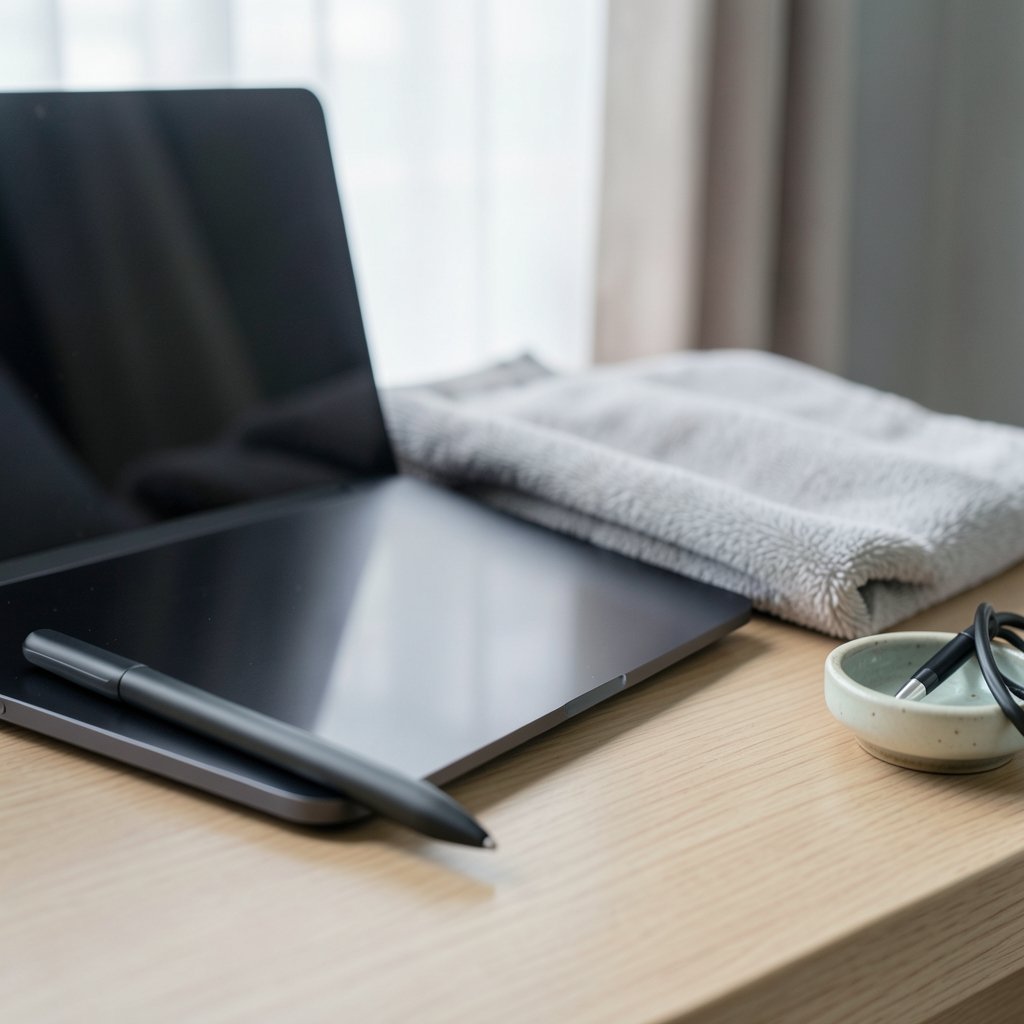
So the pen arrived, the Yoga is charged, and nothing happens when the tip touches the glass. What gives? The short answer is that there is no single “pair a pen with a Lenovo Yoga” button, because Yoga is a family of devices rather than one machine. Some Yogas ship with a pen in the box, some support an active pen sold separately, and a few support no active pen at all. Getting the stylus to work comes down to three things: the right pen for your exact model, the right protocol underneath, and the right settings switched on. (Best earbuds working out pick pair that actually stays)
This guide walks through the whole process in plain language, including the checks most people skip and the mistakes that make a working pen look broken.
Why “Lenovo Yoga” Doesn’t Tell You Which Pen You Need
The Yoga name covers 2-in-1 convertibles with a 360-degree hinge, standalone slates, and even traditional clamshell laptops. Pen support is decided by the model and the year it was built, not by the badge on the lid. Two Yogas that look nearly identical on a store shelf can use completely different pen technology, and a pen that works perfectly on one may do nothing at all on the other. (Bluetooth Technology Overview)
That is why the first step is never “buy a pen.” It is “identify the machine.” Find the exact model number, usually printed on the bottom cover or shown in the system settings under device information. Write it down including any suffix, because a single letter can mark a different generation with a different digitizer.
Active pens versus passive styluses
Most pens sold for Yoga devices are active: they contain a battery or supercapacitor and talk to a digitizer built into the screen. Active pens report pressure, tilt, and button presses, and they usually allow palm rejection, so your hand can rest on the glass while you write.
A passive capacitive stylus is the cheap rubber-tip kind. It works on any touchscreen because it simply mimics a finger. It needs no pairing, no battery, and no drivers, but it gives you no pressure sensitivity and no palm rejection. If someone complains that their new pen draws thick, wobbly lines and their palm keeps leaving marks, they have almost certainly bought a passive stylus for a device that deserved an active one.
The protocol has to match
Active pens speak a digitizer protocol. The common ones are Wacom AES, the Microsoft Pen Protocol (MPP), and Lenovo’s own implementations, which have varied across Yoga generations. A pen built for one protocol generally will not work correctly on a device using another. It may not be detected at all, or it may draw but refuse to report pressure.
This is the single biggest reason pen purchases go wrong. The pen is not defective. It is simply speaking a language the screen does not understand.
Step 1: Confirm Your Yoga Actually Supports a Pen

Before spending money, confirm the model supports active pen input. The most reliable source is Lenovo’s Product Specifications Reference, known as PSREF, which publishes a spec sheet for each model listing pen support and the compatible pen part numbers. Search for your exact model there and look for the pen line. If the sheet lists no pen support, the touchscreen is finger-only and no active pen will change that.
A quick practical test: if the screen responds to a fingertip but the pen cursor never appears, and the model’s spec sheet says nothing about a pen, stop there. Chasing drivers will not help.
Step 2: Match the Pen to the Model
Once you know the model supports a pen, choose a pen the spec sheet names, or one Lenovo lists as compatible for that model. Third-party pens can work, sometimes well, but they are not officially guaranteed, and compatibility is often partial. A third-party pen might write fine but fail to register the eraser button, or lose pressure sensitivity after a Windows update.
| Pen type | Needs pairing? | Pressure and tilt | Palm rejection | Best for |
|---|---|---|---|---|
| Passive capacitive stylus | No | No | No | Basic tapping, casual notes |
| Active pen, no Bluetooth | No | Yes | Yes | Writing, sketching, annotating |
| Active pen with Bluetooth buttons | Sometimes | Yes | Yes | Shortcuts, presentation control |
| Pen with rechargeable battery | No, but needs charging | Yes | Yes | Heavy daily inking |
The table hides one important detail: “pairing” means different things depending on the pen.
Step 3: Understand What “Pairing” Actually Means for Your Pen
People use the word pairing for three different jobs, and mixing them up causes most of the confusion.
Job one: making the pen work at all. For a plain active pen with no Bluetooth features, there is nothing to pair. You put in a battery or charge it, turn it on if it has a power button, and start writing. The digitizer handles the rest. If it does not work, the problem is compatibility, battery, or drivers, not pairing.
Job two: pairing Bluetooth features. Some pens include Bluetooth for shortcut buttons, app launching, or a “find my pen” feature. Those features need the pen connected through the operating system’s Bluetooth settings. Writing often works even when Bluetooth is off; only the extras go missing.
Job three: pairing the pen with software. Pressure curves, button assignments, and tilt behavior are configured in a pen utility, typically Lenovo Pen Settings or the Windows pen settings panel. This is not pairing in the Bluetooth sense, but it is where a working pen becomes a pleasant pen.
Bluetooth pairing, step by step
If the pen’s documentation says it has Bluetooth features, here is the usual sequence:
- Charge or install the battery first. A flat pen will not enter pairing mode.
- Hold the pen’s pairing button, often on the top cap or the side, until an indicator light blinks. Some pens pair by holding two buttons at once.
- Open Settings on the Yoga, then Bluetooth and devices, and turn Bluetooth on.
- Choose Add device, then Bluetooth, and wait for the pen to appear in the list.
- Select the pen and confirm the connection. Windows may show a battery level for the pen once connected.
If the pen never appears, hold the pairing button longer, move it closer to the machine, and make sure no other device is already connected to it. A pen paired to a phone will not show up on the laptop until it is unpaired or woken properly.
Step 4: Install the Right Drivers and Pen Utility
Windows includes basic pen support, so a compatible pen often writes the moment it touches the screen. To get pressure sensitivity, tilt, and button mapping, install the pen utility Lenovo provides for your specific model. Download it from the support page for that model rather than a generic download page, because utilities are model-specific and a mismatched package can install cleanly and still do nothing.
After installing, restart the machine. Then open the utility and check three settings: pressure sensitivity, button assignments, and whether the pen is detected at all. If the utility shows no pen, the driver is not seeing the hardware, which points back to compatibility or a dead battery.
For a broader picture of how pen input is handled in the operating system, Microsoft’s documentation on pen and stylus interactions explains the underlying model that apps rely on. It is worth a read if you want to understand why some apps respond to pressure and others ignore it entirely.
Step 5: Fix the Common Problems
Most “my pen won’t pair” cases fall into a handful of buckets. Work through them in order.
The pen has no power. Active pens use AAAA batteries, coin cells, or built-in rechargeable cells charged over USB-C. A surprising number of support tickets end with a fresh battery. Check the pen’s manual for the exact battery type, because forcing the wrong cell can damage the contacts.
The tip is loose or worn. Many pens ship with spare tips. A tip that is not fully seated can cause skipped strokes that look like a pairing fault.
The screen is too cold or too warm. Extreme temperatures can make a digitizer behave oddly for a few minutes. Let the device settle to room temperature before diagnosing.
Another input device is interfering. A paired Bluetooth mouse or a connected drawing tablet can occasionally compete for input focus. Disconnect extras while testing.
The touchscreen driver needs a reset. In Device Manager, look under human interface devices for the pen and touch entries, then disable and re-enable them. This clears glitches without a full reinstall.
Windows needs updating. Pen behavior is tied to the OS build. Install pending updates before assuming hardware failure.
If the pen draws but the cursor jumps, or lines appear where you did not draw, the problem may not be the pen at all. Screen faults can mimic input errors, and a guide to fixing black lines on a Lenovo laptop screen covers the display-side checks that are easy to overlook.
What to Check Before Buying a Pen
Buying first and troubleshooting later is the expensive way to do this. A few minutes of checking saves a return.
- Find the exact model number of the Yoga.
- Look up the model on Lenovo’s PSREF and read the pen support line.
- Note the pen part numbers the sheet lists.
- Confirm the pen’s protocol matches the device, especially if buying third-party.
- Check whether the pen needs a battery or charges over USB-C, and factor that into daily use.
- Buy from a seller with a clear return window, because compatibility surprises happen even with careful checking.
That last point matters more than it sounds. Community reports and official lists sometimes disagree, and compatibility lists are model- and region-specific and change over time. A generous return window is your safety net.
Practical Habits That Keep a Pen Working
A few habits prevent most future headaches. Store the pen tip-up or in a case so the tip does not rest on hard surfaces. Replace worn tips before they scratch the coating on the screen. Keep the pen’s battery fresh if it uses a disposable cell, and charge a rechargeable pen on a schedule rather than waiting for it to die mid-meeting. Avoid leaving the pen on the keyboard when the lid closes, which is a classic way to crack a tip or dent a screen.
If the Yoga is a secondary machine used mainly for notes and sketching, it is worth pairing it with gear that suits that role. A budget laptop bought for study or light work pairs naturally with a pen for marking up documents, and a look at the Lenovo Xiaoxin 14 SE Intel Wildcat Lake budget laptop for buyers shows how the low-cost end of the lineup compares. For anyone who splits time between typing and inking, small accessories make a bigger difference than people expect, the same way the best earbuds for working out come down to fit rather than specs.
When the Pen Simply Will Not Work
Sometimes the honest answer is that the model does not support the pen you bought. If the spec sheet lists no pen support, or lists a different pen family, no amount of pairing, driver reinstalling, or battery swapping will fix it. Return the pen and either use a passive stylus for basic tapping or accept that the device is finger-only.
If the pen is supported but flaky, the fault is usually one of four things: a dying battery, a missing or outdated pen utility, a loose tip, or a Windows build that needs updating. Work through those four before concluding the hardware is broken.
Conclusion
Pairing a pen with a Lenovo Yoga is less about pressing a pairing button and more about matching three things: the right pen, the right protocol, and the right settings. Start with the exact model number, confirm pen support on the spec sheet, and only then choose a pen. If the pen has Bluetooth shortcuts, pair it through the system settings; if it does not, skip that step entirely and focus on the battery and the pen utility. Most failures trace back to a passive stylus on a device that wanted an active one, a flat battery, or a missing driver. Get those right, and the pen just works, which is exactly how it should feel.
FAQ
Does a Lenovo Yoga pen need to be paired?
Most active pens do not need Bluetooth pairing to write. They draw as soon as they have power and the device supports their protocol. Pairing only matters for pens with Bluetooth shortcut buttons or find-my-pen features, and even then, basic writing usually works without it. (Bluetooth)
How do I know which pen works with my Yoga?
Look up your exact model number on Lenovo’s Product Specifications Reference, which lists pen support and compatible pen part numbers for each model. That sheet is more reliable than a store listing or a general compatibility chart, because pen support changes by model year.
Why does my pen draw but not show pressure sensitivity?
Pressure data depends on the pen utility and the app. Install the pen settings utility for your specific model, restart, and check the pressure settings. Some apps also ignore pressure unless a specific brush or tool is selected, so test in a note-taking or drawing app known to support it.
Can I use any stylus on a Yoga touchscreen?
Any passive capacitive stylus will work on any touchscreen, because it acts like a finger. It will not give you pressure sensitivity or palm rejection. Active pens are far more restrictive: they must match the device’s digitizer protocol, so not every active pen will work.
Why did my pen stop working after a Windows update?
Updates can reset pen settings or replace drivers with generic ones. Reinstall the model-specific pen utility, check the pen entries in Device Manager, and confirm the pen still has power. If the pen is third-party, check whether the manufacturer has released an updated driver.
Is it worth buying a third-party pen instead of a Lenovo one?
It can be, if the pen explicitly lists your model as compatible and you buy from a seller with a clear return policy. Third-party pens sometimes work partially, losing button or pressure features. If reliable inking matters, a pen the spec sheet names is the safer choice.



