

What if the safest way to log in was to stop typing a password at all? That idea sounds strange to anyone raised on “create a password with one capital, one number, and one symbol you’ll forget by Thursday.” Yet it’s exactly where the tech world is heading. This beginner’s guide explains passwordless authentication in plain language: what it is, how it works, why it’s more secure, and where it still trips people up.
What Passwordless Authentication Actually Means
Passwordless authentication is any login method that proves who someone is without asking them to type a memorized secret. Instead of a password, the system checks something the person has (a phone, a security key, a laptop) or something they are (a fingerprint, a face).
That’s the whole concept. No secret to remember, no secret to steal, no secret to reuse across twenty websites.
The confusion starts because the label “passwordless” gets slapped on very different technologies. A login link sent to an email inbox is technically passwordless. So is a fingerprint scan. But they are not equally secure. Beginners should learn to tell them apart early. (Best ukulele for beginners)
The Main Types of Passwordless Login
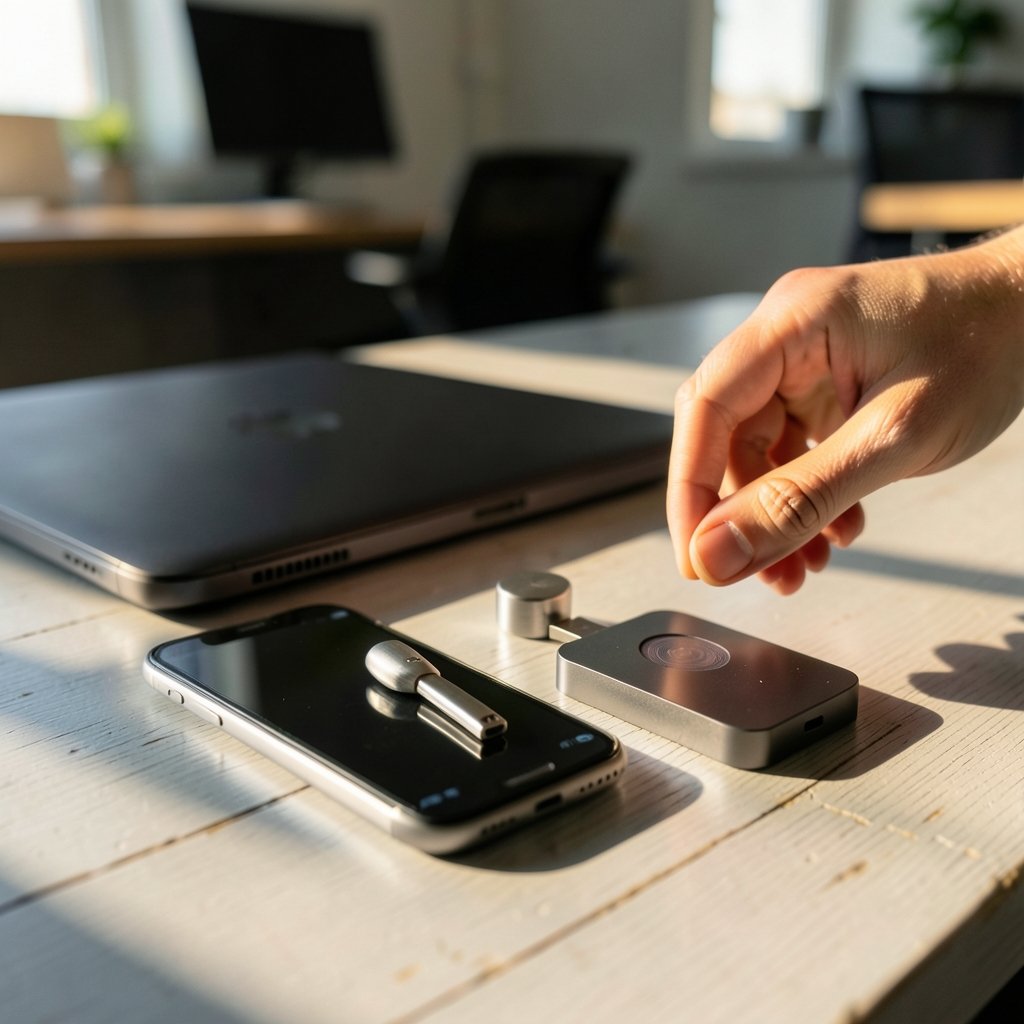
Not all passwordless methods are built the same. Here’s the practical breakdown.
| Method | What the user does | Phishing resistant? | Best for |
|---|---|---|---|
| Passkeys (FIDO2/WebAuthn) | Unlocks phone with fingerprint or PIN | Yes | Everyday consumer and work accounts |
| Hardware security keys | Plugs in a USB key and taps it | Yes | High-value accounts, admins |
| Authenticator apps | Reads a rotating 6-digit code | Mostly | Older systems without passkey support |
| Magic links | Clicks a link sent by email | No | Low-risk, low-stakes logins |
| Email or SMS codes | Types a one-time code | No | Fallback only |
The first two rows are the real deal. They use cryptography tied to the actual website address, which is why they resist fake login pages. The bottom rows are convenience features dressed up in passwordless clothing.
How Passkeys Work, Step by Step
Passkeys are the version most people will meet first, because Apple, Google, and Microsoft all shipped support for them across their platforms between 2022 and 2023. Here’s the flow in beginner terms: (Apple private cloud compute Google cloud 2026: Explained)
- A person creates an account and chooses “create a passkey” instead of a password.
- The device generates a cryptographic key pair: a private key that never leaves the device, and a public key sent to the website.
- To log in later, the website sends a challenge. The device unlocks the private key with a fingerprint, face scan, or device PIN, and signs the challenge.
- The website checks the signature against the stored public key and lets the person in.
Notice what never happens: no secret travels over the internet, and no secret sits in a server database waiting to be breached. The FIDO Alliance, the industry group behind the standard, describes passkeys as a replacement for passwords built on this public-key model.
The underlying technical standard is WebAuthn, published by the World Wide Web Consortium (W3C). Together with a companion protocol called CTAP, it forms FIDO2. The important part for beginners is simple: passkeys are not one company’s invention. They’re an open standard, which is why a passkey created on one device can work across an ecosystem.
Why Passwordless Is More Secure
Passwords fail in predictable ways. People reuse them. They fall for fake login pages. They get caught in data breaches where millions of credentials leak at once. Attackers then “stuff” those stolen credentials into other sites, hoping for a match.
Passwordless methods that use public-key cryptography close several of those doors at once:
- Nothing reusable is stored on the server. A breach of the website doesn’t hand attackers a working login.
- Phishing mostly stops working. WebAuthn credentials are bound to the specific website address (the “origin”). A convincing fake login page at a lookalike domain can’t use the credential, because the browser won’t release it.
- No shared secrets to guess. There’s no password to brute-force, and no weak password to crack.
Government guidance has pushed in this direction for years. The National Institute of Standards and Technology (NIST) digital identity guidelines have long discouraged SMS one-time codes and emphasized stronger, phishing-resistant authenticators. The Cybersecurity and Infrastructure Security Agency (CISA) runs a public campaign urging organizations to move beyond passwords entirely, which is a useful read for anyone convincing a boss or a skeptical family member. (NIST Cybersecurity Framework)
Where Passwordless Gets Tricky
If passkeys are so good, why isn’t everyone using them? Because the hard part isn’t login. It’s everything around login.
Account Recovery Is the Real Weak Point
Every passwordless system has to answer one awkward question: what happens when the phone is lost, broken, or stolen? If the answer is “we email you a reset link,” then the security of the whole account collapses back to the security of that email inbox.
Beginners should look for recovery options before they need them. Synced passkeys (stored in a platform keychain or password manager) usually survive a lost device. Device-bound passkeys might not. Those are very different levels of risk, and vendors rarely explain the difference clearly.
The “Passwordless” Label Is Loose
Some products market email links or SMS codes as passwordless. Technically true. Practically, those methods are still vulnerable to phishing and to intercepted messages. If phishing resistance matters (and for email, banking, and work accounts, it does), ask whether the method is based on FIDO2/WebAuthn, not just whether it avoids a password field.
Cross-Platform Gaps Still Exist
Passkey syncing behavior differs by ecosystem, and sharing a passkey between, say, an Apple device and an Android phone has historically required workarounds. The standards are converging, but beginners should expect occasional friction, especially on older hardware or niche apps.
Shared Devices Cause Headaches
A passkey tied to one person’s phone doesn’t work well on a shared family tablet or a public computer. Many services still keep a password or a fallback code for those situations, which quietly reintroduces the weak link.
Common Mistakes Beginners Make
Having watched plenty of people set up passkeys for the first time, a few mistakes show up again and again:
- Skipping the backup step. Creating a passkey and never checking whether it syncs is the single most common error. Test it on a second device immediately.
- Deleting the password too early. Most services let you keep a password alongside a passkey during transition. Keep it until recovery is confirmed working.
- Ignoring the recovery email. That inbox becomes the master key to everything. It deserves its own strong protection, ideally with multi-factor authentication turned on. If the term is new, this plain explanation of what multi-factor authentication is covers the basics well.
- Using SMS as the only backup. It’s better than nothing, but it’s the weakest option on the list.
- Assuming “passwordless” means “nothing to protect.” The device itself becomes the credential. A phone with no screen lock and a passkey on it is a wallet left open on a park bench.
Passwordless vs. Multi-Factor Authentication
These two ideas get mixed up constantly, so here’s the clean distinction.
Multi-factor authentication (MFA) adds a second proof to a password. The password stays; a code or tap is layered on top. Passwordless authentication removes the password entirely and relies on a stronger factor from the start.
In practice, a passkey login is multi-factor by design: the device is one factor, and the fingerprint or PIN unlocking it is another. That’s why security teams often treat passkeys as an upgrade path rather than a separate project. A beginner who already uses an authenticator app is closer to passwordless than they realize.
How to Try Passwordless Safely
The lowest-risk way to start is with an account where a mistake won’t hurt much, then work up. A sensible order:
- Pick one account you can afford to experiment with, such as a personal shopping or social account.
- Create a passkey in the security settings and complete the device unlock when prompted.
- Test it on a second device or after signing out, to confirm it actually works.
- Check the recovery flow and make sure your backup email is protected.
- Add a hardware key later for your most valuable accounts, like email and banking.
That last step matters more than it sounds. Email is usually the reset channel for everything else, which makes it the highest-value account most people own. Securing it first is the smartest move a beginner can make.
The Bigger Picture for Beginners
Passwordless authentication isn’t a fad or a marketing gimmick. It’s a genuine architectural shift: from shared secrets that can leak, to key pairs that can’t be reused. The standards are open, the major platforms support them, and government guidance points the same way.
But it’s not magic. Recovery still depends on people making sensible choices. The “passwordless” label still gets stretched. And old systems will keep asking for passwords for years yet. A beginner who understands those limits is already ahead of most users.
The practical takeaway is refreshingly simple. Start with one account. Create a passkey. Test the backup before you trust it. Then let the password quietly retire.
Frequently Asked Questions
What is passwordless authentication in simple terms?
It’s a way to log in without typing a password. Instead, the system checks something you own (a phone, a security key) or something about you (a fingerprint or face). The strongest versions use passkeys, which rely on a mathematical key pair rather than a secret you memorize.
Are passkeys safer than passwords?
Yes, for most everyday use. Passkeys can’t be reused across sites, aren’t stored on the website’s servers in a usable form, and are tied to the real website address, which defeats most phishing pages. The main risk shifts to account recovery, so protecting your backup email matters just as much as before.
What happens if I lose my phone with my passkeys on it?
It depends on how the passkey was stored. Passkeys synced through a platform keychain or password manager can usually be restored on a new device after signing in. Device-bound passkeys may be gone for good, which is why every service offers a recovery route. Check that route before you need it.
Is passwordless authentication the same as two-factor authentication?
No. Two-factor authentication keeps the password and adds a second step. Passwordless removes the password and uses a stronger method instead. A passkey login often includes two factors built in, since the device plus the unlock check together prove identity.
Do I still need a password as a backup?
For now, often yes. Many services keep a password or recovery code as a fallback, especially for shared devices and older hardware. Keep it strong and unique until you’ve confirmed your passkey and recovery flow work reliably.
Is passwordless login free to use?
For individuals, yes in most cases. Passkeys come built into modern phones, computers, and browsers at no cost, and authenticator apps are typically free. Hardware security keys are the main paid item, usually worth it only for high-value accounts like email or work systems.
The practical takeaway is refreshingly simple. Start with one account. Create a passkey. Test the backup before you trust it. Then let the password quietly retire. ## Frequently Asked Questions ## What is passwordless authentication in simple terms? It’s a way to log in without typing a password. Instead, the system checks something you own (a phone, a security key) or something about you (a fingerprint or face). The strongest versions use passkeys, which rely on a mathematical key pair rather than a secret you memorize. ## Are passkeys safer than passwords? Yes, for most everyday use. Passkeys can’t be reused across sites, aren’t stored on the website’s servers in a usable form, and are tied to the real website address, which defeats most phishing pages. The main risk shifts to account recovery, so protecting your backup email matters just as much as before. ## What happens if I lose my phone with my passkeys on it? It depends on how the passkey was stored. Passkeys synced through a platform keychain or password manager can usually be restored on a new device after signing in. Device-bound passkeys may be gone for good, which is why every service offers a recovery route. Check that route before you need it. ## Is passwordless authentication the same as two-factor authentication? No. Two-factor authentication keeps the password and adds a second step. Passwordless removes the password and uses a stronger method instead. A passkey login often includes two factors built in, since the device plus the unlock check together prove identity. ## Do I still need a password as a backup? For now, often yes. Many services keep a password or recovery code as a fallback, especially for shared devices and older hardware. Keep it strong and unique until you’ve confirmed your passkey and recovery flow work reliably. ## Is passwordless login free to use? For individuals, yes in most cases. Passkeys come built into modern phones, computers, and browsers at no cost, and authenticator apps are typically free. Hardware security keys are the main paid item, usually worth it only for high-value accounts like email or work systems. ## Where should I go to learn more? Start with the FIDO Alliance website for plain-language explanations of passkeys, and the CISA “More Than a Password” campaign for guidance aimed at organizations. Both are free, vendor-neutral, and written for people who aren’t security specialists.



