Roughly 2.5 billion screenshots are captured on smartphones every single day, according to estimates from mobile analytics firms. That works out to nearly 29,000 images every second. For iPhone owners, the screenshot has quietly become one of the most-used features on the entire device. It captures a meme before it disappears, freezes a receipt before a page refreshes, and archives a conversation that might matter later.
Yet even long-time iPhone users sometimes fumble the button combo. A friend asks how to screenshot on an iPhone, and the answer turns into a confusing conversation about volume buttons, side buttons, and whether the Home button still exists. This guide cuts through all of that. It covers every current method, the parts most people get wrong, and the small tricks that turn a basic screenshot into a polished, shareable image. (Iphone duo crackgate evidence audit six hours 2026) (Screenshot)
The Standard Method: Volume Up Plus Side Button
On every iPhone with Face ID, from the iPhone X onward, the screenshot gesture is the same. Press the Volume Up button and the Side button at the same time, then release both quickly. The screen flashes white, a camera-shutter sound plays (unless the phone is muted), and a small thumbnail slides into the lower-left corner. (Iphone duo screen damage under 20 folds early buyer risk 2026) (Take a screenshot on iPhone)
The most common mistake is timing. Many users press and hold both buttons for a full second or more, which can trigger the power-off slider instead of a screenshot. The correct motion is a quick, simultaneous click, not a long press. Think of it as tapping a rhythm rather than squeezing.
Another frequent error is pressing Volume Down instead of Volume Up. On older Android habits, volume-down plus power is the norm, and muscle memory betrays people switching to iPhone. Volume Down plus Side button does nothing on iOS, which leaves new users convinced the feature is broken.
Apple’s official instructions confirm this exact combination and note that the screenshot lands in Photos automatically. The company also points out that the thumbnail stays on screen for a few seconds, giving users a chance to tap it before it vanishes.
Older iPhones With a Home Button
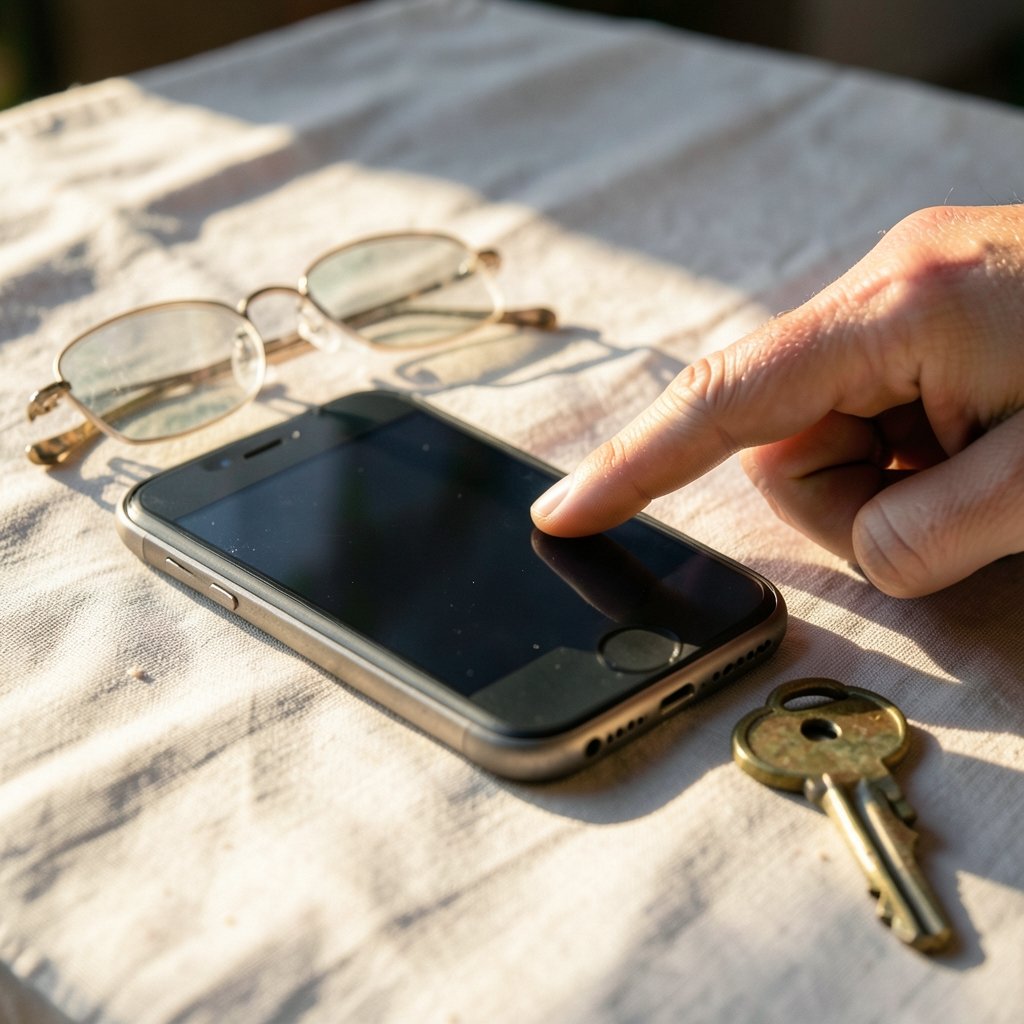
Devices like the iPhone SE (second and third generation), iPhone 8, and earlier models use a different sequence. Press and hold the Side button (or the Top button on very old models), then immediately press and release the Home button. Releasing the Home button too early, before the Side button registers, is the classic failure here. The two presses need to overlap for a split second.
If the phone has Touch ID and the Home button feels stiff or unresponsive, a screenshot may fail intermittently. Cleaning around the button or testing with a lighter tap usually resolves it.
Where Screenshots Actually Go
Every screenshot saves to the Photos app in a dedicated album called Screenshots. This is a detail worth internalizing, because people often take a screenshot, assume it vanished, and take it three more times. The Photos app also sorts screenshots by date alongside regular images, so the Screenshots album is the fastest place to find them.
From the thumbnail preview, users can immediately share, edit, or delete the capture without ever opening Photos. That preview window lasts only a few seconds, so the habit of tapping it right away pays off. Anyone who has ever tried to find a website from a screenshot knows how useful that quick preview can be for grabbing context before the image disappears into the library.
The Thumbnail Has More Impact Than It Looks
Tapping the thumbnail opens a markup editor with a surprisingly deep toolkit. Users can draw with a pen, highlight text, add arrows, drop in text boxes, insert a signature, and even adjust opacity. Apple documents this markup workflow in its support materials, and it is the single most underused feature tied to screenshots.
Practical uses abound. Circle a charge on a hotel bill. Add an arrow to a confusing map route. Sign a consent form photographed on the spot. Crop out a notification banner that would otherwise reveal a private message. The crop tool sits in the top-right corner of the editor, and it is worth learning because sloppy screenshots leak information more often than people realize.
A common mistake: editing the screenshot and then forgetting to tap Done. Backing out of the editor without saving discards the changes, and the original screenshot remains untouched in Photos. The edited version only replaces the original after Done is tapped.
Full Page Screenshots in Safari
One of the most useful hidden features is the Full Page screenshot. Take a screenshot while viewing a webpage in Safari, tap the thumbnail, and switch from Screen to Full Page at the top of the editor. iOS then stitches the entire webpage, top to bottom, into a single long image.
This is ideal for archiving recipes, saving terms and conditions, or capturing a long article before a paywall appears. The option only shows up in Safari and a handful of other apps that support it. In most third-party apps, the Full Page toggle simply is not there, which confuses users who expect it everywhere.
Full Page captures can be saved as a PDF or as an image. The PDF option preserves text searchability, which matters for anyone who later needs to find a specific phrase inside the capture.
AssistiveTouch: The Button-Free Route
Not everyone can comfortably press two buttons at once. People with limited hand mobility, or anyone using a case with stiff button covers, can enable AssistiveTouch under Settings > Accessibility > Touch. Once active, a floating on-screen button appears. Tapping it and choosing Device > More > Screenshot captures the screen without touching a physical button.
AssistiveTouch takes a few minutes to configure and adds a persistent overlay to the screen, which some users find distracting. The trade-off is worth it for anyone who takes dozens of screenshots daily or struggles with the hardware combo.
Back Tap: Double-Tap the Back of the Phone
Since iOS 14, iPhone users can assign a screenshot to a Back Tap gesture. Head to Settings > Accessibility > Touch > Back Tap, then choose either Double Tap or Triple Tap and assign it to Screenshot. After that, tapping the back of the phone captures the screen instantly.
Back Tap is fast and feels almost magical once configured. It has two quirks. First, a thick case can dampen the tap and cause missed triggers. Second, accidental taps happen, especially when setting the phone down on a table, which can fill the camera roll with mystery screenshots. Triple Tap tends to be the safer assignment for most people.
Siri and the Shortcuts App
Saying “Hey Siri, take a screenshot” works on supported devices, though Siri’s response speed makes it slower than the button combo for quick captures. It shines in hands-free situations, like when the phone is propped up across the room.
The Shortcuts app goes further. Users can build an automation that takes a screenshot, renames it, and files it into a specific folder or sends it to a note. For anyone documenting expenses or archiving receipts regularly, a one-tap shortcut removes the manual sorting entirely. Setting one up takes about two minutes and saves hours over a year.
Which Method Fits Which Situation
| Situation | Best Method | Why |
|---|---|---|
| Quick capture of a message | Volume Up + Side button | Fastest, no setup required |
| Limited hand mobility | AssistiveTouch | No simultaneous button press |
| Hands-free capture | Siri | Works from across the room |
| Frequent daily screenshots | Back Tap | One gesture, instant result |
| Archiving a long webpage | Full Page in Safari | Captures the entire page rather than only the screen |
| Automated filing | Shortcuts app | Renames and sorts automatically |
Why Screenshots Sometimes Fail
A screenshot that does not work is almost always one of four problems. The buttons were held too long, triggering the power slider. One button was pressed before the other with too much delay. A thick case is blocking the buttons from fully depressing. Or the phone is frozen, in which case a forced restart resolves it.
There is also a storage angle. When an iPhone runs out of space, screenshots can fail silently or save as blank images. Checking available storage under Settings > General > iPhone Storage is a sensible first step when captures stop appearing.
Screen recording, a close cousin of the screenshot, can also interfere. If a screen recording is active, the screenshot still works, but the flash may not appear, leaving users unsure whether the capture succeeded. Checking the Screenshots album settles the question.
Screenshots and Privacy: A Habit Worth Building
Screenshots are convenient and quietly risky. A capture of a banking app can include account digits. A screenshot of a chat can expose a contact’s name and photo. A capture of a delivery confirmation can reveal a home address. Before sharing any screenshot, a thirty-second crop and blur pass prevents most accidental leaks.
The markup editor includes a highlighter and pen, but neither truly redacts text. A determined viewer can sometimes read through a thin marker stroke. The reliable approach is to crop the sensitive area out entirely or place a solid filled shape over it. That habit matters more as screenshots increasingly serve as receipts, tickets, and proof of transactions.
Small Habits That Make Screenshots Better
A few practical routines separate casual users from people who never lose a capture. Name important screenshots immediately, since iOS lets users rename an image from the share sheet. Favorite the ones that serve as reference material, like insurance cards or Wi-Fi passwords, so they surface at the top of the album. Delete the clutter monthly, because screenshot albums balloon quickly and bury the images that matter.
It also helps to know the device. Someone weighing an upgrade and wondering how much the iPhone 17 costs should confirm the button layout first, since every modern model uses the same Volume Up plus Side button combo. Buyers comparing options, or checking the iPhone price in the Philippines before a purchase, can rest assured that the screenshot gesture has stayed consistent across generations. That consistency is a small but genuine quality-of-life win. (Iphone philippines price)
Conclusion
Screenshotting on an iPhone takes about one second once the muscle memory sets in. The core gesture, Volume Up plus Side button on Face ID models and Home button plus Side button on older devices, covers the vast majority of needs. Everything beyond that, from Full Page captures in Safari to Back Tap and AssistiveTouch, exists to solve specific problems: long webpages, limited mobility, and high-volume workflows.
The real skill is not the button press. It is knowing what happens next. Tapping the thumbnail opens editing tools that turn a raw capture into something clean and shareable. Cropping before sending protects private information. Filing captures through Shortcuts keeps the camera roll from turning into a junk drawer. Master those habits, and the humble screenshot becomes one of the most reliable tools on the phone.
How do you take a screenshot on an iPhone with Face ID?
Press the Volume Up button and the Side button at the same time, then release both quickly. The screen flashes, and a thumbnail appears in the lower-left corner. Avoid holding the buttons, since a long press triggers the power-off slider instead.
How do you screenshot on an iPhone with a Home button?
Press and hold the Side or Top button, then immediately press and release the Home button. The two presses need to overlap briefly. Releasing the Home button too early is the most common reason the capture fails.
Where do iPhone screenshots get saved?
Screenshots save automatically to the Photos app inside a dedicated album called Screenshots. They also appear in the main photo library sorted by date. The thumbnail preview lets users share, edit, or delete a capture before it ever reaches Photos.
Can you take a screenshot without using the buttons?
Yes. AssistiveTouch under Settings > Accessibility > Touch adds an on-screen button with a Screenshot option. Back Tap, found in the same Accessibility menu, assigns a double or triple tap on the back of the phone to capture the screen. Siri also responds to a spoken screenshot request.
How do you capture an entire webpage instead of just the visible screen?
Take a screenshot in Safari, tap the thumbnail, and switch from Screen to Full Page at the top of the editor. iOS stitches the whole page into one long image, which can be saved as an image or a searchable PDF.
Why is my iPhone screenshot not working?
The usual causes are holding the buttons too long, pressing them with too much delay between them, a thick case blocking the buttons, or a frozen phone. Low storage can also cause blank or missing captures. A forced restart and a quick check of iPhone Storage resolve most cases.