
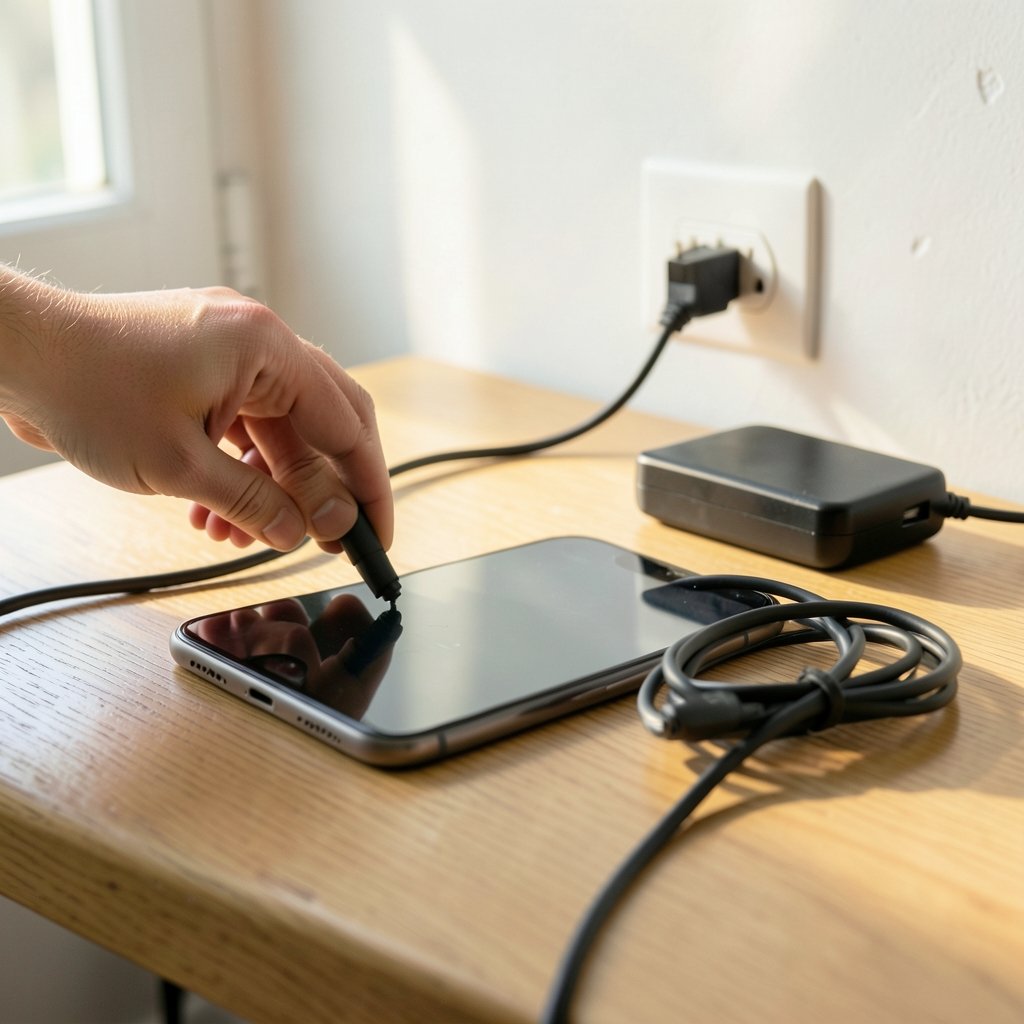
A dead iPhone is a special kind of modern panic. One minute you’re scrolling, the next the screen goes black and refuses to wake up, no matter how many times you jam the cable in. Here’s the reassuring part: a huge share of “won’t charge” cases are caused by lint, a tired cable, or a software hiccup, not a dead battery or a fried charging port. Apple itself has long pointed users toward simple hardware checks before anything drastic. This guide walks through what actually works, in the order that saves the most time and money.
Start With the Boring Stuff: Cable, Adapter, and Outlet
Before you assume the worst, isolate the power chain. The charging system has three parts: the cable, the power adapter, and the wall outlet. Any one of them can fail while looking perfectly fine.
Try a different cable first. Cables break internally near the connector, where the strain is highest, and the damage is often invisible. Then swap the adapter, and finally plug into a different outlet or a different USB port if you’re charging from a laptop.
A common mistake is testing with a cable that “works for data” or that charges another device slowly. A cable can pass enough power to keep a phone alive while failing to deliver a proper charge. Use a known-good cable and adapter, ideally ones you’ve recently used successfully on another device.
If the iPhone charges fine with a different setup, you’ve found your culprit. Replace the bad part and move on. This single step resolves a surprising number of cases.
Clean the Charging Port (Gently)
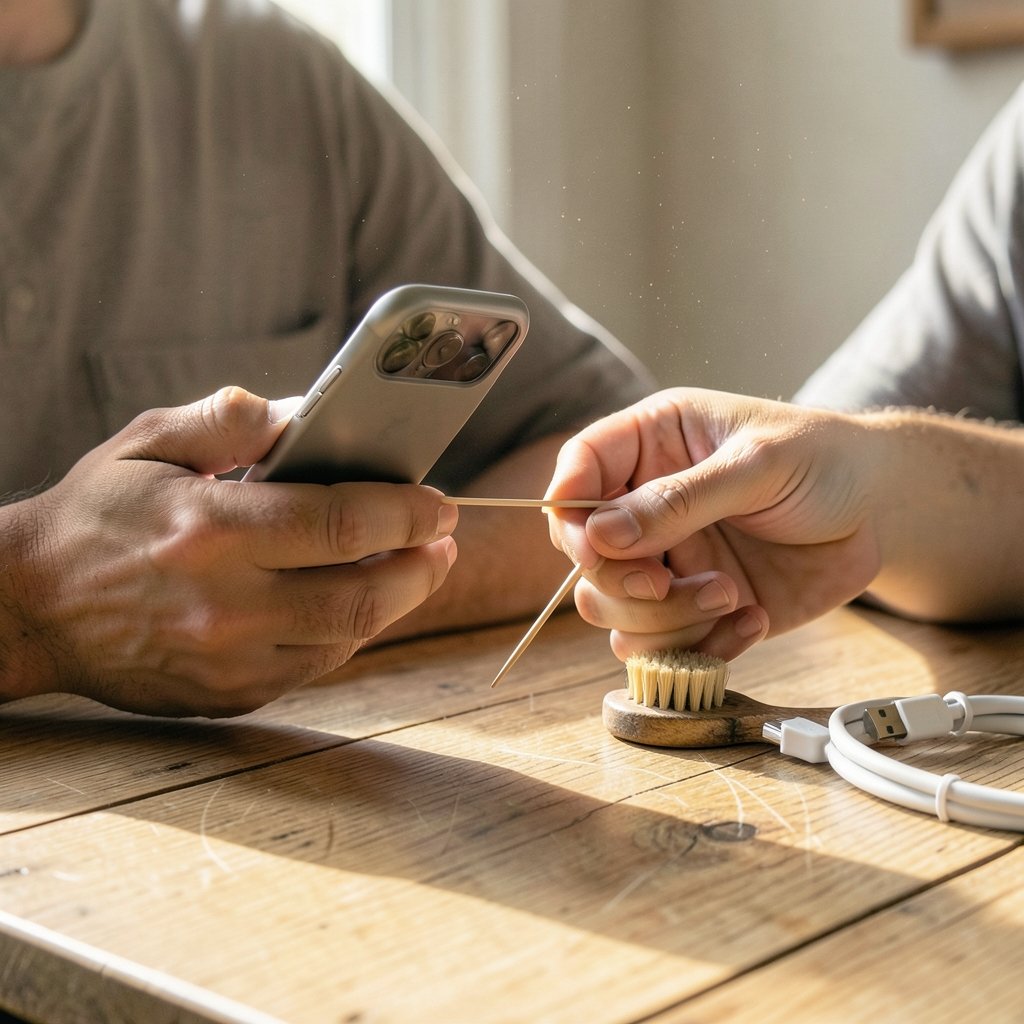
Lint is the quiet villain of iPhone charging problems. Pockets are full of fabric fibers, and every time you slide the phone in, a little more debris compresses into the bottom of the charging port. Over months, that fluff packs into a dense plug that stops the cable from seating fully.
Apple’s support guidance has historically included inspecting the port for debris. The key word is gently. Here’s what works in practice:
- Turn the phone off.
- Shine a flashlight into the port at an angle. You’ll often see a gray or white matted layer at the bottom.
- Use a wooden toothpick or a plastic dental pick. Never use metal, like a paperclip or pin, because you can scratch the contacts or damage the pins.
- Scoop along the back wall of the port, not straight down. Debris usually collects against one side.
- Tap the phone lightly against your palm to shake loose particles, then try charging again.
Skip the canned air. It tends to push lint deeper rather than remove it, and the propellant can leave residue. Also avoid blowing into the port with your mouth, since moisture from your breath isn’t helpful near electronics.
If you see corrosion, greenish residue, or a bent pin, stop poking and move to the service section below.
Force Restart the iPhone
Sometimes the phone isn’t failing to charge at all. It’s frozen in a state where the charging screen won’t appear, or the battery indicator is stuck. A force restart clears that without erasing anything.
The button combination depends on the model, and getting it wrong is one of the most common reasons people think a force restart “didn’t work.” On modern Face ID iPhones, the sequence is: press and quickly release volume up, press and quickly release volume down, then press and hold the side button until the Apple logo appears. Older models with a Home button use different combinations involving the Home and side or top buttons.
If you’re juggling several Apple devices and want to know which one is worth keeping before you invest in repairs, a look at the best iphone to buy can put the repair-versus-replace decision in perspective. (iPhone)
Check for Liquid and Moisture Warnings
If your iPhone took a splash, a tumble into a sink, or a sweaty gym session, moisture may be interfering with charging. Apple’s liquid-contact guidance has evolved across model generations, and newer iPhones can detect moisture in the connector and refuse to charge as a safety measure.
What to do: unplug the cable immediately, tap the phone gently with the connector facing down to shake out loose droplets, and let it air dry in a well-ventilated spot. What not to do: charge it anyway, dry it with a hair dryer, or stuff it in rice. Rice is a persistent myth; it does little for a sealed phone and can introduce dust into the port.
If a moisture warning appears on screen, wait for it to clear before plugging in. Charging a wet connector risks corrosion that turns a temporary problem into a permanent one.
Rule Out Software and Settings
Hardware gets the blame, but settings cause plenty of false alarms.
Optimized Battery Charging is the big one. Introduced back in iOS 13, this feature learns your routine and deliberately pauses charging at around 80 percent, finishing shortly before you wake up. If you plug in at night and see the battery sitting at 80 percent with a message about charging on hold, that’s the feature working as intended, not a fault. You can disable it temporarily in Settings under Battery, though leaving it on generally helps long-term battery health.
Other settings to check:
- Charging on hold due to temperature. iPhones pause charging when the battery gets too warm. If the phone feels hot, unplug it, remove the case, and let it cool.
- Low Power Mode confusion. This doesn’t block charging, but it can make charge rates look odd.
- A stuck update or restore. If the phone is mid-update and frozen, a force restart or a computer-based restore may be needed.
If your iPhone is running strangely in general, slow charging combined with lag and heat sometimes points to background processes eating resources. The same principle applies on other platforms, where runaway services can drag performance down; our guide on how to fix antimalware service executable high cpu usage covers that pattern on Windows.
Inspect Battery Health Before You Panic
Open Settings, then Battery, then Battery Health and Charging. This screen shows maximum capacity and whether the battery has hit a service threshold. A battery that has degraded significantly holds less charge and may shut down unexpectedly under load, which can look like a charging failure.
Here’s the practical rule: maximum capacity in the low 80s or below, combined with random shutdowns, is a strong signal that a battery replacement is due. A healthy percentage paired with a phone that won’t charge points back to the cable, port, or charging circuitry instead.
One thing worth knowing: third-party replacement batteries can trigger warnings on newer iPhones, and some features may behave differently. If battery health is your concern, an authorized repair keeps things simple.
Wireless Charging: Alignment, Cases, and Wattage
If wired charging fails but wireless works, the problem is almost certainly the port or cable. If wireless charging is the one misbehaving, check three things.
| Issue | What to check | Fix |
|---|---|---|
| Phone not charging on pad | Coil alignment | Center the phone on the pad; MagSafe magnets help |
| Charges slowly or stops | Case thickness or metal in case | Remove the case and retry |
| No power at all | Adapter wattage too low | Use a higher-wattage adapter rated for the pad |
Wireless charging is also less efficient, so it generates more heat. A phone that charges fine on a cable but overheats on a pad may simply be getting too warm, triggering a safety pause.
When to Contact Apple Support or a Repair Shop
Some problems need a professional. Escalate if any of these apply:
- The port is visibly damaged, bent, or corroded.
- The phone shows a liquid warning that won’t clear after drying.
- You’ve tried a known-good cable, adapter, outlet, a clean port, and a force restart, and nothing works.
- The phone gets unusually hot while plugged in, or the connector sparks.
- Battery health shows a service message.
For charging issues, Apple Support and authorized service providers are the safest route, since port repairs involve opening the device and dealing with tightly packed internal components. DIY port swaps on modern iPhones are genuinely difficult and can kill features like water resistance.
If you’re weighing a repair against an upgrade, timing matters. Knowing how much does the iphone 17 cost helps you decide whether a $90 port repair still makes sense or whether it’s time to move on.
Habits That Prevent Charging Problems
Prevention is cheaper than repair. A few habits go a long way:
- Keep the phone out of lint-heavy pockets, or use a case with a port cover.
- Never yank the cable out by the cord; grip the connector.
- Avoid charging in direct sun, on dashboards, or under pillows, where heat builds up.
- Use certified cables. Cheap unbranded ones fail more often and can damage the port over time.
- Clean the port every few months as routine maintenance, rather than waiting for a failure.
Small habits beat dramatic rescues every time.
A Quick Reality Check on Repair Costs and Timing
Charging port repairs typically sit in the modest range compared with screen or back-glass replacements, which is why most people repair rather than replace. Battery replacements are similarly affordable and often restore normal behavior overnight. The math changes if the phone is several generations old and already showing other wear.
Here’s the test worth running before you book anything: does the phone charge reliably with a different cable, adapter, and outlet after a port cleaning and a force restart? If yes, you’ve solved it for free. If no, get a quote before deciding.
Patience during diagnosis saves more money than any single fix.
Conclusion
An iPhone that won’t charge is rarely a catastrophe. Work through the chain in order: swap the cable and adapter, clean the port gently with a non-metal tool, force restart the phone, check for moisture and heat, and review battery health and charging settings. Most people find their answer in the first three steps. If the port is damaged or the battery has genuinely degraded, professional service is the right call, and it’s usually far cheaper than a new phone. The real skill here isn’t knowing a secret trick; it’s being systematic instead of panicking. Try one variable at a time, and you’ll almost always find the weak link.
Frequently Asked Questions
Why is my iPhone not charging even though the cable is plugged in?
The most common causes are lint packed into the charging port, a cable that’s failed internally, or a software hang that hides the charging indicator. Try a known-good cable and adapter, inspect and gently clean the port with a wooden or plastic tool, and force restart the phone. If none of that works, the port or battery may need service.
How do I clean my iPhone charging port safely?
Turn the phone off, shine a light into the port, and use a wooden toothpick or plastic dental pick to scoop debris along the back wall. Never use metal objects like paperclips, and skip canned air, which tends to push lint deeper. If you see corrosion or bent pins, stop and get professional help.
Why does my iPhone stop charging at 80 percent?
That’s usually Optimized Battery Charging, a feature introduced in iOS 13 that pauses charging at around 80 percent and finishes before you typically wake up. It’s designed to reduce battery aging. You can turn it off temporarily in Settings under Battery, though leaving it on is generally better for long-term battery health.
Can a bad battery stop an iPhone from charging?
Yes, in a roundabout way. A heavily degraded battery holds less charge and can cause unexpected shutdowns that look like charging failures. Check Settings, then Battery, then Battery Health and Charging. Maximum capacity in the low 80s or below, combined with random shutdowns, suggests a battery replacement is due.
Is it safe to charge my iPhone if it got wet?
Not immediately. Unplug it, tap it gently with the connector facing down, and let it air dry in a ventilated spot. If a moisture warning appears, wait for it to clear before plugging in. Avoid hair dryers and rice, since heat and dust can cause more harm than good.
When should I stop troubleshooting and see a repair technician?
Escalate if the port is visibly damaged or corroded, a liquid warning won’t clear, the phone gets unusually hot while plugged in, or you’ve tried a known-good cable, adapter, outlet, port cleaning, and force restart with no result. Authorized service is the safest option for port repairs on modern iPhones.



