
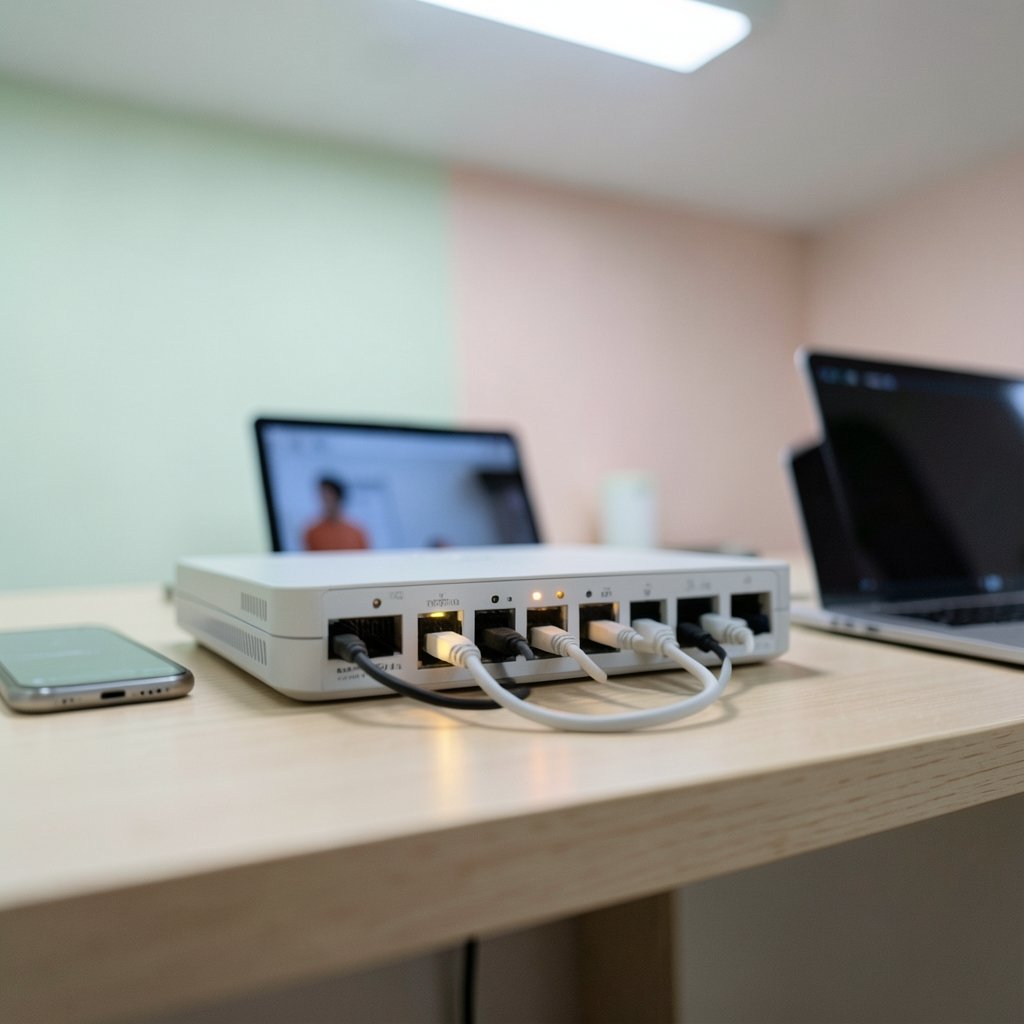
A router is the one device in the house that every phone, tablet, laptop, and smart TV must pass through to reach the internet. That makes it the single most powerful place to set rules. Block a site at the router, and it’s blocked on every device at once, no matter which app or browser someone opens. It’s the closest thing to a master switch most families will ever own.
The catch is that router parental controls are only as good as their setup. A half-configured filter gives parents a false sense of security, and a heavy-handed one breaks homework, video calls, and smart-home gear. This guide walks through the whole process in order, from logging in to testing the rules, plus the workarounds kids find and how to close them.
Why the Router Beats Per-Device Controls
Most parents start with the tools built into a phone or a game console. Those work, but they’re fragmented. An iPhone’s Screen Time settings do nothing for a Windows laptop or a Nintendo Switch. A router-level rule covers all of them.
There’s a second reason: kids are fast learners. They know how to uninstall an app, create a second profile, or borrow a friend’s device. Router rules are harder to undo because they live on equipment most kids never touch. The trade-off is that router controls are usually blunter. They can block categories, schedules, and specific devices, but they rarely understand what a page says the way a dedicated filtering app does.
The practical answer for most families is a layered approach: router rules as the foundation, device-level tools on top for finer control. For households that also manage other shared systems, the same logic of centralizing settings applies to things like a modem router combo, where one admin panel controls both the connection and the filtering.
Step 1: Get Into the Router’s Admin Panel
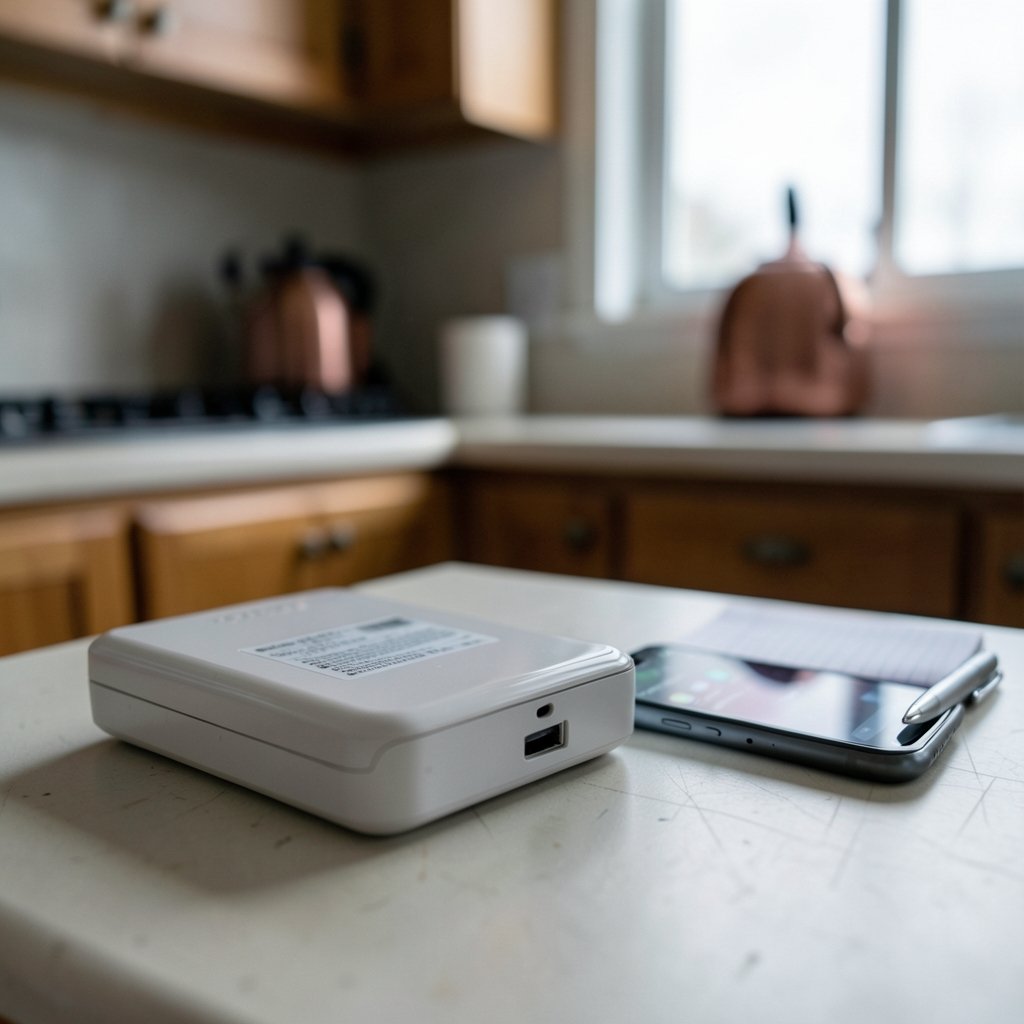
Every setup starts here. You need three pieces of information: the router’s IP address, the admin username, and the admin password.
Finding the IP address. The most reliable method is the sticker on the router itself. It usually lists the login address (often something like 192.168.1.1 or 192.168.0.1), the default username, and the default password. If the sticker is gone, check the device’s network settings on a phone or laptop; the “router” or “gateway” entry is the address you need.
Logging in. Open a browser and type the address into the URL bar. A login page appears. If the default credentials don’t work, someone changed them, and you may need to reset the router with the pinhole button on the back.
Change the admin password immediately. Default passwords are published in manuals and posted online. An unchanged admin password means anyone on your Wi-Fi, including a clever teenager, can undo every rule you set. This is the single most common mistake in router security, and it’s the one that quietly undermines everything else.
Step 2: Update the Firmware First
Before configuring anything, check for firmware updates. Router manufacturers patch security holes and add features through firmware, and older models sometimes stop receiving updates entirely. If your router hasn’t been updated in years, its parental controls may be missing options that newer firmware includes.
The update option usually sits under Administration, System, or Advanced in the admin panel. Some routers check automatically; others require a manual download. It’s worth doing once, then setting a reminder to check every few months. A router that no longer receives security updates is a genuine risk, regardless of how good its filtering is.
Step 3: Decide What You’re Actually Trying to Control
Before clicking through menus, get specific. “Keep the kids safe online” is too vague to configure. Useful goals look like this:
- Block adult content and gambling sites across all devices
- Pause internet access at bedtime and during homework hours
- Limit a specific child’s device to a set of approved apps
- Stop late-night gaming without cutting off the whole house
Each goal maps to a different feature. Content filtering handles the first. Scheduling handles the second and fourth. Per-device rules handle the third. Knowing which one you need saves a lot of menu-hunting.
Step 4: Set Up Content Filtering
Content filtering is the core of most router parental controls. There are two main approaches, and they behave differently.
Built-in Category Filtering
Many modern routers from major brands include a parental controls section with preset categories: adult content, violence, gambling, social media, and so on. You tick the categories you want blocked, and the router filters traffic for selected devices or the whole network.
The advantage is simplicity and no extra cost. The limitation is accuracy. Category filters work by matching domain names against lists, so they can block a legitimate health site that mentions anatomy and miss content hosted on a domain that isn’t on the list. Expect some false positives and some gaps.
DNS-Based Filtering
A second option is to point the router’s DNS settings at a family-safe DNS service. DNS is the system that translates a web address into a server location; a filtering DNS service simply refuses to translate addresses on its blocklist. Because the setting lives on the router, every device on the network inherits it automatically.
This approach is fast, free at the basic tier, and works on almost any router, including older ones without built-in parental controls. Several providers offer family-filtering DNS addresses that you enter under the router’s Internet or WAN settings. The trade-off is that it filters by domain only, and a determined user can switch a device to a different DNS server or use a VPN to bypass it. (Children’s Internet Protection Act)
| Feature | Built-in router filtering | DNS-based filtering |
|---|---|---|
| Works on older routers | No | Yes |
| Cost | Included | Free tier available |
| Per-device rules | Usually yes | Network-wide only |
| Easy to bypass | Moderate | Easier |
| Setup difficulty | Low | Low |
For most families, built-in filtering plus a family DNS as a backstop is a sensible combination. The router handles per-device rules; the DNS catches devices that slip past.
Step 5: Create Device Profiles and Schedules
This is where router controls earn their keep. Most parental control panels let you group devices into profiles, one per child, then apply different rules to each.
Start by identifying devices accurately. A profile labeled “Emma” is useless if it only covers her phone and not her laptop. Walk through the connected-devices list and assign each one. Give devices clear names in the router’s device list so you can tell them apart later; “android-4f2a” tells you nothing in six months.
Then set schedules. Bedtime cutoffs are the most popular feature for good reason: they remove the nightly negotiation. A schedule that shuts off internet access at 9:30 p.m. on school nights enforces itself. Some routers also support “homework hours” that block entertainment categories while leaving research sites open.
A few practical notes from experience:
- Leave a grace period. A hard cutoff mid-video-call is jarring. A five-minute warning, where some routers offer one, reduces friction.
- Don’t schedule the whole network unless you mean it. Smart thermostats, security cameras, and streaming boxes often share the same network. Schedule per device.
- Test the schedule before relying on it. Set it for five minutes from now and watch what happens.
Step 6: Test Everything From the Child’s Point of View
Configuration is only half the job. The other half is verification, and it should be done on the actual devices, not from the admin panel.
Open a browser on the child’s device and try a site you blocked. Try a search engine and search for a blocked term. Try the app versions as well as the website, because apps often route traffic differently. Then try the obvious workarounds:
- Switching to mobile data. Router controls cannot touch cellular connections. If a device has a SIM card, the router is irrelevant the moment Wi-Fi is off.
- Using a VPN. A VPN encrypts and reroutes traffic so the router can’t see or filter it. Many free VPN apps are one tap away.
- Changing DNS settings. On some devices, a user can set a custom DNS and bypass DNS filtering entirely.
- Connecting to a neighbor’s Wi-Fi or a hotspot. Nothing on your router applies.
Each of these has a countermeasure. On phones, device-level restrictions can block VPN installation and cellular data for specific apps. On the router, some models let you block known VPN and proxy categories. The honest summary is that no single layer is airtight, which is why layering matters.
If your household also runs a gaming console or a shared PC, the same principle applies to other connected systems: centralize the settings, then verify on the device. Families managing shared devices often find that a dedicated horse racing board game or a classic like the rules for backgammon board game makes for a better offline evening than another screen-time argument.
Step 7: Lock Down the Router Itself
All the filtering in the world is pointless if the child can log in and turn it off. Close the obvious doors:
- Change the admin password to something long and unique.
- Disable remote administration so the panel isn’t reachable from outside the home.
- Use WPA2 or WPA3 encryption on Wi-Fi with a strong passphrase.
- Consider a guest network for visitors and IoT devices, kept separate from the kids’ devices.
- Check whether the router supports an admin app with its own PIN, and secure that too.
One underrated step: keep the router physically out of reach if possible. A reset button is a universal bypass.
Common Mistakes and What Actually Works
After the setup is done, a few patterns separate configurations that hold up from ones that collapse in a week.
Mistake one: setting rules nobody explained. A sudden block with no conversation reads as punishment and invites circumvention. A short conversation about why the rules exist, and what to do when a legitimate site gets blocked, prevents most conflict.
Mistake two: over-blocking. Blocking social media entirely often backfires, because group chats are how kids coordinate homework and social plans. Blocking categories selectively, or scheduling access rather than eliminating it, tends to last longer.
Mistake three: never reviewing. Kids grow, devices change, and filters drift. A quarterly review of profiles and schedules keeps the setup relevant.
Mistake four: forgetting the other screens. A tablet that lives at a grandparent’s house, a school laptop, a friend’s console. The router only governs what connects to it.
What works, in practice, is boring: a strong admin password, a family DNS backstop, per-device schedules, device-level tools on phones, and a household agreement that everyone understands. The technology handles the mechanical part; the agreement handles the rest.
When to Consider a Dedicated Parental Control Service
If your router is old, its built-in tools are thin, or you want app-level detail like time limits per app and detailed activity reports, a subscription service may be worth it. These services typically combine DNS filtering with apps installed on each device, closing some of the bypass gaps a router alone leaves open.
The trade-off is cost and complexity. For many families, the router’s built-in tools plus free family DNS cover the essentials. For others, especially those with several children of different ages, the extra granularity pays for itself in fewer arguments.
Conclusion
Router parental controls are the most efficient first layer of online safety a family can deploy, because one configuration covers every device that joins the network. The process is straightforward: log in, change the admin password, update the firmware, choose between built-in filtering and family DNS, build per-device profiles with schedules, and then test from the child’s side rather than the admin panel. The step most people skip is the last one, and it’s the one that reveals whether the setup actually works. Combine router rules with device-level tools, keep the conversation open, and review the settings periodically. No configuration is permanent, and none is perfect, but a well-built one makes the easy workarounds noticeably harder.
Frequently Asked Questions
Do router parental controls work on phones using mobile data?
No. Router controls only apply to traffic that passes through the router. The moment a phone switches to cellular data, those rules no longer apply. To cover mobile use, you need device-level restrictions on the phone itself, or a carrier-level filtering service.
Can kids bypass router parental controls?
Yes, with effort. Common methods include using a VPN, changing a device’s DNS settings, switching to mobile data, or connecting to a different network. Each can be countered with device-level restrictions and router settings that block VPN categories, but no single layer is completely airtight.
What is the difference between DNS filtering and built-in router filtering?
Built-in filtering runs on the router’s own software and usually supports per-device rules and schedules. DNS filtering works by pointing the router at a family-safe DNS service, which blocks domains network-wide. DNS filtering works on almost any router but is easier to bypass and offers less granularity.
Will parental controls slow down my internet?
In most cases, no noticeable amount. Filtering adds a tiny amount of processing to each request, and modern routers handle it without difficulty. Older routers with limited processors may show a small slowdown when filtering is enabled on a busy network.
How do I stop my child from resetting the router?
Keep the router physically out of easy reach, since the reset button bypasses every setting. Also secure the admin panel with a strong password, disable remote administration, and check whether the router’s mobile app has its own separate PIN that needs protecting.
Do I need to set up parental controls on every device too?
It’s strongly recommended. Router controls cover the home network, but they can’t see cellular data, VPN traffic, or devices used outside the house. Device-level tools fill those gaps and add features like app-specific time limits that routers rarely offer.



