

Apple shipped roughly 40 million smartwatches in a single year at its peak, according to Statista’s wearable market data, which means millions of people strap a tiny computer to their wrist and never touch half its settings. That is a shame, because an Apple Watch set up with intention feels dramatically faster, lasts longer on a charge, and delivers the health data people actually bought it for. The good news: getting there takes about twenty minutes and zero technical expertise.
Quick Answer: How do i set up apple watch for the best performance?
The fastest path to a snappy, long-lasting Apple Watch is to pair it with an updated iPhone, install the latest watchOS, and then trim the settings that quietly drain battery and slow the interface, such as the always-on display, background app refresh, and a cluttered watch face. Most of these controls live in the Watch app on the iPhone, with a few tucked into Settings on the watch itself.
There is no official “performance mode” Apple publishes, so treat any guide claiming one with skepticism. What works instead is a handful of well-documented battery and troubleshooting settings applied in the right order, plus a clean re-pair if things get stuck.
Before starting, check the iPhone model and iOS version, the watchOS version, available storage on both devices, your Wi-Fi connection, and whether the watch is charged above 50 percent.
Start With the Basics: Pairing Done Right
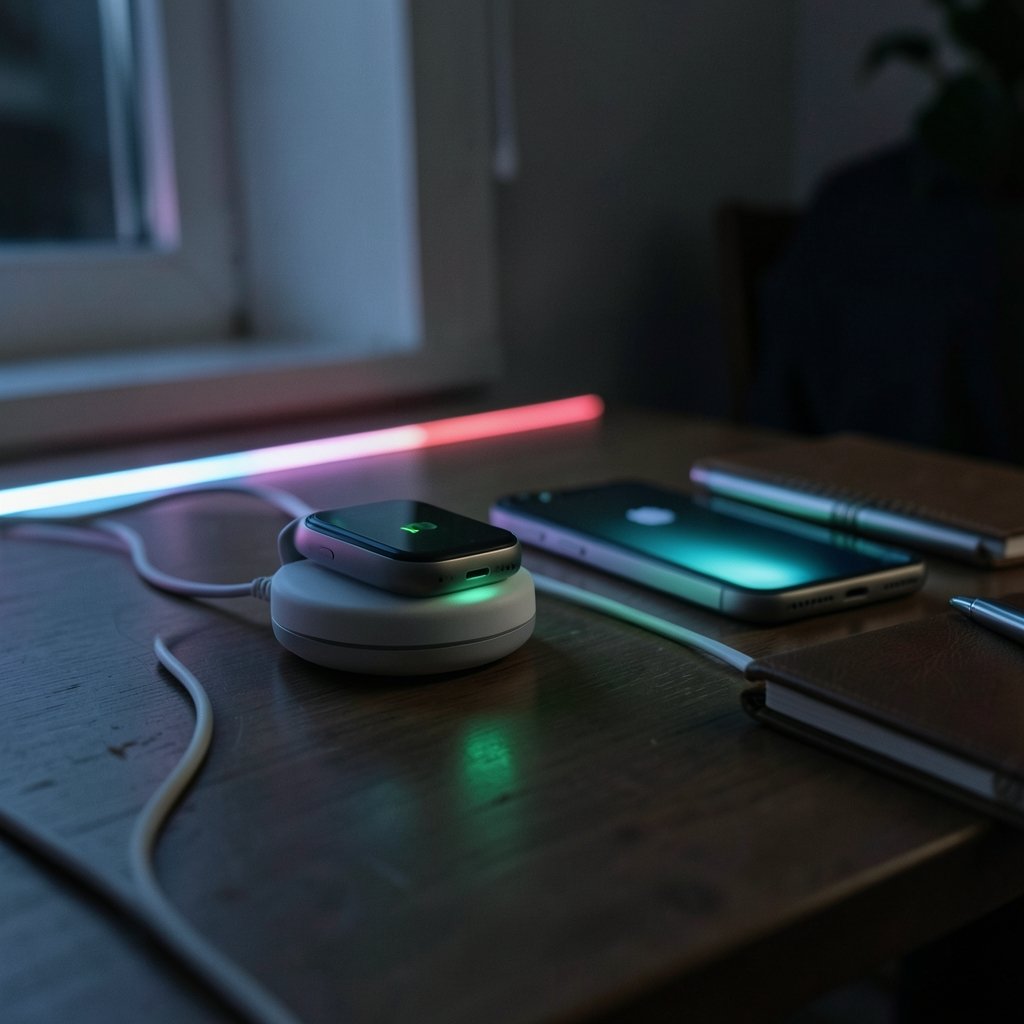
The single biggest cause of a sluggish Apple Watch is a sloppy first setup. Pairing over a weak connection or with mismatched software versions creates a watch that stutters, drops notifications, and drains fast. Apple’s own guidance is that the watch and the paired iPhone should run current software together, since mismatched versions can block pairing or hide features entirely.
Here is the order that works in practice:
- Update the iPhone to the latest iOS before touching the watch.
- Charge the Apple Watch to at least 50 percent, ideally more.
- Keep the iPhone within arm’s reach, with Bluetooth and Wi-Fi both on.
- Open the Watch app, tap Pair New Watch, and hold the watch face up to the iPhone camera.
- Leave both devices alone during the initial sync. It can take ten to twenty minutes.
The most common mistake is walking away mid-setup or letting the iPhone lock repeatedly. Another is restoring from a backup made on an older watchOS version, which can drag stale settings forward. If the pairing fails twice, restart both devices before trying again rather than hammering the button.
If the watch is slow to update afterward, that is usually normal. Large watchOS updates often require the watch on its charger, near the iPhone, with a solid Wi-Fi connection. Patience here saves an hour of frustration later.
Update watchOS and iOS Together
Software is the foundation of performance. Each watchOS release brings background optimizations that older versions simply lack, and Apple generally expects the watch and iPhone to move forward in step. A watch stuck two versions behind will feel slow even with perfect settings.
To check: open the Watch app, go to General, then Software Update. Install any pending update while the watch sits on its charger. On the iPhone side, go to Settings, then General, then Software Update.
One practical tip that few people follow: turn off automatic updates for a week after a major release. Early watchOS builds occasionally ship with battery bugs that get patched within days. Waiting a short while and then updating deliberately beats being an unpaid beta tester.
Trim the Settings That Quietly Drain Battery
This is where most of the real gains live. Apple documents several battery-saving settings, and each one reduces background activity. The trade-off is real, so decide feature by feature rather than flipping everything off.
| Setting | Where to find it | What you gain | What you give up |
|---|---|---|---|
| Always-On Display | Settings > Display & Brightness | Noticeably better battery life | Glanceable time without raising your wrist |
| Background App Refresh | Watch app > General | Less background drain, snappier feel | Apps update less often in the background |
| Fewer complications | Watch app > Clock | Faster watch face, less redraw | At-a-glance data density |
| Optimized battery charging | Watch app > Battery | Slower battery aging over years | Nothing meaningful |
| Noise alerts and handwashing timer | Watch app > Noise / Handwashing | Less background sensing | Automatic reminders |
| Walkie-Talkie | Watch app > Walkie-Talkie | One less always-listening service | The feature itself |
Optimize Charging deserves special mention. It learns your routine and holds the battery below full until you need it, which reduces long-term chemical aging. It arrived around watchOS 7 and has been a quiet battery lifesaver ever since. Turn it on and forget it.
The always-on display is the most personal call. On newer models it is efficient, but on older ones it is the largest single drain. Anyone ending the day under 20 percent should try turning it off for a week and see whether they miss it. Most people, in practice, do not miss it nearly as much as they expect.
Choose a Lean Watch Face and Fewer Complications
A watch face packed with eight complications is a watch face that redraws constantly. Each complication is a small app querying for fresh data, and those queries add up. A lean face with three or four complications feels instant when you raise your wrist, while a crowded one can visibly lag on older hardware.
The practical approach: pick one face for work hours and one for evenings and workouts. Keep the work face to the essentials, such as time, date, activity rings, and one weather slot. Move everything else into the dock or the app grid.
Also prune the app grid itself. Every third-party app installed on the watch adds background refresh cycles and storage pressure. If an app has not been opened in a month, delete it from the watch and keep it on the iPhone. Storage matters more than people realize; a nearly full watch slows media sync and can stall updates.
Fine-Tune Notifications and Background Activity
Notifications are the hidden performance tax. Every mirrored alert wakes the display, triggers a haptic, and runs a small amount of processing. Multiply that by a busy Slack channel and the battery graph tells the story.
Go through the Watch app’s Notifications section and turn off mirroring for anything that is not genuinely time-sensitive. Social apps, shopping apps, and news alerts are the usual culprits. Keep messages, calls, and calendar alerts on.
Then revisit Background App Refresh with a sharper eye. The watch does not need to refresh a podcast app, a restaurant finder, and a currency converter every few minutes. Leave it on for fitness tracking, weather, and anything you genuinely glance at. Turn it off for the rest.
For anyone who also juggles a busy media setup, the same principle of trimming what runs in the background applies to other gear, whether that is choosing a stable keyboard stand for stage performance so nothing wobbles mid-set, or deciding between streaming services with an honest Apple Music vs Spotify comparison. Good performance is usually about removing friction, not adding features.
Use Focus Modes and Theater Mode Wisely
Focus modes do more for watch performance than most settings. When a Focus is active, the watch suppresses non-essential alerts, which means fewer wake events and less background chatter. Setting up a Sleep Focus and a Work Focus takes five minutes and pays off every single day.
Theater Mode is the other underused switch. It keeps the screen off until you tap it, which is perfect for meetings and movies and quietly saves battery. Water Lock does something similar for swimming.
A small habit worth building: use the Control Center shortcut for Theater Mode the way you would use silent mode on a phone. It is the single fastest way to stop the watch from lighting up constantly during a long day.
Troubleshooting When the Watch Feels Slow
Sometimes settings are not enough. If the watch lags, drains, or freezes, work through this sequence before assuming hardware failure:
- Restart the watch by holding both the side button and Digital Crown until the Apple logo appears.
- Restart the paired iPhone as well.
- Check for pending software updates on both devices.
- Free up storage by removing unused watch apps and synced media.
- As a last resort, unpair and re-pair the watch, restoring from a recent backup.
Re-pairing clears years of accumulated cruft, and many people report the watch feeling new afterward. It is the closest thing to a factory reset without losing data. Just make sure the iPhone backup is current first.
One more practical note: third-party watch faces and heavily animated faces are frequent offenders. If the watch gets hot or drains fast after installing one, remove it and observe for a day. It is almost always the face.
Keep the Battery Healthy for the Long Haul
Performance and battery health are the same conversation over a two- to three-year horizon. Lithium-ion batteries degrade with heat and with time spent at 100 percent. Optimized charging addresses the second factor; avoiding heat addresses the first.
In practice, that means not leaving the watch on a hot dashboard, not charging it under a pillow, and not topping it to full every single night if you do not need to. A watch that lives between 30 and 80 percent most days will hold its capacity noticeably longer.
For context on how much these devices matter to their owners and to Apple’s bottom line, the company’s wearable and services momentum shows up in its Apple stock price coverage, and the broader platform economics of the App Store are examined in analyses of the Apple scotus 27 percent app store fee 2026 ruling. None of that changes your wrist, but it explains why Apple keeps investing in watchOS polish. (Apple Watch)
Conclusion
Setting up an Apple Watch for the best performance is less about secret tricks and more about discipline. Pair it cleanly, keep watchOS and iOS in step, trim the battery-draining settings, run a lean watch face, and prune notifications and background refresh ruthlessly. That combination delivers a watch that responds instantly, lasts through a full day, and still holds its battery capacity two years from now.
The mistakes to avoid are equally simple: do not pair over a weak connection, do not restore from an ancient backup, do not cram eight complications onto one face, and do not assume a slow watch is a broken one. Most sluggishness is a settings problem, and the fix takes an afternoon. Treat the watch like the small computer it is, and it will quietly do its job for years.
FAQ
Does turning off the always-on display really improve battery life?
It does, and the effect is largest on older models. The always-on display keeps a dimmed version of the face visible at all times, which consumes power continuously. Turning it off means the screen only wakes when you raise your wrist, which can add hours of runtime on a busy day. Newer models are more efficient, so the trade-off is smaller but still real.
How often should I update watchOS?
Install updates once they have been out for a week or two and the early bug reports have settled. Waiting briefly avoids the occasional battery regression that ships with a brand-new release. After that window, update promptly, because each version brings background optimizations that older software lacks.
Why does my Apple Watch feel slow after a software update?
Indexing and background re-optimization run for a day or two after a major update, which temporarily drains battery and slows the interface. Give it 48 hours on the charger overnight before judging performance. If the sluggishness persists beyond that, restart both devices and check storage.
Can I use my Apple Watch with an older iPhone?
Compatibility depends on the watchOS version, and Apple publishes the minimum iPhone and iOS requirements for each release. In practice, a watch paired with a phone that is several iOS versions behind will lose features and may refuse to pair at all. Check the compatibility list before buying a new watch for an older phone.
Does deleting apps from the watch improve performance?
Yes, modestly but consistently. Each installed app adds background refresh cycles and consumes storage. Removing apps you rarely open reduces background activity and frees space for updates and media sync. You can keep the iPhone version and simply uninstall it from the watch.
Is it worth unpairing and re-pairing to fix a slow watch?
It is the most effective last resort. Re-pairing clears accumulated settings, cached data, and stale app states, and many people find the watch noticeably faster afterward. Back up the iPhone first, then unpair through the Watch app and set up as new or restore from the backup.



