
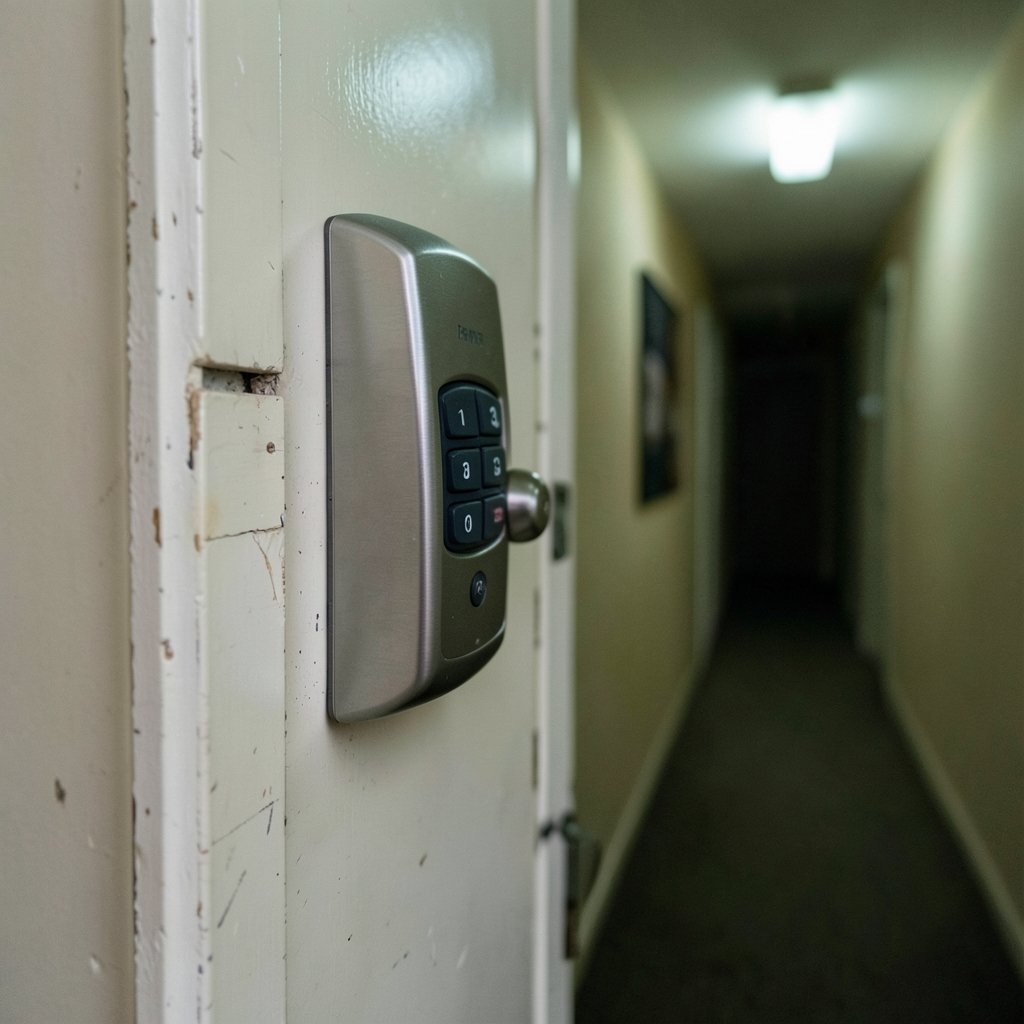
You tap “calibrate” in the app, watch the little progress wheel spin, and then a red message appears: calibration failed. The bolt is stuck somewhere between the locked and open positions, the app won’t let you finish setup, and your door is now a $200 paperweight. What went wrong?
Calibration is the moment a smart lock learns its own geometry. It has to know exactly how far the deadbolt travels, how much force it takes to throw the bolt, and where the fully locked and fully retracted positions sit. When that lesson fails, the lock is telling you something concrete about the door, the bolt, or the power supply. This guide walks through what the error actually means, the causes that show up most often, and the fixes that work in practice, plus the mistakes that keep people stuck in a calibration loop for hours.
What “Calibration Failed” Actually Means
Every motorized deadbolt runs a calibration routine during setup. The lock extends the bolt until it meets resistance, records that position as “locked,” retracts it until it stops, and records that as “unlocked.” Some locks also measure current draw to detect when the bolt is binding.
A calibration failure means the lock could not complete that routine within its expected parameters. The bolt didn’t reach the expected position, took too long, drew too much current, or the motor stalled. The app reports a single generic error, but the underlying cause is almost always mechanical, electrical, or a mismatch between the lock and its mounting.
One important distinction: not every “calibration failed” message is really about calibration. Some apps use the same error screen for pairing failures, connectivity drops, and firmware mismatches. If the lock never connected in the first place, the calibration routine may never have started. Check whether the lock is actually paired and online before you start adjusting hardware.
Vendors also word these errors differently. Some say “calibration failed,” others say “bolt jammed,” “installation error,” or “please check door alignment.” Don’t assume one brand’s fix applies to another. Read the specific message your app shows and treat it literally.
The Most Common Causes, Ranked by Likelihood
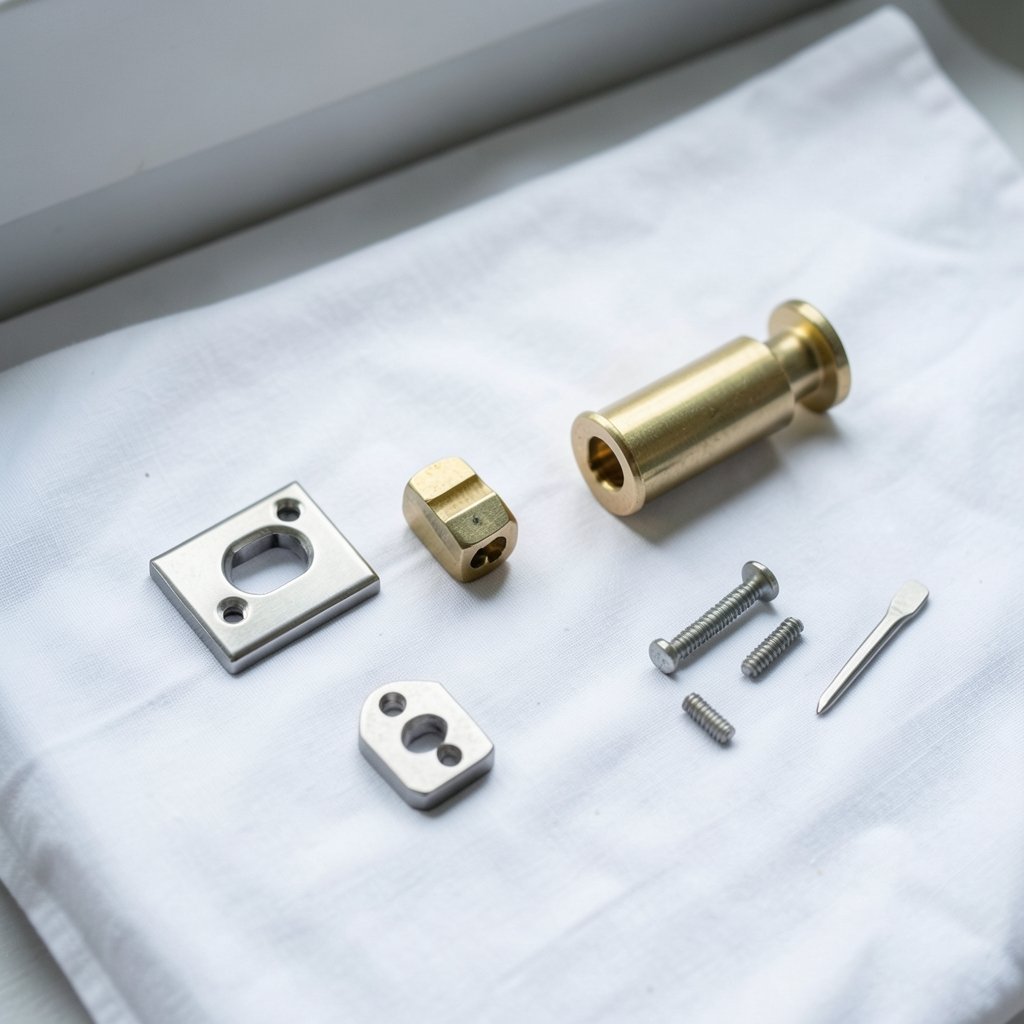
In practice, the causes fall into a fairly predictable order. Start at the top and work down.
| Rank | Cause | Typical Clue |
|---|---|---|
| 1 | Bolt binding against the strike plate | Bolt moves freely with door open, grinds with door closed |
| 2 | Door out of square or misaligned | Lock worked before seasonal weather change |
| 3 | Low or wrong batteries | Motor sounds weak, lock beeps oddly |
| 4 | Installation depth or backset issue | New install, bolt rubs the frame |
| 5 | Firmware or app mismatch | Lock pairs but calibration never completes |
| 6 | Faulty motor or sensor | Failure persists with lock removed from door |
Bolt Binding and Strike Plate Misalignment
This is the big one. The deadbolt has to slide into the strike plate hole cleanly. If the hole sits a millimeter too high, low, or shallow, the bolt hits metal and the motor stalls. The lock reads that stall as a failed calibration.
The test is simple: open the door, run calibration again. If it succeeds with the door open and fails with the door closed, you have an alignment problem, not a lock problem. That single test saves people hours of pointless app troubleshooting.
Door Geometry and Seasonal Movement
Wooden doors swell in humid weather and shrink in dry heat. A lock that calibrated perfectly in October can fail in July because the door has shifted a few millimeters. Older homes with settled frames are especially prone to this. If the failure appeared suddenly with no other changes, seasonal movement is a strong suspect.
Power Problems
Motorized bolts draw real current. Weak batteries cause slow retraction, and slow retraction trips the calibration timeout. Use the battery type the manufacturer specifies. Rechargeable cells often run at lower nominal voltage and can cause exactly this kind of intermittent failure. Fresh, correct batteries are the cheapest fix you can try.
Firmware and App Issues
Occasionally the hardware is fine and the software is confused. A lock running old firmware paired with a newly updated app can fail calibration repeatedly. Check for firmware updates in the app, and if the lock supports it, remove and re-add the device to force a clean pairing.
A Step-by-Step Fix That Actually Works
Work through these in order. Most people solve the problem by step four.
- Replace the batteries with fresh cells of the specified type, then retry calibration.
- Test with the door open. If calibration succeeds, the problem is alignment, not the lock.
- Inspect the strike plate. Look for scratch marks on the plate or bolt. Shiny metal means rubbing. Enlarge or shift the strike plate opening slightly with a file or chisel until the bolt drops in without contact.
- Check the bolt by hand. With the door open, extend and retract the bolt manually. It should move smoothly with light pressure. If it drags, the lock is mounted too tight or the door hole is undersized.
- Re-run calibration in the app, following the on-screen instructions exactly. Some locks require the door to be open, some closed, and some require a specific bolt position at the start.
- Update firmware and, if the failure persists, factory reset and re-pair the lock.
- Call support if it still fails with the lock off the door. At that point you likely have a hardware fault.
Mistakes That Keep People Stuck
A few habits turn a ten-minute fix into an afternoon of frustration.
Re-running calibration without changing anything. If the mechanical setup is unchanged, the result will be unchanged. Fix the hardware first, then calibrate.
Forcing the bolt. Never push or pull a motorized bolt while the lock is powered. You can strip the motor gears and turn a calibration error into a dead lock. Disconnect power or remove batteries before manual intervention.
Ignoring the door-open test. It’s the fastest diagnostic available and most people skip it. It splits the problem cleanly into “lock” versus “door.”
Assuming the app is right. The error message is generic. Trust the physical evidence, scratch marks, motor sound, and hand-feel of the bolt, over the wording on screen.
Over-tightening mounting screws. Cranking the interior assembly down can distort the lock body and bind the bolt. Snug is enough.
If you’re still building out your setup, it helps to pair a lock with reliable hubs and voice control. Guides on the best smart locks for home security and the best smart speakers for home automation cover which combinations calibrate and pair most reliably. A stable hub matters more than most people expect, and options like the Home Center Lite are worth comparing on features before you commit. (Smart lock)
When the Problem Is the Platform, Not the Lock
If your lock pairs through a smart home platform rather than the manufacturer’s own app, calibration behavior can differ. Some platforms trigger calibration automatically during pairing; others require you to finish setup in the vendor app first. Mixing the two can produce errors that look like calibration failures but are really incomplete pairing.
The fix is to finish setup in the manufacturer’s app completely, including calibration, before adding the lock to any third-party platform. If you’re new to all of this, a primer on the best smart home devices for beginners explains the order of operations that avoids most of these conflicts.
How to Prevent Future Calibration Failures
Prevention comes down to three habits.
First, check alignment seasonally. Twice a year, open the door, extend the bolt, and close it slowly to feel for contact. Catching a rub early prevents a failed calibration later.
Second, replace batteries on a schedule, not when the lock complains. Motorized bolts are power-hungry, and the first symptom of a weak cell is often a calibration or jam error rather than a low-battery warning.
Third, keep firmware current. Updates frequently include motor timing adjustments that improve calibration reliability on marginal doors. (NIST Cybersecurity Overview)
When to Stop Troubleshooting and Call Support
If calibration fails with fresh batteries, with the lock removed from the door, and after a factory reset, you have a hardware problem. Motor failures and position-sensor faults are not user-serviceable. Contact the manufacturer with the exact error message, your firmware version, and the results of the door-open test. That information shortens the support conversation considerably and often gets a replacement approved faster.
Conclusion
A “calibration failed” message feels like a software problem, but it’s almost always the lock telling you the truth about your door. The bolt is binding, the strike plate is off by a hair, the batteries are tired, or the mounting is too tight. Test with the door open, inspect for scratch marks, fix the mechanical alignment, then calibrate. That order solves the vast majority of cases. Save the app resets and firmware updates for after the hardware checks come back clean, and you’ll spend far less time staring at a red error screen.
Frequently Asked Questions
Why does my smart lock fail calibration only when the door is closed?
That pattern points squarely at alignment. With the door open, the bolt travels freely and the lock completes its routine. With the door closed, the bolt hits the strike plate or frame, the motor stalls, and the lock reports a failure. Shift or enlarge the strike plate opening until the bolt drops in without touching metal.
Can low batteries really cause a calibration failure?
Yes. Motorized bolts draw significant current, and weak cells cause slow retraction that trips the calibration timeout. Rechargeable batteries are a common culprit because they often run at lower voltage. Install fresh batteries of the exact type the manufacturer specifies before troubleshooting anything else.
Should I force the bolt by hand during calibration?
No. Never push or pull a powered motorized bolt. Doing so can strip the gears and turn a recoverable calibration error into a broken lock. Remove the batteries or disconnect power before you move the bolt manually to check for binding.
How do I know if the problem is the lock or the door?
Run calibration with the door open. If it succeeds, the lock is fine and the door or frame needs adjustment. If it fails with the door open, the problem is inside the lock, most likely power, firmware, or a hardware fault.
Does firmware affect calibration?
It can. Firmware updates often adjust motor timing and position detection, which matters on doors that are slightly out of square. If the hardware checks out and calibration still fails, update the firmware, then factory reset and re-pair the lock to force a clean setup.
When should I give up and contact support?
If calibration fails with fresh batteries, with the lock removed from the door, and after a factory reset, it’s a hardware fault. Report the exact error message, your firmware version, and the results of the door-open test. That detail usually speeds up a warranty replacement.
If the lock calibrates fine with the door open but the bolt still rubs afterward, the strike plate fix was incomplete. Recheck the bolt’s travel with the door closed and listen for the motor straining at the end of its throw. A partial fix passes calibration but wears the motor over time.
If you rent and can’t modify the strike plate, ask the landlord before filing or chiseling. In many cases a small adjustment to the lock’s mounting position, rather than the frame, resolves the rub without permanent changes to the door.
With those two cases covered, the checklist above handles nearly every calibration failure you’ll meet in a normal home.



