The lights flicker back on, the router boots up, and the coffee maker beeps. Then you press the up button on your standing desk and nothing happens. Or it lurches a few inches and stops dead. So what now?
A power outage can leave an electric standing desk confused about where its legs actually are. The good news is that most desks recover with a short, simple reset. The frustrating part is that the exact steps differ from brand to brand, and guessing wrong can leave you more stuck than before. This guide walks through why desks lose their bearings, how the reset usually works, the mistakes people make, and what to do when the standard routine fails.
Why a Power Outage Confuses an Electric Standing Desk
An electric standing desk is a small control system. A control box (the brain, usually mounted under the desktop) talks to two or three motors in the legs, and a handset or app sends commands. The control box keeps a running count of motor rotations so it knows the desk height without measuring it physically. That count is stored in volatile memory.
When power cuts out, that memory is wiped. The desk wakes up with no idea how tall it is. Safety features make things worse before they get better. Most modern desks include anti-collision sensors that stop movement when they detect resistance. A desk that doesn’t know its own height can interpret normal motor load as an obstacle, so it stops partway or refuses to move at all.
Some desks also throw an error code on the display, often a short alphanumeric string such as E01, E07, or a flashing icon. Those codes are manufacturer-specific, so the same number can mean different things on different brands. That’s why the manual for your exact model matters more than any generic guide, including this one.
It’s worth knowing that a full outage isn’t the only trigger. Unplugging the desk to move it, a tripped breaker, a loose power brick, or even a firmware update can all require the same reset. If you’ve ever rearranged a home office and found the desk unresponsive afterward, you’ve met this problem already.
The Standard Reset Procedure Most Desks Follow
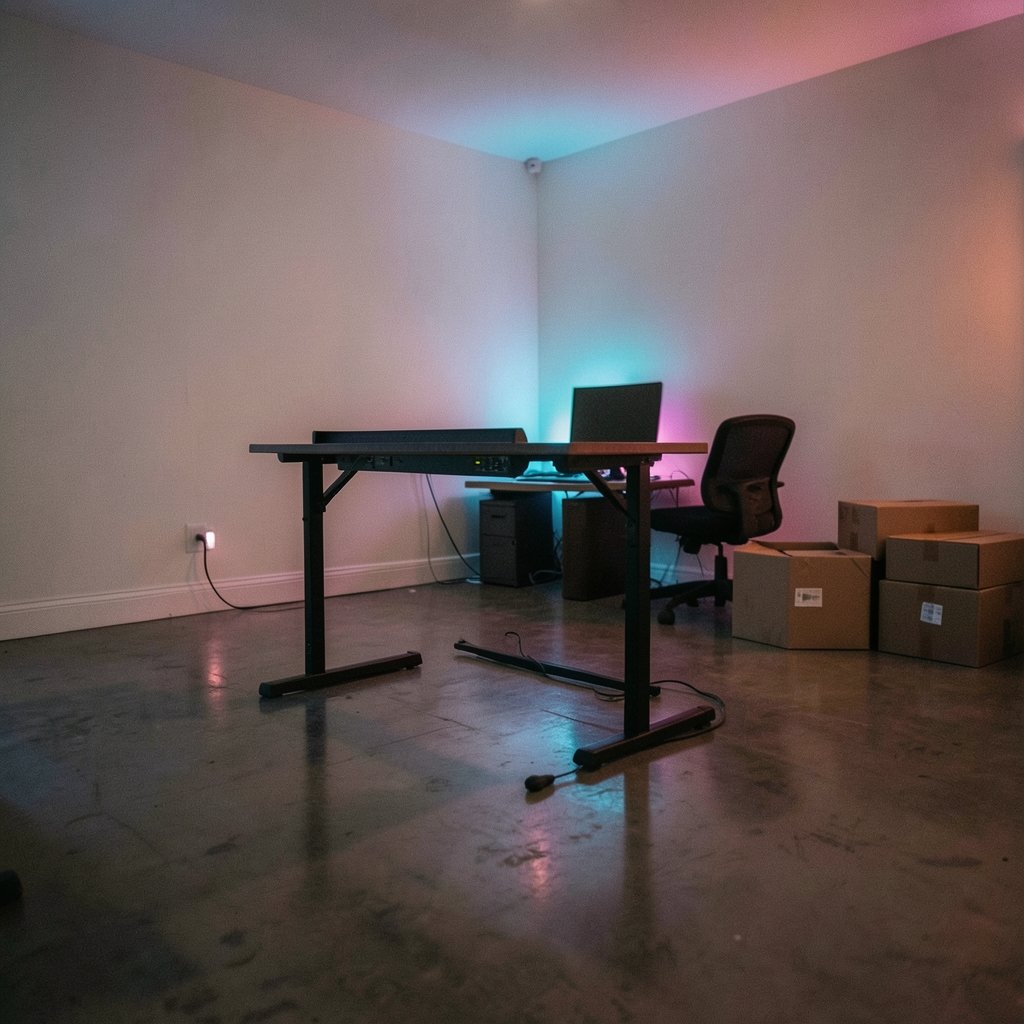
While details vary, a large share of electric desks use a similar recovery routine. Think of it as teaching the desk where the floor is. The logic is the same across most control systems: drive the desk all the way down to a known reference point, hold it there, then let it re-learn its travel range.
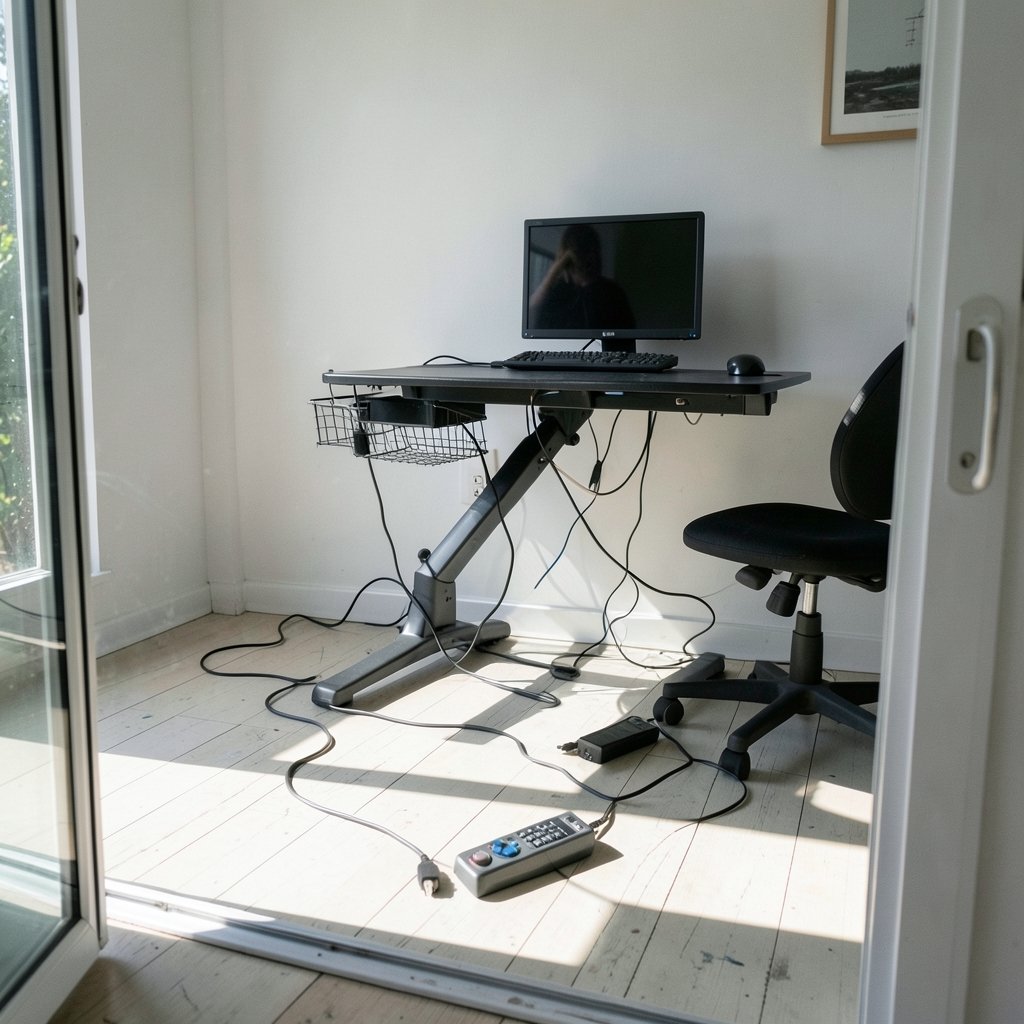
- Clear the area. Remove the chair, cables, boxes, and anything under or beside the desk. The desk may move on its own during the reset, and anti-collision sensors can abort the process if they bump something.
- Cut power completely. Unplug the desk from the wall or switch off the outlet. Wait at least 10 to 30 seconds. This drains residual power from the control box and forces a clean restart.
- Plug it back in and wait. Give the control box a few seconds to boot. Some handsets flash or beep when they’re ready.
- Lower the desk fully. Press and hold the down button. Keep holding even after the desk reaches the bottom, often for 5 to 10 seconds, until you hear a click or beep or the display stops flashing.
- Release, then test. Press up briefly. If the desk moves smoothly, the reset worked. If it still stumbles, repeat the sequence once more before troubleshooting further.
Some desks use a two-button combination instead, such as holding up and down together for several seconds. Others require you to press a reset button on the control box itself, usually a small pinhole you press with a paperclip. A few models want you to run the desk to its top limit instead of the bottom. The pattern is always the same: hit a physical limit, hold, and let the electronics re-zero.
What If Your Desk Has Three or Four Legs?
Multi-leg desks sometimes reset one column at a time or need a longer hold to synchronize the legs. If one leg lags behind the others after a reset, the desk may have lost synchronization rather than position memory. Running the desk fully down and fully up two or three times in a row often re-syncs the motors. If it doesn’t, the manual usually has a dedicated sync procedure.
Brand-by-Brand Differences You Should Expect
No single procedure covers every desk, and treating one brand’s steps as universal is the most common mistake. The table below shows how the approach tends to differ across desk types. Always confirm against your own manual before starting.
| Desk type or control system | Typical reset trigger | Usual reset action | What to watch for |
|---|---|---|---|
| Desks with Linak control boxes | Power loss or error code | Hold down to bottom, hold several seconds until feedback | Handset may show a flashing icon until complete |
| Desks with Jiecang electronics | Power loss or drift | Lower fully, hold down button, then raise | Some models need a two-button hold |
| Budget desks with basic handsets | Outage or unplugging | Unplug, wait, hold down 5 to 10 seconds | No display, so watch for a small jerk or click |
| Premium desks with app control | Outage or firmware update | Reset in the app or via handset combination | App may need re-pairing after power returns |
| Desks with anti-collision sensors | Any interruption | Full down-and-hold, sometimes twice | Sensors abort if anything is under the desk |
The practical takeaway: find your control box and note the brand printed on it. That label, more than the desk brand on the box it shipped in, tells you which reset routine applies. Many desk sellers rebrand the same electronics, so a manual from a different company using the same control box can sometimes help when yours is lost.
Mistakes That Keep Desks Stuck
People often make the same handful of errors when a desk won’t respond after an outage. Avoiding them saves time and prevents damage.
- Skipping the full power cycle. Pressing buttons repeatedly without cutting power rarely helps. The control box needs a clean boot.
- Tapping instead of holding. A quick press tells the desk to move. A long hold tells it to calibrate. The reset lives in the hold, so keep your finger down until the desk signals completion.
- Leaving obstacles in the way. A cable, a chair leg, or a floor mat under the frame can trigger the anti-collision sensor mid-reset. The desk stops and the memory never gets written.
- Standing on the desk. Manufacturers generally advise against standing on the desk during a reset, since unexpected movement can throw you off balance.
- Assuming the desk is broken. A desk that won’t move after an outage is usually just uncalibrated. Replacing the control box before trying a reset is an expensive detour.
- Ignoring the error code. Write the code down and check the manual. A persistent code after two reset attempts points to a real fault, not a memory issue.
There’s a broader lesson here about home office power. If outages are frequent where you live, a desk on a surge protector or an uninterruptible power supply can spare you this routine entirely. The same logic applies to other office electronics; anyone comparing backup options for a home office will find that best home generators covers the bigger picture, while a small battery backup handles short blips. Solar setups are another route for longer outages, and this comparison of the best solar generators for home backup power explains the trade-offs.
When the Standard Reset Doesn’t Work
If two full attempts fail, work through the basics before assuming a hardware failure. Check that the power cable is firmly seated at both ends, that the outlet works, and that the control box’s motor cables haven’t worked loose. Cable connectors sometimes vibrate free over months of movement, and a loose motor cable mimics a dead desk.
Next, look for physical causes. A desk that moves a few inches and stops may be detecting resistance from a bent frame, a worn glide, or debris in the leg channel. A desk that moves unevenly likely has a synchronization problem rather than a calibration one.
If the desk is under warranty, contact the manufacturer before opening anything. Support teams can identify the control box from a photo and send the exact reset sequence, which is often shorter than the generic version. Keep a note of the error code and what you tried; it speeds up the diagnosis.
For desks well out of warranty, a replacement control box or handset is often cheaper than a new desk, and the swap is usually plug-and-play. Just match the control box model and motor connector type. Buying a random control box rarely works because the handset and motors must be compatible.
Preventing the Problem in the First Place
A few habits reduce how often you’ll face this routine. Put the desk on a surge protector so brownouts and spikes are absorbed before they reach the control box. Use the desk’s memory presets rather than holding buttons to fine-tune height, since presets keep the control box’s position tracking consistent. And when you unplug the desk for cleaning or redecorating, do it at the wall and plan on a reset afterward. (OSHA Ergonomics Overview)
It also helps to keep the manual somewhere you can find it. Photograph the control box label and the troubleshooting page, then store both in a cloud folder. When the power dies at an inconvenient moment, you won’t be searching for a PDF in the dark.
If your broader home office planning involves financing equipment upgrades, tools like a home equity loan calculator can help you estimate borrowing power before you commit to bigger purchases.
Conclusion
A standing desk that won’t move after a power outage is almost never broken. It has simply lost its position memory, and the fix is a deliberate, unhurried reset: cut the power, wait, lower the desk fully, and hold the button until the control box signals it has re-learned the floor. The details shift by brand and control box, so treat any generic procedure as a starting point and confirm the specifics in your manual. Clear the area, hold rather than tap, and give the routine two honest attempts before troubleshooting hardware. Do that, and your desk will be back at standing height in a couple of minutes, memory restored and presets ready.
Frequently Asked Questions
Why does my standing desk stop partway after a power outage?
The control box has lost its position count and the anti-collision sensor is interpreting normal motor resistance as an obstacle. A full reset, which means lowering the desk completely and holding the button until it signals completion, usually restores normal movement.
Do all standing desks reset the same way?
No. Reset sequences vary by brand, control box maker, and even firmware version. Some desks need a long hold on the down button, others need a two-button combination or a pinhole reset button on the control box. Always check the manual for your specific model.
How long should I hold the button during a reset?
Most desks need a hold of roughly 5 to 10 seconds at the bottom of travel, until you hear a beep or click or the display stops flashing. If nothing happens after 15 seconds, release, check for obstacles, and try again.
Will unplugging the desk erase my height presets?
Usually not. Height presets are typically stored in non-volatile memory and survive a power cut. What gets lost is the desk’s position calibration, which is why the desk needs a reset even though your saved heights still appear on the handset.
What does an error code on the handset mean?
Error codes are manufacturer-specific, so the same code can mean different things across brands. Note the code, check your manual’s troubleshooting page, and try a full reset. A code that persists after two reset attempts usually points to a hardware fault rather than a calibration issue.
Can I prevent my desk from needing a reset after every outage?
A surge protector or small battery backup reduces how often the control box sees a hard power cut. Using memory presets instead of manual adjustments also keeps position tracking consistent. Brief outages may still require a reset on some models, so keep the procedure handy.