

Pop-up ads on Android are more than a nuisance. Google’s own Play Protect documentation notes that unwanted ads are one of the most common complaints tied to malicious or aggressive apps, and for good reason: a single shady app can flood a phone with full-screen interruptions within hours of installation. The tricky part is that there’s no magic “block all pop-ups” switch hiding in Android settings. Different pop-ups come from different sources, and each source needs its own fix. This guide walks through what actually works, in the order you should try it. (Pop-up ad)
First, Figure Out Where the Pop-Ups Come From
Before tapping anything, identify the culprit. Android pop-ups generally fall into three buckets, and each behaves differently.
| Pop-Up Type | Where It Appears | Typical Source |
|---|---|---|
| Browser pop-ups | Only inside Chrome or another browser | Website scripts, redirects |
| In-app interstitials | Inside one specific app | The app’s own ad network |
| Overlay ads | On top of everything, even the home screen | Apps with “display over other apps” permission |
If ads appear while the phone sits idle on the home screen, that’s almost always an overlay ad. If they only show up while browsing, it’s a website problem. If they appear inside one app, the app itself is the source. Getting this diagnosis right saves a lot of wasted effort.
Fix Browser Pop-Ups in Chrome
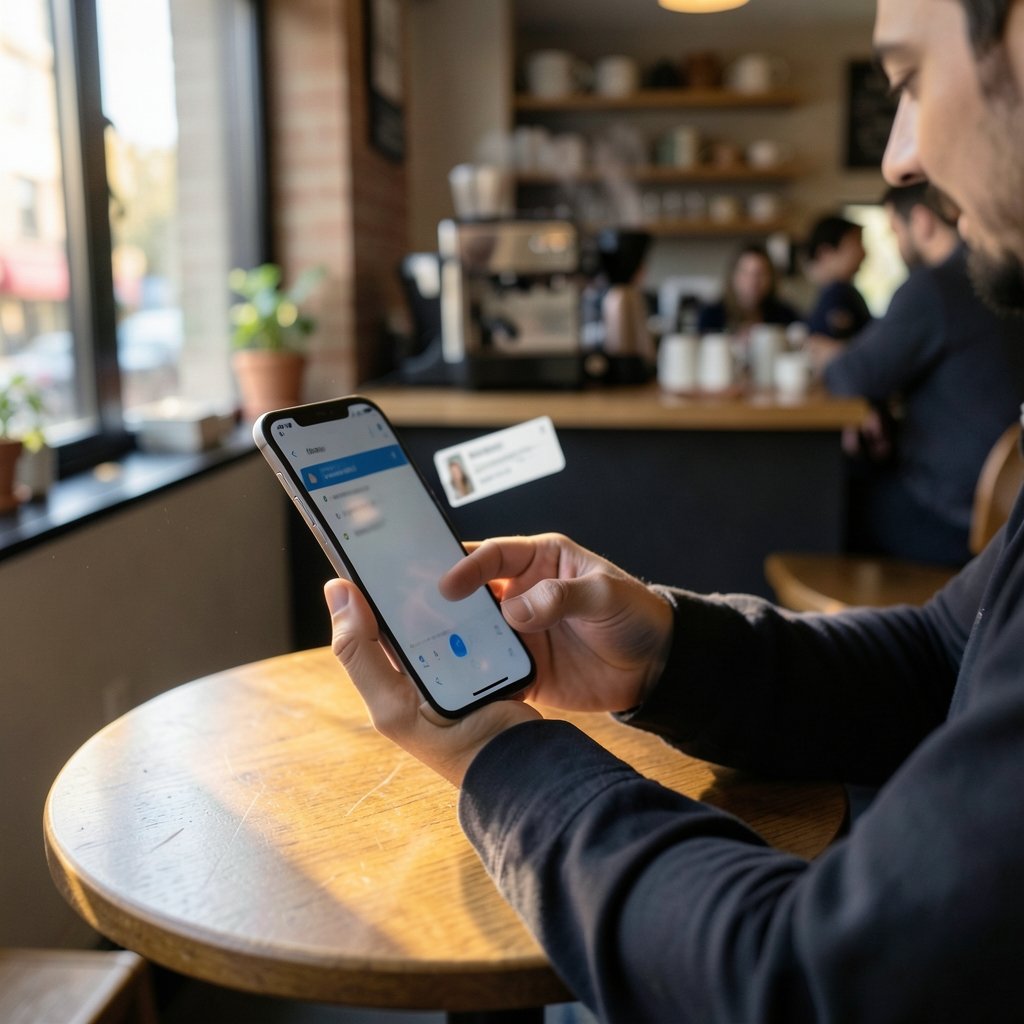
Chrome for Android controls pop-ups per website, not with a global switch. The setting lives under Chrome’s site settings, where Pop-ups and redirects can be toggled off for individual sites. Google’s official Chrome help pages document this per-site model, which means a site that bombards you with pop-ups can be silenced permanently without affecting sites you trust. (Block or allow pop-ups in Chrome)
The practical routine looks like this:
- Open Chrome and tap the three-dot menu.
- Go to Settings, then Site settings.
- Tap Pop-ups and redirects.
- Review the allowed list and remove anything unfamiliar.
- For repeat offenders, open the site, tap the lock icon next to the address, and block pop-ups for that domain.
A common mistake is assuming one toggle fixes everything. It doesn’t. Chrome’s per-site model means a new shady site can still slip through until you block it individually. If your browsing habits regularly land you on ad-heavy pages, switching to a browser with a built-in blocker, or adding a reputable content blocker, is a more durable fix than whack-a-mole with site settings.
Revoke the “Display Over Other Apps” Permission
This is the single most effective fix for full-screen ads that appear out of nowhere. The display over other apps permission lets an app draw on top of everything else, and ad-heavy apps abuse it constantly. Android’s developer documentation describes this as a powerful capability, and Google has tightened restrictions on it over successive Android versions, but plenty of apps still request it.
To audit it:
- Open Settings and search for “special app access” or “display over other apps” (the exact wording varies by manufacturer).
- Review every app listed as allowed.
- Revoke the permission from anything you don’t recognize or don’t actively need, such as screen recorders or floating widgets.
- Restart the phone and watch for a day.
On Samsung, Xiaomi, and other manufacturer skins, the menu path differs, so use the settings search bar rather than hunting through menus. If the ads stop after revoking one permission, you’ve found your culprit without uninstalling anything.
Uninstall or Disable the Offending App
When overlay ads persist, the app itself is the problem. The fastest route is usually to check Settings → Apps and sort by installation date, since adware typically arrives with something you installed recently, often a free flashlight, cleaner, wallpaper, or “battery saver” app.
A few field-tested habits make this easier:
- Safe mode is your friend. Booting into safe mode disables all third-party apps. If the ads vanish, the culprit is definitely an installed app, not the system.
- Uninstall in batches. Remove suspicious apps one at a time and test after each removal. Removing five at once works but leaves you unsure which one was guilty.
- Check Play Protect. Google’s built-in scanner can flag harmful apps, and running a manual scan from the Play Store takes seconds.
For broader protection against malicious downloads, a reputable security app is worth considering, and there are solid options covered in this roundup of the best antivirus for Android in Australia if you want an extra layer beyond Play Protect.
Tame Notification-Based Ads
Some “pop-ups” are really notifications dressed up as alerts. A weather app that pings you with a full-screen coupon isn’t technically a pop-up, but it feels like one. The fix is per-app and takes about ten seconds:
- Open Settings → Apps → [app name] → Notifications.
- Toggle off the categories you don’t want, or block the app entirely.
- Long-press a notification when it appears and tap the settings gear for a shortcut to the same screen.
Android’s notification channels let you kill promotional categories while keeping the alerts you actually care about, which is a genuinely useful distinction that many people miss.
Consider Private DNS as a Partial Shield
Android 9 and later support Private DNS, which encrypts DNS queries. Pointing it at a filtering resolver can block some known ad domains before they ever load. Android’s developer documentation covers DNS-over-TLS as a privacy feature, and it does have a side effect of blocking some ad traffic.
Be realistic about the limits. DNS filtering is not an official ad blocker, it can break apps that rely on domains being blocked, and it won’t touch ads served from the same domain as the content you’re viewing. Treat it as a helpful extra layer, not a cure. If you’re the type who likes tinkering with settings anyway, it pairs well with other tweaks, much like the practical adjustments in this guide to stop snoring at night with home remedies — small changes that add up rather than one dramatic fix.
Reset App Preferences and Clear Browser Data
When the source stays elusive, two reset options clean house without wiping the phone.
Reset app preferences returns all apps to their default permission and notification states. It’s found under Settings → System → Reset options on most devices. You’ll need to re-grant permissions you actually wanted, but any sneaky overlay or notification permission granted to a rogue app gets wiped in one move.
Clearing browser data removes cached redirect scripts and stored site permissions that can keep triggering pop-ups even after you’ve blocked the site. Clear cookies and site data, then re-block anything that misbehaves.
A common mistake here is resetting app preferences and then blindly re-granting every permission prompt that follows. Slow down and read each prompt — that’s the whole point of the reset.
Reduce Your Exposure Going Forward
Prevention beats cleanup. A few habits dramatically lower the odds of a repeat infestation:
- Stick to the Play Store for app installs, and read reviews that mention ads specifically.
- Check permissions before installing. A calculator asking for overlay access is a red flag.
- Avoid “cleaner” and “booster” apps. They’re a classic adware delivery vehicle and rarely deliver real performance gains.
- Keep Android and Chrome updated, since security patches regularly close the loopholes adware exploits.
- Use a reputable ad-blocking browser for casual reading.
If you’re due for a hardware upgrade anyway, a device with cleaner software and longer security support makes the whole problem less frequent — this guide to the best Android phone in 2026 covers which models handle updates best. And if you spend a lot of time reading or watching on your phone, a good pair of earbuds makes those ad-free listening sessions more pleasant; these picks for the best earbuds for Android are worth a look.
When to Escalate: Factory Reset or Professional Help
If pop-ups survive safe mode, a permission audit, and a full app purge, the problem may be baked into the system image, particularly on cheap devices sold with preinstalled adware. A factory reset is the nuclear option and usually works. Back up photos and messages first, then set the phone up as new rather than restoring a full backup, since a backup can reintroduce the offending app.
If even a factory reset doesn’t help, the device may have been compromised at a level that consumer tools can’t fix. At that point, contacting the manufacturer or a repair shop is the sensible move rather than installing more “fixer” apps, which is exactly what the adware ecosystem wants you to do.
Conclusion
Stopping pop-up ads on Android is a process of elimination, not a single setting. Start by identifying whether the ads come from a browser, a specific app, or an overlay permission, then apply the matching fix: per-site blocking in Chrome, revoking display-over-other-apps access, uninstalling the culprit, or silencing rogue notifications. Private DNS and app preference resets clean up the leftovers. Most phones are ad-free again within an hour of honest detective work, and the habits that prevent a repeat — careful installs, permission awareness, and regular updates — cost almost nothing to maintain. The ads are persistent, but they’re rarely clever. Outlast them.
Frequently Asked Questions
Is there a built-in pop-up blocker on Android?
No single system-wide switch exists. Chrome blocks pop-ups per site through its site settings, and Android lets you revoke overlay and notification permissions per app, but there is no master toggle that stops every pop-up across the entire phone. Effective blocking means addressing each source separately.
Why do pop-up ads appear even when I’m not using any app?
Ads that appear on the home screen or over other apps come from an app with the display over other apps permission. Open Settings, search for that permission, and revoke it from anything unfamiliar. Booting into safe mode first confirms whether an installed app is responsible.
Can I stop pop-ups without uninstalling apps?
Often, yes. Revoking the overlay permission, blocking notifications for the offending app, and clearing browser site data resolve many cases without removal. Uninstalling is the reliable fallback when permission changes don’t work.
Does Private DNS block ads on Android?
It can block some ad domains if you point it at a filtering resolver, but it’s a partial measure. It won’t stop ads served from the same domain as page content, and it may break apps that depend on blocked domains. Google documents Private DNS as a privacy feature, not an ad blocker.
Are pop-up ads a sign my phone has a virus?
Not usually. Most pop-up ads come from aggressive but legitimate ad networks inside free apps. That said, persistent full-screen ads are a common symptom of adware, so running a Play Protect scan and removing recently installed apps is a sensible precaution.
How do I find which app is causing pop-up ads?
Check Settings → Apps and sort by installation date to spot recent arrivals. Then use safe mode: if the ads stop, an installed app is the cause. Uninstall suspicious apps one at a time, testing between removals, to pinpoint the source without guesswork.
One last tip that ties the whole process together: keep a short log of what you changed and when the ads appeared. If they return weeks later, the log tells you which app or site was involved and which fix worked, so you skip the guesswork entirely. It sounds fussy, but it takes seconds and saves far more.



