

Here’s a number that surprises almost everyone: the USB cable that came with your phone has been doing nothing but charging by default since Android 6.0 arrived in 2015. Google flipped the default USB mode to charge-only, which means millions of people plug in, see no files, and assume something is broken. Nothing is broken. The phone is just waiting for permission.
That single design decision explains most of the frustration around moving photos, videos, and documents off an Android device. The good news is that once you know the handful of methods available, transfers become quick and boring. Some take five seconds. Some require a cable. A few work over thin air. Here’s what each one is genuinely good at, and where people trip up.
The Fastest Options at a Glance
Before diving into step-by-step instructions, it helps to see the whole field. The table below compares the main approaches on speed, setup effort, and the situations where each shines.
| Method | Best for | Needs cable? | Typical speed |
|---|---|---|---|
| USB with MTP | Large folders, videos | Yes | Fastest wired option |
| Quick Share | Quick phone-to-PC swaps | No | Fast over Wi-Fi |
| Cloud sync (Google Drive) | Backup and cross-device access | No | Depends on internet |
| LocalSend and similar apps | Cross-platform LAN transfers | No | Very fast on same network |
| ADB commands | Power users, automation | Optional | Fast and scriptable |
| Bluetooth | Contacts, tiny files | No | Very slow |
| Email and messaging apps | A single small document | No | Slow |
The pattern is clear: cables win on raw speed, wireless wins on convenience, and the cloud wins when you want a copy living somewhere permanent.
Method 1: The USB Cable and MTP (Still the Workhorse)
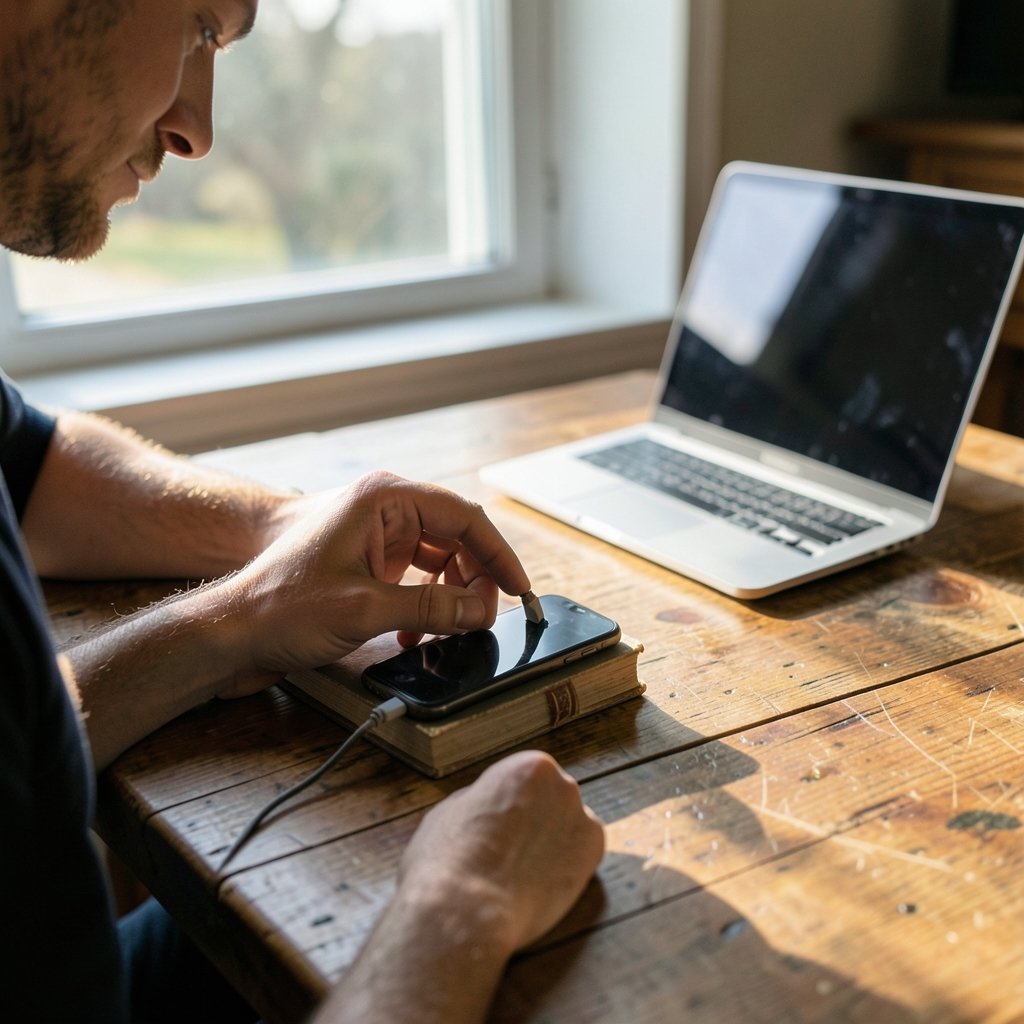
Media Transfer Protocol, or MTP, is the standard way Android exposes files to a computer. It has been part of Android since version 3.0, and it remains the most reliable route for moving gigabytes of video, according to Android’s platform documentation.
The catch is the step almost everyone misses. After plugging in:
- Swipe down from the top of the phone screen to open the notification shade.
- Find the USB notification, usually labeled “Charging this device via USB.”
- Tap it and choose File transfer (sometimes called MTP) instead of “No data transfer.”
- Open File Explorer on Windows or Finder on a Mac, and the phone appears as a drive.
- Drag files across. On Windows, the phone typically shows up under “This PC.”
On Windows this works out of the box. On macOS, Apple has never shipped a native MTP driver, so Google offers a free utility called Android File Transfer as the official workaround. It is functional but has a reputation for flakiness on newer macOS releases, so if it refuses to see the phone, try a different cable before blaming the software.
Common mistake: using a charge-only cable. Many cheap USB-C cables carry power but no data lines, and no amount of troubleshooting will fix that. If the phone charges but never appears on the computer, swap the cable first.
Method 2: Quick Share, Google’s Wireless Answer
In January 2024, Google retired Nearby Share and folded it into Quick Share, unifying its own tool with Samsung’s version of the same idea, as Google announced on its blog. The result is a wireless transfer system that works Android-to-Android and, with a companion app, Android-to-Windows. (Android Developers)
The flow is simple. Select files in the gallery or file manager, tap Share, choose Quick Share, and pick the nearby computer. Both devices need to be on and within range, and the Windows app requires a 64-bit Windows 10 or 11 machine. Speeds are good on a solid Wi-Fi network and mediocre on a weak one.
Where Quick Share stumbles is mixed households. It talks happily to other Android phones and to Windows PCs, but an iPhone or a Linux laptop is left out of the conversation. For those setups, look at the local-network apps below.
Method 3: Cloud Sync for Set-and-Forget Backup
If the goal is not a one-time move but a permanent copy, cloud storage is the least dramatic and most dependable option. Google Drive’s free tier is shared across Gmail, Photos, and Drive, and the exact quota is worth checking in Google’s storage documentation because it has shifted over the years.
The routine looks like this:
- Install the Google Drive app on the phone and sign in.
- Upload the files, either manually or by enabling photo backup.
- Open Drive in a browser or the desktop client on the PC.
- Download or sync the files locally.
The advantage is that the files exist in two places without a cable ever leaving the drawer. The disadvantage is that everything depends on upload speed. A 4 GB video on a slow home connection will test anyone’s patience, and free storage fills up faster than people expect once phone cameras started producing 50-megapixel images.
A useful habit: upload the stuff you cannot afford to lose, and cable-transfer the stuff you just want off the phone.
Method 4: LocalSend and Other Wi-Fi Apps
LocalSend is open source, cross-platform, and does not route anything through a server. Both devices sit on the same Wi-Fi network, discover each other, and swap files directly. It works between Android, Windows, macOS, Linux, and iOS, which makes it the rare tool that handles a mixed-device household without complaint.
AirDroid takes a different angle, offering a web interface so you can browse the phone from any browser on the same network. Send Anywhere splits the difference with a six-digit key you type on the receiving device.
These apps shine when the cable is in another room and the file is too big for email. They struggle on locked-down corporate Wi-Fi, where devices often cannot see each other at all. If discovery fails, that is usually the network’s fault, not the app’s.
Method 5: ADB for People Who Like Precision
Android Debug Bridge, or ADB, is the developer-grade route. It ships with the Android software development kit and lets you pull and push files with a single command, as documented in the official ADB reference.
Setup takes a few minutes:
- Open Settings, go to About phone, and tap Build number seven times to enable Developer Options.
- Enable USB debugging in the new Developer Options menu.
- Install the Android SDK platform tools on the PC.
- Connect the phone, approve the debugging prompt on screen, and run `adb pull` with the file path.
Since Android 11, wireless debugging is built in, so the cable becomes optional after pairing. This route rewards anyone who transfers files regularly or wants to script backups. It punishes anyone who mistypes a path. For a one-off photo rescue, it is overkill.
Method 6: Bluetooth, Honestly Assessed
Bluetooth still appears in every “how to transfer files” list, and it deserves a fair but blunt assessment. It is fine for a contact card, a short document, or a single photo. For anything measured in gigabytes, it is the slowest option on this page by a wide margin, and connections drop when devices wander apart.
Use it when both devices are already paired and the file is tiny. Do not use it for the 4 GB video of a birthday party.
Method 7: The Humble Email or Messaging App
Sometimes the simplest path is the one already open. Attaching a PDF to an email and opening it on the PC takes fifteen seconds. Messaging apps like Telegram or WhatsApp let you send a file to yourself and download it on the desktop.
This works beautifully for documents under about 25 MB and falls apart beyond that. It is also worth remembering that anything sent through a third-party service passes through that company’s servers, which matters for sensitive files.
Practical Tips That Save Real Time
A few habits separate a smooth transfer from a frustrating afternoon.
Check the cable first, always. Charge-only cables cause more “broken” phones than any software bug. Keep one known-good data cable in a drawer and label it.
Organize on the phone before moving. Copying 3,000 loose photos into one folder is faster than dragging them one by one, and it makes the destination tidier. Android’s file manager can select all and move in a couple of taps.
Watch for duplicate files. Cloud backup plus manual transfers often produce two copies of everything. Before deleting from the phone, confirm the PC copy actually opened.
Mind the storage math. A phone with 128 GB of storage and 120 GB of photos will need a cable and patience, not a wireless app that times out halfway.
Keep the screen awake during big transfers. Some phones sleep aggressively and drop the connection mid-copy, especially over Wi-Fi.
If the transfer is part of a broader phone setup, it pairs well with getting the rest of the device in order. Choosing a device that handles large files gracefully matters too, and a look at the best Android phone in 2026 helps frame what current hardware offers. For anyone who works across devices daily, the best wireless chargers for iPhone and Android are a sensible companion purchase, since a topped-up phone is a phone that finishes its transfers. (How to reverse image search on android) (Android (operating system)))
Which Method Should You Pick?
The honest answer depends on the job. A single PDF destined for a work laptop belongs in email. A wedding video belongs on a cable. A rolling photo backup belongs in the cloud. A mixed-device household belongs on LocalSend. Someone who moves files weekly should learn ADB and never look back.
Most people end up using two methods: a cable for the heavy lifting and a cloud service for the background hum of daily backup. That combination covers roughly 95 percent of real-world needs. The remaining five percent is where the niche tools earn their place.
The best method is the one you will actually use again next month.
Conclusion
Transferring files from Android to a PC stopped being hard years ago. What makes it feel hard is a single hidden setting, the USB mode that defaults to charging, plus a cable market full of data-less wires. Fix those two things and the cable method works every time.
Beyond that, the field is genuinely rich. Quick Share handles quick wireless swaps. Google Drive quietly keeps a copy of everything. LocalSend bridges Android and any other operating system on the same network. ADB gives power users a scalpel. Even Bluetooth has a narrow, honest role for tiny files.
The smart move is to pick a primary method, learn its quirks, and keep one backup approach in reserve. Files will keep getting bigger, phones will keep filling up, and the person who knows three ways to move a folder will never be stuck waiting on a progress bar that never moves.
FAQ
Does transferring files from Android to PC delete them from the phone?
No. Copying or moving files through MTP, Quick Share, or the cloud leaves the originals on the phone unless you deliberately delete them afterward. Some file managers offer a “cut” option that removes the source, so check which action you selected before confirming.
Why does my phone only charge when I plug it into the PC?
The USB connection mode defaults to charge-only on modern Android versions. Swipe down the notification shade, tap the USB notification, and select File transfer. If that option never appears, the cable is likely charge-only and needs replacing with a data cable.
Can I transfer files from Android to PC without a cable?
Yes, several ways. Quick Share works over Wi-Fi with a Windows companion app, cloud services like Google Drive sync automatically, and local-network apps such as LocalSend move files directly between devices on the same network. Wireless debugging with ADB is another option for technical users.
Is Quick Share the same as Nearby Share?
Effectively yes. Google renamed Nearby Share to Quick Share in January 2024 and merged it with Samsung’s Quick Share, so the two systems now speak the same language. Older guides referring to Nearby Share describe the same feature under its previous name.
How do I transfer large video files without the connection dropping?
Use a cable and keep the phone screen awake during the copy. Wireless transfers are more prone to timeouts on large files, especially when the phone sleeps or the Wi-Fi signal weakens. Splitting a huge folder into smaller batches also reduces the chance of a mid-transfer failure.
What is the fastest way to move thousands of photos to a PC?
A USB cable with MTP is fastest for bulk transfers. Select the whole camera folder on the phone and copy it in one operation rather than dragging individual images. Once the copy finishes, verify a few files open correctly before clearing space on the phone.



