

Quick Answer: How do i update samsung galaxy safely without losing data?
Updating a Samsung Galaxy safely means backing up the phone first, then installing the update through the official path: Settings > Software update > Download and install. The backup is the real safety net, because a normal over-the-air update keeps your files, but an interrupted install or a rare glitch can still cost you data.
There are two backup routes worth knowing. Samsung’s own tools (Settings > Accounts and backup, plus Smart Switch on a PC or Mac) copy the whole device, while Google’s backup covers apps, contacts, and settings. A full PC backup through Smart Switch is the more complete option and also lets you update firmware over a cable if the wireless install fails.
Before starting, check your battery level, free storage, the current One UI version, and whether your most-used apps have pending updates, since major version jumps carry more compatibility risk than monthly security patches.
Why the Backup Habit Matters More Than the Update Itself
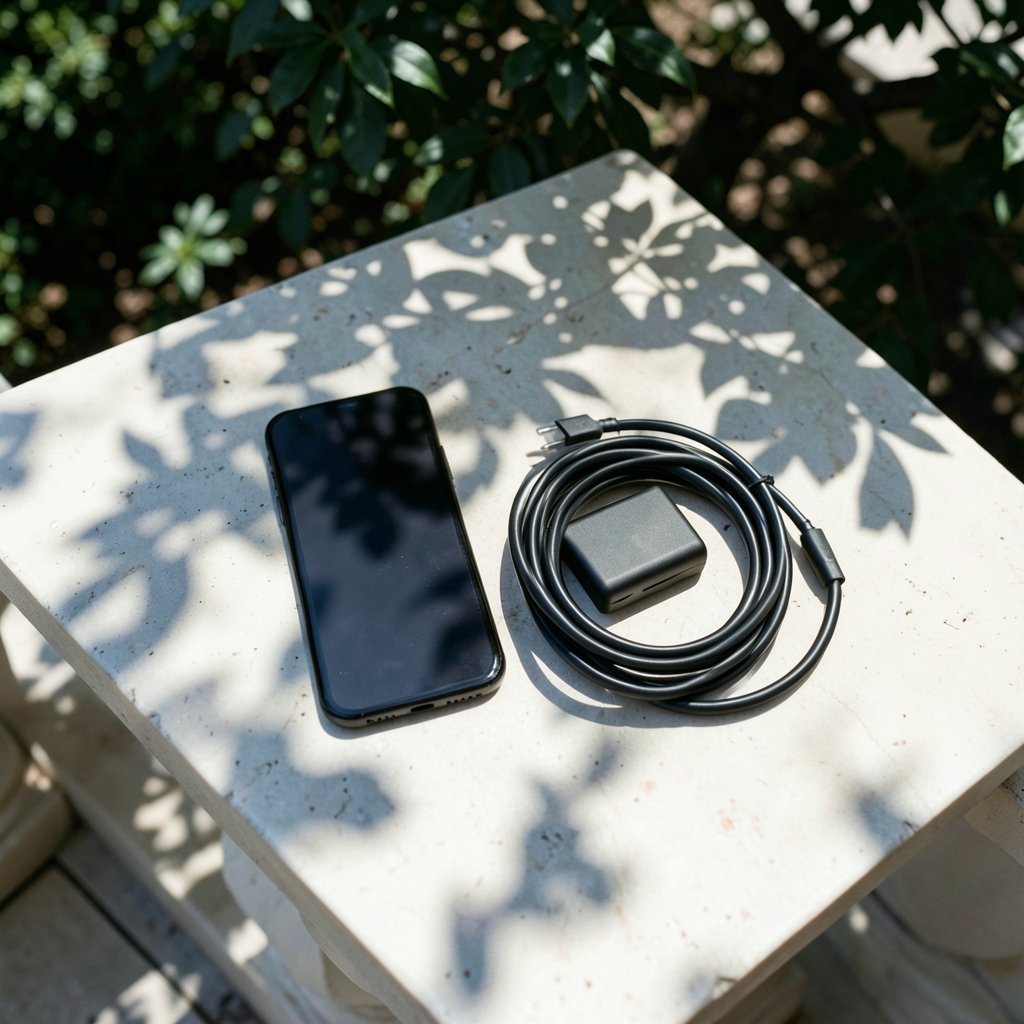
Here is a number worth sitting with: the average person checks their phone about 58 times a day, according to research on digital habits that has been widely reported. Every one of those glances depends on a device that runs on software someone has to maintain. When an update goes wrong, it is not an inconvenience. It is a lost photo album, a wiped chat history, a calendar that suddenly starts empty.
The good news is that Samsung’s update process is genuinely safe in normal conditions. Over-the-air updates are designed to preserve user data, and millions of installs happen every month without incident. The risk is not the update itself. The risk is the edge case: a battery that dies at 40 percent, a storage drive that fills up mid-download, a cable that gets yanked during a firmware flash.
That is why the single most important step in this whole process is not tapping “Download and install.” It is the backup you take before you tap it. People who skip the backup are not reckless by nature. They just assume the update will behave, and usually it does. The one time it doesn’t, the backup is the difference between a mild annoyance and a genuinely bad week.
If you are also weighing a device change, the same discipline applies to moving data between phones, which is why comparisons like Samsung Galaxy vs iPhone often come down to how well each ecosystem handles backup and restore. (Samsung Galaxy)
The Safest Update Path, Step by Step
Step 1: Back Up With Samsung’s Own Tools
Open Settings > Accounts and backup > Back up data. This covers call logs, messages, settings, and app data tied to your Samsung account. For a fuller copy, install Smart Switch on a Windows PC or Mac, connect the phone with a cable, and run a full backup. Smart Switch is Samsung’s official desktop tool, and it is the closest thing to a complete snapshot of the device.
Do not rely on a single backup method. Run the Samsung backup, confirm Google’s backup is switched on under Settings > Google > Backup, and pull your photos into a cloud service or onto the PC. Three overlapping copies sounds excessive until the day one of them fails.
Step 2: Check Battery and Storage
Samsung generally asks for a healthy charge before a major update, and 50 percent or more is the commonly cited floor. Charge to full anyway. Updates can take 20 to 40 minutes, and the phone will refuse to start if the battery drops too low mid-install.
Storage matters just as much. A major One UI upgrade can need several gigabytes of free space for the download and the temporary files used during installation. Clear out old videos and duplicate downloads before you begin. A phone that is 98 percent full is a phone that will fail the update.
Step 3: Update Your Apps First
Before a big version jump, open the Galaxy Store and the Play Store and install every pending app update. Older apps are the most common cause of post-update crashes, and updating them beforehand removes an entire category of problems. This is the step almost everyone skips, and it is the one that prevents the most post-update frustration.
Step 4: Install Through the Official Path
Go to Settings > Software update > Download and install. Let it download over Wi-Fi, then let it install without touching the phone. Do not force-restart, do not open apps, and do not unplug anything. If the wireless install fails repeatedly, connect to Smart Switch on a PC and update the firmware over the cable instead. That route is slower but far more reliable when the over-the-air path keeps stalling.
Step 5: Verify After the Restart
Once the phone boots, check that your photos, messages, and contacts are intact. Open your banking app and any two-factor authentication app, because these are the ones most likely to need a re-login after a major update. Then delete the temporary update files if storage is tight.
What Actually Goes Wrong, and How to Prevent It
Most update failures trace back to a short list of causes. Knowing them in advance is half the protection.
| Problem | What Happens | Prevention |
|---|---|---|
| Battery dies mid-install | Phone may boot into recovery or stall | Charge to full before starting |
| Storage nearly full | Download fails or install aborts | Free several GB before updating |
| Outdated apps | Apps crash or refuse to open after update | Update all apps in Galaxy Store and Play Store |
| Interrupted cable flash | Firmware corruption, possible data loss | Use a known-good cable and never unplug mid-flash |
| Skipped backup | No recovery path if something breaks | Run Smart Switch backup plus Google backup |
The pattern is clear: nearly every failure is preventable with ten minutes of preparation. The people who lose data are almost never the ones who updated carelessly on purpose. They are the ones who assumed nothing could go wrong.
It is also worth understanding why Samsung pushes updates so often. Security patches close vulnerabilities that attackers actively exploit, and skipping them leaves a device exposed. The trade-off is not “update or stay safe.” It is “update carefully or update carelessly.” The middle ground of never updating is the worst option of all.
The same logic applies across the industry. Google’s own data center buildouts, for instance, have drawn scrutiny over resource use and local impact, a debate covered in reporting on the Google data center India backlash. Software maintenance is unglamorous infrastructure work, and it matters whether anyone pays attention to it.
Security Patches vs. Major Version Upgrades
Not all updates carry the same risk, and treating them identically is a mistake in both directions.
Monthly security patches are small, fast, and low-risk. They fix vulnerabilities and rarely touch the parts of the system your apps depend on. Install these promptly and without much ceremony. A backup is still wise, but the odds of trouble are low.
Major One UI and Android version upgrades are a different animal. They change system behavior, alter permissions, and sometimes break apps that have not been updated. These deserve the full preparation routine: backup, storage cleanup, app updates, and a charged battery. They also deserve patience. If a major upgrade has been out for only a few days, waiting a week or two for early bugs to be patched is a legitimate strategy, not cowardice.
A useful rule of thumb: patch immediately, upgrade deliberately. Security fixes are urgent. Feature upgrades are not.
When the Update Fails: Recovery Basics
If the phone stalls on the boot screen or loops back to recovery, stay calm. The first move is a forced restart, usually by holding the power and volume-down buttons together for several seconds. If the phone boots normally afterward, your data is almost certainly intact.
If it will not boot, connect it to Smart Switch on a PC. The tool can sometimes recover the device or at least pull data off it before a factory reset. This is exactly the scenario the backup was for. Restoring from a Smart Switch backup takes minutes and returns the phone to its pre-update state.
The one thing not to do is panic-flash random firmware from unofficial sources. That is how a recoverable problem becomes a bricked phone. Stick to Samsung’s official tools, and if those fail, contact Samsung support.
Common Mistakes People Make
The most frequent error is treating the backup as optional because “it worked last time.” Past success is not a guarantee, and the update that finally fails is the one nobody prepared for.
The second most common mistake is updating on a low battery while multitasking. Updates need a stable, uninterrupted window. Start them when you will not need the phone for half an hour.
The third is ignoring storage warnings. A phone with almost no free space will fail the download, and repeated failed downloads can leave partial files that cause further problems.
Finally, people forget to check their two-factor authentication apps after a major update. Those apps often need to be re-linked, and discovering that at a login screen during an emergency is a bad time to learn it. The same forward-planning instinct shows up in other tech decisions, from Samsung S26 price research to choosing a device that will keep receiving updates for years.
Conclusion
Updating a Samsung Galaxy safely is not complicated. It is a short checklist executed in the right order: back up with Smart Switch and Google, charge the battery, free up storage, update your apps, then install through Settings > Software update. Do that, and the update becomes what it should be, a routine maintenance task rather than a gamble.
The deeper point is that data safety is a habit, not a single action. The people who never lose photos or messages are not luckier than everyone else. They simply built a backup routine and stuck to it. Security patches keep arriving, major upgrades keep rolling out, and the phone keeps changing. A backup taken before each one is the cheapest insurance in technology. Ten minutes of preparation protects years of accumulated digital life, and that trade is worth making every single time.
FAQ
How long does a Samsung Galaxy update usually take?
Most security patches finish in 10 to 15 minutes. Major One UI upgrades can take 30 to 45 minutes including download and installation. Plan for the longer window and keep the phone plugged in or well charged.
Will a software update delete my photos and messages?
A normal over-the-air update preserves user data. Photos, messages, and contacts remain in place. Data loss happens only when an install is interrupted or a rare failure occurs, which is exactly why a backup beforehand is recommended.
Can I update my Samsung phone without Wi-Fi?
Yes, but it uses mobile data, and major updates can exceed several gigabytes. Check your data plan first. Wi-Fi is strongly preferred for large version upgrades, while small security patches are usually fine over cellular.
What should I do if my phone won’t turn on after an update?
Try a forced restart by holding power and volume-down for several seconds. If it still will not boot, connect it to Smart Switch on a PC to attempt recovery or extract data. Avoid flashing unofficial firmware, which can cause permanent damage.
Does Smart Switch back up everything on my phone?
Smart Switch covers most user data, including photos, contacts, messages, call logs, and settings. Some app-specific data and secure banking credentials may not transfer and will need to be re-linked manually after a restore.
Is it safe to skip a major update and wait?
Waiting a week or two after a major upgrade releases is a reasonable strategy, since early bugs often get patched quickly. Skipping security patches for months is not advisable, because those close actively exploited vulnerabilities. Patch promptly, upgrade deliberately.



