
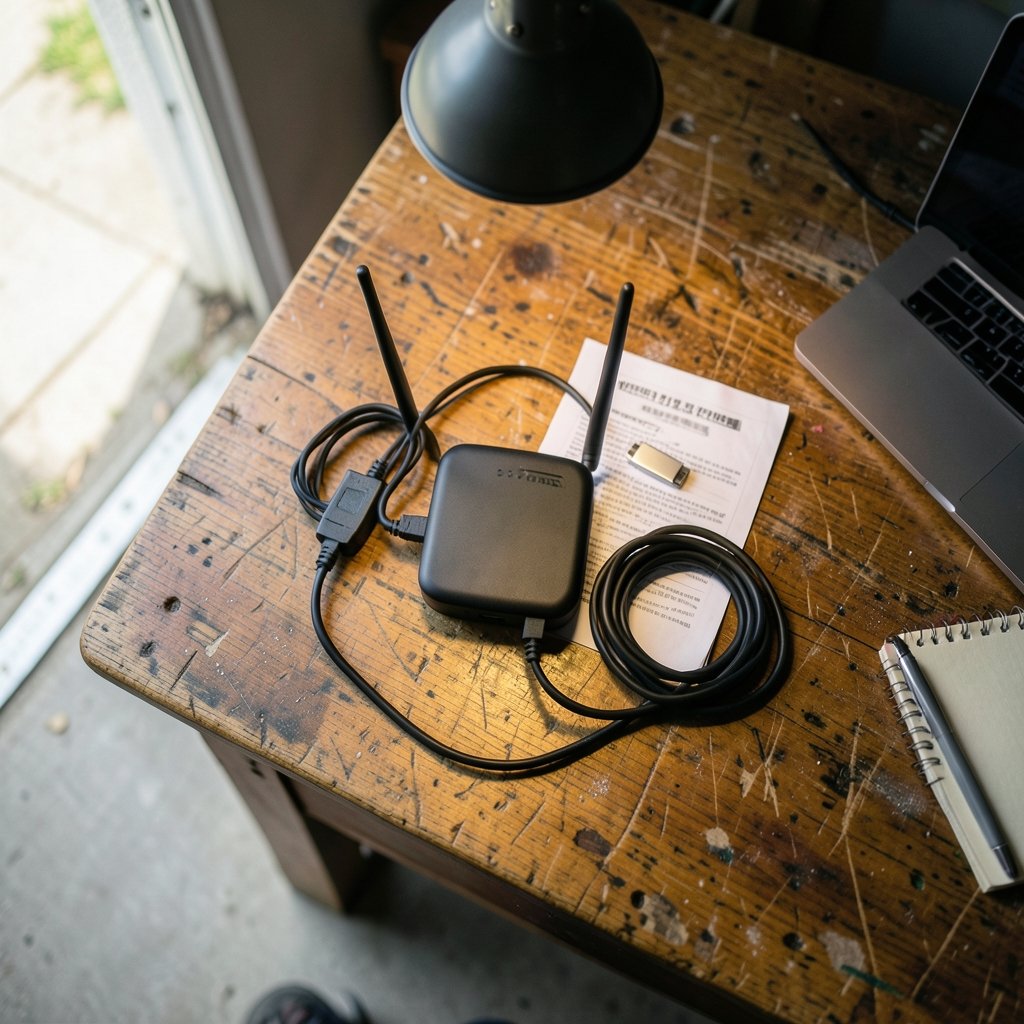
Quick Answer: How do i update wifi router safely without losing data?
Updating a Wi-Fi router safely means backing up its configuration file first, connecting over Ethernet instead of Wi-Fi, flashing the firmware through the router’s own admin panel, and never cutting power mid-install. Your photos, documents, and files are not stored on the router, so they are never at risk — the real thing you can lose is the router’s settings. (Router (computing)))
The distinction matters because most people worry about the wrong thing. Firmware lives in the router’s flash memory, while your data lives on phones, laptops, and drives. Some updates do reset customized settings, which is why an exported backup is the standard recovery path.
Before starting, check the router model and hardware revision, the current firmware version, whether a settings export option exists, and whether the vendor recommends a wired connection or offers a recovery mode.
Why Router Firmware Updates Feel Riskier Than They Are
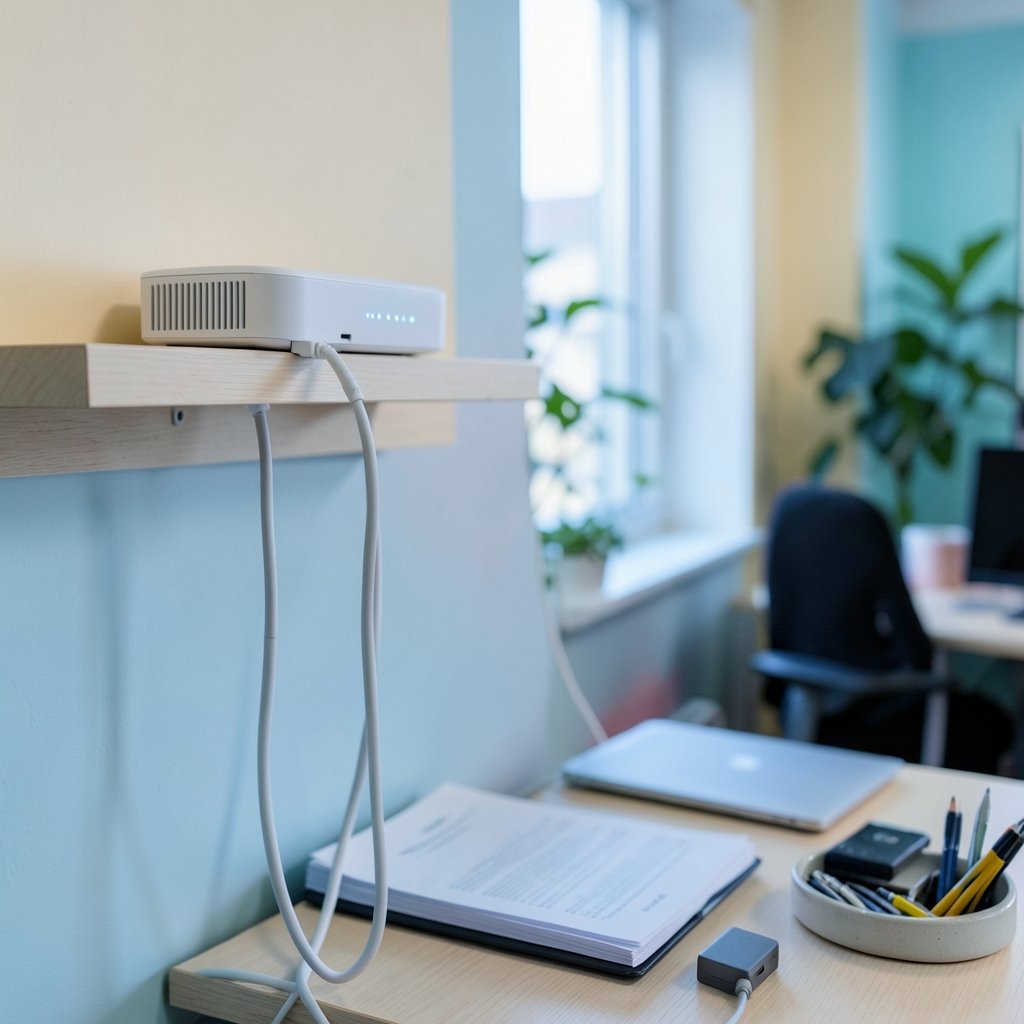
Here is a number worth sitting with: a router that has never received a firmware update is one of the most commonly exploited devices on a home network. Security researchers have spent years documenting botnets built almost entirely from unpatched consumer routers, and the fix in nearly every case was a firmware update the owner never installed.
Yet plenty of people avoid that update. The reason is usually fear of the same three words: without losing data. It sounds like a procedure that could wipe a hard drive. It cannot. A router is a traffic cop, not a filing cabinet. It moves packets; it does not store your spreadsheets.
What a firmware update actually touches is the router’s own operating system and, sometimes, its saved configuration. That configuration includes your Wi-Fi name and password, port forwarding rules, DHCP reservations, parental controls, and guest network settings. Losing those is annoying. Losing them is also preventable, and that is what most of this guide is about.
The other genuine risk is bricking — turning the router into a useless plastic brick by interrupting the flash process. That risk is real but small, and it shrinks dramatically when you follow a few boring rules.
Before You Touch Anything: The Five-Minute Prep
Skipping prep is the most common mistake people make, and it is the one that turns a ten-minute job into an afternoon of reconfiguring devices.
Find your exact model and hardware revision
Routers ship in multiple hardware revisions under the same name, and firmware is not interchangeable between them. Check the label on the bottom of the device. A “v2” board will not accept “v1” firmware, and forcing it is a fast route to a dead router.
Export your configuration file
Log into the admin panel, usually at an address like 192.168.1.1 or 192.168.0.1, and look for Backup, Export Settings, or Save Configuration. Download that file and store it somewhere you will find it again. One caveat worth knowing: a backup taken on old firmware may not restore cleanly on a major new version, so treat it as a safety net rather than a guarantee.
Write down your custom settings
This takes two minutes and saves twenty. Note your Wi-Fi SSID and password, any static IP assignments, port forwarding rules, and DNS settings. If the update resets everything, you will be rebuilding from notes instead of memory.
Use a wired connection
Connect a laptop to the router with an Ethernet cable. A Wi-Fi drop mid-flash is the single most common cause of a bricked router. If you are also rethinking your network hardware, it is worth reading up on the best modem router combo options before you commit to a long-term setup, since replacing the unit later means repeating this whole process.
Plug into a UPS if you have one
A power flicker during a firmware write is the classic disaster scenario. A small uninterruptible power supply removes that variable entirely.
Step-by-Step: Updating Firmware the Safe Way
- Check the vendor’s own update channel first. Log into the admin panel and look for a firmware update or “check for updates” button. If the router has one, use it — it pulls the correct build for your exact model and revision.
- Download firmware only from the manufacturer’s support site. Third-party firmware aggregators can lag behind or mislabel versions. Match the model and hardware revision exactly.
- Read the release notes. They tell you whether settings will be preserved, whether a factory reset is recommended, and whether you need to step through an intermediate version first. Some vendors require sequential updates rather than jumping straight to the latest build.
- Connect via Ethernet and confirm the laptop has a stable link.
- Start the update and walk away. Do not browse, do not stream, do not “just quickly check something” on the same network.
- Do not power off, reboot, or unplug until the router confirms completion. Many models reboot themselves once or twice during this process — that is normal, not a failure.
- Log back in and verify. Check the firmware version, then test Wi-Fi, wired connections, and any port forwarding you rely on.
- Restore your backup if settings were wiped, then re-check the items on your written list.
If the router does not come back after ten minutes, do not panic and do not start mashing buttons. Look up the model’s recovery mode — many support a reset-button or TFTP recovery that revives a failed flash.
What You Can Actually Lose, and What You Cannot
| Item | At risk during a firmware update? | How to protect it |
|---|---|---|
| Photos, documents, files on your devices | No | Nothing needed |
| Smart home device pairings | Sometimes | Re-pair after update if needed |
| Wi-Fi name and password | Sometimes | Note them; restore from backup |
| Port forwarding and DHCP reservations | Often | Export config; keep written notes |
| Parental controls and schedules | Often | Screenshot the settings pages |
| The router itself (bricking) | Rarely | Wired connection, stable power, patience |
The table tells the story plainly: your data is safe by architecture. Your settings are the fragile part, and they are recoverable.
Automatic Updates: Convenience Versus Control
Many mesh systems and newer consumer routers now push firmware automatically by default. For most households, that is genuinely the better setting — it closes security holes without anyone remembering to act. The trade-off is timing. An update can land in the middle of a work call or a download, and you lose the chance to back up settings first.
A reasonable middle ground is to leave automatic updates on but schedule them for a quiet hour, usually an option in the admin panel. If your router does not offer scheduling, manual updates on a quarterly reminder are a fine alternative.
There is a broader lesson here about connected devices generally. Whether you are weighing a new console accessory or a streaming handheld, checking how a manufacturer handles updates before you buy tells you a lot about long-term reliability — the same diligence applies to something like the PS Portal 2 Wi-Fi Alliance filing rumors, where certification details hint at how a device will behave on your network.
Common Mistakes That Cause Real Problems
Updating over Wi-Fi from another room. The signal dips, the flash stalls, the router bricks. Use a cable.
Downloading firmware for the wrong hardware revision. The single most avoidable cause of dead routers. Check the label.
Skipping the settings export because it “only takes a minute to reconfigure.” It never only takes a minute.
Power-cycling during the update because the progress bar looked stuck. Progress bars lie. Wait at least fifteen minutes before assuming failure.
Ignoring the release notes and jumping several versions at once when the vendor requires sequential updates.
Forgetting the downstream effects. If your router handles DNS filtering or runs a VPN client, those services may need reconfiguration after a reset. The same is true if you use the router as part of a broader setup — for instance, if you have been learning how to use AI for data analysis and rely on stable local network access to a workstation, plan the update for a window when nothing is running.
Router Firmware and the Wider Security Picture
Home routers sit at an awkward intersection: they are always on, rarely patched, and directly exposed to the internet. That combination is why government security agencies routinely publish guidance urging consumers to update router firmware, change default admin credentials, and disable remote management. The advice is consistent across countries because the threat is consistent.
The practical translation is simple. A router that has not been updated in three years is running code with known vulnerabilities. Updating it is not a technical chore for enthusiasts; it is basic hygiene, roughly equivalent to installing operating system updates on a laptop.
There is also an environmental angle worth a moment. Routers are among the devices most often replaced prematurely, and e-waste from networking gear is a real contributor to the global electronics waste stream. Keeping a router patched and functional for an extra two or three years is a small but genuine sustainability win. If you are curious about the infrastructure behind all this connectivity, the scale of modern AI data centers shows just how much of the world’s traffic depends on well-maintained networking equipment at every layer. (Secure Our World)
And if you are weighing whether to replace rather than update, the same logic applies to home security gear — subscription-free cameras, for example, are popular precisely because owners want devices they can maintain themselves. That instinct is worth extending to your router.
When to Update, and When to Replace
Update when the vendor publishes a security fix, when you notice new features you want, or on a regular quarterly schedule. Replace when the router no longer receives firmware at all — an end-of-support router is a security liability, not a bargain.
A useful rule of thumb: if the last firmware release for your model is more than two years old and the vendor has moved on, start planning a replacement. The update process described here will not help you, because there is nothing left to install.
Conclusion
Updating a Wi-Fi router safely comes down to a short list of unglamorous habits. Back up the configuration. Write down the custom settings. Connect with a cable. Download firmware only from the manufacturer, matched to your exact model and hardware revision. Start the update, then leave it completely alone until it finishes.
Do those things and the question of losing data answers itself: your files were never on the router in the first place. What you protect is your configuration, and what you gain is a device that is patched, faster, and far less likely to be quietly recruited into someone else’s botnet. Ten minutes of prep, one reboot, and you are done for another few months.
FAQ
Does updating router firmware delete photos or documents?
No. Your files live on phones, laptops, and external drives, not in the router’s memory. The router only stores its own operating system and configuration, so a firmware update cannot touch your personal files.
What happens if the power goes out during a firmware update?
The flash can be interrupted, which may leave the router unable to boot normally. Many models include a recovery mode — often triggered by holding the reset button during power-on or via a TFTP utility — that can restore firmware. A small UPS removes this risk entirely.
Can I update my router over Wi-Fi instead of Ethernet?
You can, and many people do without problems, but it is the leading cause of failed updates. A brief signal drop during the write can brick the device. A cable costs nothing and eliminates the risk.
How do I restore my settings after a firmware update?
Log into the admin panel, find the backup or restore section, and upload the configuration file you exported beforehand. Note that a backup from an older firmware version may not restore cleanly after a major update, which is why written notes of your key settings are worth keeping.
How often should I update router firmware?
Check quarterly at minimum, and always install security-related releases promptly. If your router supports automatic updates, enabling them on a scheduled quiet hour is the lowest-effort approach that still keeps the device patched.
How do I know when a router is too old to keep updating?
Look at the vendor’s support page for your model. If the newest firmware is more than about two years old and no further releases are planned, the device has reached end of support and should be replaced rather than updated.



