

Have you ever been typing away, looked up, and noticed a thin colored stripe running from the top of your screen to the bottom, like someone scored the glass with a ruler? It is one of the most annoying sights in computing, and it usually shows up at the worst possible moment. Vertical lines on a computer monitor can mean anything from a loose cable to a dying panel, and the difference matters: one costs a few minutes, the other costs a few hundred dollars. This guide walks through the causes in order of how likely and how fixable they are, so you can stop guessing and start testing.
What Vertical Lines on a Monitor Actually Look Like
Not all lines are the same, and the pattern tells you a lot before you touch a single cable.
A single thin line, one pixel wide, running the full height of the screen is usually a column driver fault or a tab-bond failure inside the panel. A wider band, a few pixels across, often points to a damaged flex cable or a failing driver board. Flickering lines that come and go tend to be connection problems. Solid lines that never move are more likely to be physical damage.
There is also a difference between a line and a stuck pixel. A stuck pixel is a single dot that stays one color. A full-height line is a different class of defect entirely, and it rarely fixes itself.
The Two-Minute Test That Saves Hours
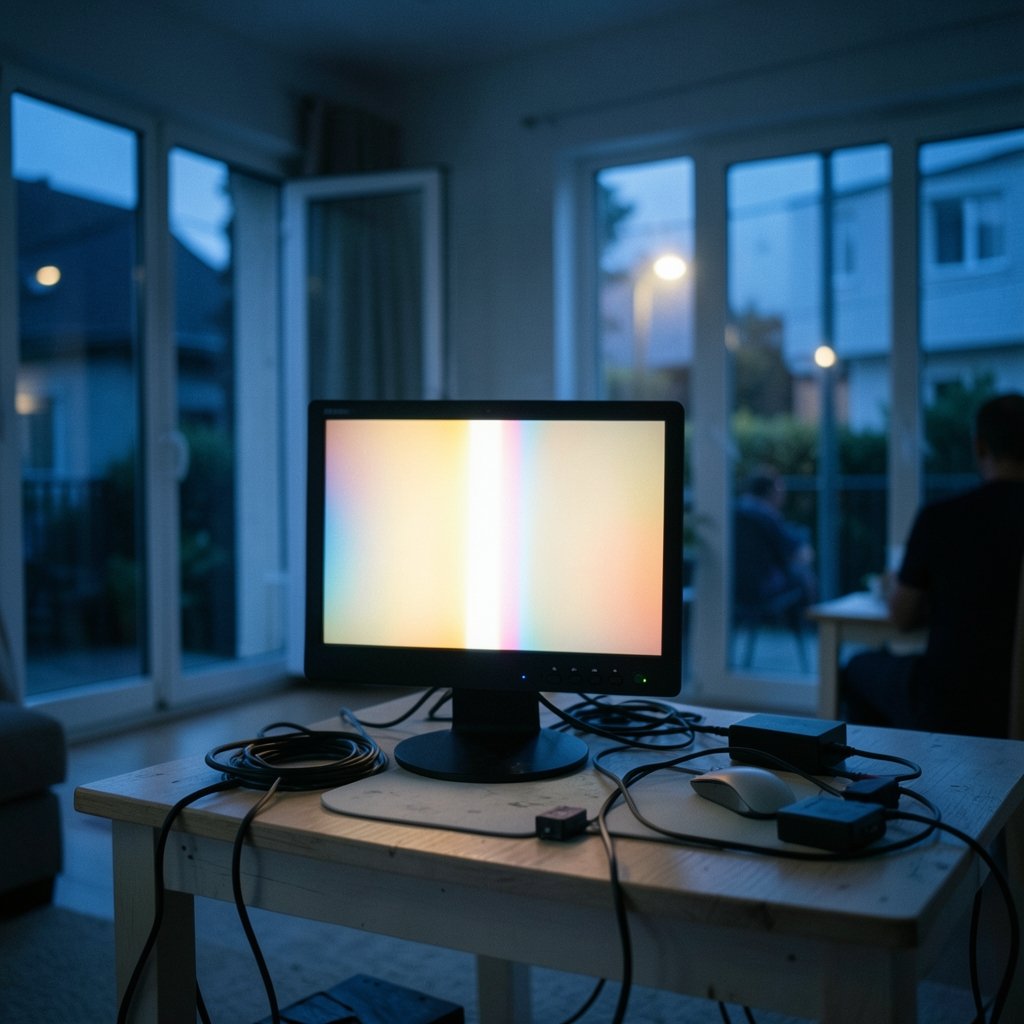
Before anything else, open the monitor’s built-in menu using the buttons on the bezel. This is the fastest isolation test in display troubleshooting, and almost nobody does it first.
If the vertical lines appear on top of the on-screen display (OSD) menu, the fault is inside the monitor. The signal never reaches that menu, so the problem has to be the panel, the driver board, or the internal cabling. No amount of cable swapping will help.
If the lines disappear when the menu is open, or if they only show up in certain apps, the fault is in the signal path: the cable, the port, the graphics card, or the driver.
That single check splits every case into two very different repair paths. Do it before you unplug anything.
Step-by-Step: Ruling Out the Cheap Causes
Work through these in order. Each step takes a minute or two, and each one eliminates a whole category of fault.
- Reseat the cable at both ends. Unplug the video cable from the monitor and the PC, then push it back in firmly. Loose seating is more common than people expect, especially with heavy DisplayPort cables that sag under their own weight.
- Swap the cable for a known-good one. Cables fail internally in ways you cannot see. Bent pins, crushed conductors, and worn connectors all produce vertical banding or lines.
- Try a different port on the monitor and on the GPU. If your card has both HDMI and DisplayPort, switch between them. A single dead port is a real failure mode.
- Test the monitor on another computer, or the computer on another monitor. This is the decisive test. If the lines follow the monitor, the monitor is at fault. If they follow the PC, the graphics card or driver is at fault.
- Lower the refresh rate and resolution temporarily. Drop from a high refresh rate to 60 Hz. If the lines vanish, you are likely looking at a bandwidth or cable-quality problem rather than a dead panel.
- Boot into safe mode or a live USB. This removes your installed graphics driver from the equation. Lines that persist in safe mode are almost certainly hardware.
If you have already worked through monitor setup basics like refresh rate and input selection, the same discipline applies here: change one variable at a time and note the result. A quick read on setting up a gaming monitor for the best performance covers refresh rate and overdrive settings that occasionally trigger artifacts on marginal panels.
When the Monitor Itself Is the Problem
Most persistent vertical lines live inside the display. An LCD is a grid of pixels addressed by row and column drivers, and the column drivers connect to the panel through a bonded flex cable along the edge. When that bond weakens, or when a driver chip fails, an entire column of pixels loses its signal and you get a line.
This is why the defect is so stubborn. It is not a software state you can reset. It is a physical connection that has partially failed.
A few practical observations from real repair benches:
- Pressing gently on the bezel near where the line starts sometimes makes it flicker or vanish. That confirms a bonding fault. It is diagnostic, not a fix, and pressing hard can make it worse.
- Lines that multiply over weeks are a strong sign of a failing panel. One line today often becomes five in a month.
- Cold-related lines that fade after the monitor warms up point to a marginal solder joint or bond. They usually get worse with age.
For a deeper look at how panels and pixel addressing work, the encyclopedia entry on liquid-crystal display technology explains the driver structure behind these failures in plain language.
Graphics Card and Driver Causes
Sometimes the panel is fine and the GPU is the culprit. The symptoms overlap heavily, which is why the second-computer test matters so much.
Watch for these clues:
- Lines appear only under load, such as during games or video rendering
- Lines appear only after a driver update
- Lines change or move when you drag a window
- Lines vanish in safe mode
If any of those fit, start with a clean driver reinstall using the manufacturer’s removal tool, then reinstall the latest stable driver. Avoid beta drivers while you are diagnosing. If the lines persist across two different monitors, the graphics card is suspect, and that is a hardware conversation rather than a settings one.
A note on laptops: vertical lines on a built-in screen are a different beast. If you are seeing them on a Lenovo machine, the guide to black lines on a Lenovo laptop screen and how to test them covers the display cable and hinge-stress failures that are common on portables.
Cable and Connector Faults in Detail
Cables deserve their own section because they cause a surprising share of vertical line complaints, and they are the cheapest thing to replace.
| Symptom | Likely cause | First action |
|---|---|---|
| Lines flicker when the cable moves | Loose or damaged connector | Reseat, then replace cable |
| Lines appear only at high refresh rates | Insufficient cable bandwidth | Try a certified cable rated for the resolution |
| Lines on one port only | Dead GPU or monitor port | Switch ports |
| Lines on every device and cable | Panel or driver board fault | Warranty claim or replace monitor |
| Lines appear over the OSD menu | Internal monitor fault | Warranty claim |
One habit worth building: buy cables rated for the resolution and refresh rate you actually run. A cable that works fine at 1080p60 can produce banding and dropouts at 1440p165, and the failure often looks like a line rather than a black screen. Standards bodies publish the bandwidth requirements for each interface, and the VESA display standards overview is the reference point for DisplayPort capabilities.
If you are running two machines through one screen, a badly seated switch adds another failure point. The walkthrough on setting up a monitor KVM switch for two computers covers the cabling order that avoids signal problems.
Dead Pixels, Stuck Pixels, and Line Defects
People often lump these together, but they are different problems with different outcomes.
A dead pixel stays black. A stuck pixel stays one color. Both are single-pixel defects, and both are sometimes fixable with pixel-flashing tools that cycle colors rapidly for twenty minutes. Success rates are modest but the attempt is free. (Pixel)
A full-height vertical line is not a pixel defect. It is a driver or connection fault affecting an entire column, and pixel-flashing utilities will not touch it. The terminology matters when you talk to support, because warranty policies often treat single-pixel defects and line defects under completely different rules. The encyclopedia entry on dead pixels and pixel defects explains the classification system manufacturers use.
Warranty, Consumer Rights, and Repair Economics
Here is the part most guides skip: you may have more leverage than you think.
Many manufacturers set a threshold for what counts as an acceptable number of defective pixels, but a bright or dark vertical line is usually treated as a more serious defect than a single stuck dot. Check your specific model’s warranty document rather than assuming, because policies vary widely and change over time.
In the European Union, the Sale of Goods Directive (EU) 2019/771 sets minimum legal-guarantee rules that have applied since 1 January 2022, giving consumers remedies when goods are not as promised. The official text of Directive (EU) 2019/771 on certain aspects of contracts for the sale of goods is worth reading if you are arguing a claim in Europe. Similar statutory protections exist in many other countries under different names. (Understanding Success Criterion 1.4.3: Contrast (Minimum))
On repair: panel replacement usually costs close to the price of a new monitor, and parts availability for older models is poor. For a budget screen, replacement almost always wins. For a high-end color-critical display, a repair quote is still worth getting before you write it off.
Practical Habits That Prevent Line Faults
You cannot fully prevent panel failure, but you can avoid the self-inflicted kind.
- Never lift or carry a monitor by the bezel. Flex the frame and you stress the tab bonds along the panel edge, which is exactly where vertical lines originate.
- Leave clearance behind the screen. Pressure from a wall or a shelf can bow the panel over time.
- Avoid cleaning sprays. Liquid that seeps into the bottom edge can corrode driver connections. Use a barely damp microfiber cloth.
- Do not press on the screen to demonstrate a fault. Point, do not poke.
- Keep the monitor cool. Heat accelerates bonding failures, so do not stack equipment against the vents.
For anyone running a screen in portrait orientation, the stress pattern is different because gravity pulls along a different axis. The guide to monitor portrait mode for coding and when vertical screens actually help covers mounting and rotation considerations.
Conclusion
Vertical lines on a computer monitor almost always come down to one question: is the fault inside the panel or outside it? The on-screen menu test answers that in under two minutes, and it will save you from buying cables you do not need or replacing a monitor that only needed reseating. Work through the cheap causes first, in order, changing one variable at a time. If the lines survive a cable swap, a port change, and a second computer, the panel is the problem, and the sensible move is a warranty claim or a replacement rather than a repair. Treat your screen gently along the edges, and you will avoid a good share of the failures that put those lines there in the first place.
Frequently Asked Questions
Can vertical lines on a monitor fix themselves?
Rarely. Lines caused by a loose cable or a driver glitch can disappear after a reseat or reboot, but lines caused by a panel or bonding fault are physical failures and do not heal. If a line has been stable for more than a few days, treat it as permanent.
Is a vertical line on my screen a dead pixel?
No. A dead pixel is a single dot that stays dark, and a stuck pixel is a single dot stuck on one color. A full-height vertical line is a column driver or connection fault affecting an entire column of pixels, which is a more serious defect and generally not user-fixable.
How do I know if the monitor or the computer is causing the lines?
Open the monitor’s built-in menu. If the lines show up over the menu, the monitor is at fault. If they vanish, the problem is in the cable, port, graphics card, or driver. Testing the monitor on a second computer confirms it.
Does a vertical line always mean I need a new monitor?
Not always. If the monitor is under warranty, a line defect is often covered and worth claiming. If it is out of warranty, panel replacement usually costs close to a new screen, so replacement is the more sensible choice for most buyers.
Can a bad cable really cause vertical lines?
Yes. Damaged conductors, bent pins, and cables that cannot handle the bandwidth at high refresh rates can all produce vertical banding or lines. Swapping the cable is the cheapest test you can run, so do it early.
Should I press on the screen to check for a loose connection?
It is a common trick, and a line that flickers when you press the bezel does confirm a bonding fault. But pressing hard can make the damage worse, so keep the pressure light and treat the result as information rather than a repair.



