
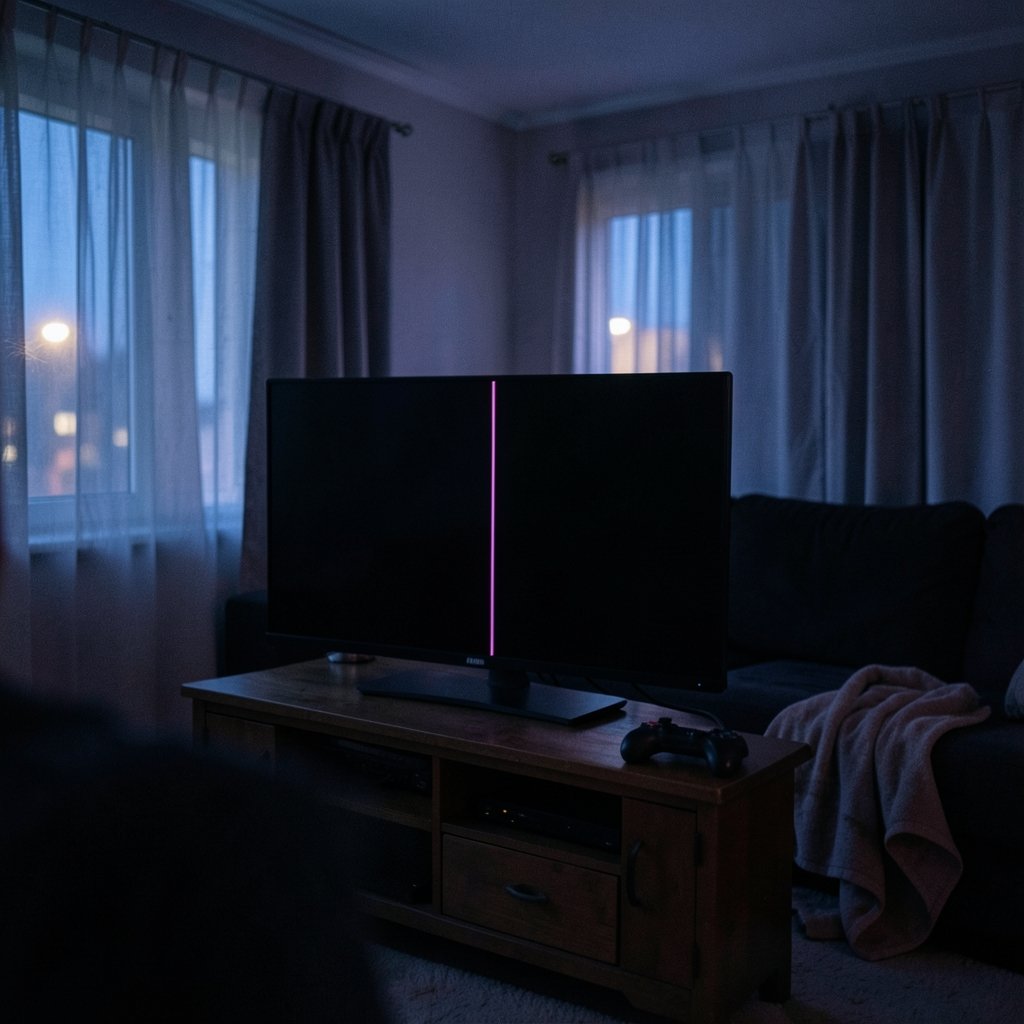
Have you ever been in the middle of something important when a thin colored stripe suddenly appears on your monitor, running from the top edge to the bottom like a scratch that won’t go away? You blink, lean closer, and realize it’s not a smudge on the glass. It’s a vertical line on your computer screen, and it wasn’t there five minutes ago.
That moment of panic is common, and the good news is that vertical lines are one of the most diagnosable display problems out there. Sometimes the fix costs nothing. Other times it points to a failing panel that needs replacement. The trick is figuring out which situation you’re in before you spend money. This guide walks through the causes, the tests that actually narrow things down, and the mistakes people make when they skip the basics.
What Vertical Lines on a Screen Usually Mean
A vertical line or band on an LCD is almost always a hardware symptom, not a software bug. That’s the first thing to internalize, because it saves hours of driver reinstalling that rarely helps. An LCD panel works like a giant grid: rows and columns of electrodes drive each pixel, and a dedicated column driver pushes signal down every vertical line. When one of those column drivers fails, or when the flexible ribbon bonding the panel to its driver board gets damaged, you get a persistent stripe that no amount of rebooting will erase. (Liquid-crystal display (LCD))
That structural explanation matters because it tells you where to look. The fault lives in one of three places: the panel itself, the cable and connector, or the graphics card’s output. Everything else, including the operating system and its drivers, is a distant fourth possibility.
It also helps to separate two things people constantly confuse. A sharp, single-pixel-wide line points to a driver or panel defect. A broad, faint vertical band is often a uniformity or backlight issue, which is a different animal entirely. And a single stuck dot is neither: that’s a point defect, not a line defect. Knowing which one you’re staring at changes the entire diagnostic path.
The Quick Test That Tells You Where the Problem Lives
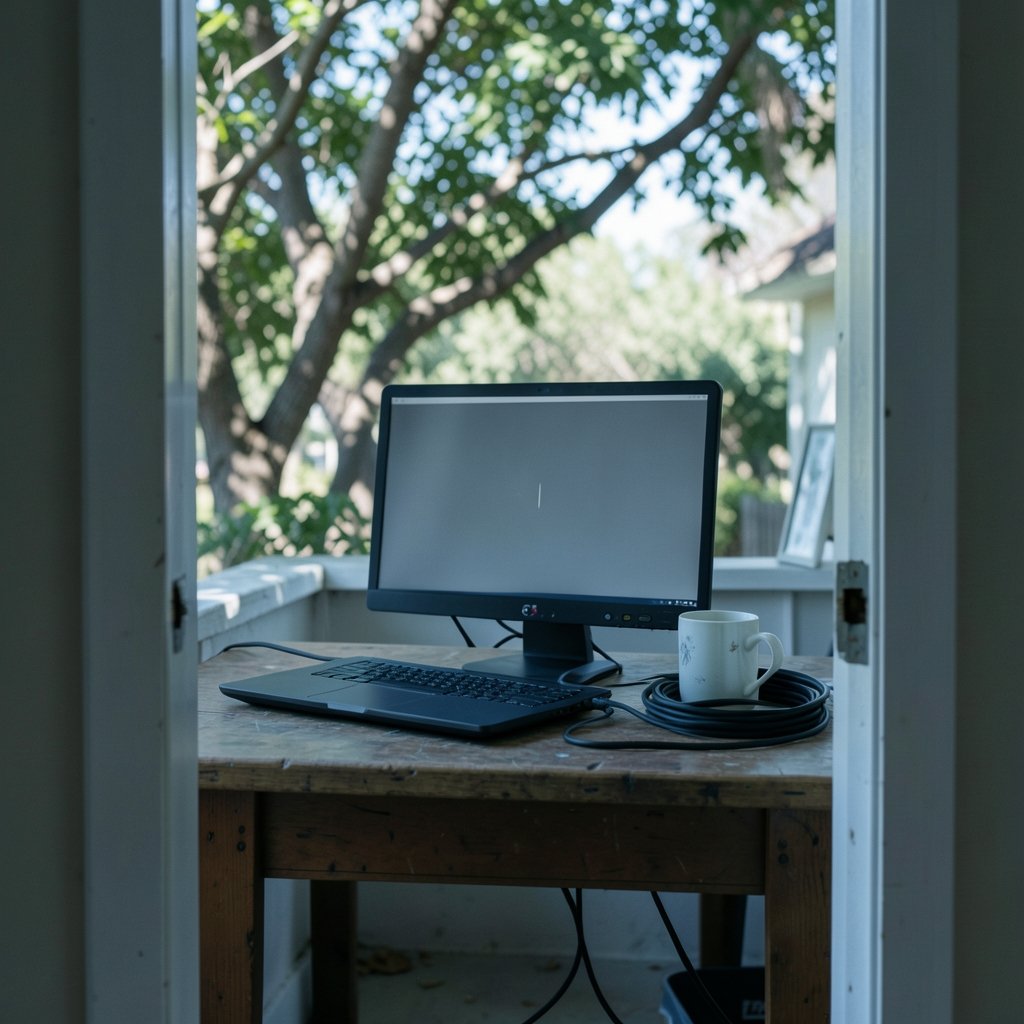
Before touching a screwdriver or a settings menu, run the test that professionals reach for first. Open the monitor’s own on-screen display menu using the physical buttons on the monitor itself, not the computer. If the vertical line cuts straight through that menu, the fault is inside the monitor. The menu is generated by the monitor’s own circuitry, so anything drawn on top of it proves the panel or its internal electronics are to blame.
If the line disappears when the menu is up, or if it only shows on certain inputs, the monitor is probably fine and the signal path is the suspect. From there, connect the same monitor to a different computer or laptop. Lines that follow the monitor are a monitor problem. Lines that stay with the computer are a graphics card or cable problem. Two tests, five minutes, and you’ve eliminated half the possibilities.
This is the same logic used to isolate faults in other display mysteries, like when a laptop shows black lines on a Lenovo screen and the owner has to decide whether the panel or the ribbon cable is at fault. The principle is identical: change one variable at a time and watch whether the symptom moves with it.
Cable and Connector Faults: The Cheapest Fix First
A loose, bent, or worn video cable is a genuinely common cause of vertical striping and color-channel loss, because one or more signal lanes inside the cable degrade while the rest keep working. That partial failure is exactly why you might see a red or green vertical line instead of a totally dead picture.
Start with the simple physical checks, in this order:
- Reseat both ends of the cable. Unplug the HDMI, DisplayPort, DVI, or VGA connector at the monitor and at the computer, then push it firmly back in until it clicks or seats fully.
- Inspect the connector pins. Bent pins or a connector that wobbles in the port can break contact intermittently.
- Swap the cable for a known-good one. This is the single most useful step and the one people skip most often.
- Try a different port on the graphics card. A damaged output port produces the same symptoms as a damaged cable.
- Clean the contacts. Dust and oxidation on older VGA and DVI connectors cause real signal problems.
If you want to understand why one degraded lane produces a stripe rather than a blank screen, the technical background on how DisplayPort handles signal lanes explains the interface structure in more depth than a troubleshooting guide can.
One practical tip from experience: cheap cables fail far more often than people expect, especially long ones and ones that get bent repeatedly behind a desk. If your setup involves a monitor arm that swings, the cable at the hinge point is a prime suspect. Before you conclude the monitor is dying, borrow a cable from a TV or another device and test it.
Graphics Card and Driver Causes
If the lines follow the computer rather than the monitor, the graphics card moves to the top of the list. Failing VRAM, overheating, or a card that’s slightly unseated in its slot can all produce vertical artifacts. So can a corrupted display driver, though driver problems more often cause flickering or odd resolutions than a clean, static vertical line.
The distinction is worth testing carefully. Boot the machine into safe mode or a live USB environment. If the lines appear before any operating system loads, at the BIOS or boot screen, the driver is innocent and the hardware is guilty. If the lines only appear inside Windows or macOS, a driver reinstall or rollback is a reasonable next step.
For laptops with switchable graphics, you can sometimes confirm a GPU fault by forcing the display onto integrated graphics and seeing whether the line vanishes. On desktops, reseating the card and checking temperatures under load is a sensible low-cost move before assuming the worst.
When the Panel Itself Is Failing
Back to the monitor. If the line survives the on-screen menu test and a cable swap, you’re likely looking at a panel-level defect. Column driver failures and damaged ribbon bonds are the usual culprits, and they tend to be permanent. They can appear spontaneously, after a knock, after temperature swings, or after years of normal use.
Here’s where expectations need to be realistic. For most consumer monitors, a failed panel column is not economically repairable. The panel is the most expensive component by far, often costing more than a new monitor. Some faults are fixable, though: a failing driver board or a loose internal ribbon can sometimes be reseated or replaced by a repair shop, and that’s worth asking about before you bin the unit.
Laptop screens sit in a middle ground. Panel replacement is a standard repair, and the cost depends heavily on the model. If you’re weighing a repair against a replacement, it helps to know how to record your computer screen so you can document the fault clearly for a warranty claim or a repair technician. A short video showing the line persisting through the monitor menu is far more persuasive than a verbal description.
Vertical Lines vs. Dead Pixels: Why the Distinction Matters
People often call any screen blemish a dead pixel, and that loose language costs them warranty coverage. A dead or stuck pixel is a point defect: one dot, one location. A vertical line is a line or column defect that spans the panel. Manufacturers treat these differently, and the pixel-defect standards that classify them by type and count are defined in the ISO 9241 series, which you can read about in the overview of ISO 9241 and its pixel-defect classification.
The practical upshot: many warranties have a threshold for dead pixels but say little or nothing about a single bright vertical line, and policies vary widely between brands. Check your specific model’s policy rather than assuming. If the line appeared within the return window, act fast, because retailers are often more flexible than manufacturers.
What Actually Works in Practice
After all the theory, here’s the sequence that resolves most real-world cases without wasted effort:
- Open the monitor’s built-in menu and check whether the line crosses it.
- Swap the video cable for a known-good one.
- Test the monitor on a second computer, and the computer on a second monitor.
- Check the line at the BIOS or boot screen to rule out drivers.
- Reseat the graphics card and check temperatures.
- Photograph or record the fault, then contact warranty support with evidence.
What doesn’t work, in practice: reinstalling drivers repeatedly, running registry cleaners, pressing on the screen bezel hoping the line shifts (that can actually make a ribbon bond worse), and buying a new monitor before testing the cable. The bezel-pressing trick circulates widely online and occasionally produces a temporary change, which convinces people it’s a fix. It isn’t. It’s a sign of a failing bond that will get worse.
Another common mistake is assuming a line that appears only in one application is a hardware fault. If the stripe shows up only inside a specific program and vanishes on the desktop, that’s a rendering or driver issue, not a panel defect. Test with the monitor menu and a full-screen image before drawing conclusions.
If you’re setting up a replacement display and want to verify it properly, learning to take a screenshot with system shortcuts gives you a clean reference image to compare against what the panel actually shows, which makes any remaining defect obvious.
Does Screen Orientation or Settings Affect Vertical Lines?
Rarely, but it’s worth a mention because it confuses people. Rotating a display into portrait mode doesn’t create vertical lines, but it can make an existing horizontal banding issue look vertical, since the panel’s native axis is now sideways. If you use a vertical monitor for coding, the guide to portrait mode for coding on vertical screens covers how rotation interacts with panel behavior and scaling. A line that changes orientation when you rotate the display is almost certainly a signal or driver issue, because a physical panel defect stays fixed relative to the hardware.
Conclusion
Vertical lines on a computer screen look alarming, but they follow a predictable logic. The monitor’s own menu tells you whether the fault is inside the display. A cable swap and a second computer narrow it down further. Only after those steps should you suspect the graphics card, and only after that should you accept that the panel is failing. Most people who follow the sequence either fix the problem with a cable or get a clear, evidence-backed answer for a warranty claim. The ones who struggle are usually the ones who started with software. Start with hardware, change one thing at a time, and let the symptom tell you where it lives.
Frequently Asked Questions
Can a vertical line on a monitor fix itself?
Occasionally a line disappears on its own, usually when a marginal ribbon bond or connector makes intermittent contact. Don’t count on it. A line that comes and goes is still a failing component, and it typically returns permanently within weeks or months. Document it while it’s visible.
Is a vertical line always a hardware problem?
Not always, but usually. The exceptions are lines that appear only inside a specific application or only after a driver update. Test at the BIOS screen: if the line is there before any operating system loads, it’s hardware. If it only appears in software, treat it as a driver or rendering issue first.
How do I know if the line is the monitor or the computer?
Open the monitor’s built-in on-screen menu. If the line crosses the menu, the monitor is at fault. If not, connect the monitor to a different computer. Lines that follow the monitor belong to the monitor; lines that stay with the computer point to the cable or graphics card.
Is a single vertical line covered by warranty?
It depends entirely on the brand and model. Many warranties set thresholds for dead pixels but are vague about line defects, and policies vary widely. Check your model’s specific terms and contact support with photos or video of the fault. Retail return windows are often more generous than manufacturer warranties.
Can a bad cable cause vertical lines?
Yes, and it’s one of the most common causes. A damaged or loose HDMI, DisplayPort, DVI, or VGA cable can degrade individual signal lanes, producing colored vertical stripes or partial color loss. Swapping in a known-good cable is the fastest and cheapest test you can run.
Should I try pressing on the screen bezel to fix the line?
No. Pressing the bezel sometimes shifts the image briefly, which makes it feel like a fix, but it stresses the ribbon bonds inside the panel and can turn a repairable fault into a permanent one. Skip it and go straight to cable and input testing instead.



