Around one in three households now streams through a smart TV as their main screen, yet almost none of those TVs ship with a built-in VPN. That gap is the reason “how to set up a VPN on a smart TV” gets searched thousands of times a day. The TV can’t do the job alone, so the setup always involves a workaround. Some workarounds take ten minutes. Others take an afternoon and a lot of patience.
This guide walks through the methods that actually work, the ones that sound clever but usually fail, and the mistakes that trip people up on the first attempt. No hype, no miracle apps, just the practical path from “my TV won’t install a VPN” to “my TV traffic is encrypted.”
Why most smart TVs can’t run a VPN app directly
Samsung’s Tizen and LG’s webOS are the two biggest TV platforms, and neither has historically carried mainstream consumer VPN clients in its app store. That is not a temporary oversight. TV makers build closed, low-power operating systems optimized for video playback, and they rarely approve apps that tunnel traffic off the device. The result: a shiny new TV with a beautiful picture and no way to install the one app you want.
Android TV and Google TV are the exception. Devices like the Nvidia Shield, Chromecast with Google TV, and TVs running Google’s platform can install VPN apps from the Play Store, and in many cases can sideload APKs. If a household is choosing a streaming device anyway, this is a strong argument for going Android. For readers comparing streaming hardware more broadly, this breakdown of the best smart speakers for home automation shows the same principle: the device’s ecosystem decides what you can install, not the other way around. (Use Strong Passwords)
Method 1: Router-level VPN (the most reliable option)
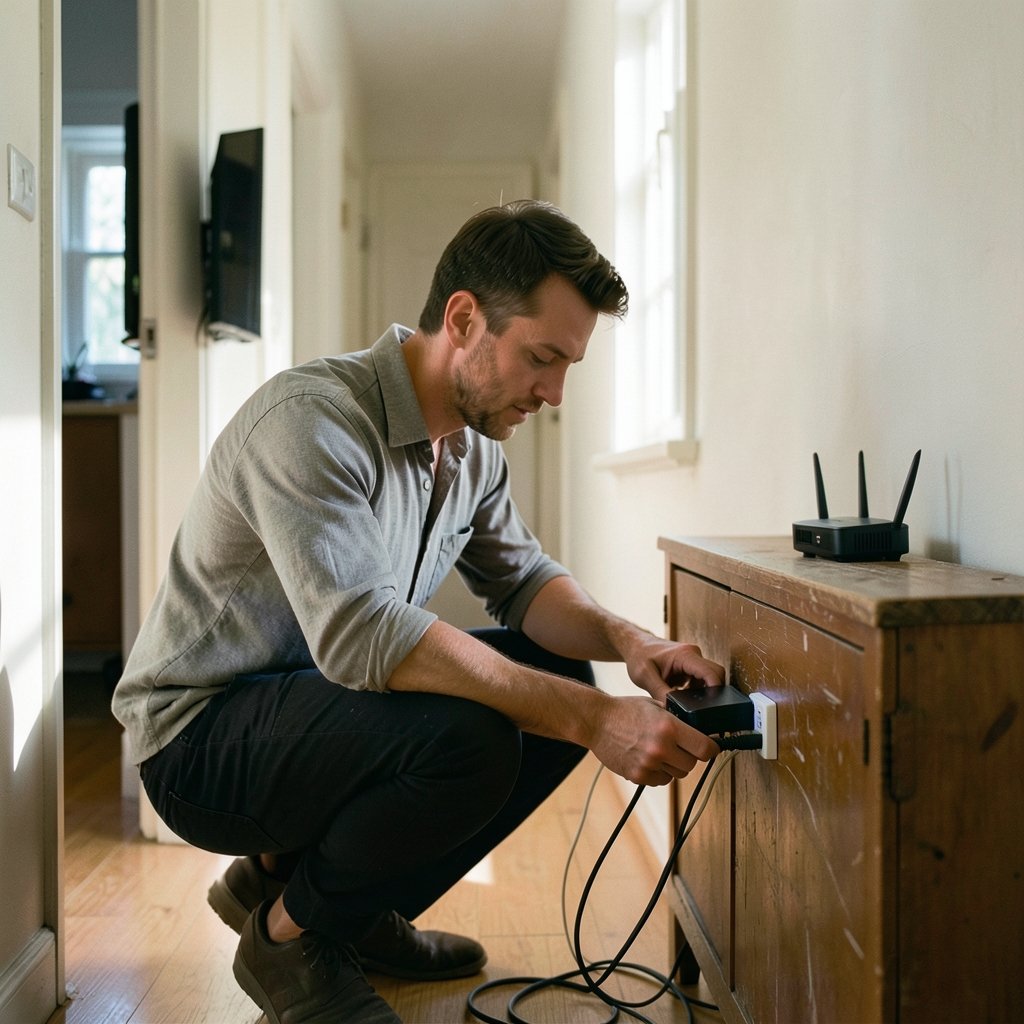
If the TV can’t run a VPN, move the VPN to the router. Every device on the network, including the TV, then routes through the encrypted tunnel automatically. Nothing to install on the TV, nothing to re-configure when the TV updates.
What you need
- A router with built-in VPN client support (OpenVPN or WireGuard). Many Asus, TP-Link, and GL.iNet models include this; check the spec sheet before buying.
- A VPN subscription that provides manual configuration files, rather than only a one-tap app.
- About 20 minutes and access to the router’s admin panel.
Step-by-step
- Log into the VPN provider’s website and download the OpenVPN configuration file (often called a .ovpn file) for the server location you want.
- Open the router admin panel in a browser, usually at 192.168.1.1 or the address printed on the router.
- Find the VPN client section. On most routers it sits under Advanced, WAN, or a dedicated VPN tab.
- Upload the configuration file and enter the username and password from the VPN provider.
- Enable the connection and confirm the router shows “connected.”
- Reconnect the TV to the router’s Wi-Fi, then reboot the TV so it picks up the new network route.
The trade-off is total coverage. Every device on that network, including phones and laptops, now uses the VPN whether they need it or not. Some routers let you exclude specific devices, which is worth setting up if work-from-home video calls suffer from the extra latency. If the household already uses a VPN for privacy on other devices, the distinction between a tunnel and a proxy matters here too; this explainer on VPN vs proxy: what is the difference covers why a proxy won’t encrypt TV traffic the way a router-level VPN does.
Method 2: Android TV and Google TV apps
For TVs and streaming sticks running Google’s platform, this is the simplest route by far.
- Open the Google Play Store on the TV.
- Search for the VPN provider’s app.
- Install it, sign in, and connect to a server.
- Open the streaming app and check that it loads.
Not every provider publishes a TV-optimized app, and the TV version often has fewer features than the desktop client. If the app isn’t in the store, sideloading an APK is possible on Android TV, but it requires enabling developer options and transferring the file. Google’s own Android TV support documentation is the place to confirm the current sideloading steps, since the process changes with OS versions.
Method 3: Travel router or hotspot bridge
A travel router sits between the TV and the main network. You connect the travel router to the VPN, then point the TV at the travel router’s Wi-Fi. It is essentially Method 1 in miniature, and it is ideal for renters who can’t change the main router or for anyone who wants VPN coverage on one TV without touching the rest of the house.
The setup is the same as the router method, just on a smaller device. Expect a small hit to speed, usually under 10 percent on a decent connection, and a second network name to manage.
Method 4: Casting from a device that runs the VPN
The theory: run the VPN on a phone or laptop, then cast to the TV. In practice, this is the method most likely to disappoint. DRM-protected apps such as Netflix and Disney+ frequently block mirroring, and casting often routes video directly from the internet to the TV, bypassing the phone’s VPN entirely. It can work for some apps, but it is not a dependable setup and it ties up a phone for the whole session.
Comparison: which method fits which household
| Method | Difficulty | Covers whole TV? | Best for |
|---|---|---|---|
| Router-level VPN | Medium | Yes | Households that want one setup for everything |
| Android TV app | Easy | Yes | Google TV and Android TV owners |
| Travel router | Medium | Yes, one TV | Renters and single-TV setups |
| Casting or mirroring | Easy to try | Unreliable | Quick tests, not daily use |
| Smart DNS | Easy | Partial | Geo-unblocking only, no encryption |
Smart DNS deserves a note. It redirects traffic for specific streaming services but provides no encryption at all. It is a geo-unblocking tool, not a privacy tool, and the two should never be confused.
Common mistakes that waste an afternoon
Buying a VPN without checking router support. The subscription is useless if the router can’t accept configuration files. Check the router’s manual first, then subscribe.
Forgetting to reboot the TV. Many TVs cache the old network route and keep streaming through the previous connection until restarted. A full power cycle, rather than standby, fixes most “it’s not working” cases.
Choosing a server on the other side of the world. A server 6,000 miles away adds latency that makes 4K streaming stutter. Pick the closest server in the target region.
Ignoring speed before blaming the VPN. Run a speed test before and after. If the baseline connection is 15 Mbps, no VPN will deliver smooth 4K, and the VPN will get blamed unfairly.
Assuming the TV app store has what the phone store has. TV app catalogs are much smaller. Always verify the app exists on the TV platform before planning around it.
Skipping the terms-of-service check. Using a VPN to access a streaming catalog from another country typically violates that service’s terms, even where VPN use itself is legal. Accounts can be restricted. That is a real risk, not a scare tactic, and it belongs in the decision.
Practical tips that make the setup smoother
Test the VPN on a laptop first using the same configuration file. If it connects there, the file and credentials are fine and any problem is on the router side. Keep a note of the original router settings before changing anything, so rollback takes two minutes instead of an hour. And if the household runs several devices through the tunnel, a router with a fast processor matters more than the VPN brand; cheap routers choke on encryption and drag every stream down with them.
For anyone also tightening privacy on phones and laptops, a quick read on the best VPN services helps match the subscription to the router’s capabilities. Budget-conscious households often start with a best free VPN to test the concept, though free tiers usually cap data and offer fewer server locations, which matters when streaming. Families weighing a full upgrade later can compare the best VPN services 2025 roundups for current pricing. And for a low-stakes way to test whether a new network setup behaves, a quick game night with something like this horse racing board game is a surprisingly good excuse to check that every device on the network still connects. (Virtual private network)
Is it legal, and is it worth it?
VPN use itself is legal in most countries. What gets people into trouble is using a VPN to evade regional licensing, which breaks the streaming service’s terms of service. The encryption benefit, protecting traffic on shared or public networks, is separate and uncontroversial. A balanced view: set up the VPN for privacy and secure browsing, and treat geo-unblocking as a side effect with real risks rather than the main goal.
Conclusion
The honest answer to “how to set up a VPN on a smart TV” is that the TV is rarely where the work happens. Router-level VPNs deliver the most reliable, whole-house result. Android TV and Google TV owners get the easiest path with a direct app install. Travel routers cover the renters and single-TV cases. Casting and smart DNS sound convenient but usually let people down when it counts. Pick the method that matches the hardware already in the house, test the configuration on a laptop first, reboot the TV after any network change, and keep expectations realistic about speed and terms of service. Done that way, the setup takes an evening, not a weekend.
Frequently asked questions
Can you install a VPN directly on a Samsung or LG smart TV?
In most cases, no. Samsung’s Tizen and LG’s webOS app stores have historically not carried mainstream consumer VPN apps. The practical workaround is a router-level VPN or a travel router, which encrypts the TV’s traffic without installing anything on the TV itself.
Does a VPN slow down streaming on a smart TV?
It can, depending on server distance and router power. A nearby server on a capable router typically costs under 10 percent of speed, which is invisible on most connections. A distant server or an underpowered router can cause buffering, especially at 4K.
Is a smart DNS the same as a VPN?
No. Smart DNS redirects traffic for specific services to reach regional catalogs, but it does not encrypt anything. A VPN encrypts all traffic from the device or network. Smart DNS is a geo-unblocking tool; a VPN is a privacy tool.
Will a VPN work on a Fire TV Stick?
Fire OS is built on Android, so many VPN providers offer Fire TV apps through the Amazon Appstore. Availability varies by provider and region, so check the provider’s own device list before subscribing.
Can I use a free VPN on my smart TV?
Free VPNs usually cap data, limit server locations, and sometimes throttle streaming. A free tier can be useful for testing whether the setup works, but heavy TV streaming tends to exhaust the cap quickly. Paid plans generally deliver steadier speeds.
What is the fastest way to set up a VPN on a smart TV?
For Android TV and Google TV devices, installing the provider’s app from the Play Store takes about five minutes. For every other TV platform, a router-level VPN is the fastest reliable route, usually 20 minutes including the reboot.