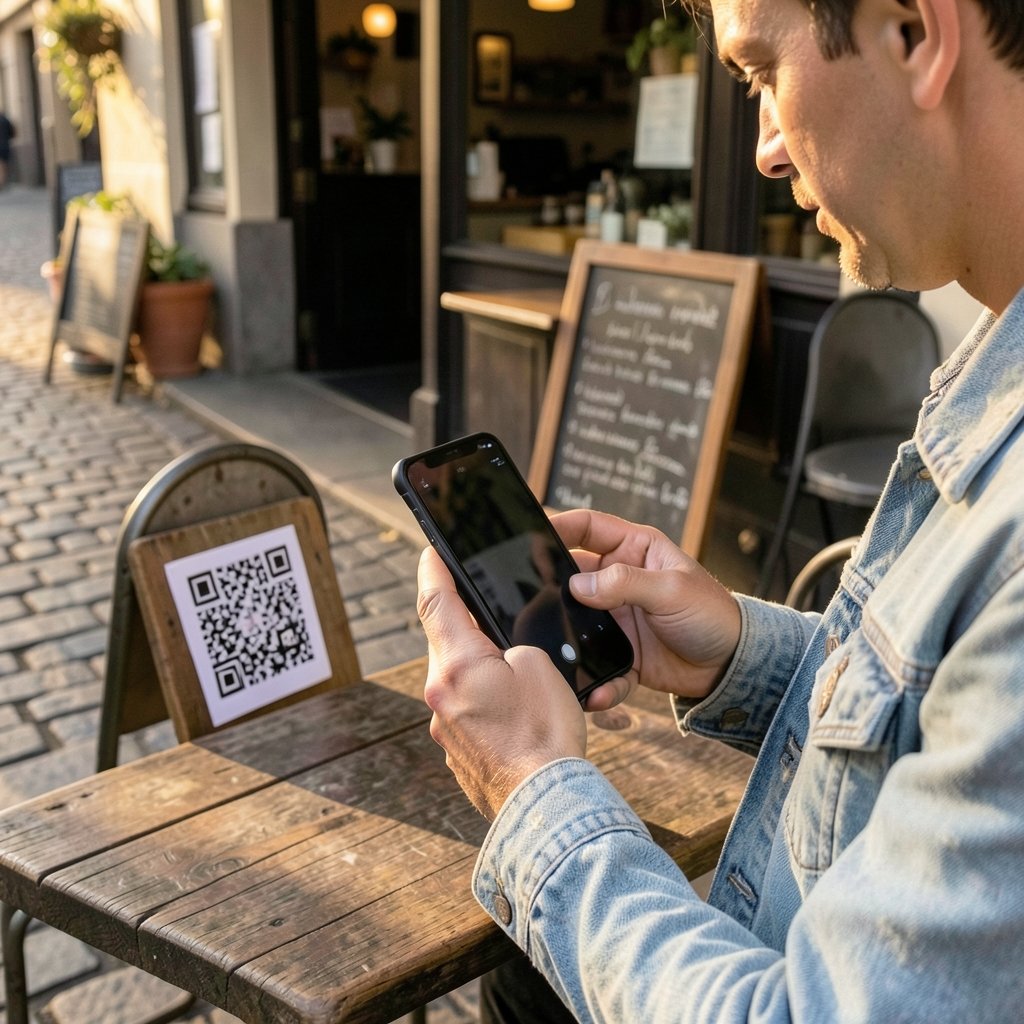
Android’s open nature is one of its best features. It also means anyone can build an app package and hand it to you. Google’s own Play Protect system scans billions of apps daily, yet malicious APKs still slip through sideloading routes every year. The good news: a few disciplined checks catch the vast majority of bad files before they ever touch your data.
This guide walks through the practical verification steps security researchers actually use, from signature checks to permission audits, and flags the mistakes that give people false confidence.
Why Sideloaded APKs Deserve Extra Scrutiny
An APK (Android Package Kit) is simply a ZIP archive containing code, resources, and a manifest. When you install from Google Play, the store handles scanning, signature verification, and updates for you. When you sideload, you take over that job.
Google’s documentation on Play Protect confirms the service scans apps on your device and can warn about or remove harmful ones. But Play Protect’s pre-distribution scanning mainly covers apps distributed through Play itself. A file downloaded from a forum, a mirror site, or a messaging group bypasses much of that pipeline. That gap is exactly where repackaged malware lives.
If you are new to the format, it helps to first understand what an APK file is and whether it is safe by nature. The short version: the format is neutral. The contents decide everything.
Start With the Source, Not the File
Before you touch a single verification tool, ask where the APK came from. This single question eliminates most risk.
Trusted sources include the developer’s official website, established open-source repositories like F-Droid, and APK mirror sites that publish cryptographic hashes and signature fingerprints. Untrusted sources include file-sharing links in chat groups, “modded” versions of paid apps, and sites that bundle download managers or require you to disable security settings to proceed.
A useful rule: if a site asks you to turn off Play Protect or “allow unknown sources” before you can download, treat the file as hostile until proven otherwise. Legitimate developers never need you to lower your defenses to install their software.
Check the Download Link Itself
Phishing pages frequently mimic popular APK repositories. Before downloading, verify the domain character by character. A guide on how to check whether a link is safe covers URL inspection in detail, including spotting homoglyph tricks where a Cyrillic letter replaces a Latin one.
Verify the APK Signature

Every legitimate Android app must be cryptographically signed. Android’s official APK signing documentation explains that the platform rejects updates whose signature does not match the installed version. This is a powerful safety property: if a so-called “update” to an app you already have fails signature verification, someone repackaged it.
How to check in practice:
- Install the Android SDK build-tools on a computer.
- Run `apksigner verify –print-certs yourfile.apk` in a terminal.
- Compare the certificate fingerprint against the one published by the original developer.
A mismatch means the file is not from the same author as your installed copy. Stop there. For apps distributed only through Play, you can sometimes find the SHA-256 certificate fingerprint on the developer’s site or in community databases.
Compare Hashes When Available
Many reputable mirror sites publish a SHA-256 hash next to each download. Compute the hash of your downloaded file and compare. On Windows, `certutil -hashfile file.apk SHA256` does the job. On macOS or Linux, `shasum -a 256 file.apk` works. A single changed character means the file differs from what the host intended to distribute, whether through tampering or a corrupted transfer.
Scan With Multiple Engines, Then Read the Results Carefully
Uploading an APK to a multi-engine scanner gives you a fast signal. VirusTotal, owned by Google since 2012, runs files through dozens of antivirus engines simultaneously.
Two cautions matter here. First, a clean result is not proof of safety. New malware often has low detection rates for days or weeks. Second, a handful of detections can be false positives, especially for niche apps that use packers or aggressive permissions.
The practical approach: treat the scan as one data point. If five or more reputable engines flag the file, discard it. If one obscure engine flags it, look at what the detection name says before panicking.
Understand What Scanners Cannot See
Antivirus engines match patterns and heuristics. They struggle with apps that behave maliciously only after a remote command, or that hide payloads downloaded post-install. This is why scanning alone is insufficient and why the next two checks matter more.
Audit the Permissions Before Installing
Android classifies sensitive capabilities such as camera, location, SMS, and contacts as dangerous permissions, requiring explicit runtime grants since Android 6.0. The permissions overview from Android’s developer documentation is the reference for what each permission allows. (Android (operating system)))
Before installing, review the permission list. Then apply this test: does this permission make sense for this app’s core function?
| App Type | Reasonable Permissions | Red Flags |
|---|---|---|
| Flashlight | Camera (for the LED), storage | SMS, contacts, call logs |
| Simple notes | Storage | Location, microphone, accessibility |
| Puzzle game | Network, storage | SMS, accessibility service, device admin |
| Calculator | None or storage | Anything network-related |
Accessibility service and device administrator rights deserve special suspicion. Malware abuses both to read screens, intercept input, and resist uninstallation. A calculator requesting accessibility access is not a calculator you want.
Check the Manifest Directly
If you want certainty, dump the manifest with `aapt dump permissions yourfile.apk` or the newer `apkanalyzer` tool. Both ship with the Android SDK. This shows every declared permission, including ones the listing page might not display.
Inspect the Installer’s Behavior
The moment of installation is itself a checkpoint. Watch for these signals:
- The installer demands you disable Play Protect. No legitimate app needs this.
- The app requests install unknown apps permission for a second app you did not intend to install. This is a classic dropper pattern.
- The package name mimics a popular app with a subtle difference, such as an extra letter or a swapped character.
- The app icon and name match a well-known brand but the developer name does not.
On modern Android, the per-app “install unknown apps” model replaced the old global toggle back in Android 8.0 (2017). If a guide tells you to flip a global “unknown sources” switch, it is outdated, and following outdated instructions is itself a risk.
Run a Post-Install Sanity Check
Installation is not the finish line. After installing, spend two minutes observing:
- Check Settings > Apps > Special access for anything newly granted accessibility or notification-listener rights.
- Look at battery and data usage after a day. A simple utility that burns through mobile data is doing something it did not disclose.
- Review Play Protect status in the Play Store to see whether it flagged the app after install.
- Uninstall anything you do not actively use. Fewer installed apps means a smaller attack surface.
If your device starts behaving oddly, such as a sudden flood of pop-ups or unexplained redirects, treat it as a possible infection. A guide on how to check for viruses on a Windows PC covers the desktop side of the same problem, since malware often spreads across synced devices.
Common Mistakes That Undermine Every Check
Even careful users trip on the same few errors.
Trusting the file name. A file called `whatsapp_official.apk` proves nothing. Names are free to type.
Skipping the signature check because the scan was clean. Scanners miss repackaged apps that add only a small malicious module. Signature verification catches tampering that pattern matching misses.
Downloading “premium unlocked” versions of paid apps. These are among the most reliable vectors for banking trojans. The economics are simple: nobody pays to crack software out of generosity.
Ignoring the developer’s official channel. Many developers publish APKs directly for regions where Play is unavailable. Check the official site first, and verify the hash if one is offered.
Assuming iOS is immune and dropping vigilance elsewhere. Malware exists on every platform. A guide on how to check for malware on a Mac shows the same discipline applies across operating systems.
When the App Is Genuinely Suspicious
If several signals point the same way, do not install. If you already installed, take these steps:
- Enable airplane mode to cut remote command channels.
- Uninstall the app. If it resists, revoke its device-admin rights first in Settings > Security.
- Run a reputable mobile security scan.
- Change passwords for any account the app could have accessed, starting with banking and email.
- Check for unauthorized transactions and unfamiliar logged-in devices.
For a broader routine that keeps devices clean over time, the same habits covered in how to check whether an APK file is safe apply as a recurring monthly check rather than a one-off.
A Quick Reference Workflow
Here is the whole process compressed into a sequence you can follow in under five minutes for most files:
- Confirm the source is official or reputable.
- Verify the download domain and, if published, the SHA-256 hash.
- Run `apksigner verify` and compare the certificate.
- Upload to a multi-engine scanner and read the detection names.
- Dump permissions and ask whether each one fits the app’s purpose.
- Install, then review special access and data usage afterward.
None of these steps is glamorous. Together they close nearly every gap that sideloading opens.
Conclusion
Checking an APK’s safety is less about any single tool and more about layering cheap, fast checks. Source verification kills most threats outright. Signature checks catch repackaging that scanners miss. Permission audits expose overreach before it runs on your phone. Scanners add a useful final filter, provided you read them as one signal rather than a verdict.
The habit worth building is skepticism with a process behind it. Convenience is exactly what attackers sell, whether through a cracked premium app or a link that promises an exclusive build. A few minutes of verification is a small price for keeping your messages, photos, and bank apps out of someone else’s hands.
Frequently Asked Questions
Is a clean VirusTotal result enough to trust an APK?
No. Multi-engine scanners are a useful filter but not a guarantee. New malware often has low detection rates for days, and apps that fetch a payload after install can look harmless at scan time. Treat a clean result as one positive signal among several, and still verify the signature and permissions.
Can Play Protect scan an APK I sideload?
Play Protect scans apps on your device and can warn about or remove harmful ones, including apps installed outside the Play Store in many cases. However, sideloaded files bypass the pre-distribution review that Play Store apps receive, so on-device scanning is a backstop, not a substitute for your own checks.
What does a signature mismatch actually tell me?
It tells you the file was not signed by the same key as the version you have installed. That usually means someone repackaged the app, which is a strong tampering signal. Stop the installation and look for the file from the original developer instead.
Which permissions should make me walk away immediately?
Accessibility service, device administrator, SMS reading, and notification listener access are the highest-risk grants. They enable screen reading, message interception, and resistance to uninstallation. A simple utility or game requesting any of these is almost certainly not what it claims to be.
Are APK mirror sites ever safe?
Some established mirrors publish hashes and signature fingerprints and have reasonable track records. Even then, verify the hash yourself and compare certificates. Avoid mirrors that push download managers, hide the developer name, or ask you to disable security features before downloading.
What should I do if I already installed a bad APK?
Switch to airplane mode, revoke any device-admin rights, and uninstall the app. Then run a security scan, change passwords for accounts the app could reach, and review bank and email activity for anything unfamiliar. If the app had accessibility access, assume keystrokes and screen content may have been exposed. (App manifest overview)