QR codes have quietly become the handshake of the digital world. They appear on restaurant menus, parking meters, event tickets, delivery boxes, and even business cards. Yet a surprising number of Android owners still fumble the moment one shows up. According to research on mobile barcode adoption, QR code scans now number in the billions globally each year, and the vast majority of those scans happen on phones. The good news: modern Android devices usually do the hard work for you. The catch is that the exact steps vary by brand, Android version, and the Google app build installed on your phone.
This guide walks through every reliable method, from the fastest one-tap options to the fallback approaches when nothing else cooperates. It also covers the mistakes that trip people up and the security habits worth building.
The Fastest Method: Your Camera App
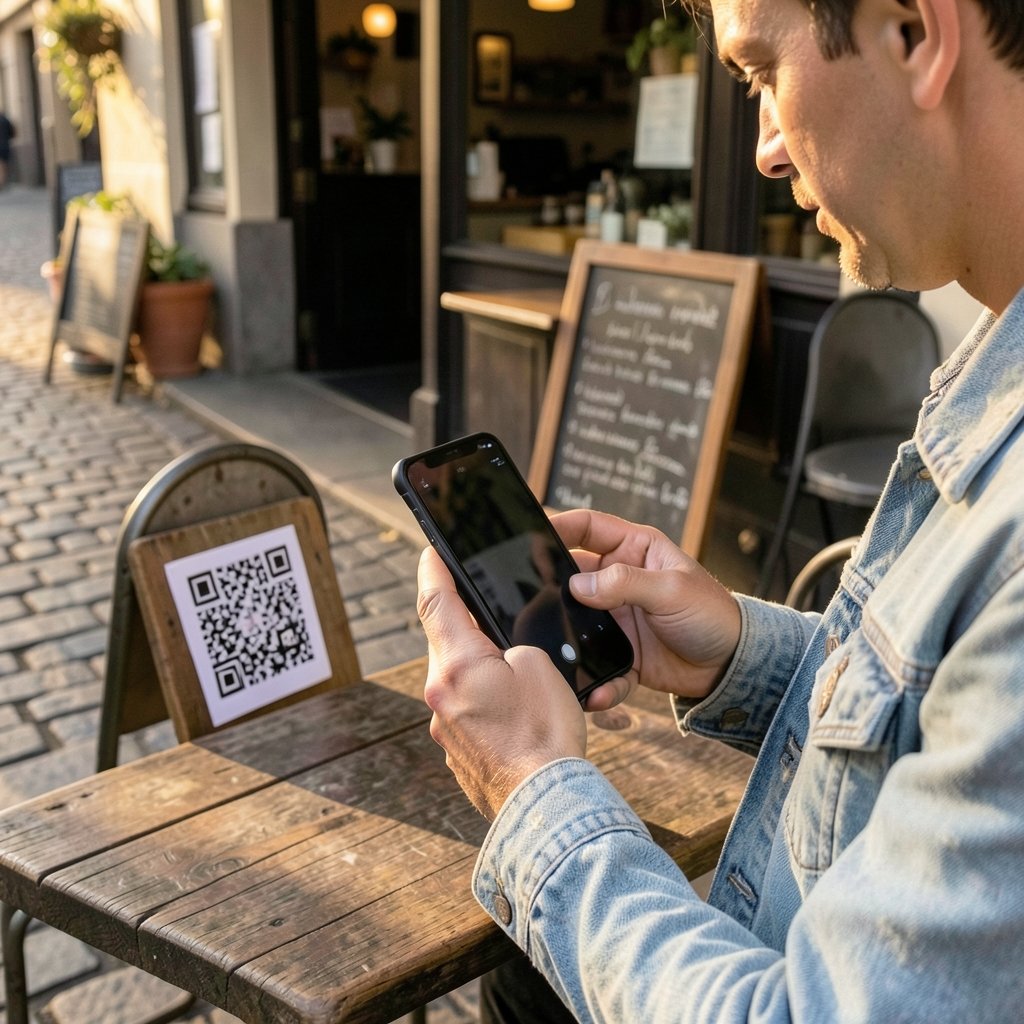
Most Android phones sold in the past several years can read a QR code straight from the camera viewfinder. There is no app to download and no button to press. Point the rear camera at the code, hold steady for a second or two, and a notification or on-screen prompt appears with the link or action.
Google’s own Pixel devices have handled this natively for years, and Samsung, OnePlus, Xiaomi, and most other major manufacturers have followed suit. The behavior is not identical across brands, though. Some phones scan automatically, while others require you to tap a small icon that appears in the corner of the viewfinder. If your camera shows a tiny QR symbol when it detects a code, tap it to read the code.
A practical tip that saves real frustration: give the camera a moment to focus. Blurry, low-light, or angled scans are the single most common reason people think their phone “can’t read QR codes” when the camera is perfectly capable. Wipe the lens, hold the phone about six to eight inches away, and let autofocus settle before moving.
Quick Settings: The Hidden One-Tap Scanner
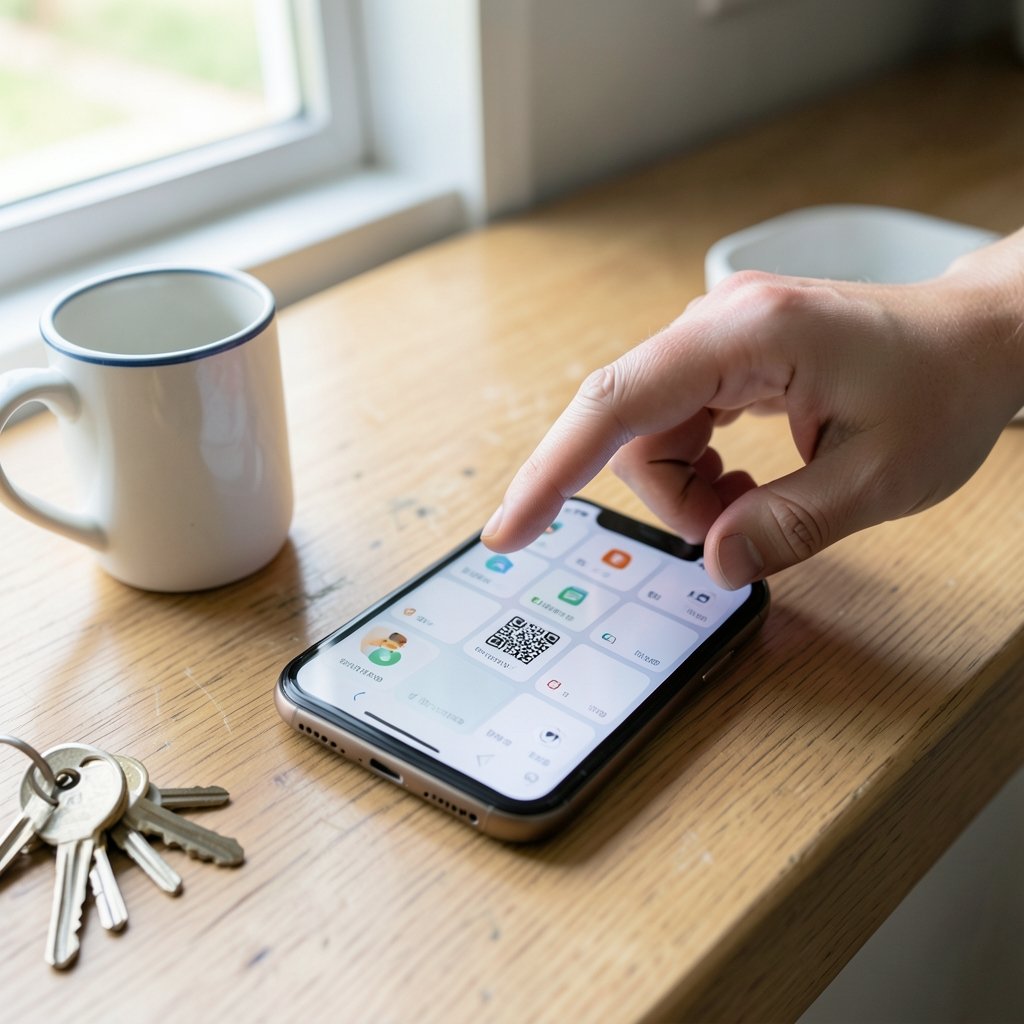
Many Android builds include a QR code scanner tile tucked inside the Quick Settings panel, the same swipe-down menu that holds Wi-Fi, Bluetooth, and flashlight toggles. Availability depends on the manufacturer and Android version, so it is worth checking once.
- Swipe down twice from the top of the screen to open the full Quick Settings panel.
- Tap the pencil or edit icon to see all available tiles.
- Look for a tile labeled Scan QR code and drag it into your active tiles.
- Tap it whenever you need to scan, and point the camera at the code.
On Pixel phones and several other stock-Android devices, this tile has been a standard feature for years. On heavily customized interfaces, it may be missing entirely. If you cannot find it, skip ahead to the Google Lens method, which covers nearly every Android phone in existence.
Google Lens and the Google App
Google Lens is the Swiss Army knife of Android scanning, and it works on virtually any device with the Google app installed. There are two ways to reach it.
Through the Google app: Open the app, tap the camera icon in the search bar, and point the phone at the QR code. Lens recognizes it and offers to open the link.
Through Google Photos: If someone sends you a screenshot of a QR code, open that image in Google Photos, tap the Lens icon, and it will read the code inside the picture. This trick solves the common “my friend texted me a QR code” problem, which trips up a lot of people who try to scan a screenshot with a physical camera.
Lens also handles damaged or partially obscured codes better than many native camera scanners, which makes it a solid backup when the camera method fails.
Third-Party Scanner Apps: When You Actually Need One
For most people, a dedicated scanner app is unnecessary. The built-in tools cover nearly every situation. That said, older phones, budget devices with stripped-down camera software, and unusual Android skins may lack reliable native scanning. In those cases, a reputable scanner app from the Play Store fills the gap. Look for apps with strong review counts, minimal permissions, and no aggressive ad walls.
Be picky here. A QR scanner needs camera access and nothing else. If an app demands contacts, location, or SMS permissions just to read a code, that is a red flag. The same caution applies to whatever tool you use for other phone tasks, whether that is picking the best code editor for mac for development work or choosing a best wireless chargers for iphone android setup. Good tools ask only for what they genuinely need.
Scanning QR Codes From Screenshots and Images
A QR code does not have to be printed or displayed on another screen. Android can read codes that exist only as image files. The Google Photos route above is the simplest. Alternatively, many gallery apps include a built-in Lens shortcut when you open an image.
This matters more than it sounds. Concert tickets, boarding passes, and payment requests increasingly arrive as images in messaging apps. Trying to photograph your own screen with another phone is a comedy of errors that nobody needs. Use the screenshot method instead.
What to Do When the Scan Fails
Even a good camera occasionally refuses to cooperate. Work through these checks in order before assuming the code itself is broken.
| Problem | Likely Cause | Fix |
|---|---|---|
| Camera sees the code but nothing happens | Native scanning disabled or unsupported | Use Google Lens instead |
| Prompt appears but link will not open | Broken or expired URL | Ask the source for a fresh code |
| Code looks smudged or damaged | Physical wear or glare | Adjust lighting angle, clean the surface |
| Camera will not focus at all | Dirty lens or software glitch | Wipe lens, restart the camera app |
| Nothing detected on an old phone | No native QR support | Install a reputable scanner app |
One underrated fix: move farther back. People instinctively shove the phone inches from the code, which pushes the camera past its minimum focus distance. Pulling back a few inches often snaps everything into focus instantly.
Scanning Wi-Fi and Payment QR Codes
Not every QR code points to a website. Two special cases deserve their own note.
Wi-Fi codes let you join a network without typing a password. Many Android versions and manufacturer skins can read these from the camera or a dedicated Wi-Fi scanning option in settings. The phone recognizes the code as a network credential and offers to connect. Availability varies, so if your device does not respond, a scanner app usually handles it.
Payment codes from apps like Google Pay, PayPal, and regional banking apps are typically scanned inside the payment app itself, not through the camera. Open the app, find its scan or pay option, and use that. Scanning a payment code with a generic camera app may open a link that does nothing useful.
Security Habits Worth Building
QR codes are just links in a square costume, and that is exactly why caution pays off. A code can point anywhere, including phishing pages designed to look like login screens. A widely cited concern in mobile security reporting is quishing, the practice of hiding malicious links inside QR codes on flyers, parking meters, and fake notices.
The defense is simple. Before tapping through, look at the URL preview your phone shows. If a code on a restaurant table claims to lead to a payment page on an unfamiliar domain, stop. Legitimate services use recognizable domains. Google’s own safety guidance consistently recommends previewing links before opening them, and that habit costs you two seconds.
A few practical rules:
- Never scan a QR code from an unsolicited email or message that pressures you to act fast.
- Check that the URL matches the organization the code claims to represent.
- Avoid entering passwords or card numbers on pages reached through a QR code unless you navigated there deliberately.
- Treat stickers slapped over legitimate codes as suspicious. Tampering is a known attack method.
QR Codes in Daily Workflows
Beyond menus and tickets, QR codes have become genuinely useful productivity tools. Developers pair devices, authenticate logins, and share builds through codes. If you spend your day in an editor, knowing how your tools handle codes and configurations matters, and guides like this comparison of antigravity vs cursor vs claude code 2026 can help you choose an environment that fits your workflow. Setting up extensions properly, as covered in this walkthrough on VS Code extensions cursor setup 2026, keeps those workflows smooth. (QR code)
On the personal side, QR codes now handle contact sharing, app downloads, and even image lookups. If you have ever wondered about the reverse of scanning, this guide on how to reverse image search on android covers the visual-search side of the same camera-driven habit.
Common Mistakes People Make
After watching countless people wrestle with QR codes, a few patterns stand out.
Assuming every phone behaves the same. A Pixel and a budget Samsung from three years ago are different animals. When instructions do not match what you see, the phone is not broken. The menus simply differ.
Downloading the first scanner app in the results. Most people never needed an app at all. Native scanning and Google Lens cover the overwhelming majority of devices.
Ignoring the preview. Tapping “open” without glancing at the destination URL is how quishing works. The preview exists for a reason.
Photographing a screen with another phone. Screenshots read perfectly through Google Photos or Lens. Skip the awkward two-phone dance.
Forgetting that the code might be the problem. Expired event codes, dead promotional links, and misprinted codes fail for everyone. If two devices cannot read the same code, the code is the issue, not your phone.
Conclusion
Scanning a QR code on Android is usually a two-second job: open the camera, point, tap. The camera app handles most codes, Quick Settings offers a one-tap scanner on many devices, and Google Lens covers everything else, including codes hiding inside screenshots. The real skill is not scanning at all. It is knowing which method to reach for when the first one fails and keeping enough caution to check where a code wants to send you before you follow. Build those two habits, and QR codes stop being a mild annoyance and start being the convenient shortcut they were designed to be.
Frequently Asked Questions
Do all Android phones scan QR codes without an app?
Most phones released in recent years can scan QR codes through the native camera, Quick Settings, or Google Lens. Older and budget devices may lack native support, in which case a reputable scanner app from the Play Store fills the gap.
Why does my camera not detect QR codes?
The usual culprits are a dirty lens, poor lighting, holding the phone too close, or native scanning being disabled. Try Google Lens through the Google app, which works on nearly every Android device and often succeeds where the camera app fails.
Can I scan a QR code from a screenshot?
Yes. Open the screenshot in Google Photos, tap the Lens icon, and Lens will read the code inside the image. This is far easier than trying to photograph your own screen with a second phone.
Are QR codes safe to scan?
Scanning itself is harmless. The risk comes from where the code points. Always check the URL preview before opening a link, avoid codes from unsolicited messages, and never enter passwords or payment details on pages reached through an unfamiliar code.
How do I scan a Wi-Fi QR code on Android?
Many Android devices recognize Wi-Fi codes through the camera or a Wi-Fi scanning option in settings, then offer to join the network automatically. If your phone does not respond, a scanner app can usually read the credentials for you.
What is the fastest way to scan a QR code on Android?
If your phone supports it, the Quick Settings “Scan QR code” tile is the fastest option because it opens the scanner in one tap from any screen. Otherwise, the camera app or the Google app’s camera icon is nearly as quick.