

A laggy mouse is one of the most frustrating computer problems because it makes everything feel broken. You move the cursor, and it arrives a split second later. You click, and nothing happens right away. According to user reports collected across Microsoft’s community forums, mouse stutter is one of the most frequently reported input problems on Windows 11, and it often appears after a routine update rather than a hardware failure. The good news is that most cases trace back to a small set of causes, and nearly all of them are fixable without buying new hardware.
This guide walks through the fixes in the order that actually works: quick wins first, deeper system checks last. Along the way, it covers the mistakes people make most often, because knowing what not to do saves as much time as knowing what to do.
Start With the Basics Before Touching Settings
Before changing a single setting, rule out the obvious. A surprising number of “Windows 11 mouse lag” complaints turn out to be a dying battery, a dusty sensor, or a wireless dongle plugged into a bad port. Spend five minutes here:
- Swap the battery or charge the mouse. Wireless mice behave erratically at low power, and the symptoms look exactly like software lag.
- Clean the sensor lens. A hair or speck of dust on the optical sensor causes stutter that no driver update will fix.
- Try a different USB port. Move the receiver from a rear port to a front one, or vice versa. Rear ports on some desktops share a controller with other busy devices.
- Test a second mouse if you have one. This single step tells you whether the problem lives in the hardware or in Windows. Do it first if you can.
- Check the surface. Glass and glossy desks confuse optical sensors. A plain mousepad is a legitimate fix, not a placebo.
If a different mouse works perfectly, the problem is hardware. If both mice lag, the problem is almost certainly Windows, and the rest of this guide applies.
Rule Out Interference on Wireless Mice
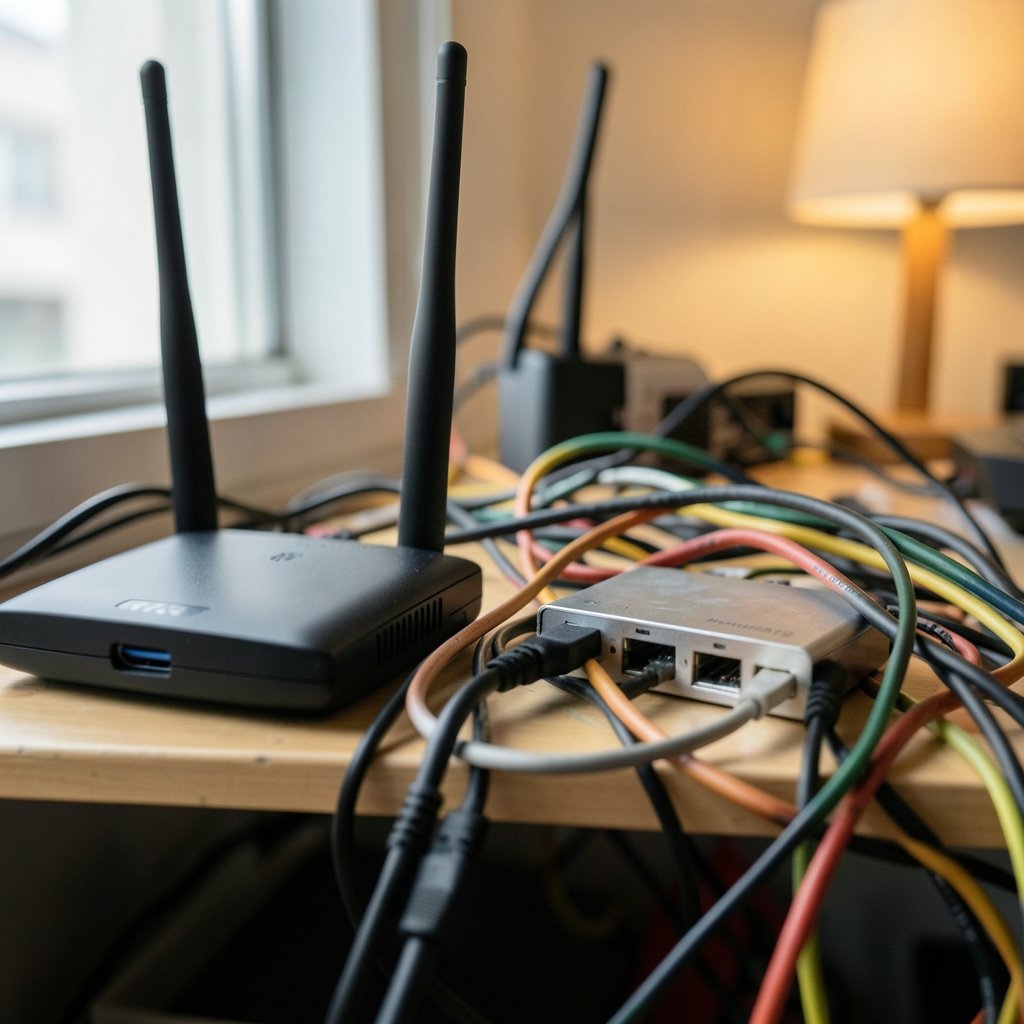
Wireless interference deserves its own section because it is underdiagnosed. Most wireless mice communicate over the 2.4 GHz band, the same crowded spectrum used by Wi-Fi, Bluetooth, and even microwave ovens. USB 3.0 ports are a known source of radio-frequency noise near that band, which is why a dongle plugged directly next to an external SSD or a USB 3.0 hub can cause stutter that comes and goes.
The practical fix is simple: use a short USB extension cable to move the receiver away from the PC case and closer to the mouse. Keep the dongle at least a few inches from USB 3.0 ports and from the monitor’s USB hub. If the mouse supports Bluetooth as well as 2.4 GHz, test both modes. Sometimes one is stable and the other is not, which narrows the problem down immediately.
Check Polling Rate and Pointer Settings
Two settings get blamed for lag more than any others, and both deserve a fair look. The first is polling rate, which controls how often the mouse reports its position to the PC. A 125 Hz mouse reports every 8 milliseconds; a 1000 Hz mouse reports every millisecond. Higher rates feel smoother, but they also demand more from the USB controller and the CPU. On some systems, an aggressive polling rate combined with a busy USB bus produces worse stutter, not better. If you have been experimenting with overclocked polling rates, drop back to 1000 Hz and retest. For a deeper explanation of how the setting works and what values suit which use case, see this guide to the best polling rate for mouse performance.
The second setting is Enhance pointer precision, found under Settings > Bluetooth & devices > Mouse > Additional mouse settings > Pointer Options. This is Windows’ mouse acceleration feature. It is not a lag fix in itself, but toggling it changes how cursor movement feels, and many people who think they have lag are actually fighting acceleration. Turn it off, move the mouse in slow circles, and see whether the cursor now tracks your hand predictably. If it does, you have found your culprit. (Lag (Wikipedia))
Update or Clean-Reinstall the Mouse Driver
Windows 11 ships generic HID drivers that work with almost everything, but vendor software often sits on top and can misbehave after an update. Logitech G HUB, Razer Synapse, and similar utilities are powerful and occasionally buggy. If lag appeared right after a vendor software update, that is your prime suspect.
The clean approach:
- Open Device Manager (right-click the Start button and choose it from the menu).
- Expand Mice and other pointing devices.
- Right-click your mouse and choose Uninstall device. Do not check “Attempt to remove the driver” unless you have the vendor installer ready.
- Restart the PC. Windows will reinstall a fresh driver automatically.
- If you use vendor software, download the latest version from the manufacturer’s official support page and install it fresh rather than updating in place.
A related and often overlooked step is checking for chipset and USB controller drivers from your motherboard or laptop maker. Outdated chipset drivers are a documented cause of USB input stutter, and Windows Update does not always deliver the right ones. This is the same category of problem that shows up in other system-level troubleshooting, such as when people search for how to fix antimalware service executable high cpu usage and discover the real issue was a driver or background service rather than the thing named in the error.
Fix USB Power Management
Windows tries to save power by suspending USB devices that look idle. Sometimes it guesses wrong, and the mouse briefly loses its connection, which feels exactly like lag. There are two places to check.
First, the Device Manager route: open Device Manager, expand Universal Serial Bus controllers, and open the properties for each USB Root Hub. Under the Power Management tab, uncheck Allow the computer to turn off this device to save power. Repeat for every root hub listed.
Second, the power plan route: open Control Panel > Power Options > Change plan settings > Change advanced power settings, expand USB settings > USB selective suspend setting, and set it to Disabled for both battery and plugged-in states. Then set the overall plan to High performance or Balanced rather than a power-saving mode. On laptops, test on AC power first, since battery saver modes intentionally throttle input responsiveness.
Address Refresh Rate and Display Settings
A mismatched refresh rate can make the cursor feel like it is dragging through mud even when the mouse itself is fine. If your monitor supports 144 Hz but Windows is running it at 60 Hz, the desktop will feel sluggish in a way that mimics input lag. Check under Settings > System > Display > Advanced display and set the highest refresh rate your monitor supports.
Variable refresh rate features can also interact badly with some configurations, producing cursor stutter in windowed applications. If you notice lag only in certain apps, try disabling variable refresh rate for windowed mode in your GPU control panel and see whether the problem disappears. This is a process of elimination, so change one thing at a time and test after each change.
Hunt Down Background Processes and DPC Latency
If everything above checks out, the lag may not be about the mouse at all. DPC latency is the delay between a hardware interrupt and the system’s response, and when it spikes, every input device stutters. Common causes include misbehaving network drivers, audio drivers, and background utilities that poll hardware aggressively.
The practical approach is to open Task Manager, sort by CPU and disk usage, and watch for anything spiking in rhythm with the lag. Then close suspicious background apps one at a time. Tools that monitor DPC latency can confirm the diagnosis, though they require some interpretation. It also helps to run a full system scan, since some malware causes exactly this kind of stutter; a guide on how to check for viruses on a windows pc covers the built-in tools, and a list of the best free virus removal tools for windows covers the second-opinion scanners worth running.
Common Mistakes That Make Things Worse
People troubleshooting mouse lag tend to make the same errors. Avoiding these saves hours:
| Mistake | Why it backfires | Better approach |
|---|---|---|
| Changing ten settings at once | You cannot tell which change helped or hurt | Change one setting, test, then move on |
| Installing “mouse fix” utilities from random sites | Bundled adware and worse lag | Stick to vendor software and Windows settings |
| Maxing out polling rate on a weak USB controller | Adds stutter instead of removing it | Test 500 Hz and 1000 Hz before going higher |
| Ignoring the battery because “it was fine yesterday” | Batteries fail suddenly, not gradually | Swap it early as a free test |
| Assuming a Windows reinstall is needed | It rarely is | Exhaust driver and power settings first |
One more mistake worth naming: reinstalling Windows before trying a clean boot. A clean boot disables all non-Microsoft startup services, and if the lag vanishes, you know a third-party service is responsible. It takes ten minutes and rules out an entire category of causes. (Intel support overview)
When the Problem Is the Hardware
Sometimes the honest answer is that the mouse is failing. Symptoms that point to hardware rather than software include lag that persists across different PCs, a cursor that jumps rather than glides, and clicks that register inconsistently. Switches wear out, cables fray at the strain relief, and wireless receivers lose sensitivity over time.
If the mouse is under a year old, check the warranty before replacing it. If it is older and the fixes above did not help, a replacement is usually cheaper than continuing to troubleshoot. Budget mice have improved enormously, and even mid-range models now offer reliable 1000 Hz polling.
Conclusion
Mouse lag in Windows 11 is rarely a mystery once you work through it in order. Test a second mouse first to separate hardware from software. Then move the wireless receiver away from USB 3.0 noise, check polling rate and pointer precision, clean-reinstall the driver, disable USB selective suspend, confirm the monitor’s refresh rate, and only then dig into background processes and DPC latency. Each step is quick, and each one eliminates a whole category of causes. The single most important habit is changing one thing at a time and testing immediately, because a laggy mouse is a moving target, and a methodical approach is the only reliable way to hit it.
Frequently Asked Questions
Why does my mouse lag only in Windows 11 and not Windows 10?
Windows 11 changed how USB power management and some input drivers behave, and early builds had documented input stutter issues. Most of these were fixed in updates, so the first step is running Windows Update. If the lag persists, the cause is usually a driver or power setting rather than the operating system itself.
Does a higher polling rate fix mouse lag?
Not always. A higher polling rate reduces the delay between position reports, which feels smoother, but it also loads the USB controller. On some systems, especially with busy USB buses, a very high rate causes stutter. Test 500 Hz and 1000 Hz before assuming more is better.
Can a wireless mouse cause lag even with a good battery?
Yes. The 2.4 GHz band is crowded, and USB 3.0 ports emit noise near that frequency. Moving the receiver to a front port or using a short extension cable often fixes intermittent stutter that has nothing to do with battery level.
Is “Enhance pointer precision” the same as mouse lag?
No, but the two get confused constantly. That setting enables mouse acceleration, which makes the cursor move farther when you move faster. Turning it off does not reduce lag, but it makes cursor movement predictable, which resolves many complaints people describe as lag.
How do I know if the problem is my mouse or my PC?
Plug the mouse into a different computer. If it lags there too, the mouse is the problem. If it works perfectly elsewhere, the issue is in your Windows configuration, and the driver and power settings in this guide are the place to start.
Should I reinstall Windows to fix mouse lag?
Almost never. Reinstalling is a last resort that wipes your setup and rarely addresses input stutter. A clean boot, a driver reinstall, and a check of USB power settings resolve the overwhelming majority of cases in far less time.



