
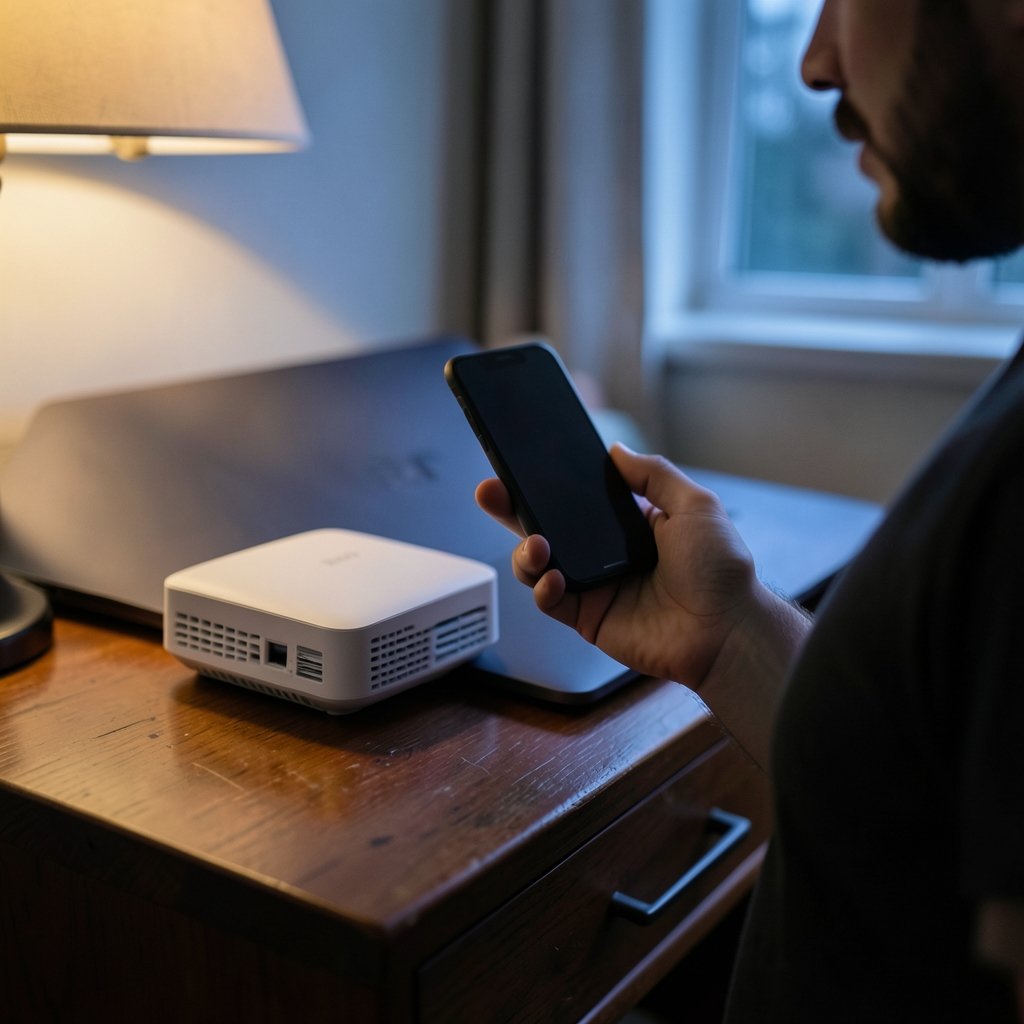
A dropped Wi-Fi connection on an Android phone feels like a small disaster. One moment you’re streaming a video, and the next you’re staring at a spinning wheel or a dreaded “Connected, no internet” message. What makes it worse is that the fix is rarely obvious. The problem could be a stale network password, a router that needs a reboot, a third-party app gone rogue, or a setting buried three menus deep.
The good news is that most Android Wi-Fi failures fall into a handful of predictable categories, and nearly all of them have a simple fix you can try in under five minutes. According to Google’s own Android help documentation, the standard troubleshooting path starts with something as basic as toggling the connection off and on again before moving to more involved steps. This guide walks through that same logic, from the fastest fixes to the last-resort ones, so you can stop guessing and get back online.
Start With the Two-Minute Fixes
Before you dig into settings menus, rule out the obvious. A surprising number of Wi-Fi problems resolve with a simple restart of the phone or the router. Here’s the order that works best:
- Toggle Wi-Fi off and on. Swipe down from the top of the screen, tap the Wi-Fi icon to turn it off, wait ten seconds, then turn it back on. This forces Android to re-scan for networks and request a fresh connection.
- Reboot the phone. A full restart clears temporary glitches in the network stack that a toggle alone won’t fix.
- Reboot the router. Unplug it for 30 seconds, plug it back in, and wait two minutes for it to fully come back online. This clears the router’s memory and reassigns IP addresses.
If the Wi-Fi works again after these steps, you’re done. If it doesn’t, keep reading. The remaining fixes address specific causes, and the order matters less than matching the fix to the symptom.
Figure Out Whether the Problem Is the Phone or the Network

This is the single most useful diagnostic step, and most people skip it. Before you change a single setting on your phone, grab another device, a laptop, a tablet, or a partner’s phone, and try to connect to the same network.
If the other device also fails, the problem lives in the router or your internet service provider, not your Android phone. In that case, the fix is on the router side: reboot it, check the cable from your modem, or contact your ISP. Google’s Nest Wifi troubleshooting guidance makes the same point: when multiple devices fail at once, the network itself is the likely culprit.
If the other device connects fine and only your phone struggles, the issue is local to the phone. That narrows things down considerably, and the fixes below are aimed squarely at that scenario.
Forget the Network and Reconnect
Stale saved credentials are one of the most common causes of a phone that refuses to connect to a network it used to join without complaint. A password change on the router, a new security protocol, or a corrupted saved profile can all leave your phone trying to authenticate with outdated information.
To clear it:
- Open Settings and go to Network & internet (or Connections on Samsung devices).
- Tap Wi-Fi, then tap the gear icon next to the network that’s failing.
- Tap Forget (sometimes labeled Forget network).
- Turn Wi-Fi off and back on, then tap the network name and re-enter the password carefully.
This also forces the phone to request a fresh DHCP lease, which resolves a surprising number of “connected but no internet” cases. If you’re not sure whether your router password is correct, check the label on the router itself or log into the router’s admin page.
Check the “Connected, No Internet” Message
That specific error message, “Connected, no internet,” tells you the phone has joined the network but can’t reach the outside world. The cause is usually one of three things: a captive portal that needs a login, a DNS problem, or an actual outage.
Captive portals are the login screens you see at hotels, airports, and cafés. Sometimes Android fails to pop the login page automatically. The fix is simple: open any browser and try to load a website. The portal should appear. If it doesn’t, type a plain HTTP address into the bar, which often triggers the redirect.
If you’re on your home network and see this message, try the router reboot again and confirm your ISP isn’t reporting an outage. A quick check of your provider’s status page on cellular data will tell you whether the problem is on their end. (Wi-Fi)
Boot Into Safe Mode to Rule Out a Rogue App
Third-party apps can interfere with Wi-Fi in ways that aren’t obvious. A VPN that fails to disconnect cleanly, a battery optimizer that kills background connections, or a poorly coded utility can all leave Wi-Fi in a broken state. Safe mode disables all downloaded apps, which isolates the cause.
The method varies slightly by manufacturer, but the standard approach is to long-press the power button, then long-press the Power off option on screen until a Safe mode prompt appears. Tap it, and the phone restarts with only system apps running.
Once in safe mode, try connecting to Wi-Fi. If it works, a downloaded app is the culprit. Restart normally and uninstall recent additions one at a time, testing Wi-Fi after each removal. VPN and security apps are the usual suspects, so start there.
Reset Network Settings Without Losing Your Data
When nothing else works, Android has a built-in reset that clears all network configurations: Wi-Fi networks, Bluetooth pairings, and cellular APN settings. Crucially, it does not erase your photos, apps, or accounts. Google’s Android support documentation describes this as a way to restore network settings to their factory defaults. (Connect to a Wi-Fi network on your Android device)
You’ll find it under Settings > System > Reset options > Reset Wi-Fi, mobile & Bluetooth (the exact path varies by manufacturer). After the reset, you’ll need to re-enter your Wi-Fi password and re-pair your Bluetooth devices, so set aside a few minutes.
This fix is particularly effective when the phone connects to some networks but not others, or when Bluetooth and Wi-Fi both misbehave at the same time. It’s a heavier step than forgetting a single network, so try that first.
The Settings That Quietly Break Wi-Fi
A few Android settings are notorious for causing connection problems, and they’re easy to overlook because they live in less-visited corners of the settings menu.
| Setting | Where to find it | Why it causes trouble |
|---|---|---|
| Private DNS | Settings > Network & internet > Private DNS | A custom DNS hostname that’s unreachable blocks all name resolution, so pages won’t load even when connected |
| MAC randomization | Wi-Fi > network gear icon > Privacy | Routers with MAC filtering may reject the randomized address |
| Wi-Fi scanning | Settings > Location > Wi-Fi scanning | Keeps the radio active and can cause erratic behavior on some devices |
| Turn on Wi-Fi automatically | Wi-Fi > Wi-Fi preferences | Reconnects to weak or broken networks without your input |
Private DNS is the most common offender. If it’s set to a custom provider and that provider has an outage, your phone will show a connection but load nothing. Switching it to Automatic or Off is a quick test. The feature arrived with Android 9 in 2018, and it’s been a troubleshooting staple ever since.
MAC randomization is the second big one. Since Android 10, the phone uses a different MAC address for each network by default, which is great for privacy but can trip up routers configured with MAC filters. Setting the option to Phone MAC for that specific network usually resolves it.
When to Consider a Factory Reset
A factory reset erases everything on the phone, so it’s genuinely the last resort. Before you go there, confirm that the problem is the phone and not the network, and that you’ve tried every step above. If the phone fails on every network, including ones that work fine for other devices, a software fault is possible.
Back up your data first, using Google’s built-in backup or a manufacturer tool. Then reset the phone and test Wi-Fi before restoring your apps. If Wi-Fi works on a clean install, you know the problem was software, and you can restore selectively to find the culprit. If it still fails on a clean install, the Wi-Fi hardware itself may be faulty, and a repair or replacement is the realistic path.
Common Mistakes That Make Things Worse
A few habits reliably turn a fixable problem into a frustrating afternoon. Watch out for these:
- Re-entering the password without forgetting the network first. The phone often keeps the old profile and never prompts for the new one.
- Changing five settings at once. If the connection comes back, you won’t know which change fixed it, and you may have introduced a new problem.
- Skipping the router reboot. It sounds too simple to matter, but it resolves a large share of connection failures.
- Assuming a “connected” status means working internet. Always test by loading a page, not by looking at the icon.
If you’re troubleshooting a gaming handheld or a console instead of a phone, the logic is similar but the steps differ. For instance, issues with a Decky loader not working Steam Deck fix follow their own path, and a PS Portal 2 Wi-Fi Alliance filing story shows how new hardware certifications can affect compatibility expectations.
A Quick Word on Router-Side Settings
Even though this guide focuses on the phone, two router settings deserve a mention because they cause so many Android-specific failures. First, band steering: some routers use the same network name for 2.4 GHz and 5 GHz bands, and older Android devices can get confused about which to join. Splitting the bands into separate names often fixes it. Second, WPA3-only security: some Android phones, particularly older models, struggle with WPA3. Switching to WPA2/WPA3 mixed mode usually resolves it.
If you’re setting up a new network from scratch, spending a few minutes choosing a clear SSID pays off. A guide to the best name wifi options can help you avoid names that confuse devices or neighbors.
FAQ
Why does my Android phone say “connected, no internet”?
This message means the phone joined the network but can’t reach the internet. The usual causes are a captive portal that needs a login, a DNS problem (often from a custom Private DNS setting), or an outage at your provider. Open a browser to trigger any portal, switch Private DNS to Automatic, and check your ISP’s status page.
Does resetting network settings delete my photos or apps?
No. Resetting network settings only clears Wi-Fi passwords, Bluetooth pairings, and cellular APN configurations. Your photos, apps, messages, and accounts stay untouched. You will need to re-enter Wi-Fi passwords and re-pair Bluetooth devices afterward, so keep those handy.
Why does Wi-Fi work on my laptop but not my Android phone?
If other devices connect fine, the problem is local to the phone. The most likely causes are stale saved credentials, a rogue app interfering with the connection, or a setting like Private DNS or MAC randomization. Forget the network and rejoin, then test in safe mode to rule out apps.
Can a VPN stop my Wi-Fi from working?
Yes. A VPN that fails to disconnect properly can leave the phone’s routing in a broken state, so traffic goes nowhere. Disconnect or uninstall the VPN and restart the phone. If Wi-Fi returns, reinstall the VPN and check for updates before using it again.
How do I know if my phone’s Wi-Fi hardware is broken?
If the phone fails to connect on every network, including ones that work for other devices, and a factory reset doesn’t help, the hardware may be faulty. A repair shop can test the Wi-Fi chip directly. This is rare, but it’s the realistic explanation when software fixes all fail.
Is it safe to use a public Wi-Fi network after fixing my connection?
Public networks carry risk because traffic can be intercepted. Use a reputable VPN on public Wi-Fi, avoid banking and sensitive logins, and turn off file sharing. If a network asks you to install a certificate or app to connect, treat that as a red flag and disconnect.
Conclusion
Most Android Wi-Fi problems are not mysterious. They come down to stale credentials, a router that needs a reboot, a setting like Private DNS or MAC randomization, or an app interfering in the background. The trick is to work through them in order, starting with the two-minute fixes and only escalating when the simple steps fail. Confirm whether the problem is the phone or the network first, because that one check saves more time than any other step.
And if you’re the type who likes to solve tech problems yourself, the same patient, one-change-at-a-time approach works everywhere, whether you’re fixing antimalware service executable high CPU usage on a Windows machine or learning how to reverse image search on android. Keep a note of what you changed, test after each step, and you’ll rarely need the factory reset at the bottom of the list.



