Roughly 2.5 trillion PDFs are created every year worldwide, according to Adobe, and a huge share of them land on someone’s desk needing a signature, a corrected typo, or a deleted page. That’s the moment most people discover the uncomfortable truth: the PDF format was built to look the same everywhere, not to be easy to edit. Paid software rushes in to fill the gap, but a surprising number of free tools do the job well, as long as you know which ones cap your daily tasks, which ones watermark your output, and which ones quietly upload your files to a server. (What is PDF? Adobe’s official overview)
This guide sorts through the realistic options, explains where each one shines, and flags the traps that catch first-time users.
Why “Free” PDF Editing Is Trickier Than It Sounds
A PDF is closer to a printed page than a word processor document. Text is often positioned in absolute coordinates, fonts are embedded, and scanned pages are just pictures of words. Editing one means either rebuilding the underlying structure or layering new content on top.
That technical reality explains why free tools split into three camps:
- True desktop editors that install locally and give you real text and object editing.
- Freemium web tools that handle conversions and simple annotations but limit free usage.
- Open-source projects that are genuinely free but expect you to tolerate a rougher interface or host the software yourself.
The word “free” also hides three different meanings: free forever, free with limits, and free until the trial ends. Always check which one applies before you commit a work document to a tool.
The Strongest Free Desktop Options
PDF24 Creator
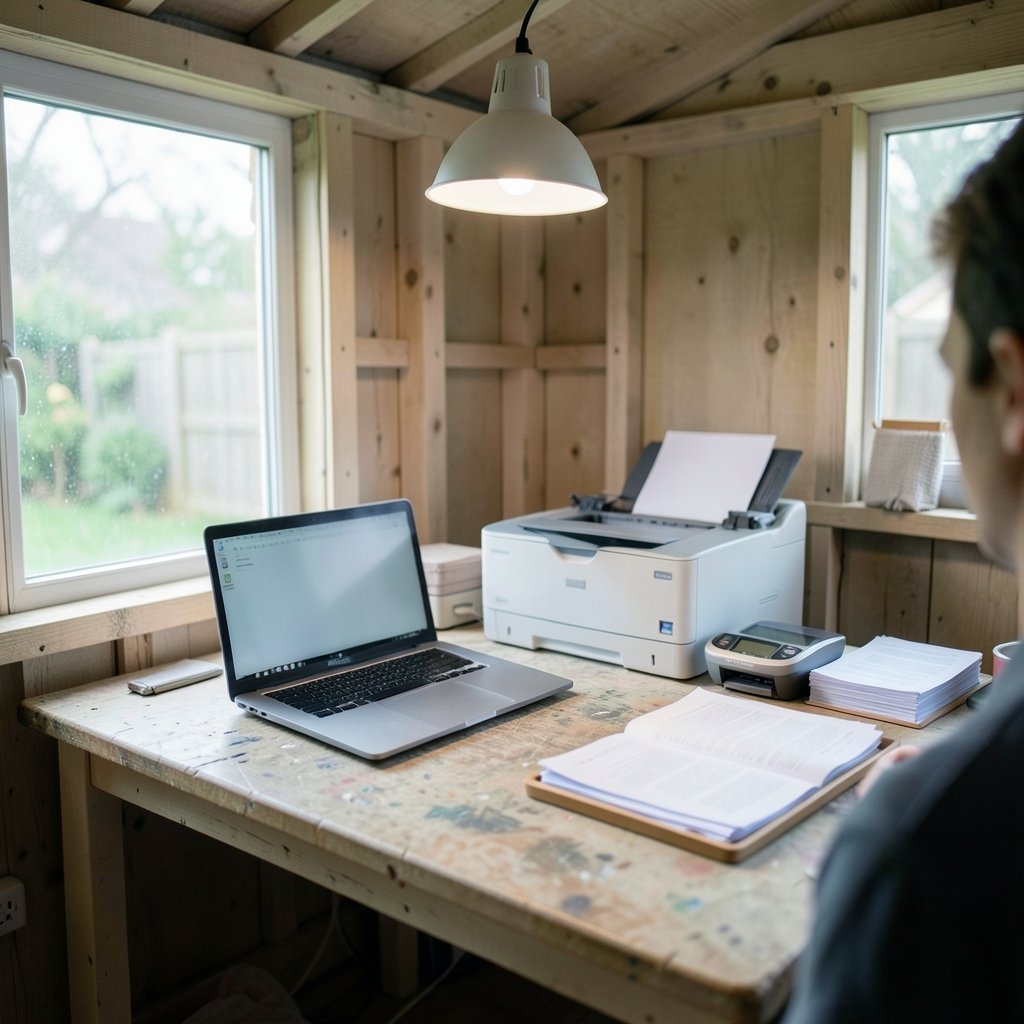
PDF24 Creator is the option most people should try first. It’s a Windows application from a German developer, it’s free for personal and commercial use, and it bundles an impressive toolbox: merging, splitting, compressing, OCR, converting to and from Office formats, and a reasonably capable editor for adding text, shapes, and images.
What makes it stand out in practice is the absence of an account requirement and the absence of watermarks on output. Most free competitors fail at least one of those tests. The interface feels a little dated, and Mac users are limited to the web version, but for straightforward edits it’s hard to beat.
Common mistake: people install it, open the wrong module, and conclude it can’t edit text. The editing tools live in a specific section of the launcher, not on the start screen.
LibreOffice Draw
LibreOffice Draw is the quiet workhorse of the open-source world. It opens PDFs directly, lets you move text blocks, replace images, and re-export as PDF. Because it’s part of a full office suite maintained by a large volunteer and corporate community, it’s genuinely free with no feature gates.
The catch is fidelity. Complex layouts with heavy graphics can shift when Draw reinterprets them, and embedded fonts may substitute. For simple documents, forms, and one-page fixes, it works well. For a 40-page annual report with layered design elements, expect to spend time repairing the layout.
PDF-XChange Editor
PDF-XChange Editor has one of the best free tiers in the business for reading, annotating, and form filling. Its text editing is capable too, but some advanced operations stamp a watermark or push you toward the paid version. If your work is mostly review, comments, marked text, and signatures, the free edition covers it. If you need heavy content editing, check the feature matrix before relying on it.
Sejda PDF Desktop
Sejda offers both a web app and a desktop version. The desktop free tier typically allows a limited number of tasks per day, which is fine for occasional use and frustrating for a deadline crunch. Its interface is clean and its tool set covers the essentials: edit text, fill forms, sign, split, and compress. The daily cap is the thing to plan around.
Open-Source and Self-Hosted Choices for Privacy-Conscious Users
If your documents contain client data, medical records, or anything covered by a confidentiality agreement, uploading them to a random website is a bad idea. Two open-source routes solve that.
Stirling PDF is a self-hosted web application: you run it on your own machine or server, and it provides a browser interface for merging, splitting, converting, OCR, and more. Setup requires some comfort with Docker or a similar deployment method, but once running it’s fast and completely under your control. Its license is copyleft, so if you plan to redistribute a modified version, read the terms.
ONLYOFFICE Docs is an open-source office suite with PDF viewing and annotation. Editing support varies by version and edition, so verify what the community edition allows before standardizing on it.
The trade-off with self-hosted tools is time. You trade an afternoon of setup for permanent freedom from upload limits and subscription prompts. For a legal, medical, or HR team handling sensitive files daily, that trade is usually worth it.
Web-Based Tools: Convenient, But Read the Fine Print
Smallpdf, iLovePDF, and similar services win on convenience. Drop a file, pick an action, download the result. No installation, works on any device.
The problems are predictable. Free tiers cap file sizes and daily operations. Some add watermarks. Most importantly, your file leaves your computer. Reputable services publish retention policies and delete files after a set window, but “we delete it after an hour” is still very different from “it never left my laptop.”
For a public brochure, upload away. For a signed contract or a passport scan, use a desktop or self-hosted tool instead. This is the single most common mistake people make with free PDF editors, and it’s the one with real consequences.
How the Main Contenders Compare
| Tool | Platform | Free Model | Best For | Main Limitation |
|---|---|---|---|---|
| PDF24 Creator | Windows, web | Free, no account | All-round editing and conversion | Dated interface; Mac users limited |
| LibreOffice Draw | Windows, macOS, Linux | Fully open source | Simple edits, no cost ever | Layout fidelity on complex files |
| PDF-XChange Editor | Windows | Free tier with paid upgrades | Annotation, forms, review | Watermarks on some advanced edits |
| Sejda PDF Desktop | Windows, macOS, web | Daily task limit | Clean, simple editing | Caps on free tasks per day |
| Stirling PDF | Self-hosted | Open source | Privacy-critical work | Requires technical setup |
| ONLYOFFICE Docs | Self-hosted, cloud | Open source editions | Team document workflows | PDF editing depth varies by edition |
Practical Tips That Save Real Time
Check whether the PDF is scanned before you start. Open it and try to select text. If you cannot select any text, it’s an image, and you need OCR before any editor can change the words. PDF24 and Stirling PDF both include OCR; many web tools charge for it.
Keep a copy of the original. Editing tools sometimes flatten layers, strip form fields, or resample images. Save a pristine version before you touch anything.
Match the tool to the job. Adding a signature to a ten-page contract takes thirty seconds in a browser. Rewriting paragraphs in a 60-page manual needs a desktop editor. Rebuilding a designed brochure is often faster in a layout program than in any PDF editor.
Watch file size after editing. Inserting high-resolution images can balloon a 2 MB file to 40 MB and break email attachments. Run a compression pass afterward.
Test the output on a second device. Fonts that render perfectly on your machine may substitute elsewhere. If the document matters, open the final file on a phone or another computer before sending it.
If you also work with code or design files alongside documents, the same principle applies: pick the tool that fits the task rather than forcing one app to do everything. A guide to the best code editor for mac makes that point well for developers, and the same logic holds for choosing among the best code editor options generally. (Ai image editor how to edit photos with ai)
Where Free Tools Genuinely Fall Short
Honesty matters here. Free editors struggle with three things:
Complex forms with scripting. Interactive PDFs with calculated fields often break when edited outside the original authoring tool.
Precise typography. Kerning, ligatures, and multi-column flow rarely survive a round trip through a free editor. Designers notice immediately.
Batch automation. Processing 500 invoices overnight usually requires scripting or a paid tool with a proper automation API.
If your needs sit in those areas, a paid tool or a scripted open-source pipeline is the realistic answer. For everything else, the free options above are more than enough, and the gap between free and paid has narrowed considerably.
A Sensible Default Workflow
For most people, a simple stack covers nearly everything:
- Install PDF24 Creator (or LibreOffice Draw if you’re on Linux or want pure open source).
- Use it for merging, splitting, OCR, and text edits.
- Keep a browser-based tool bookmarked for quick signatures and one-off conversions.
- Move to a self-hosted option like Stirling PDF if you regularly handle confidential files.
That combination costs nothing, avoids watermarks, and keeps sensitive documents on your own machine. It also sidesteps the subscription fatigue that pushes so many people toward sketchy “free” download sites in the first place.
One more caution: search results for free PDF editors are crowded with installers that bundle adware. Download from official project pages only, and decline any “recommended” extras during installation. The legitimate tools listed here have no reason to hide behind third-party download portals.
Conclusion
The best free PDF editor depends less on feature lists and more on your actual workflow. PDF24 Creator wins for most Windows users who want a no-strings toolbox. LibreOffice Draw wins for anyone who refuses to install closed software. PDF-XChange Editor wins for reviewers who live in comments and forms. Stirling PDF wins for anyone whose documents are too sensitive to upload. Web tools win on speed and lose on privacy.
The practical rule is simple: match the tool to the sensitivity of the file and the complexity of the edit, keep a backup of the original, and never assume “free” means “unlimited.” Do that, and you’ll never need a subscription for the vast majority of PDF work.
Frequently Asked Questions
What is the best completely free PDF editor with no watermarks?
PDF24 Creator and LibreOffice Draw are the safest answers. Both produce clean output without watermarks and don’t require an account. PDF-XChange Editor is watermark-free for annotation and form work but adds marks on some advanced editing features, so check before relying on it for content changes.
Can I edit text in a PDF for free?
Yes, if the PDF contains real text rather than a scan. PDF24 Creator, LibreOffice Draw, and Sejda all allow text editing on the free tier. If you can’t select the text with your cursor, the page is an image and you’ll need OCR first, which PDF24 and Stirling PDF include at no cost. (PDF)
Are free online PDF editors safe to use?
It depends on the file. Reputable services publish retention policies and delete uploads after a set period, but your document still leaves your device. For contracts, medical records, ID scans, or anything confidential, use a desktop or self-hosted tool so the file never leaves your machine.
What is the best free PDF editor for Mac?
LibreOffice Draw runs natively on macOS and is fully free. Sejda offers a Mac desktop app with a daily free task limit. PDF24 is primarily Windows-based, so Mac users rely on its web version, which means uploading files. For privacy on Mac, a self-hosted Stirling PDF instance is the strongest option.
Do free PDF editors work on scanned documents?
Only if they include OCR, which converts the picture of text into editable characters. PDF24 and Stirling PDF both offer OCR at no cost. Many browser-based tools charge for OCR or limit it to a page or two per file, so verify before uploading a long scan.
Is open-source PDF software really as good as paid tools?
For everyday tasks like merging, splitting, annotating, filling forms, and basic text edits, yes. Open-source tools fall behind on complex interactive forms, precise typography, and large-scale batch automation. If your work involves those, a paid tool or a custom script is the more realistic path.