
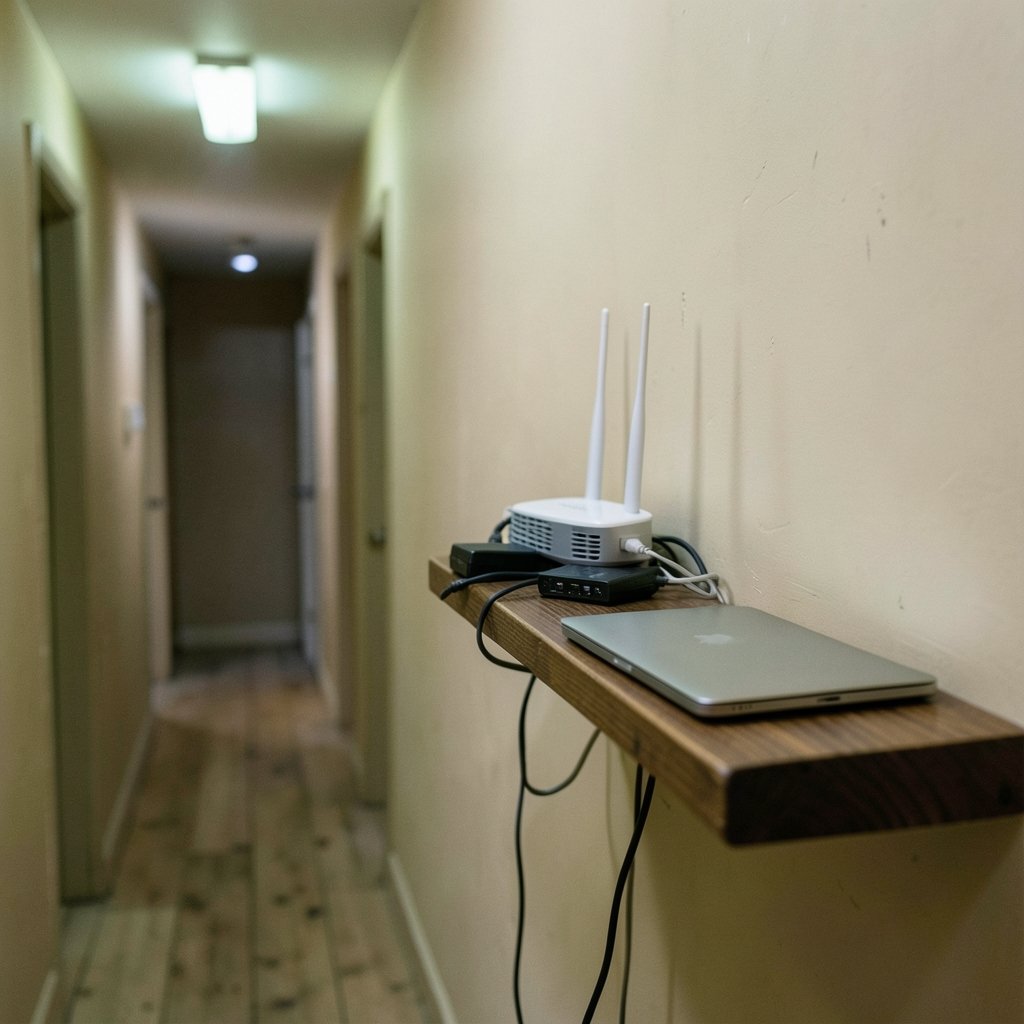
A recent FCC report on broadband found that a large share of American households now subscribe to connections rated at 100 Mbps or faster, yet millions of those same households still complain about slow internet. The bottleneck is rarely the pipe coming into the house. It is the Wi-Fi network inside it. That gap between what people pay for and what they actually experience is the heart of this guide. (FCC Broadband Speed Guide)
Start With the Obvious: Is It Really the Wi-Fi?
Before touching a single router setting, isolate the problem. The single most common mistake people make is blaming Wi-Fi for what is actually a slow internet connection, or blaming the ISP for what is actually a bad wireless setup.
Run a speed test on a device connected by Ethernet cable directly to the router. Then run the same test over Wi-Fi, standing a few feet from the router. Compare the two numbers.
| Test | What It Tells You |
|---|---|
| Wired speed test | The maximum speed your ISP plan actually delivers |
| Wi-Fi test near the router | Whether your wireless hardware can keep up |
| Wi-Fi test in a far room | How much signal loss your home layout causes |
If the wired test is also slow, the problem lives with your provider or modem, not your Wi-Fi. If the wired test is fast but Wi-Fi is slow even up close, the router’s wireless settings or hardware are the culprit. If Wi-Fi is only slow far away, it is a coverage problem. Each scenario has a different fix, and skipping this step wastes hours. It also helps to rule out a browser or DNS issue, which is the same logic covered in this guide on how to fix a website that will not load.
Put the Router in the Right Place
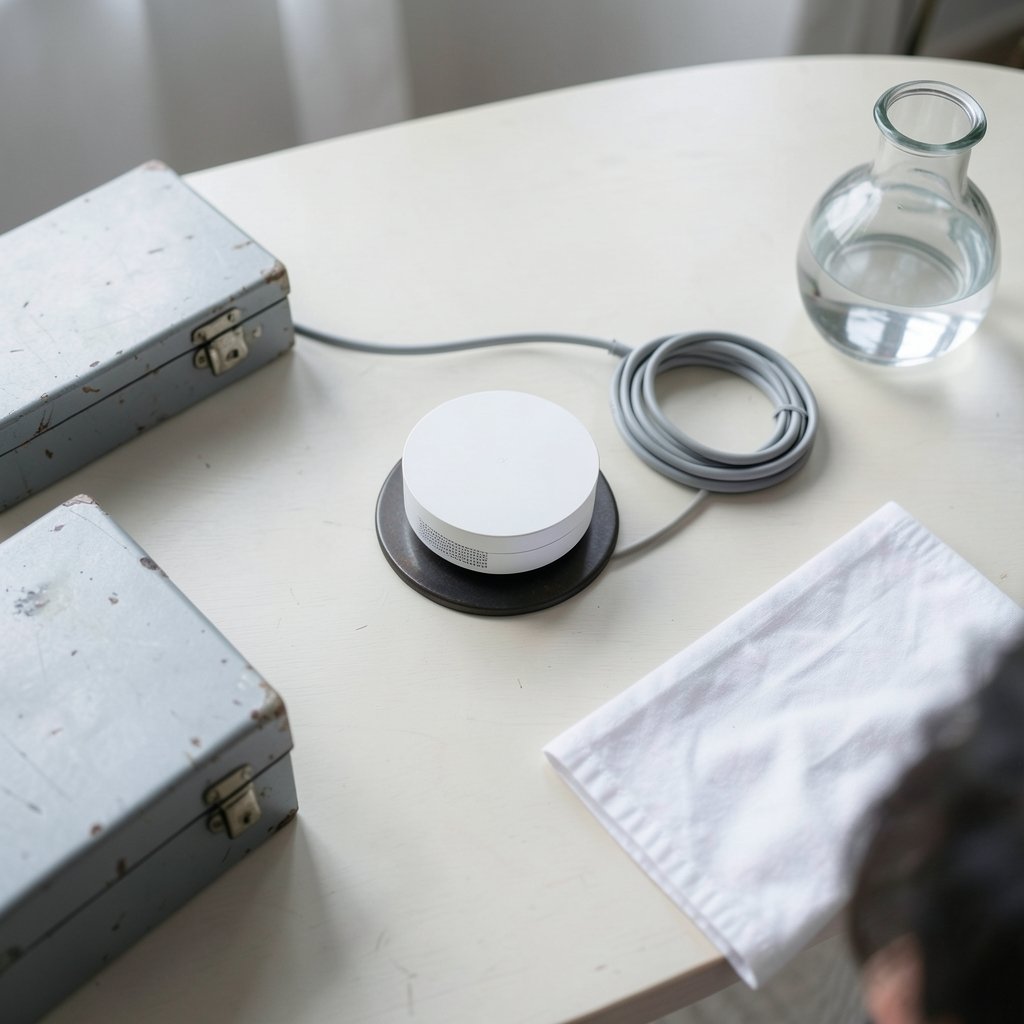
Router placement matters more than most hardware upgrades, and it is free to fix. Wi-Fi is radio, and radio behaves predictably.
- Central and elevated. A router on a shelf in the middle of the home beats one tucked in a corner closet every time.
- Away from metal and water. Metal studs, appliances, mirrors, and aquariums absorb or reflect signal. So do brick and concrete walls.
- Off the floor and out of cabinets. Enclosing a router in a media cabinet is one of the most common self-inflicted wounds.
- Away from the microwave. The 2.4 GHz band shares spectrum with microwave ovens and Bluetooth, and interference spikes every time someone heats lunch.
If the router must sit at one end of the house, no amount of tweaking will fully fix coverage at the other end. That is a topology problem, and the answer is usually a mesh system rather than a single box.
Pick the Right Band and Channel
Most modern routers broadcast on both 2.4 GHz and 5 GHz (and increasingly 6 GHz). Understanding the trade-off solves a huge share of slow-Wi-Fi complaints.
| Band | Range | Speed | Interference |
|---|---|---|---|
| 2.4 GHz | Longest | Slowest | Highest (crowded) |
| 5 GHz | Medium | Fast | Moderate |
| 6 GHz | Shortest | Fastest | Lowest (Wi-Fi 6E/7 only) |
The 2.4 GHz band is crowded because it has only three non-overlapping channels in North America: 1, 6, and 11. Everything else overlaps and steps on neighbors. If a device is stuck on 2.4 GHz when it could use 5 GHz, it will feel slow even on a fast plan.
Two practical moves work well here. First, log into the router’s admin page and set the 2.4 GHz channel manually to 1, 6, or 11, choosing whichever is least congested. Free Wi-Fi analyzer apps show which channels nearby networks occupy. Second, check whether band steering is enabled so capable devices get pushed to 5 GHz automatically. Auto-channel selection often underperforms a manual choice, especially in apartment buildings where every router is guessing at once. (Wi-Fi)
Update Firmware and Reboot on a Schedule
Router firmware updates regularly include security patches and stability fixes, yet many people never install them. Log into the admin interface and look for a firmware update option, or enable automatic updates if the router supports it. A router that has not been updated in three years is both a security risk and a performance liability.
Rebooting matters too. A simple power cycle clears memory leaks and stale connections. Unplug the router and modem, wait thirty seconds, plug the modem back in first, then the router. Doing this monthly prevents a surprising number of “my Wi-Fi is slow again” episodes. If you are troubleshooting a PC that feels sluggish for unrelated reasons, the same discipline applies to background processes, as covered in this walkthrough on how to fix antimalware service executable high CPU usage.
Tune Channel Width and Disable Legacy Modes
Channel width is a trade-off few people understand. Wider channels (80 MHz or 160 MHz on 5 GHz) raise peak throughput, but they are more susceptible to interference and reduce the number of available channels. In a dense neighborhood, a narrower 40 MHz or 80 MHz channel often delivers more consistent real-world speed than a wide one that keeps colliding with neighbors.
Also check for legacy compatibility modes. If the router is set to support ancient 802.11b devices, it may slow the whole network to accommodate them. Modern routers usually handle this automatically, but older ones do not. Turning off legacy modes and enabling airtime fairness, if available, stops one slow client from dragging down everyone else.
Use QoS to Protect What Matters
Quality of Service (QoS) settings let the router prioritize latency-sensitive traffic like video calls and gaming over bulk downloads. On a congested home network, a single 4K streaming session or a large cloud backup can make everything else feel broken. Enabling QoS, or the router’s “gaming” or “video call” priority mode, often produces a bigger perceived improvement than a plan upgrade. The goal is not raw speed but predictable speed.
Extend Coverage the Right Way
If the problem is coverage rather than configuration, the fix depends on the tool.
- Mesh systems handle roaming between nodes gracefully and are the best choice for most homes. They cost more but behave like one network.
- Powerline adapters push signal over electrical wiring and work well in some homes, poorly in others.
- Wi-Fi extenders and repeaters are the cheapest option but halve throughput at each hop and often create a second network name that devices cling to stubbornly.
A common mistake is buying a repeater to fix a problem that a better-placed router or a mesh node would solve cleanly. If you are weighing a new piece of hardware, it helps to know what is coming next; rumors around the PS Portal 2 Wi-Fi Alliance filing show how new devices are certified for modern Wi-Fi standards, and the same certification logic applies to any router you buy.
Check for Interference and Hidden Bandwidth Hogs
Interference is invisible but measurable. Beyond microwaves and Bluetooth, cordless phones, baby monitors, and even some LED controllers can crowd 2.4 GHz. Moving the router a few feet or switching bands often resolves it.
On the device side, check what is actually using bandwidth. Cloud backups, game downloads, and background sync can saturate a connection without anyone noticing. On a Windows PC, the Task Manager network tab shows live usage. On phones, check for background app refresh. A network with 30 connected smart-home devices also needs a router that can handle that client count; older routers choke on it.
Know When to Replace the Router
Hardware ages out. A router from 2015 may support Wi-Fi 5 at best, lack modern security, and struggle with today’s device counts. Wi-Fi 6 (certified in 2019) and Wi-Fi 6E (2021) improve efficiency in dense environments, and Wi-Fi 7 certification began in January 2024. You do not need the newest standard, but a router that cannot handle your household’s device count will always feel slow no matter how you configure it.
Before buying, check the router’s admin page for its model and wireless standard. If it predates Wi-Fi 5, replacement is usually the highest-value fix available. If you are also naming a new network, pick something memorable but avoid broadcasting personal details; a short guide on the best name wifi covers the naming side of setup.
A Quick Diagnostic Checklist
Work through these in order, and stop when the problem resolves:
- Run a wired speed test to confirm what your ISP delivers.
- Reboot modem and router, modem first.
- Move the router central, elevated, and unobstructed.
- Log in and check for firmware updates.
- Set 2.4 GHz to channel 1, 6, or 11 manually.
- Confirm band steering is on and 5 GHz is enabled.
- Enable QoS for video calls and gaming.
- Check for bandwidth hogs on the busiest devices.
- If coverage still fails, add a mesh node rather than a repeater.
Most people find their answer in the first four steps. The rest are refinements.
Security Deserves a Mention
Slow Wi-Fi is sometimes a symptom, not a cause. An unknown device on the network can consume bandwidth, and outdated router firmware can expose the network to intrusions. Check the router’s connected-devices list periodically and change the admin password from the default. This is basic hygiene, but it doubles as a performance check. The same “verify before you trust” mindset shows up in security reporting around incidents like the PHP2Shell crypto exchange risk tied to Hwang Suk Jin and SlowMist, where small overlooked exposures caused outsized problems.
Conclusion
Slow Wi-Fi is rarely one big failure. It is usually a stack of small ones: a router in a closet, a crowded 2.4 GHz channel, firmware from three years ago, and a cloud backup running during a video call. The fix is a process, not a product. Isolate whether the problem is the ISP, the router, or coverage. Then work through placement, channels, firmware, and QoS in that order. Most households recover most of their speed without spending a dollar. Those who do need hardware should buy for their actual device count and layout, not for the biggest number on the box. Fast Wi-Fi is less about raw throughput and more about removing the friction that quietly steals it.
Frequently Asked Questions
Why is my Wi-Fi slow even when I pay for fast internet?
Your plan sets the ceiling, not the experience. Wi-Fi speed depends on router placement, band choice, channel congestion, firmware, and how many devices share the air. A fast plan delivered through a poorly placed router on a crowded 2.4 GHz channel will still feel slow. Run a wired speed test first to confirm the plan is delivering what you pay for.
Does restarting my router actually help?
Yes, more often than people expect. A reboot clears memory leaks, resets stale connections, and lets the router pick a cleaner channel. Unplug the modem and router, wait thirty seconds, power the modem first, then the router. Doing this monthly prevents many recurring slowdowns.
Should I use 2.4 GHz or 5 GHz?
Use 5 GHz whenever range allows. It is faster and less crowded. Use 2.4 GHz for devices far from the router or for older smart-home gear that only supports it. If your router supports band steering, enable it so devices move to the best band automatically.
Will a Wi-Fi extender fix slow Wi-Fi?
Only sometimes. Extenders help with coverage gaps but halve throughput at each hop and often create a second network that devices cling to. A mesh system handles roaming better and is worth the extra cost for most homes. If the problem is configuration rather than coverage, an extender will not help at all.
How often should I update my router’s firmware?
Check at least every few months, and enable automatic updates if your router offers them. Firmware updates include security patches and stability fixes that directly affect performance. A router that has gone years without an update is both slower and less safe.
When should I replace my router instead of fixing it?
Replace it when it predates Wi-Fi 5, cannot handle your device count, or no longer receives firmware updates. If the router is from around 2015 or earlier and your home has dozens of connected devices, replacement usually delivers more improvement than any settings change.



