
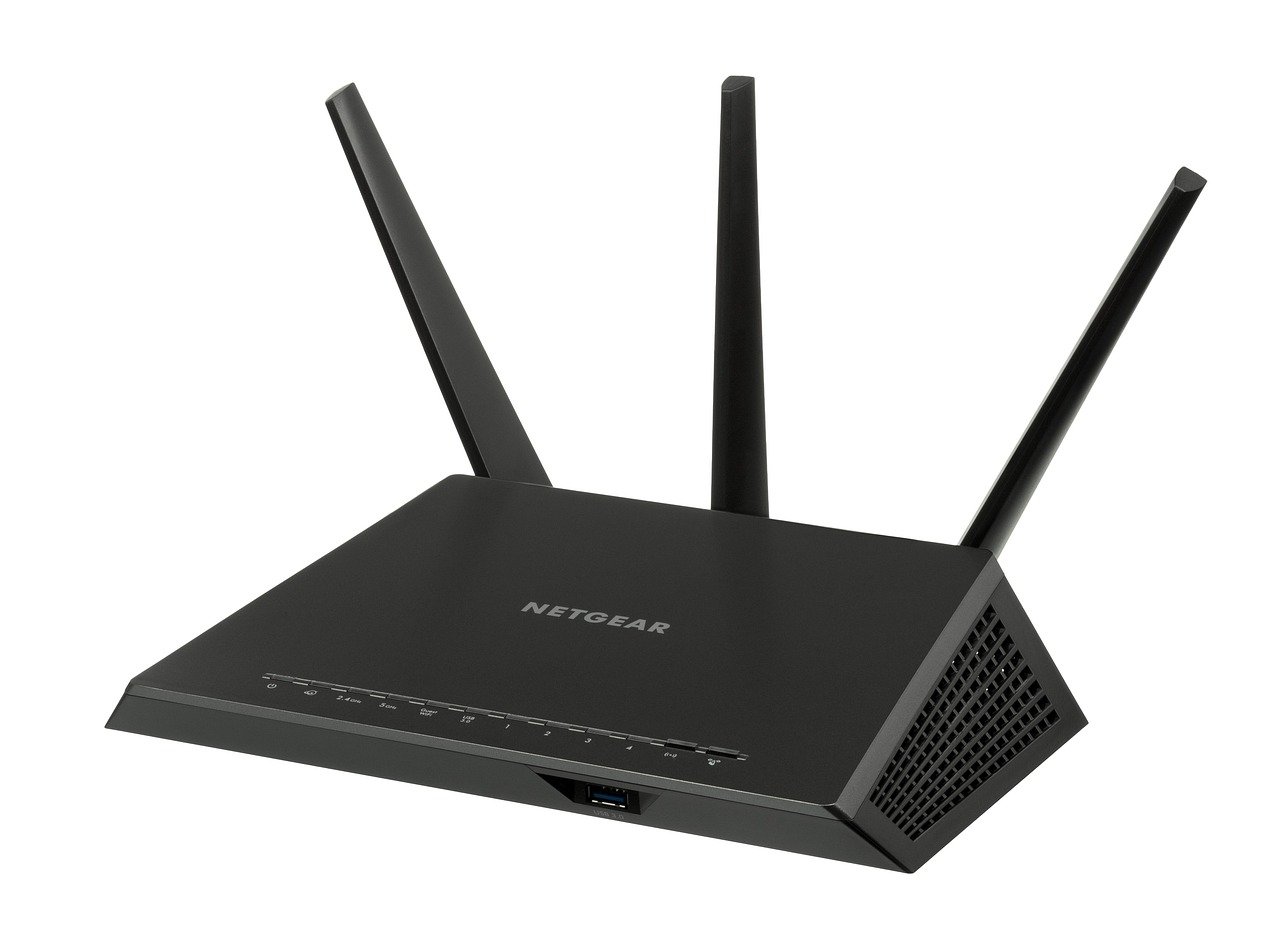
Most people blame their internet provider when the Wi-Fi crawls. Yet in a huge share of homes, the bottleneck sits inside the house, not at the ISP. The signal gets strangled by walls, crowded channels, old hardware, and a router tucked behind the TV. The good news: you can fix most of it yourself in an afternoon, often without spending a cent. This guide walks through what genuinely moves the needle, what’s a waste of money, and the mistakes almost everyone makes along the way.
Start With the Right Diagnosis
Before touching a single setting, figure out where the slowdown lives. Run a speed test on a device plugged directly into the router with an Ethernet cable. Then run the same test over Wi-Fi, standing a few feet from the router. If the wired number is fast and the wireless number is slow, the problem is your local network. If both are slow, call your provider.
This single step saves people from buying hardware they don’t need. A home with a 500 Mbps plan that tests at 480 Mbps wired but 60 Mbps over Wi-Fi doesn’t need a new plan. It needs better Wi-Fi.
Check What Your Devices Can Actually Handle
Here’s a fact that surprises many households: a laptop or phone limited to an older Wi-Fi standard caps your speed no matter how powerful the router is. A device with a 2×2 antenna setup also tops out below a 4×4 router’s peak. Before upgrading anything, check the specs of the devices you use most. If your phone is the slow one, a new router won’t rescue it.
Put the Router in the Right Place
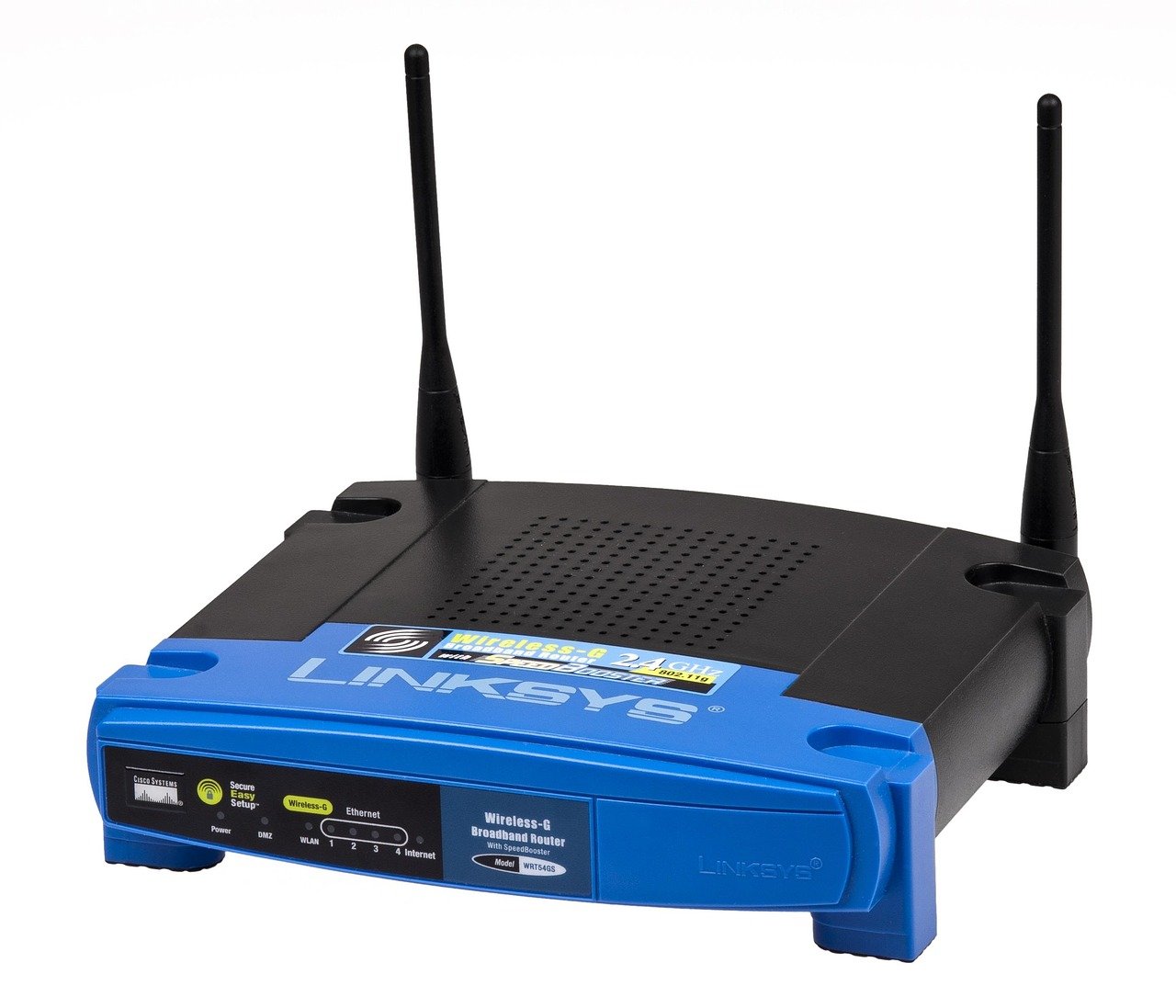
Placement is free and it’s the most underrated fix. Wi-Fi signals weaken as they pass through walls, metal, and water. A router hidden in a cabinet, stuck in a corner, or sitting on the floor fights an uphill battle.
The practical rules:
- Put the router central to the rooms you use most, not in the far corner where the cable enters.
- Raise it off the floor, ideally at chest height or higher.
- Keep it away from aquariums, metal shelving, mirrors, and microwaves.
- Point antennas upright for coverage across a single floor.
A router moved from a closet to a hallway shelf can transform a dead bedroom into a usable workspace. It costs nothing and takes five minutes. Try this before buying anything.
Choose the Right Band and Channel
Wi-Fi splits across frequency bands, and each behaves differently. The 2.4 GHz band travels far but is slow and crowded. The 5 GHz band is faster with shorter range. The newer 6 GHz band, available on Wi-Fi 6E and Wi-Fi 7 gear, is faster still and largely free of legacy interference.
| Band | Speed | Range | Best For |
|---|---|---|---|
| 2.4 GHz | Slowest | Longest | Smart home gadgets, far rooms |
| 5 GHz | Fast | Medium | Phones, laptops, streaming |
| 6 GHz | Fastest | Shortest | Modern devices near the router |
On 2.4 GHz, only channels 1, 6, and 11 are non-overlapping in US practice, so picking one of those reduces collisions with neighbors. On 5 GHz and 6 GHz, wider channels of 80 or 160 MHz raise peak speed but can backfire in dense apartment buildings where everyone competes for airtime.
A Wi-Fi analyzer app shows which channels nearby networks occupy. If your building is packed, manually choosing a quieter channel can help. That said, modern routers with auto-channel algorithms often handle this already, so measure before you fiddle.
Update Firmware and Retire Ancient Hardware
Router firmware updates fix bugs, patch security holes, and sometimes improve performance. Many people never touch theirs. Log into the router’s admin page, check for updates, and enable automatic updates if the option exists.
Age matters too. The Wi-Fi standards have marched forward steadily: 802.11n (Wi-Fi 4) arrived in 2009, 802.11ac (Wi-Fi 5) in 2014, 802.11ax (Wi-Fi 6) in 2019, and Wi-Fi 7 (802.11be) earned certification in January 2024, according to the Wi-Fi Alliance. A router from 2013 running Wi-Fi 4 is a genuine bottleneck in a modern home. If yours is that old, replacing it is often the single biggest upgrade available. (Wi-Fi)
Build a Better Backbone With Mesh and Wired Backhaul
One router rarely covers a large or multi-floor home well. Mesh systems use several nodes that cooperate as one network, which beats a single router in a big house and outperforms cheap range extenders, which halve speed and create clunky separate networks.
The secret to great mesh performance is wired backhaul: connecting nodes with Ethernet cable rather than relying on wireless links between them. If running cable is impractical, powerline adapters or MoCA (Ethernet over coaxial cable) are worth considering. Home construction and existing wiring heavily shape which option wins, so test in your own space.
For households juggling many connected devices, a mesh setup pairs naturally with the kind of gear covered in guides on the best smart speakers for home automation, since every speaker, plug, and camera adds load to the network.
Tame Interference and Device Overload
In apartments and dense neighborhoods, co-channel interference from neighboring networks is a major real-world limiter. The 6 GHz band helps here because it’s newer and less crowded, though availability varies by country and regulator. Using DFS channels on 5 GHz can also open up quieter airspace, though some devices handle them poorly.
Inside the home, interference comes from Bluetooth devices, baby monitors, cordless phones, and microwaves. Keep the router clear of these where possible.
Device overload is another quiet killer. Every streaming stick, game console, and smart bulb competes for airtime. A few practical moves:
- Pause large downloads and cloud backups during video calls.
- Set quality-of-service (QoS) rules on the router to prioritize video calls and gaming.
- Move always-on smart home gadgets to the 2.4 GHz band and leave 5 GHz for phones and laptops.
Know When the ISP Plan Is the Problem
Sometimes the Wi-Fi is fine and the plan genuinely is too small. If a wired test shows speeds well below what you pay for, the issue is upstream. Document the results and contact your provider.
People often upgrade their plan hoping to fix bad Wi-Fi, then find nothing changes because the local network was the bottleneck all along. Test wired first, upgrade second. The same logic applies to any home tech purchase: understand the real constraint before spending. It’s the same discipline behind comparing options carefully, whether you’re evaluating a home equity loan vs line of credit or choosing new networking gear.
Common Mistakes That Undo Your Progress
Even well-intentioned fixes go wrong. Watch for these:
- Hiding the router for aesthetics. A router in a cabinet loses signal before it leaves the room.
- Buying a range extender instead of fixing placement. Extenders repeat a weak signal and often make things worse.
- Running 160 MHz channels in a crowded building. Wider isn’t always better; narrow channels can be more reliable.
- Ignoring the device side. A Wi-Fi 5 phone won’t benefit from a Wi-Fi 7 router.
- Never updating firmware. Old bugs and security gaps linger for years.
The pattern is consistent: measure, then act. Guessing wastes money.
What Actually Works in Practice
Strip away the marketing and the reliable wins are unglamorous. Central placement. A modern router. The right band for each device. Wired backhaul where possible. Firmware kept current. These steps deliver the bulk of real-world improvement for most homes.
The gains from channel tweaks or placement changes are highly environment-dependent and rarely generalize from one house to the next. What transforms a friend’s apartment may do nothing in yours. That’s why the diagnosis step matters so much: it tells you which lever to pull.
If you’re also wrestling with other household annoyances, the same philosophy of finding the actual cause applies. A guide on how to stop snoring at night with home remedies follows the same pattern: identify the root cause, then apply targeted fixes rather than random ones.
Conclusion
Speeding up home Wi-Fi is less about secret tricks and more about removing bottlenecks one at a time. Test wired versus wireless to find the real problem. Move the router to a central, elevated spot. Match each device to the right band. Update firmware and replace genuinely old hardware. Add mesh with wired backhaul if your home is large. Then stop guessing and let measurements guide the next purchase. Do these in order and most households will see a meaningful jump without a single call to the provider.
FAQ
Why is my Wi-Fi slow even though I pay for fast internet?
Your plan speed and your Wi-Fi speed are two different things. A fast plan can still deliver slow Wi-Fi if the router is old, badly placed, or overloaded. Run a wired speed test first. If that’s fast, the problem is inside your home network, not your provider. (FCC Broadband Speed Guide)
Does moving the router really make a difference?
Often, yes, and it’s free. Walls, metal, water, and appliances weaken signals. A central, elevated, unobstructed spot typically improves coverage noticeably. It’s the first thing to try before spending money on new hardware.
Should I use 2.4 GHz or 5 GHz?
Use 5 GHz for phones, laptops, and streaming because it’s faster. Use 2.4 GHz for smart home gadgets and far-away rooms because it travels farther. If you have Wi-Fi 6E or Wi-Fi 7 gear, the 6 GHz band offers the fastest speeds at shorter range.
Is a mesh system better than a range extender?
For most homes, yes. Mesh nodes work as one seamless network, while extenders often halve speed and create a second, clunky network name. Mesh with wired Ethernet backhaul performs best of all, though home construction shapes the result.
Do I need to upgrade to Wi-Fi 7?
Not necessarily. Wi-Fi 7 was certified in January 2024, but real-world benefit depends on whether your devices support it. If most of your gadgets are older, a solid Wi-Fi 6 router will likely serve you better for the money right now.
How often should I update my router’s firmware?
Check every few months, or enable automatic updates if your router offers them. Firmware updates fix bugs, close security gaps, and occasionally improve performance. Many people never update theirs, which leaves both speed and security on the table.
Final thought on timing. Networking gear improves every year, so there’s no perfect moment to buy. If your current setup passes the wired test and covers your rooms adequately, you can wait. If it fails either check, the upgrade pays for itself in daily frustration avoided. Write down your results before and after each change; a simple notebook or spreadsheet turns guesswork into evidence, and evidence is what keeps you from buying the wrong thing twice.
One last measurement. Before you close this guide, run one final wired test and one wireless test from the room where you actually work or watch. Save the numbers. In three months, repeat them. Home networks drift as devices accumulate and neighbors upgrade, and a baseline turns “the internet feels slow” into a specific, fixable complaint. That single habit—measure, change one thing, measure again—outlasts any router you’ll ever buy, and it’s the real answer to speeding up Wi-Fi at home.
A note on expectations. No router, mesh kit, or channel tweak can exceed what your ISP delivers or overcome physics. Walls, distance, and interference set hard limits, and the honest goal is reliable performance in the rooms you use, not a speed-test trophy. Set that expectation and every improvement becomes visible rather than disappointing.



