
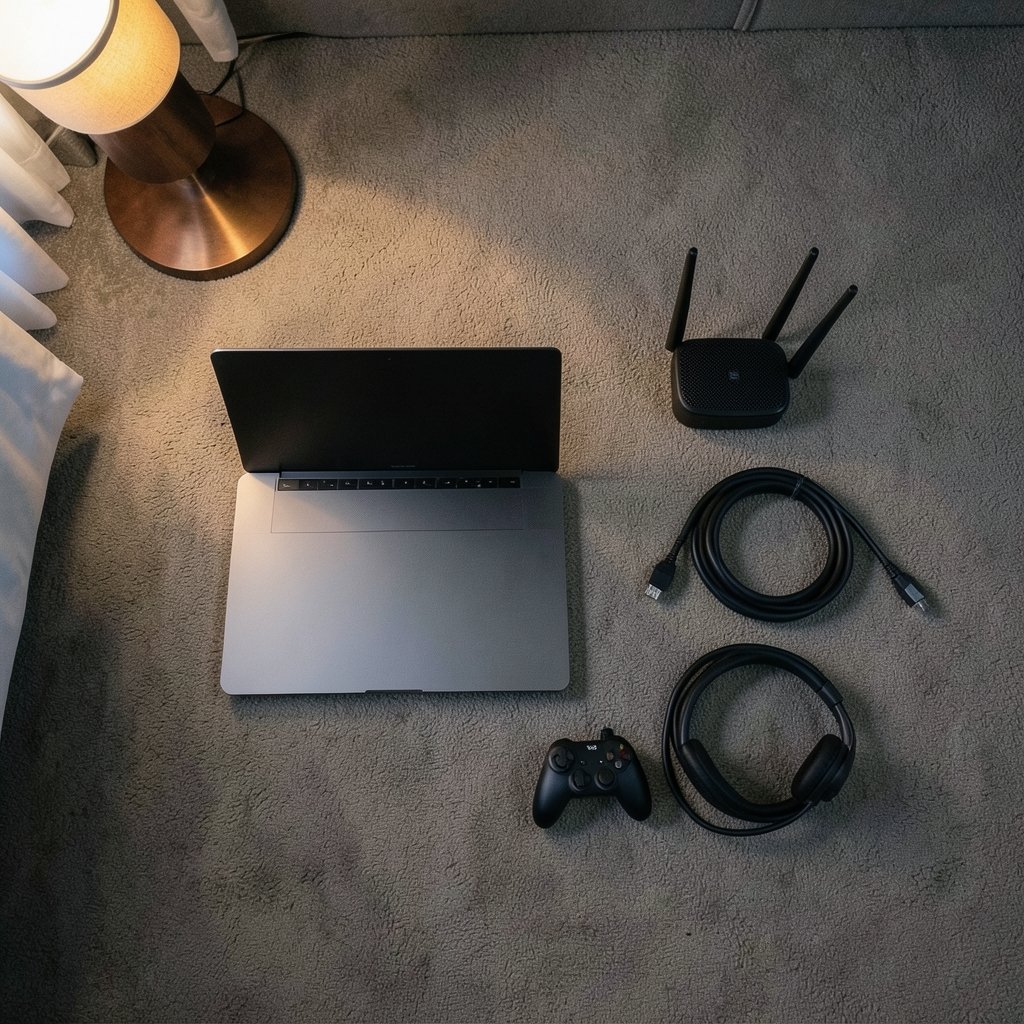
A player with 20 ms of ping can react to an opponent roughly 80 ms faster than someone sitting at 100 ms, because every action has to travel to the server and back before it counts. That gap decides firefights. It also explains why so many players upgrade their hardware, buy a new router, and still lose the same duels. Ping is a network problem, and most of the fixes live in the network, not in the case.
This guide walks through what ping really measures, which fixes deliver the biggest gains, and which popular “solutions” are mostly placebo. It also covers the mistakes that quietly add 30 to 50 ms without anyone noticing.
What Ping Actually Measures (and What It Doesn’t)
Ping is round-trip time: the number of milliseconds a small packet needs to travel from the player’s device to a server and back. It is a measure of latency, not speed. A 500 Mbps connection can have worse ping than a 50 Mbps one, because bandwidth describes how much data moves per second while latency describes how long a single trip takes.
Three things shape that trip:
- Distance and routing. Physics sets a floor. Data travels through fiber at roughly two-thirds the speed of light, and the path is rarely a straight line. A server 1,000 km away will never feel as close as one in the same city.
- Congestion and buffering. When a router holds packets in a queue too long, latency spikes even if average ping looks fine. This is called bufferbloat, and it is the single most common cause of “my ping is fine but the game stutters” complaints.
- Local interference. Wi-Fi contention, a busy household, background downloads, and outdated drivers all add jitter, the variation in ping that makes movement feel rubbery.
A useful mental model: ping is a delivery time, and jitter is how unpredictable that delivery time is. Competitive players care about both, but jitter often hurts more because it makes aiming inconsistent.
Start With a Wired Connection
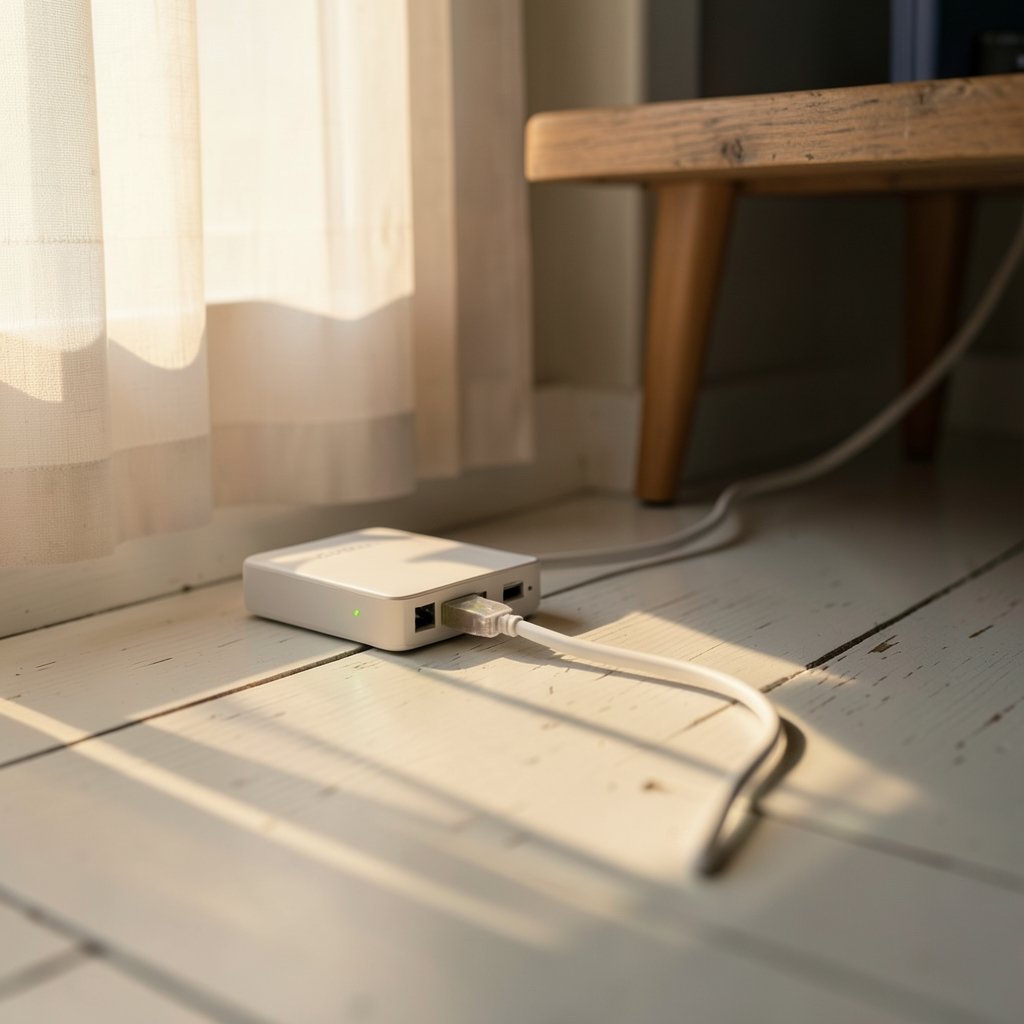
The fastest, cheapest, most reliable improvement is a cable. Wi-Fi shares airtime with every other device on the network, and even a strong 5 GHz signal suffers from retries and interference. Ethernet removes that variable entirely.
Practical notes from real setups:
- Use Cat6 or better for runs under 100 meters. Cat5e works fine at short distances, but the price difference is small. If the existing cable is old, kinked, or stapled too tightly, replacing it is worth the ten minutes.
- Avoid powerline adapters and cheap Wi-Fi extenders as a first choice. Powerline kits depend on household wiring quality and often add 10 to 30 ms. A long flat Ethernet cable along the baseboard usually beats them.
- Check the cable itself. A damaged connector can cause packet loss that shows up as random lag spikes, not steady high ping. Swapping in a known-good cable is a two-minute test that solves a surprising number of cases.
For players building a stable setup, matching the network gear to the rest of the rig matters too. A solid gaming PC build under 1000 paired with a decent ethernet cable for gaming removes two common weak points at once.
Fix Bufferbloat With Router Settings
This is where most guides get vague, so here is the concrete version. Bufferbloat happens when a router or modem queues packets instead of dropping or shaping them, so a large upload (a game update, a cloud backup, a stream) fills the queue and every game packet waits behind it.
The fix is smart queue management, usually labeled QoS or SQM in router settings. Look for these options:
- Enable SQM or “Smart Queue” if the router offers it. Open-source firmware such as OpenWrt exposes queue disciplines like fq_codel and cake, which are designed specifically to keep latency low under load.
- Set upload and download limits to about 85 to 90 percent of the measured speed. Counterintuitive but correct: leaving headroom stops the queue from filling.
- Prioritize the gaming device by MAC address rather than by application. Application-based QoS often misidentifies game traffic.
- Test before and after. Run a bufferbloat test while a large download is running. If latency under load drops from 200 ms to under 40 ms, the setting worked.
A router that cannot do any of this is a genuine bottleneck. That is why the best motherboard for gaming with a quality onboard network chip and a router that supports SQM form a better pair than a flagship CPU with a five-year-old router.
Turn Off the Bandwidth Hogs
Before buying anything, audit what else is using the line. Common culprits:
- Cloud backups and photo sync running in the background
- Game launchers downloading updates on other machines
- Streaming video on a TV in another room
- Windows Update delivery optimization sharing updates to other PCs
Most routers show per-device usage in real time. Ten minutes of watching that graph usually reveals the real cause of evening lag spikes.
Wi-Fi Settings That Reduce Jitter
When a cable truly is not possible, these settings help:
| Setting | Recommendation | Why |
|---|---|---|
| Band | 5 GHz or 6 GHz | Less congested than 2.4 GHz |
| Channel width | 80 MHz on 5 GHz | Wider channels are faster but more interference-prone |
| Channel | 1, 6, or 11 on 2.4 GHz | The only non-overlapping options |
| Router placement | Line of sight, elevated | Walls and floors eat signal |
| Legacy rates | Disabled | Stops slow devices from hogging airtime |
Also disable band steering if the router keeps pushing the gaming device to 2.4 GHz, and set a fixed channel rather than “auto” once a clean one is found. A quick scan with a phone app shows which channels neighbors are using.
Choose the Right Server and Region
Many players lose 20 to 40 ms simply by playing on the wrong regional server. Game clients usually default to the lowest-ping region, but party leaders can override it, and some games silently place players in a distant lobby.
- Check the server region in the lobby before every session.
- Prefer nearby data centers even if queue times are slightly longer.
- Avoid cross-region parties when latency matters. A friend two continents away will always cost one of you 100 ms or more.
For competitive titles, a budget gaming monitor for competitive play with high refresh rate pairs well with low ping, but it cannot compensate for a bad connection. Fix the network first.
The VPN and “Gaming Accelerator” Question
Gaming VPNs and accelerator services promise lower ping by rerouting traffic. The honest answer: sometimes, and usually not.
A VPN can help when an ISP’s route to a game server is genuinely bad, for example when traffic takes a long detour through another region. In that case, a better path can shave 20 to 30 ms. But a VPN also adds an encryption hop, and most of the time the added distance cancels any routing benefit. Measured results vary by location and even by time of day.
The practical test: run a traceroute to the game server, note the ping, then test with the VPN on. If the number does not improve consistently across several sessions, cancel it. Do not trust marketing screenshots.
Update Drivers and Cut Local Overhead
Local issues rarely add huge ping, but they cause spikes that feel worse than a steady number.
- Update the network adapter driver from the motherboard or laptop vendor, not from a random driver site.
- Disable interrupt moderation in the adapter’s advanced settings if the option exists. It can reduce latency slightly at the cost of a little CPU overhead.
- Close overlays and launchers that poll the network in the background.
- Turn off Windows “Delivery Optimization” peer sharing if the connection is metered or shared.
- Restart the router weekly. Memory leaks in consumer firmware are real, and a scheduled reboot prevents slow degradation.
None of these replaces a wired connection, but together they smooth out the micro-stutters that make aiming feel off.
When the Problem Is Outside the House
Some latency is not fixable from the living room. If traceroute shows the delay starting several hops away, the issue sits with the ISP, its peering arrangements, or the game’s own servers. In that case: (Latency (engineering)))
- Document it. Save traceroute and MTR output from several sessions at different times.
- Contact the ISP with evidence, not with “my game lags.”
- Check the game’s server status page before assuming a local fault.
Distributed denial-of-service attacks are a different but related problem: they can cause sudden, severe lag or disconnects for everyone on a server. Understanding what a DDoS means in gaming helps players tell the difference between an attack and a home network issue, which changes who needs to act.
Common Mistakes That Add Ping
These show up again and again in troubleshooting threads:
- Believing a speed test. Speed tests measure throughput to a nearby server, not the route to a game server. A 900 Mbps result tells you almost nothing about in-game latency.
- Blaming DNS. Once a match is connected, DNS plays no role in ping. Changing DNS servers can speed up the first connection, not the gameplay.
- Stacking fixes blindly. Changing five settings at once makes it impossible to know which one helped. Change one, test, then move on.
- Ignoring the upload side. Most bufferbloat appears on upload, because upstream capacity is smaller. QoS settings that only shape download miss the main problem.
- Buying a “gaming router” without checking SQM support. The label means little; the queue management features mean everything.
A reasonable order of operations: wire the connection, fix bufferbloat, choose the right server, then look at Wi-Fi settings and drivers. Most players find their biggest gain in the first two steps. (FCC Broadband Speed Guide)
Conclusion
Lowering ping is less about buying gear and more about removing bottlenecks in a sensible order. A cable beats Wi-Fi almost every time. Smart queue management on the router fixes the latency spikes that speed tests never show. Picking the nearest server and avoiding cross-region lobbies costs nothing and often saves 30 ms. VPNs and accelerators sit near the bottom of the list, useful only when a route is measurably bad.
The players who end up with stable 20 ms connections are rarely the ones who spent the most. They are the ones who tested one change at a time, measured the result, and kept what worked. Start with the cable, then the router settings, then the server region, and the numbers will follow.
FAQ
Does ping affect FPS?
No. Ping affects how quickly actions register on the server, while frame rate depends on the GPU and CPU. A player can have 200 FPS and 150 ms of ping, or 60 FPS and 15 ms. Both matter, but they are separate problems with separate fixes.
What ping is good for gaming?
Under 30 ms feels excellent for shooters and fighting games. Between 30 and 60 ms is comfortable for most players. Above 100 ms becomes noticeable in fast-paced games, and above 150 ms most competitive titles feel sluggish. Jitter matters as much as the average number.
Can a VPN lower my ping?
Sometimes, but not usually. A VPN helps only when it routes traffic around a genuinely bad path, and it adds an encryption hop that often cancels the gain. Test with and without it across several sessions before paying for a subscription.
Why is my ping high only at night?
Evening congestion is the classic pattern. When neighbors stream and download, shared network segments fill up, and bufferbloat pushes latency higher. Smart queue management on the router, plus limiting background downloads during peak hours, usually flattens those spikes.
Does a better router lower ping?
It can, but not because of the price tag. What matters is whether the router supports smart queue management and handles many devices without queue buildup. A modest router with SQM enabled often beats an expensive one with it turned off.
Does ping matter for single-player games?
Rarely. Offline games do not depend on a server round trip, so ping is irrelevant. The exception is always-online titles and cloud streaming services, where latency directly affects input responsiveness and can make even a single-player experience feel delayed.



