
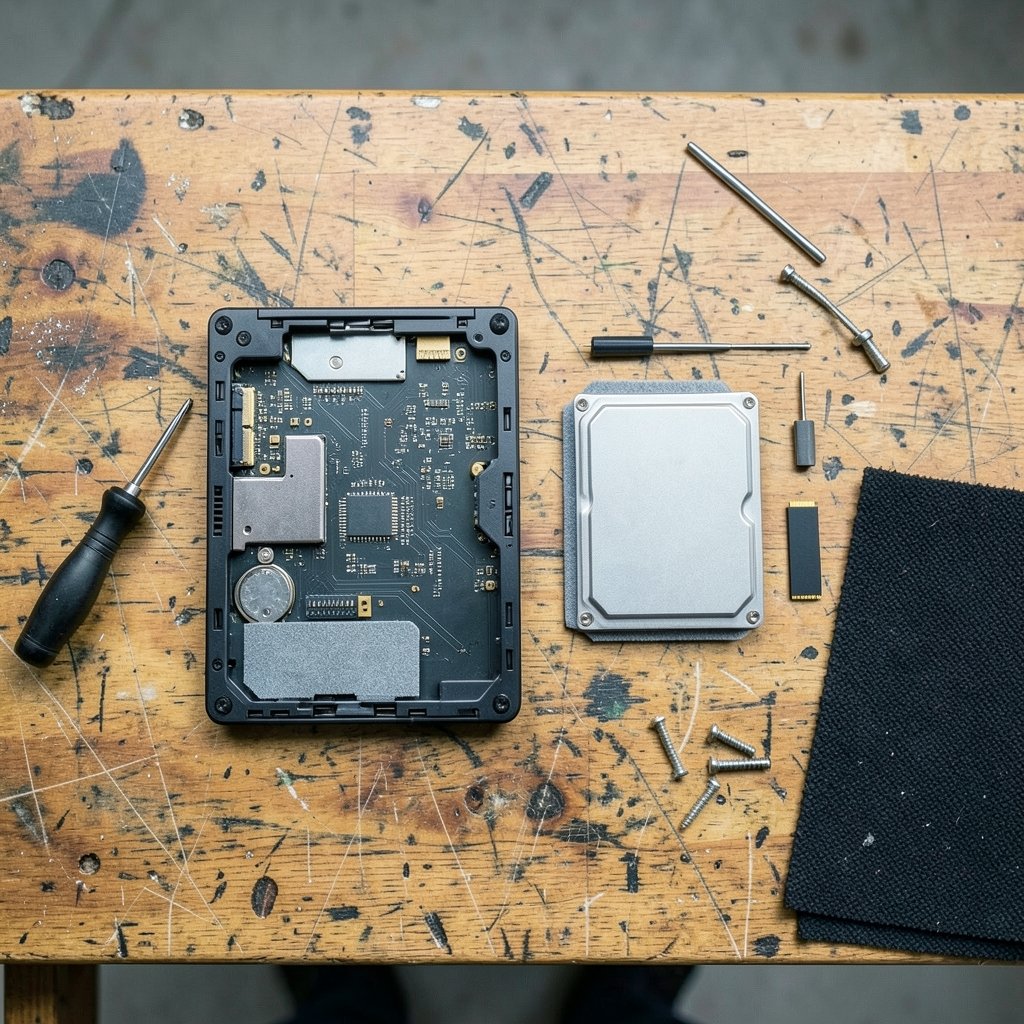
A laptop with a hard drive can take well over a minute to reach a usable desktop, while the same machine with a solid-state drive often boots in under fifteen seconds. That gap is not a minor spec-sheet difference. It is the single most noticeable upgrade most people will ever make to a computer, and it is why the SSD-versus-HDD question still matters even though the answer has become lopsided.
This guide breaks down how each drive type actually behaves in a laptop, where the trade-offs are real, and how to decide without wasting money or storage space.
What Actually Separates an SSD From an HDD
A hard disk drive (HDD) stores data on spinning magnetic platters, with a mechanical read/write head that physically moves to find information. A solid-state drive (SSD) stores data in flash memory chips with no moving parts at all.
That single architectural difference explains almost everything else. Because an HDD has to physically position a head, it is slow at jumping between small files scattered across the disk. An SSD can reach any block of data almost instantly. For an operating system that constantly reads thousands of tiny files, this is the difference between a machine that feels snappy and one that feels like it is thinking about every click.
The Wikipedia entry on solid-state drives covers the underlying flash technology in depth if you want the engineering detail, but for buying purposes the practical summary is simpler: SSDs win on speed, durability, and power; HDDs win on price per gigabyte.
Speed: The Gap Is Not Close

Boot times, app launches, file searches, and updates all lean heavily on random read/write performance, and this is where SSDs dominate. A typical laptop HDD manages roughly 100–150 MB/s on sequential transfers. A SATA SSD reaches around 500–550 MB/s, and NVMe drives go far beyond that.
| Task | HDD | SATA SSD | NVMe SSD |
|---|---|---|---|
| Cold boot to desktop | 45–90 seconds | 12–20 seconds | 8–15 seconds |
| Opening a large app | 10–30 seconds | 2–5 seconds | 1–3 seconds |
| Sequential transfer speed | ~100–150 MB/s | ~500–550 MB/s | 2,000–7,000 MB/s |
| Random 4K reads | Very slow | Fast | Very fast |
| File search across drive | Slow | Near-instant | Near-instant |
Those numbers are typical ranges rather than guarantees, but the pattern holds across every laptop tested. The practical upshot: if a laptop feels sluggish and it has an HDD, swapping in an SSD will do more for perceived speed than adding RAM in most cases. If you are planning that upgrade, the walkthrough on how to clone a hard drive to an SSD covers the migration process step by step so you keep your files and settings.
Why Random Access Matters More Than Big Numbers
Marketing loves sequential speeds because they are big and impressive. Real laptop use is mostly random access: opening a browser with forty tabs, loading a document, indexing email. An HDD’s mechanical head has to physically travel to each location, which is why a drive rated for 150 MB/s can feel glacial in daily use.
Durability and Portability
Laptops get carried, bumped, and occasionally dropped. An HDD’s spinning platters and moving head are vulnerable to shock, especially while the drive is active. An SSD has no moving parts, so a knock that would kill a hard drive usually leaves flash storage untouched.
This matters more than people expect. A laptop sitting safely on a desk is one thing, but a machine that travels in a backpack and gets set down firmly on cafe tables is a different risk profile. For students and commuters, that durability argument alone often settles the question. If portability is a priority, it is worth looking at the best laptops for engineering students, which almost universally ship with SSDs for exactly this reason.
HDDs do have one longevity advantage worth naming: when a hard drive starts to fail, it often gives warning signs through SMART diagnostics, and data recovery from a failed HDD is frequently possible. An SSD that fails tends to fail suddenly, and recovery is much harder. That is a real point in the HDD column, though it is a reason to keep backups rather than a reason to buy one.
Battery Life and Heat
SSDs consume less power than HDDs, particularly at idle, and they generate less heat. In a thin laptop with limited cooling, that translates into a quieter, cooler machine and often a modest battery gain.
How much battery life you actually gain depends heavily on the drive model, the workload, and how the laptop manages power states. It is not the dramatic improvement some marketing suggests, but every watt saved in a chassis with a small battery counts. The bigger everyday benefit is silence: no faint mechanical hum, no clicking during file operations.
Price and Capacity: Where HDDs Still Fight Back
Here is the honest counterargument. HDDs remain dramatically cheaper per terabyte, which is why budget laptops still ship with them and why external hard drives remain the default for bulk backup. If you need two terabytes of cheap storage in a desktop replacement, an HDD is hard to beat on pure economics.
For laptops specifically, though, the calculus has shifted. Most thin-and-light models no longer include a 2.5-inch drive bay at all, so the choice is often made for you. Where both options exist, the price gap has narrowed enough that the SSD premium is usually small relative to the total cost of the machine.
The sensible pattern most people land on is a hybrid: a reasonably sized SSD for the operating system and active files, plus external storage for archives, media libraries, and backups. A good external SSD handles the portable case well, while a traditional external HDD is cheaper for cold storage you rarely touch.
Endurance: What TBW Actually Means
SSD endurance is finite and rated in terabytes written (TBW). A typical consumer drive might be rated for 300–600 TBW, which sounds alarming until you do the math. Writing 50 GB per day, every day, would take decades to approach that limit for most users.
In practice, laptop users almost never wear out an SSD before the machine is retired. Heavy workloads like video editing or large database work change the math, and in those cases buying a drive with a higher TBW rating is worth the premium. For browsing, office work, and coding, endurance is a non-issue.
Common Mistakes When Choosing or Upgrading
A few traps catch people repeatedly, and knowing them in advance saves real money.
- Buying by capacity alone. A cheap 1 TB SSD with slow controllers and no DRAM cache can feel worse than a good 512 GB drive. Check reviews for sustained write performance, not only peak numbers.
- Forgetting the interface. An NVMe drive will not fit a SATA-only slot. Confirm what your laptop supports before ordering, and check whether the M.2 slot is occupied or free.
- Skipping the backup before cloning. Cloning software is reliable, but a failed migration with no backup is a genuinely bad day. Copy important files to external storage first.
- Ignoring thermals in thin laptops. High-end NVMe drives can throttle under sustained load in cramped chassis. For everyday use this rarely matters, but you should know it can happen.
- Assuming an SSD fixes everything. If a laptop is slow because it has 4 GB of RAM and a decade-old processor, an SSD helps but will not fix it.
If you are also weighing software choices for the machine, guides like which AI is best for coding are a useful complement to hardware decisions, since the tools you run shape what specs actually matter.
HDD vs SSD: A Side-by-Side Verdict
| Factor | HDD | SSD |
|---|---|---|
| Speed | Slow | Fast to very fast |
| Durability in a laptop | Vulnerable to shock | Resistant to shock |
| Power use | Higher | Lower |
| Noise | Audible hum and clicks | Silent |
| Price per TB | Lowest | Higher |
| Max capacity in laptops | Limited by bay size | Widely available up to 8 TB |
| Failure warning signs | Often gradual | Often sudden |
| Best use case | Bulk backup, budget desktops | Laptops, all general use |
For laptops, the verdict is not close. The only scenario where an HDD makes sense inside a portable machine is a very tight budget on a large-screen desktop replacement that never leaves a desk, and even then the user will feel the compromise every single day.
Practical Guidance by User Type
Students and commuters: SSD, no question. Durability and battery life matter, and the machine gets carried constantly. A 512 GB NVMe drive covers coursework comfortably.
Office and general home users: A 500 GB to 1 TB SATA or NVMe SSD is the sweet spot. Add external storage if photo or video libraries grow.
Creative professionals: High-end NVMe with strong sustained write performance and a higher TBW rating. Budget for external scratch storage too.
Budget buyers: If the only affordable laptop has an HDD, check whether it has an accessible drive bay or M.2 slot. A later SSD upgrade is often cheap and dramatically extends the machine’s useful life.
Data hoarders: SSD for the system, HDD for the archive. This combination remains the most cost-effective setup available.
Conclusion
The SSD-versus-HDD debate for laptops has a clear winner, and it is not particularly close. SSDs are faster by an order of magnitude in the workloads that define daily use, they survive the bumps and drops that laptops inevitably endure, they run cooler and quieter, and they sip less power. The HDD’s remaining advantage, raw cost per terabyte, matters most in external backup drives and desktop storage arrays, not inside a portable computer.
The practical decision comes down to this: buy an SSD, size it to your actual needs rather than the largest number on sale, and pair it with external storage for archives. If you already own a laptop with a hard drive, a drive swap is one of the highest-value upgrades available, provided you back up first and confirm the interface. Do that, and the machine will feel years newer than its spec sheet suggests.
Frequently Asked Questions
Is an SSD always better than an HDD for a laptop?
For almost every laptop use case, yes. The speed, durability, and power advantages outweigh the higher cost per gigabyte. The only exception is a very budget-constrained desktop replacement that never moves, where a large HDD can still make financial sense.
How much faster does an SSD make a laptop boot?
Typically three to five times faster. A machine that took a minute or more to reach the desktop with an HDD often boots in ten to twenty seconds with an SSD, and app launches feel proportionally quicker.
Can I replace my laptop’s HDD with an SSD myself?
Often yes, if the laptop has an accessible drive bay or M.2 slot and does not use soldered storage. The process involves opening the chassis, swapping the drive, and either cloning the old drive beforehand or reinstalling the operating system. Check a teardown guide for your specific model first.
Do SSDs wear out faster than HDDs?
Not in normal laptop use. SSD endurance is rated in terabytes written, and typical consumer drives are rated far beyond what a normal user will write over many years. HDDs, by contrast, have mechanical parts that can fail over time, though they usually give warning signs first.
Does an SSD improve battery life?
It helps, usually modestly. SSDs draw less power and produce less heat than spinning drives, which can extend battery life, but the gain varies by drive and workload and is rarely dramatic on its own.
Is a SATA SSD still worth buying in 2026?
Yes, if your laptop only supports SATA. A good SATA SSD still delivers roughly ten times the random performance of a hard drive and will change how the machine feels. NVMe is faster on paper, but everyday tasks rarely saturate either interface.



