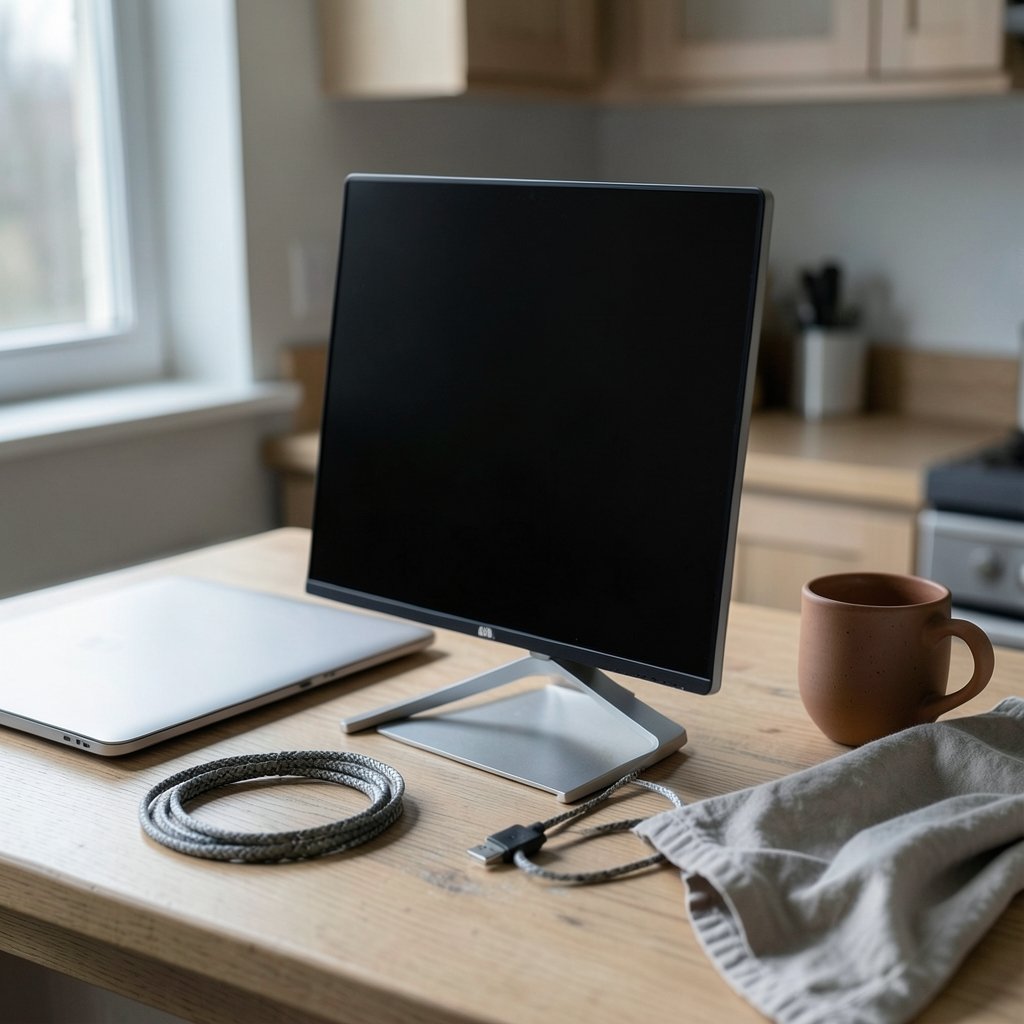
A second screen used to mean a second desk. Now it can mean a 1.5-pound panel that slides into the same sleeve as your laptop. That shift matters more than it sounds: research on workplace productivity has long shown that adding screen real estate reduces the time lost to window-switching, and dual-display setups consistently outperform single screens on basic editing and comparison tasks. The catch is that portable monitors vary wildly in quality, and the wrong pick becomes a dead weight you stop carrying by week three.
This guide walks through what separates a genuinely useful portable monitor from a spec-sheet trap, which features matter for real work, and how to match a panel to your laptop’s ports and your actual workload.
Why a Second Screen Changes How You Work
The core argument for a portable monitor is simple: laptop screens are small, and most knowledge work involves at least two things at once. A spreadsheet plus a reference document. A video call plus notes. Code plus documentation. Cramming those into a 13-inch panel forces constant alt-tabbing, and every switch costs a sliver of focus.
A portable monitor removes that friction without locking you to a desk. It folds flat, runs off a single cable in many cases, and weighs less than most hardcover books. For remote workers, consultants, and students who move between locations, that portability is the entire value proposition.
If your work is mostly stationary and you want maximum screen area, a traditional desktop display is still the better buy. The best UHD monitors deliver sharper text and better ergonomics than any travel panel. Portable monitors win on one axis only: they go where you go.
The Specs That Actually Matter
Marketing pages love big numbers. Here is what deserves your attention and what you can safely ignore.
Panel type and resolution
IPS panels dominate the portable category for good reason: wide viewing angles and consistent color. OLED portables exist but cost significantly more and remain a niche. On resolution, 1080p is fine at 15.6 inches for documents and email. Step up to 1440p or 4K if you edit photos, read dense code, or stare at spreadsheets all day, since higher pixel density makes small text noticeably crisper.
Brightness and glare
Most portable monitors land in the 250–400 nit range. That is adequate indoors but struggles near a window or outdoors. If you work in bright spaces, prioritize higher brightness and a matte finish over a glossy one. A glossy panel in a sunlit café is nearly unusable.
Power delivery and cabling
This is where buyers get burned most often. Many portable monitors draw power over USB-C, and a weak laptop port may not supply enough wattage. The result: the screen dims, flickers, or refuses to wake. Look for models with dual USB-C ports (one for power, one for data) or a dedicated power input, and check the required wattage before you buy. (USB Charger (USB Power Delivery))
Weight, kickstand, and cover
A monitor is only portable if you actually carry it. Aim for under 2 pounds. Built-in kickstands beat flimsy magnetic covers, though a good folio case doubles as screen protection. Test the stand angle in person if you can; a monitor that only sits at one rigid angle will annoy you within a week. (Computer monitor)
Quick Comparison: What to Prioritize by Use Case
| Use case | Priority specs | What to skip |
|---|---|---|
| Remote work and email | 1080p IPS, 300+ nits, single-cable USB-C | 4K, high refresh rate |
| Coding and spreadsheets | 1440p+, matte finish, sturdy stand | OLED, touchscreen |
| Photo and video editing | High color accuracy, 400 nits, 4K | Budget panels with poor gamut |
| Students on the move | Under 2 lbs, folio cover, bus-powered | Large 17-inch panels |
| Gaming on the road | 120Hz+, low response time, DisplayPort alt mode | 60Hz office panels |
Matching a Monitor to Your Laptop’s Ports
Before shopping, count your ports. This single step prevents most returns.
- USB-C with DisplayPort Alt Mode: the ideal case. One cable carries video, data, and often power.
- Thunderbolt 3 or 4: excellent, and it supports daisy-chaining in some setups.
- HDMI only: workable, but you will need separate power for the monitor.
- USB-A only: you will likely need a DisplayLink adapter or driver, which adds latency and setup hassle.
MacBook owners face an extra wrinkle: some portable monitors offer limited brightness control or require third-party drivers on macOS. Checking compatibility before purchase saves real frustration. A reliable USB-C hub for MacBook laptops can solve port shortages and power delivery in one accessory, which often matters more than the monitor’s spec sheet.
Practical Tips From Real-World Use
Specs tell half the story. The other half is what happens after a month of daily carry.
Buy the cable you actually need. Many monitors ship with a short, stiff USB-C cable that fails at awkward angles. A right-angle or longer certified cable is a cheap upgrade that fixes intermittent black screens.
Check power draw against your laptop’s charger. If your laptop’s USB-C port outputs limited wattage while running on battery, the monitor may behave differently plugged in versus unplugged. Test both states during the return window.
Calibrate expectations on color. Budget portable panels often ship with cool, oversaturated defaults. A five-minute adjustment to a neutral profile makes documents easier on the eyes.
Watch the return window. Portable monitors have a higher defect and compatibility-failure rate than desktop displays. Buy from a retailer with a generous return policy and test thoroughly in the first week.
Skip the touchscreen unless you need it. Touch adds weight, cost, and glare, and it is rarely useful for laptop workflows.
Budget Realities and Timing
Portable monitors span a wide price range. Entry-level 1080p models sit at the low end, mid-range 1440p panels occupy the middle, and 4K or OLED units command a premium. The sweet spot for most buyers is a 15.6-inch 1080p or 1440p IPS panel with solid USB-C power handling.
Timing purchases around sales events helps, but there is a bigger wildcard this year: component costs. Trade policy shifts around semiconductors have pushed laptop and accessory pricing in unpredictable directions, and the Trump semiconductor tariffs on laptops and servers in 2026 are worth understanding before you assume prices will fall. If you need a monitor now, buy now rather than waiting for a discount that may not arrive.
For buyers weighing a full hardware refresh alongside a monitor, it helps to see how the laptop side of the equation is shifting. Current best laptops 2026 top picks for every budget show how port selection and USB-C power delivery are evolving, which directly affects which monitors will work cleanly. Students with tighter budgets should also cross-reference the best budget laptops under 1000 to confirm their machine can drive an external panel without adapters. Engineering students running CAD or simulation software have heavier graphics needs, and the best laptops for engineering students roundup covers which machines pair well with a secondary display.
Common Mistakes That Waste Money
A few patterns show up again and again in buyer complaints.
Assuming all USB-C ports are equal. A USB-C port that only carries data will not output video. Confirm DisplayPort Alt Mode support in your laptop’s manual.
Buying the biggest panel available. A 17-inch portable monitor sounds great until you realize it no longer fits your bag and weighs as much as a second laptop.
Ignoring the stand. Kickstands that collapse under slight pressure or only hold one angle ruin the experience. Read reviews that specifically mention the stand.
Overlooking audio. Most portable monitors have weak built-in speakers. If you take calls, plan on headphones or a separate speaker.
Skipping the dead-pixel check. Run a full-screen color test in the first 48 hours. Dead pixels are far easier to resolve inside the return window.
Who Should Buy One, and Who Should Not
A portable monitor is a strong fit for consultants, sales travelers, remote workers who split time between home and office, and students who study in libraries and cafés. It is a poor fit for anyone who works at a single desk all day, since a fixed monitor delivers more screen for less money. It is also a poor fit for people who rarely need two windows at once.
The honest test: count how many times per day you wish you had more screen. If the answer is more than a handful, a portable monitor will pay for itself in reduced friction. If you struggle to remember the last time, save your money.
Conclusion
The best portable monitor for your laptop is not the one with the biggest spec sheet. It is the one that connects cleanly to the ports you actually have, survives a full day on your laptop’s power budget, and weighs little enough that you keep it in your bag past the first week. Prioritize panel type, brightness, power handling, and stand quality over resolution bragging rights. Verify DisplayPort Alt Mode before you buy, test the monitor thoroughly inside the return window, and match the panel to your real workload rather than an imagined one. Do that, and a second screen becomes one of the highest-return accessories you can add to a laptop setup.
Frequently Asked Questions
Do portable monitors work with any laptop?
Not automatically. The laptop needs a USB-C port that supports DisplayPort Alt Mode, or an HDMI output. USB-A-only laptops typically require a DisplayLink adapter and driver installation, which adds latency. Always confirm your specific model’s video output capabilities before purchasing.
Can a portable monitor run off a laptop’s battery alone?
Often yes, but with caveats. Bus-powered monitors draw from the laptop’s USB-C port, which drains battery faster and may cause dimming if the port cannot supply enough wattage. Monitors with a separate power input or dual USB-C ports handle this more gracefully. Expect reduced laptop runtime whenever the monitor is drawing power.
Is 1080p enough for a portable monitor?
For documents, email, video calls, and general browsing at 15.6 inches, 1080p is perfectly serviceable. If you read dense code, edit photos, or work with large spreadsheets, 1440p or 4K delivers noticeably sharper text and is worth the premium. The difference is most obvious with small fonts.
How much should a good portable monitor cost?
Pricing spans from budget 1080p panels to premium 4K and OLED units. The practical sweet spot for most buyers is a mid-range 15.6-inch IPS model with reliable USB-C power handling. Paying more buys higher resolution, better color accuracy, or a brighter panel; paying less usually means compromises on brightness or build quality.
Do portable monitors work with phones and tablets?
Many do, particularly Android devices and iPads with USB-C, provided the device supports video output over USB-C. Support varies by model and operating system, and some monitors require specific cables. Check the manufacturer’s compatibility list rather than assuming it will work.
Are portable monitors good for gaming?
They can be, if you choose a model with a 120Hz or higher refresh rate, low response time, and DisplayPort Alt Mode support. Standard 60Hz office panels are fine for casual play but feel sluggish in fast-paced games. Note that high refresh rates often increase power draw, so plan for external power during longer sessions.
Check firmware and driver updates early. Some portable monitors ship with outdated firmware that causes flickering or wake-from-sleep issues. A quick visit to the manufacturer’s support page in the first week can resolve problems that would otherwise look like hardware defects. Register the warranty at the same time; support is far easier to obtain when your purchase is already on file.
With those habits in place, the monitor you choose should serve you for years rather than becoming a drawer-bound regret.