Most people who try an AI chatbot ask it a question and hope the answer isn’t invented. NotebookLM flips that model on its head: instead of drawing on the open internet, it answers only from the documents you hand it, and it shows you exactly which passage each sentence came from. For anyone who has been burned by a confident-sounding hallucination, that difference matters more than any feature list. (NotebookLM)
Quick Answer: What is notebooklm and how to use it?
NotebookLM is a Google research and note-taking tool that works only with sources you upload, answering questions with citations that point back to the exact passage. You use it by creating a notebook, adding documents, links, pasted text, or video URLs as sources, and then asking questions in a chat panel.
Unlike general chatbots, it does not browse the open web for answers, so its output is limited to what you provide. That makes it closer to a study companion or document analyst than a search engine, and it also offers features like audio overviews that turn your material into a podcast-style discussion.
Before relying on it, check the source limits on your plan, how it handles long PDFs, whether your files stay private, which languages are supported, and how citations are displayed.
Why Citations Change the Whole Experience
Here’s the interesting fact that separates NotebookLM from the crowd: the tool was built around source grounding, a design choice that makes every answer traceable. When it cites a passage, you can click through and read the original text yourself. That single feature turns AI from a magic trick into a work tool.
The practical effect is subtle but powerful. Users stop asking “is this true?” and start asking “did I give it the right material?” That shift in mindset is the most important habit to build, and it’s the one most beginners skip.
Getting Started: The Core Workflow
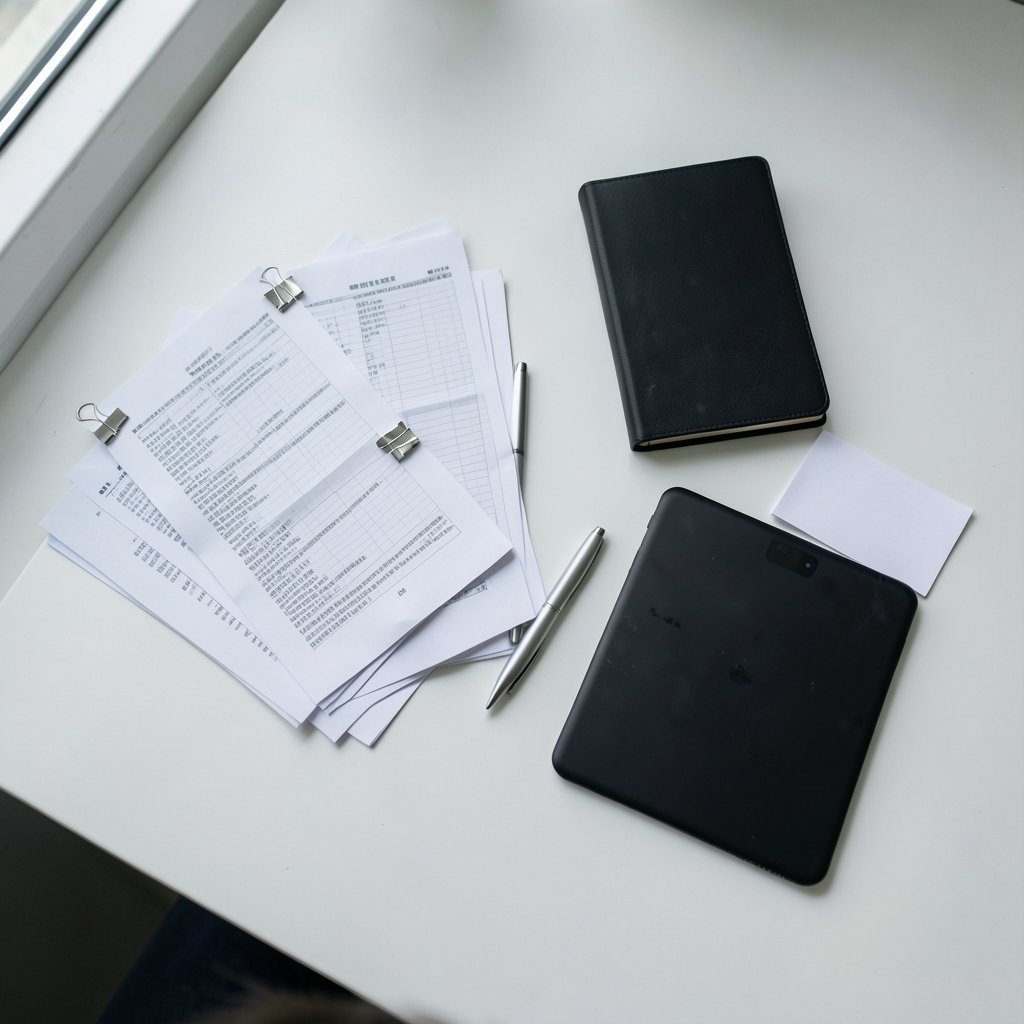
The basic loop is simple enough to learn in five minutes.
- Create a notebook. Sign in with a Google account, open NotebookLM, and start a new notebook for a single project, client, or course.
- Add sources. Upload PDFs, Google Docs, Google Slides, plain text, website URLs, or YouTube links. Pasted text works too.
- Wait for processing. The tool indexes each source and shows a summary so you can confirm it read the file correctly.
- Ask questions in the chat. Answers appear with numbered citations tied to specific sources.
- Save what matters. Pin useful responses as notes so they stay in the notebook instead of scrolling away.
That’s the whole engine. Everything else, from audio overviews to study guides, is built on top of this foundation.
What Counts as a Good Source
Not every file belongs in a notebook. In practice, the tool performs best when sources are narrow and relevant. A notebook with forty loosely related PDFs produces muddier answers than one with eight tightly focused documents.
Good sources include lecture slides, research papers, meeting transcripts, product documentation, contract drafts, and long articles you actually intend to use. Poor sources include scanned images with no text layer, sprawling archives you haven’t skimmed, and anything you wouldn’t trust yourself to quote.
One Notebook per Project, Not One for Everything
The most common beginner mistake is dumping every document into a single notebook and expecting magic. It doesn’t work that way. Because answers are grounded in whatever you uploaded, a cluttered notebook produces cluttered thinking.
A better habit: one notebook per client, per course, per book you’re writing, or per research question. If you’re drafting a novel and need to keep character notes, timelines, and world-building documents straight, a dedicated notebook per manuscript keeps the citations clean. Authors working on cover concepts often pair that kind of project notebook with an AI book cover generator for authors to keep the visual side moving while the research stays organized.
The same logic applies to reading. If you’re working through a long series and want to track factions, characters, and plot threads, a notebook built from your own notes beats a general chatbot that may blur details between books. Readers comparing long series often start with a list like these best fantasy book series picks, then build a notebook from chapter summaries to keep everything straight.
Where NotebookLM Genuinely Shines
Some tasks fit the tool almost perfectly. Others don’t. Knowing the difference saves hours.
| Task | Fit | Why |
|---|---|---|
| Summarizing a stack of research papers | Excellent | Citations let you verify every claim |
| Turning meeting transcripts into action items | Excellent | Answers stay tied to what was actually said |
| Studying for an exam from lecture slides | Very good | Study guides and quizzes generate from your material |
| Comparing contract clauses across drafts | Good | Works well if drafts are clean text |
| Writing a general-knowledge essay | Poor | No web access means gaps stay gaps |
| Real-time news analysis | Poor | Sources must be uploaded first |
The pattern is clear: the tool is strongest when you already have the material and need help thinking through it. It is weakest when you need information you haven’t supplied.
Audio Overviews and Study Aids
The audio overview feature turns your sources into a conversational, podcast-style summary. It’s genuinely useful for commuters and for anyone who absorbs information better by listening. Just don’t treat it as a substitute for reading the source: it’s a review layer, not the material itself.
Study aids work similarly. Generated quizzes, briefing documents, and FAQ sheets are derived from your sources, which means their quality rises and falls with the quality of what you uploaded.
Practical Tips That Actually Work
After the basics, a few habits separate people who get value from the tool and people who abandon it.
Name your sources clearly. A file called “draft_final_v3.pdf” tells you nothing when a citation points to it. Rename files before uploading.
Ask narrow questions. “What does the report say about Q3 churn?” beats “summarize this.” Specific questions produce specific citations.
Use the notes panel aggressively. Anything you’d want to reread later should be pinned. Chat history is easy to lose; saved notes are not.
Cross-check surprising answers. If a citation seems to contradict what you remember, open the source. Sometimes the tool is right and your memory is stale. Sometimes the source itself was wrong. Either way, you learn something.
Rebuild notebooks when projects shift. A notebook that’s been running for six months across three different projects is a liability. Start fresh.
If you already take notes elsewhere and want to compare workflows, these best note-taking apps for professionals are worth a look, and tablet users may find these best iPad note-taking apps useful for capturing thoughts before they go into a notebook.
Common Mistakes and How to Avoid Them
The failure modes are predictable, which means they’re avoidable.
- Treating it like a search engine. It has no live web access. If the answer isn’t in your sources, it will say so, or worse, give you a thin answer. Upload more material or use a different tool.
- Uploading image-only PDFs. Scanned documents without a text layer may not be readable. Check the generated summary to confirm the file was parsed.
- Ignoring the citations. The whole point is verification. Skipping it wastes the tool’s best feature.
- Expecting perfect recall across hundreds of sources. More isn’t better. Focus is better.
- Assuming availability and limits are fixed. Feature sets and plan tiers shift over time, so check the current documentation before building a workflow around a specific limit.
One more mistake worth naming: assuming the tool replaces judgment. It doesn’t. It reads faster than you do, but it doesn’t know your context, your audience, or your standards. You remain the editor.
Privacy, Accuracy, and Honest Limits
Two questions come up constantly: is my data safe, and can I trust the answers?
On privacy, the sensible approach is to treat uploaded documents the way you’d treat anything stored in a cloud account. Don’t upload material you’re contractually forbidden from sharing, and check your organization’s policy before adding client files. Google’s own documentation is the authoritative source here, and it changes more often than most users assume.
On accuracy, the honest answer is that grounding reduces hallucination but doesn’t eliminate error. The tool can misread a passage, conflate two sources, or miss nuance. Citations make those errors findable, which is the realistic best-case scenario for any AI system today. Anyone promising flawless accuracy is overselling.
There’s also a scope limit worth stating plainly: NotebookLM is one tool in a crowded field. General assistants handle open-ended research better. Dedicated note apps handle long-term organization better. NotebookLM’s niche is the middle ground, where you have documents and need to interrogate them. (NotebookLM)
Who Benefits Most
Students and researchers get the clearest win, because the tool mirrors how academic work already functions: read sources, extract claims, cite them. Analysts and consultants benefit when they need to synthesize interviews or reports quickly. Writers benefit when they need to keep a large body of background material consistent.
Casual users may find it overkill. If you just want a quick answer to a general question, a standard chatbot is faster. NotebookLM rewards people who already have a pile of documents and a reason to dig through them.
Conclusion
NotebookLM is best understood as a reading and reasoning partner rather than an answer machine. Its defining feature isn’t the chat interface or the audio overviews; it’s the insistence that every answer trace back to something you supplied. That constraint is what makes it trustworthy enough for real work.
The path to using it well is unglamorous: build focused notebooks, upload clean sources, ask narrow questions, and check the citations. Do that, and the tool earns its place in your workflow. Skip it, and you’ll get the same vague, unverifiable output you’d get anywhere else, just with a nicer interface.
Start with one project, one notebook, and five good documents. That’s enough to see whether the grounded approach fits how you think.
Frequently Asked Questions
Does NotebookLM use the internet to answer questions?
No. It answers only from the sources you add to a notebook. That’s the core design choice behind its citation system, and it’s why the tool politely declines questions your documents don’t cover.
Can I upload scanned PDFs and images?
Sometimes, but it depends on whether the file contains a readable text layer. Image-only scans often fail to parse properly. Check the auto-generated source summary after uploading; if it looks garbled or empty, the file wasn’t read correctly.
How many sources can one notebook hold?
Limits have changed repeatedly as the product has evolved, and they can differ by plan. Rather than relying on a number from an old tutorial, check the current documentation inside the app before planning a large upload.
Is NotebookLM free to use?
A free tier has existed alongside paid Google AI plans, but the specifics of what each tier includes have shifted over time. Verify current pricing and feature access directly with Google rather than trusting a blog post, including this one.
What’s the difference between NotebookLM and a regular AI chatbot?
A general chatbot draws on broad training data and may browse the web. NotebookLM draws only on your uploaded sources and cites them. The trade-off is scope for traceability: less breadth, far more verifiability.
Can I share a notebook with other people?
Sharing options have expanded over time and typically depend on your account type. If collaboration matters for your workflow, confirm the current sharing settings in the app before building a team process around it.