A finished manuscript can be ready to publish while its cover is still an open decision, and an AI book cover generator can help you explore ideas. You may need a single ebook image, a paperback file, or both. Each option calls for a different kind of design work.
A full-wrap cover is one print layout containing the back cover, spine, and front cover. An AI-made visual draft is a cover concept, not always a file you can upload as-is. You still need to choose the right format, add clear typography, and check the final file for publication.
This page offers a practical workflow for turning an idea into a usable concept and preparing it for Amazon KDP. You will find help with visual direction, cover text, file choices, and print preparation, whether you work alone or with a designer.
Key Takeaways
- Choose the publication format before making a canvas.
- Use generated artwork as a draft to review and refine.
- Add exact cover text with editable typography.
- Match each download to its next publishing step.
- Check print layout and usage terms before publishing.
The best starting point is the format you plan to publish, not the first image a generator produces.
What Can an AI Book Cover Generator for Authors Do?
A text prompt can turn a story summary into several visual directions to consider. A useful book cover generator can help authors test a mood, setting, color scheme, or central image before settling on a design. It creates artwork to consider, but it does not make every publishing choice for you.
You might describe a lonely lighthouse, a storm-dark sea, and a tense mystery mood. The generator turns those words into images, which you can compare or refine. Many tools let you change a selected area, erase an unwanted detail, or create a new version with a revised prompt.
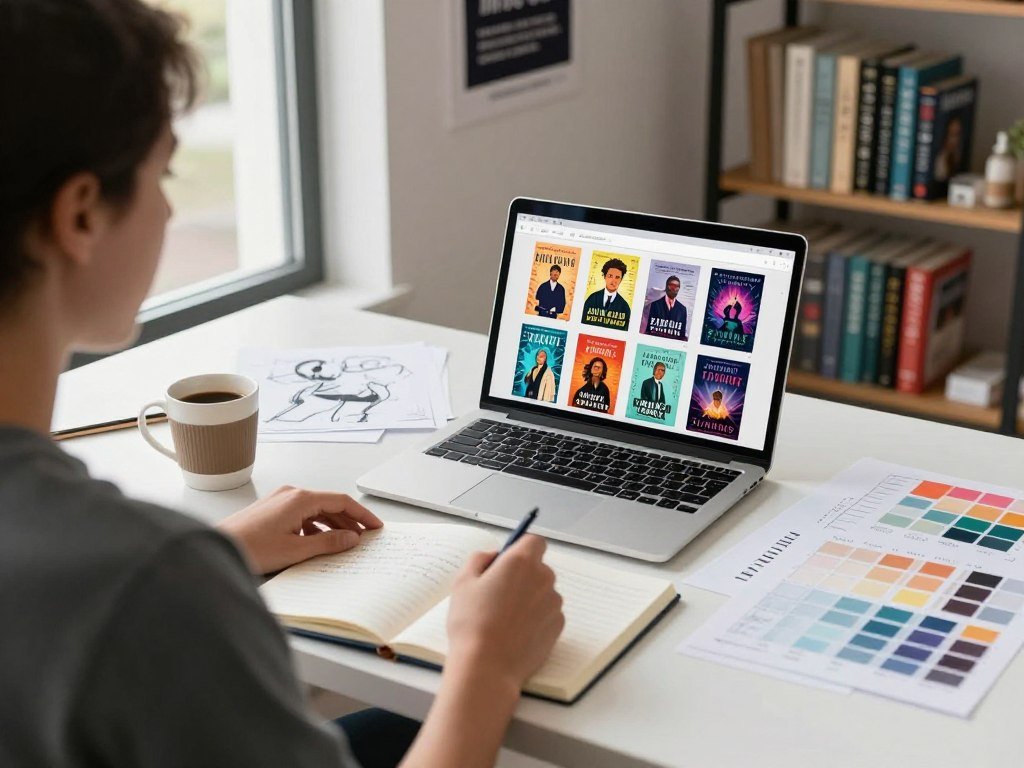
For example, Canva AI 2.0 generates images from text and includes Magic Edit, Magic Eraser, and Add Text to Photo. Those features can help you change image details or place text over a photo. A separate beginner guide to creating AI images explains how prompts, edits, and review fit together.
Judge each generated image as a draft, not as a finished publishing file.
The artwork and the complete cover are different pieces of work. A generator may make a strong scene, but a complete cover also needs a layout, accurate title typography, and the correct publication format. Some tools combine image making and design features; others focus on making images only.
An AI book cover generator for authors online can help you explore directions without replacing your choices about layout or format. You decide which visual details fit your book, where the title belongs, and whether the image suits your readers. Those choices shape the cover as much as the generated scene does.
Keep your story brief focused on a few details the image can show. A clear subject and mood give you more useful options than a long plot summary. Then review the output for odd details, missing objects, and elements that distract from the story.
Should You Make an Ebook Front or a Print Wrap?
Choose an ebook front when the immediate goal is a digital listing, and a wrap when the book will be printed. The main difference is the canvas: an ebook front cover is one image, while a paperback file includes the back, spine, and front. Do not treat concept art as a ready-to-print full-wrap cover.
A common Kindle ebook cover target is 1600 by 2560 pixels, but that is not a universal print specification. Ebook artwork appears as a single image in digital storefronts. A paperback needs a layout that fits the selected trim size, page count, and paper type.
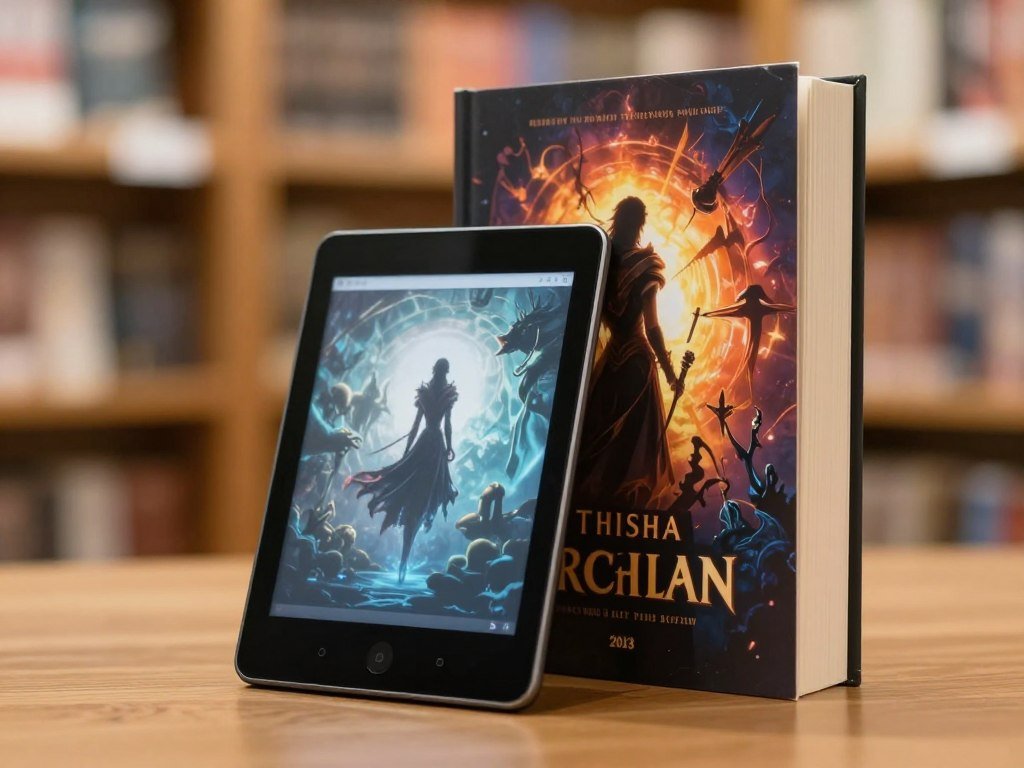
An ebook front cover for digital storefronts
A single front image works for a digital listing, where readers see the cover at different sizes. The title and central image need to stay clear when the artwork appears as a small thumbnail. Keep the composition suited to a vertical cover rather than a wide spread.
Before you create the image, check a book cover size guide for common print and digital proportions. A digital front may be reused later, but it will not supply the back cover or spine needed for paperback production.
A full-wrap cover for paperback printing
For print, the front, spine, and back share one wide layout. Venngage supports editable full-cover layouts with separate front, back, and spine sections. This kind of layout helps you position each part, but the finished file still needs dimensions that match your book.
Before generating artwork, write down the choices that affect the canvas:
- Publication format: ebook, paperback, or both.
- Trim size, if you are printing.
- Final page count, if you are printing.
- Paper type, if you are printing.
Those details help you avoid stretching a front image across a print layout that needs extra space. Confirm the format before generating artwork so the design does not need to be rebuilt on a different canvas.
Which AI Cover Tool Fits Your Workflow?
For a first-time author who wants artwork and typography in one place, Canva Pro with Magic Media is the clearest fit in this comparison. It brings image generation, typography, and KDP-sized templates into one workspace. Choose the tool that fits your next design task, not just its image model.
The best AI book cover generator for authors depends on whether you want an integrated layout, text baked into an image, or series continuity. These tools serve different workflows, so their listed prices and limits matter alongside their strengths. The price ranges below are monthly except where noted.
| Tool | Listed price | Useful workflow | Limitation or distinguishing feature |
|---|---|---|---|
| Midjourney V8.1 | $10-$120 per month | Artistic visual concepts | Poor text rendering; add title typography separately |
| Ideogram | $8-$60 per month | Text baked into an image | Built for title text inside generated artwork |
| Adobe Firefly | $9.99-$199.99 per month | Image generation with paid-plan IP indemnification | Paid plans are the only major option with IP indemnification in this comparison |
| Canva Pro with Magic Media | $15 per month | Image generation, typography, and KDP-sized templates | Combines artwork and layout in one workspace |
| Leonardo.Ai | $10-$60 per month on an annual plan | Keeping characters consistent across a series | Useful when recurring characters need a steady look |
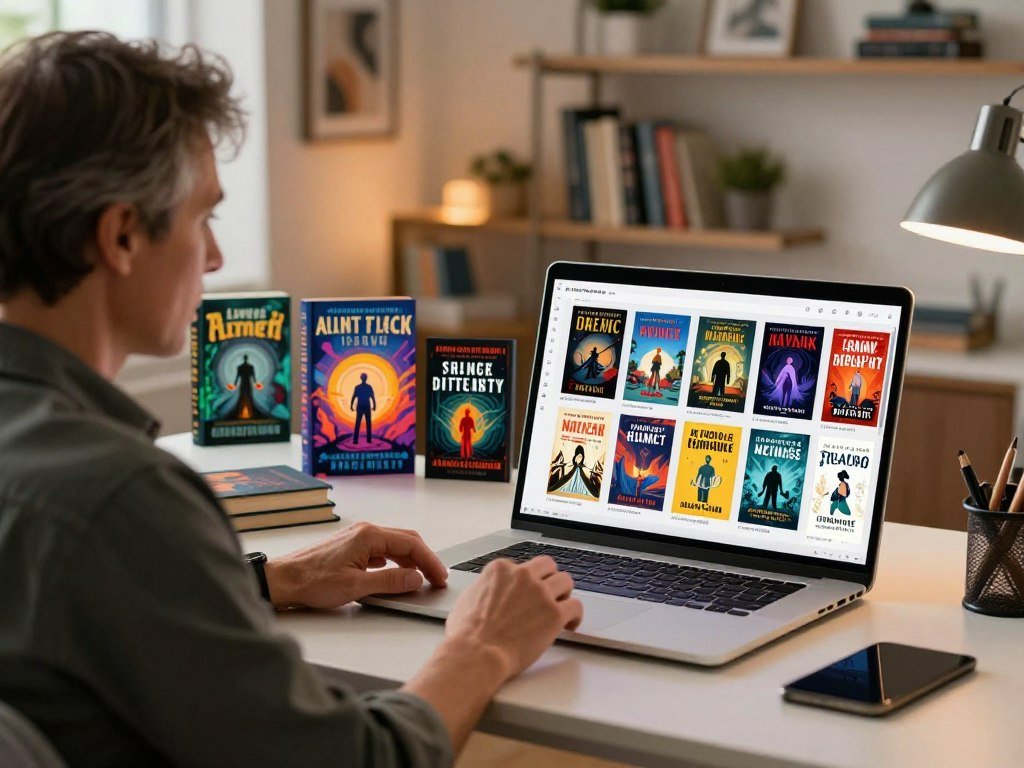
Midjourney V8.1 can make a distinctive image, but its poor text rendering means you should plan a separate typography step. Ideogram is designed for title text baked into an image. Authors who need recurring characters to look similar across a series may prefer Leonardo.Ai.
Adobe Firefly stands out in this comparison because its paid plans are identified as the only major tool option with IP indemnification. That feature may matter when you weigh a paid plan, though it does not remove the need to review your own use. A comparison of ChatGPT apps also describes Canva’s prompt-to-editable-design workflow.
Canva Pro with Magic Media is a practical starting choice when you want to generate a scene and then place type in the same workspace. You can move from the image to a designed layout without switching tools for each step. For title words inside the image, Ideogram offers a more direct fit.
Compare the listed prices with the task you need to complete, such as image generation, title treatment, or repeated series art. Midjourney V8.1’s text-rendering limit is one reason to plan the lettering step separately. Choose for the work you need the tool to do, not for the longest feature list.
Can You Make a Cover With Free or Low-Cost Tools?
A free plan can be enough to test a concept, but the download and usage terms determine whether it can carry the project through publication. An early draft can help you choose a visual direction before you pay for more generations. Check credits, resolution, export type, and commercial use before relying on a free result.
An AI book cover generator for authors free to try may still limit credits, resolution, or commercial use. An AI book cover generator for authors online free can help with drafts, but you must check its export and license terms. AI book cover generator online free options should be compared by the actual files and rights available, not by the word free.

| Tool | Free access | Paid option | Export or usage detail |
|---|---|---|---|
| BeYourCover | 2 free designs | $19 one-time single-book workflow | Ebook and full print-wrap exports for KDP and Barnes & Noble |
| Rewind.ai | 2,500 tokens daily anonymously; 5,000 daily with a free account | Token packs start at $5 | Commercial use follows the model’s terms and license |
| Morphic | Up to 20 free credits | Paid plans add commercial use and full-resolution exports | Free credits do not include the paid-plan export and use features |
| DIY Book Covers | FAQ says 3 free covers weekly; cover-maker page says 3 daily | Starter Pack $19; Creator Pack $39; Series Pack $59, one time | PNG; upscaled files at 300 DPI for 6-by-9-inch print covers and KDP ebook specifications |
The DIY Book Covers free limit is stated differently on its FAQ and cover-maker page, so the current allowance is not clear from those two pages. Its one-time packs offer up to 50 generations and one upscale for Starter, up to 150 generations and three upscales for Creator, or up to 300 generations and five upscales for Series.
Free AI image tools compared by use case can help you spot differences in image generation and free access. Rewind.ai also makes the model’s own license part of commercial use, so a token balance alone does not settle your rights.
KDPEasy lists AI covers at $3-$7 per cover, supports all 16 KDP trim sizes, and provides a full-wrap PDF at 300 DPI. The provider states that commercial rights are included. Those details make it a low-cost option when you need a print layout rather than a front image alone.
Rewind.ai’s daily free token limits show why a free plan may still have a practical ceiling. Check the plan’s current allowance and license before relying on a free generation for a book launch.
What Does a Professional Cover Designer Cost?
In 2026, the Reedsy cover-design median is $930, while the middle half of projects falls between $630 and $1,200. A contest entry point is different: 99designs book-cover contests start at $279 and reach $999. These figures compare different ways to buy design work, not matching packages.
Reedsy’s median describes the midpoint of its cover-design project prices. The middle-half range shows where the central 50% of those projects fall. A 99designs contest price describes a contest, not the same kind of project measure.
| Benchmark | Amount | What the amount describes |
|---|---|---|
| Reedsy median project price | $930 | Median cover-design project price in 2026 |
| Reedsy middle-half project range | $630-$1,200 | Range containing the middle half of projects |
| 99designs contest starting price | $279 | Starting price for a book-cover contest |
| 99designs contest upper price | $999 | Upper listed price for a book-cover contest |
When comparing proposals, look at what you receive, not just the first number. A quote may cover a front image, a print wrap, or several format versions. The project scope and included revisions can affect a designer’s quote, even when the main task sounds similar.
Ask how many revision rounds the quote includes and what files arrive at the end. A design that needs ebook and paperback versions may involve more work than a single front image. Make sure you understand whether the designer will prepare the final layout or only supply artwork.
The median and contest prices give you two useful benchmarks, but they are not a promise of what your specific cover will cost. Compare deliverables and revision terms alongside the headline price.
How Do You Prompt for a Genre-Accurate Concept?
A useful cover prompt tells the generator what shelf the book belongs on before it describes the scene. Name the genre and audience, then set a mood, color direction, and one clear image. A focused prompt gives the image a job instead of asking it to decorate the page.
Pixlio includes six preset genres: romance, thriller, fantasy, science fiction, mystery, and nonfiction. Presets can give you a starting point, but the prompt still needs to fit the story. Venngage’s prompt guidance calls for genre, theme, mood, imagery, color, and typography preferences.
Name the genre, audience, and mood
State the genre in plain words, then describe the readers you hope to reach. A cozy mystery for adult readers needs different visual cues from a fast thriller for young adults. Set a mood such as warm, tense, eerie, playful, or wistful.
Color can support that mood without carrying the whole idea. A pale blue palette may feel calm, while deep red can add heat or danger. Avoid stacking several moods that fight each other.
Describe one clear visual direction
Choose one central image or metaphor that ties to the plot. It could be a cracked teacup, a key beneath ice, or two hands reaching across a train window. Give the image a setting and composition, rather than listing every important object in the story.
For example, a mystery prompt might read: “Adult mystery cover, one brass key on a rain-soaked windowsill, muted blue-gray palette, tense mood, open dark space above for the title.” The key gives the artwork a clear focal point without explaining the whole plot.
Reserve space for readable cover text
Describe where the image should leave open space for the title. You might ask for open sky, a plain wall, or a darker corner with few details. This helps the composition make room for typography without asking the image model to spell the final words.
A romance prompt could read: “Contemporary romance cover, two adults meeting in a city garden at sunset, warm peach and gold tones, hopeful mood, open sky above for the title.” A repeatable prompt-writing method can help you keep details focused as you test options.
Describe what should be visible, then add one or two limits that prevent clutter. Avoid instructions that pull the image in several directions, such as multiple settings or competing central figures. Keep the brief focused on one memorable visual idea rather than a list of unrelated objects.
How Can You Refine and Compare Cover Concepts?
Shrink each option to the size it will appear in a storefront before deciding which one reads most clearly. A small-view test quickly shows whether the main image and title still stand out. Pick the concept that communicates its idea without visual clutter.
Compare concepts using the same four checks rather than choosing the most detailed image. Keep a short note beside each option so a striking color or scene does not distract you from its job as a cover.
- Thumbnail readability: can you make out the main shapes and title?
- Recognizable genre cues: does the image fit its likely shelf?
- Clear focal point: does your eye land on one central element?
- Distinct from your other covers: could readers tell them apart?
Check the concept at thumbnail size
A large screen can make fine details seem more useful than they are. Reduce each cover concept to a small storefront preview and check its shape, contrast, and main image. If the focal point disappears at that size, the cover may not draw a quick glance.
BeYourCover lists more than 160 genre-tuned styles, which can help you compare looks built for different shelves. A broad style menu gives you ways to explore, but it does not decide which concept suits your book.
Refine one element at a time
Change one important detail per generation, such as the palette or the amount of background detail. Pixlio offers targeted refinement controls for a simpler layout, darker palette, more atmospheric imagery, or stronger visual hierarchy.
Those controls are examples of a focused revision workflow, not proof that a particular tool guarantees a better cover. Keep a version that works before trying a change, so you can return to it if the new image loses its strongest feature.
Compare the new option with the earlier one at the same size. If the change improves the focal point but weakens the genre cues, keep testing rather than calling it finished. Keep the concept that communicates its genre and central idea with the least visual clutter.
How Should You Add the Title and Author Name?
If the title must be exact, place it as editable typography rather than trusting letters generated inside the artwork. Separate layers make it easier to correct words, adjust spacing, and move the type. Keep important wording editable until you have proofread the full cover.
Text generated inside an image may look convincing at first glance, but letters can be misspelled, merged, or oddly shaped. A text overlay lets you set the book title, subtitle, and author name with the exact spelling. It also gives you control over placement and size.
Keep the artwork separate from the type
Inkfluence AI exports at 1600 by 2560 pixels and adds title text as an overlay instead of generating it inside the image. Pixlio also keeps generated artwork text-free before the final title overlay. Both workflows keep the image separate from the words you need to edit.
Midjourney V8.1 has poor text rendering, so its artwork needs a separate typography step. That can work well when you like its visual style, as long as you plan to add the title in another editor. A comparison of AI image tools also explains why generated words need close review.
Some tools are designed to place title text inside the generated artwork. This can help you explore a concept with lettering already present, but that text may need correction. Treat baked-in lettering as part of the image, not as the final word file.
Check title, subtitle, and author-name hierarchy
Give the title the strongest visual weight because it names the book. Make the subtitle smaller, then set the author name at a size that remains easy to spot without competing. If your name is already familiar to readers, you may choose to give it more space.
Use contrast to separate the type from the scene. A simple background area can make letters easier to read than a busy image with many bright details. Keep line breaks and spacing balanced, so the title feels connected to the artwork rather than pasted on.
Look at the title in the full design and in a small preview. Check every word, including punctuation, before exporting the cover. Proofread every word and inspect the title at thumbnail size before treating the composition as final.
What Does a KDP Paperback Cover Need?
A KDP paperback cover in 2026 must be one PDF containing the back cover, spine, and front cover. Spine width depends on the final page count and paper type, so use the right formula before placing spine artwork. KDP’s cover calculator accepts displayed page counts from 24 to 830.
The calculator can create a PDF or PNG guide template for your cover layout. Use the final trim size, paper type, and page count to set the wrap. If the page count changes, the spine width changes too.
Calculate the full-wrap dimensions and spine
Apply the formula for the paper you chose: white-paper spine width is page count × 0.002252 inches. Cream-paper spine width is page count × 0.0025 inches. Premium-color spine width is page count × 0.002347 inches.
For standard-color paper, spine width is page count × 0.002252 inches. The white-paper and standard-color formulas use the same multiplier, while cream and premium color use different ones. Enter the final page count before creating the spine area.
Keep bleed and text inside safe areas
Bleed adds 0.125 inches to the top, bottom, and outside edges. Front- and back-cover text must sit at least 0.125 inches inside the trim lines. This keeps important words away from the edge where a printed page is cut.
KDP calls for images at least 300 DPI and print images in CMYK color. Spine text requires a book of at least 79 pages. Cover text should be at least 7-point, so small wording remains easier to read.
Prepare the print file for upload
KDP will not convert files larger than 650MB and recommends a file size of 40MB or less. A guide to reviewing generated images can help with artwork checks, but the print file still needs its own layout review.
Use this preflight list before you export the final PDF:
- Confirm the trim size and paper type.
- Calculate spine width from the final page count.
- Check bleed and safe margins.
- Inspect resolution, color mode, and text size.
- Verify file size and one-PDF export.
KDP’s paperback cover rules and calculator range set the layout details for an upload-ready wrap. Generate the template from the final page count and paper choice before setting the spine artwork.
Can You Publish AI-Generated Cover Art Commercially?
Commercial permission and copyright ownership are separate questions, so check both before publishing. A paid license may allow certain uses without deciding who owns copyright in the image. Do not assume generated art is automatically copyrightable or cleared for every commercial use.
Check the tool’s terms, the rights for any reference material, and the human creative work you add. Those issues are related, but they are not the same. A license may set use rules, while copyrightability can depend on human-authored contributions.
Separate commercial permission from copyright ownership
The U.S. Copyright Office published Part 2 of its AI report on copyrightability of generative AI outputs on January 29, 2025. Part 3, about generative AI training, came out as a pre-publication version on May 9, 2025.
The Office had received more than 10,000 comments by December 2023 on its notice of inquiry about AI and copyright. These milestones show that policy questions are still being examined. They do not mean every generated image has the same copyright status.
A guide to earning from AI-assisted work also stresses checking the tool’s terms before selling work. For a cover, keep track of the artwork you used, the edits you made, and any design choices that shaped the result.
In January 2024, an informal survey of 285 readers found that 80.4% said they would not buy a book after learning its cover art was AI-created. The survey was self-selected, so it does not represent all readers. Still, your audience may care about how the art was made.
Consider reader expectations before choosing the art
Think about what your readers expect from the book and its cover. A generated image may suit a fast, stylized concept, while a highly specific story may need more direct art control. Your choice can affect how readers view the work before they open it.
Human edits can include selecting and arranging visual elements, changing the composition, or adding original design work. Keep notes about what you changed rather than relying only on the tool’s output. Keep a record of the tool’s applicable terms and the human edits you made to the final artwork.
Which File Should You Download for Your Book?
Download a front-cover image for digital use or a complete layout for print. The next step determines whether you need JPG, PNG, PDF, or an editable project file. A PDF export alone does not confirm that a file meets KDP’s rules.
JPG and PNG work for a single ebook front image. A PDF fits a layout intended for print, while an editable project file helps when you expect more design changes. Check that the download matches the whole job, not just the visible artwork.
Canva exports JPG, PNG, PDF, and PPTX. Venngage exports JPG, PNG, and PDF, supports uploads up to 5000 by 7000 pixels, and offers 1:1, 3:4, and 6:9 presets. Pixlio currently exports PNG front-cover images, not paperback wraps or spine layouts.
An AI book cover generator PDF search reflects a need for a print file, but the format alone says little about layout quality. A PDF may still lack the right panels, dimensions, or text placement. Open the file and check its pages before sending it to print.
- Correct canvas for the intended publication format.
- Readable title and author typography.
- File format suited to the next publishing step.
- Saved editable source if future revisions are likely.
Keep the original project file when you may need to update a subtitle, price, or series mark later. A flat image can be harder to revise because the words and artwork may no longer be separate. Open the exported file once outside the editor to catch missing text, cropping, or font changes.
When Is AI Concepting Not Enough?
AI concepting is a useful starting point, but complex art direction and a consistent catalog identity may call for a designer. A rough concept can help you test an idea, while a finished cover may need close control of type, illustration, and format versions. Use a designer when the project needs a visual system that the draft cannot provide.
A strong single image may not carry across a series or fit every format. BeYourCover offers 1:1 audiobook-cover versions and a Pro series-cover feature that carries style, palette, lettering, and recurring characters across books. These features show ways to adapt art and maintain continuity, but they do not replace design judgment.
Consider a designer when you need an art direction that matches a precise story, complex illustration, or a steady brand across a catalog. A designer can bring the visual parts together and adapt them for different uses. The right help depends on which part of the cover still feels unresolved.
These three signs can show when a draft needs more hands-on work:
- The concept still feels generic after targeted revisions.
- The series needs a consistent visual system.
- The final file needs complex custom illustration or detailed layout control.
AI can still help you prepare for a designer. Bring a concept you like, note what should stay, and explain what is not working. A concise brief saves time because it turns a vague reaction into clear direction.
When the idea is clear but the execution still needs expert control, bring the strongest concept and a concise brief to a designer.
Include the genre, intended readers, and the main visual idea in that brief. Add examples of covers that show the mood or layout you want, while keeping the final design original. A short, clear starting point gives the designer room to solve the work without guessing what you mean.
Conclusion
Start with the format you are publishing and the visual signal your readers should recognize. Your workflow should move from a clear concept to accurate typography, then end with a checked export. That order keeps the artwork tied to the actual publishing job.
You do not need to settle every design choice at once. Begin with one image that fits your genre, then judge whether it works at the size readers will see. Write a short brief with your genre, central image, and format, then test one cover concept.
FAQ
Can I use the same artwork for an ebook and a paperback?
Yes, you can reuse the front-cover artwork, but a paperback needs a separate full-wrap layout. That layout includes the back, spine, and front, arranged for the printed book. You may need to adjust the artwork to fit the print canvas, especially near the spine. Keep a clean copy of the front image so you can place it in both designs.
Does an AI book cover generator add the title automatically?
Some tools add editable text as an overlay, while others may create letters inside the artwork. Generated lettering can contain spelling errors or shapes that look like words but are not readable. When accuracy matters, add the title, subtitle, and author name separately in an editor. Check the spelling and layout at full size and as a small storefront thumbnail.
Can I upload a reference image to guide a cover design?
Yes, some design tools accept reference images to guide a visual direction. A reference can help show a palette, lighting style, or composition you like. Check that you have permission to use the image for this purpose, especially if it belongs to another artist or publisher. Avoid copying a finished cover or distinctive artwork too closely.
Do I need to upload my manuscript to generate a cover?
No, a short brief can be enough to start. The title, genre, intended audience, and a brief story summary can guide the first concept. Some tools offer manuscript upload as an optional workflow, but you do not need to share the full text just to test an image idea. Leave out plot details that the cover does not need to show.
Can an AI tool make matching covers for a book series?
Yes, some tools offer series features, and consistent references can help keep the look connected. Use an anchor cover or clear design notes for recurring characters, colors, and lettering. Review each new image beside the earlier covers, since a matching prompt does not guarantee identical results. Check that readers can still tell each book apart.
Can an AI-generated cover be copyrighted?
Do not assume the whole image is copyrightable. Copyrightability can depend on human-authored contributions, such as original edits or creative choices, while commercial-use permission is a separate issue. The tool’s license may allow certain uses without granting copyright ownership. Keep a record of your edits and the terms that applied when you made the cover.



