

Quick Answer: How do i update airpods safely without losing data?
AirPods firmware updates happen automatically in the background, so there is no manual “update” button to press and nothing to download yourself. The safe approach is to keep the earbuds paired, charged, in Bluetooth range, and connected to a device with Wi-Fi, then let the install finish on its own.
Unlike a phone or laptop, AirPods have no user-accessible file system, so there is no media or document library to wipe during a firmware install. The realistic risks are pairing friction and reset custom settings, not lost files.
Before starting, check your model, current firmware version, battery level, Bluetooth range, iCloud sync status, and whether a factory reset is truly needed, since a reset erases pairing and preferences.
A firmware update on wireless earbuds sounds like it should be a big deal. In practice, it is one of the quietest processes in consumer tech: the buds quietly install new code while sitting in their case, often overnight, and most owners never notice. Apple has long designed AirPods updates to run in the background when the earbuds are connected to a paired iPhone, iPad, or Mac with internet access, ideally while charging and within Bluetooth range. That single design choice answers most of the anxiety behind the question, because it means the safest update is usually the one you do not force. (Update your AirPods firmware)
Why the “losing data” worry is mostly a misunderstanding
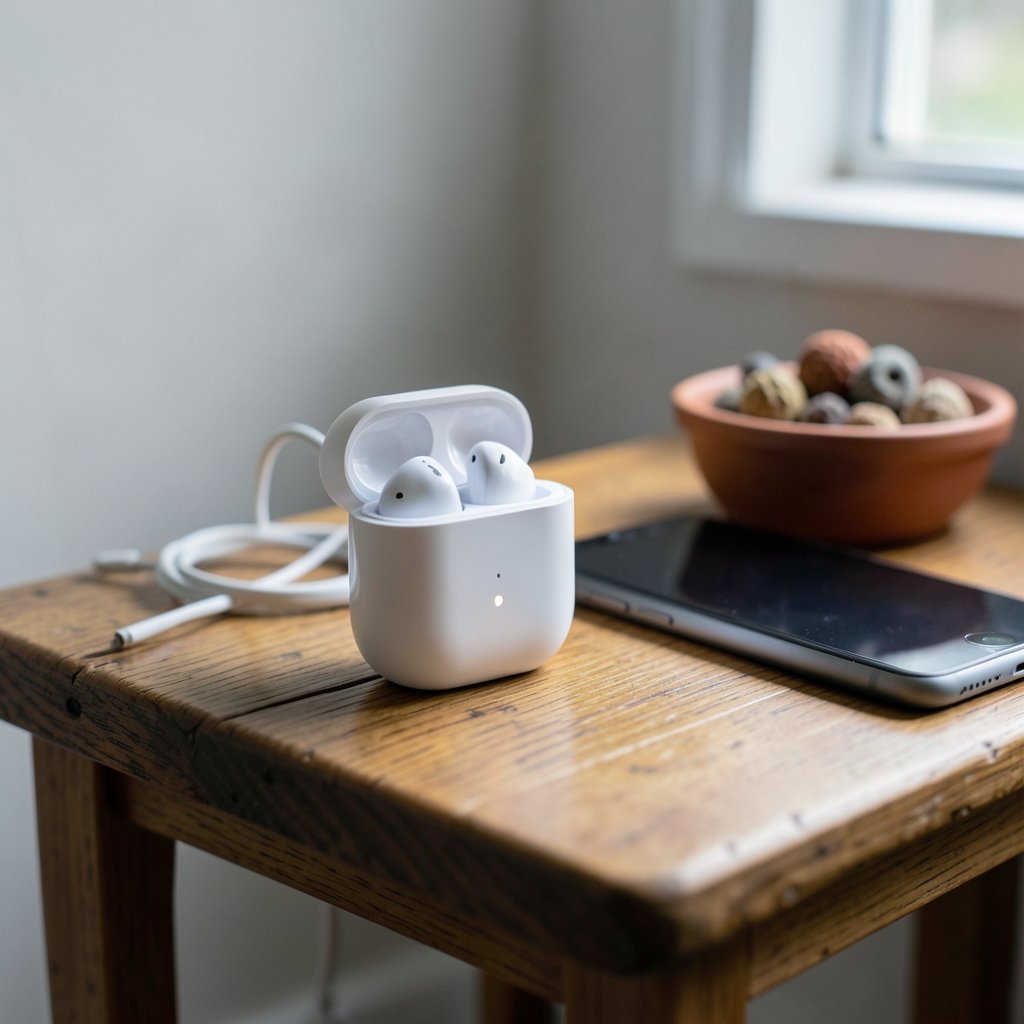
People search for this question because they picture a phone update: a progress bar, a backup prompt, and the fear of a bricked device. AirPods do not work that way. They store pairing information and preferences such as noise control mode, spatial audio settings, and custom transparency configurations, and those sync through the paired device and iCloud rather than a user-managed file system.
That distinction matters. There is no folder of songs or documents living on an AirPod. The thing you can actually lose is a setting, not a file. The most common real-world loss is a factory reset that clears pairing and resets your preferences, which then have to be set up again by hand.
There is also a persistent myth that updating AirPods deletes data. No credible basis for that claim exists in general knowledge of how the devices work, so treat it as unverified. What does happen, occasionally, is that an update changes default behavior, and users mistake a shifted default for lost data.
The safe update routine that actually works
The reliable method is boring, and that is the point. Follow this sequence and the firmware will install when Apple’s servers and your device decide the conditions are right.
- Pair the AirPods with an iPhone, iPad, or Mac that is connected to Wi-Fi.
- Keep the AirPods within Bluetooth range of that device. Leaving them in another room can stall the process.
- Put both earbuds in the charging case and close the lid.
- Connect the case to power using the cable or a wireless charger.
- Leave the setup alone for a while, ideally 30 minutes or more, and often overnight.
- Check the version afterward in Settings, then Bluetooth, then the info button next to your AirPods. On a Mac, look under System Settings and Bluetooth.
Practical tip: the single most common mistake is fiddling. People open the case, check the version, close it, reopen it, and repeat every few minutes. That cycling can interrupt the very conditions the update needs. Plug it in, walk away, and check once.
A second common mistake is assuming a stalled update means a broken device. Firmware rollouts are staged, so two people with identical AirPods can be on different versions for days or weeks. Patience beats troubleshooting.
A third mistake is resetting the AirPods as a first response. A factory reset is the main way users genuinely lose configuration, so it belongs at the end of the troubleshooting list, not the start.
What you can and cannot control
Apple’s long-standing guidance is that firmware installs automatically, and there is no manual update button in Settings. Some OS versions have added limited manual triggers, so confirm current behavior on Apple’s support pages before assuming either way. The table below separates what is in your hands from what is not.
| Factor | Under your control? | What to do |
|---|---|---|
| Wi-Fi connection on paired device | Yes | Connect to a stable network |
| Bluetooth range | Yes | Keep the case near the device |
| Charging the case | Yes | Plug in and leave it |
| Timing of the rollout | No | Wait; rollouts are staged |
| Firmware version number | No | Check, do not chase |
| Whether an update is “available” | No | There is no manual download |
If you want to verify your current version without guesswork, the info panel in Bluetooth settings is the authoritative place to look on iPhone, and the Bluetooth pane is the equivalent on Mac. Write the number down before you troubleshoot, so you can tell whether anything actually changed.
When an update seems stuck: a calm troubleshooting order
Work through these in order and stop as soon as the version changes. Escalating too fast is how people end up resetting devices they did not need to reset.
First, confirm the paired device is actually online and not on a captive hotel or office network that blocks background traffic. Second, toggle Bluetooth off and on, then reconnect. Third, restart the paired device, which clears plenty of stuck background tasks. Fourth, forget the AirPods and pair them again, which preserves your Apple ID association but refreshes the connection. Only after all of that should you consider a full reset.
If you are the type who likes to understand the plumbing behind these processes, the same curiosity applies to how cloud infrastructure handles background jobs, which is worth a read on what an AI data center actually does all day.
Reset versus update: know the difference before you tap anything
A reset is not an update, and confusing the two is where real frustration begins. A reset erases pairing and custom settings and returns the earbuds to factory condition. An update changes the software while keeping your pairing and preferences intact.
The reset gesture itself has been stable for years: hold the case button for roughly 15 seconds until the status light flashes amber, then white. The exact timing and light behavior vary by model, including AirPods 4, AirPods Pro with the USB-C case, and AirPods Max, so check the steps for your specific model rather than assuming. (AirPods)
One open question worth flagging: it is not fully clear whether a reset affects Find My and Precision Finding state in every configuration. Treat that as unverified and check before resetting a device you rely on for location tracking.
A note on firmware versions and what to ignore
Firmware version numbers change frequently, and any specific number quoted in an article is likely stale by the time you read it. Do not chase a particular build. Check your own version, confirm the earbuds are behaving normally, and move on.
What matters is function, not the digits. If audio, noise cancellation, and the connection are all working, the version number is trivia. If something is broken, the version is a diagnostic clue, not a goal.
This is the same principle that applies across consumer tech: the update is a means, not an end. It is also why guides that promise a magic sequence to “force” an update tend to disappoint. For a broader look at how forced versus automatic processes differ in practice, a piece on an AI image generator without a prompt makes a surprisingly useful parallel about tools that do the work without being told exactly how.
Protecting your settings so nothing feels lost
Since the real risk is configuration, not files, the smart move is to document your setup before any troubleshooting. Note your preferred noise control mode, whether spatial audio is on, any custom transparency settings, and your typical volume behavior. That takes two minutes and saves a scavenger hunt later.
Also confirm that your paired device is signed into iCloud and syncing normally. Settings that ride along with your Apple ID are far easier to restore than settings you have to rebuild from memory.
If your broader home setup includes smart devices that depend on the same network, keep that ecosystem in mind too. A stable network is the quiet hero of every automatic update, whether it is earbuds or the cameras on your porch, and a guide to the best outdoor security cameras without a subscription makes the same point about reliability over gimmicks.
Common myths, checked
Several claims circulate widely and deserve a straight answer. The table below separates what holds up from what does not.
| Claim | Verdict |
|---|---|
| There is a manual update button in Settings | Not in standard behavior; verify per OS version |
| Updating deletes your music or files | No basis; AirPods have no user file system |
| A reset is required to update | No; a reset clears pairing and settings |
| All AirPods update on the same day | No; rollouts are staged |
| A stuck update means broken hardware | Usually not; check conditions first |
The pattern across all five is the same: the device is more self-managing than people assume, and most “fixes” people apply are more disruptive than the problem.
Conclusion
Updating AirPods safely comes down to removing obstacles rather than taking action. Keep the earbuds paired, charged, in range, and connected to Wi-Fi, then let the automatic install run on its own schedule. There is no data to lose in the file sense, so the genuine risks are pairing friction and reset preferences. Document your settings, resist the urge to reset as a first step, and check the version once rather than every five minutes. Do that, and the update becomes what it was designed to be: invisible.
FAQ
Do AirPods update automatically without me doing anything?
In standard behavior, yes. Firmware installs in the background when the earbuds are paired, charged, in Bluetooth range, and connected to a device with internet access. The user’s job is to create those conditions and then leave the setup alone.
Is there a manual way to force a firmware update?
There is no standard manual update button in Settings. Some OS versions have added limited manual triggers, so confirm current behavior on official support pages. In most cases, the practical answer is to improve the conditions and wait, since rollouts are staged.
Will updating my AirPods erase my settings?
An update is designed to preserve pairing and preferences. A factory reset is what clears them. If your noise control or spatial audio settings change after an update, that is usually a shifted default rather than erased data, and it can be set again quickly.
How long should I leave AirPods charging to update?
Plan for at least 30 minutes, and overnight is the most reliable window. The install happens when conditions align, and leaving the case plugged in near the paired device removes the two most common blockers: low battery and lost Bluetooth range.
What should I do if the version number never changes?
Work through the calm order: confirm the paired device is online, toggle Bluetooth, restart the device, then re-pair. Only consider a reset after all of that. Two identical pairs can sit on different versions for days because rollouts are staged, so patience is a legitimate troubleshooting step.
Does resetting AirPods affect Find My or location tracking?
This is not fully clear across every configuration, so treat it as unverified. Check the current behavior for your model before resetting a device you rely on for location tracking, especially if Precision Finding matters to your daily routine.



