
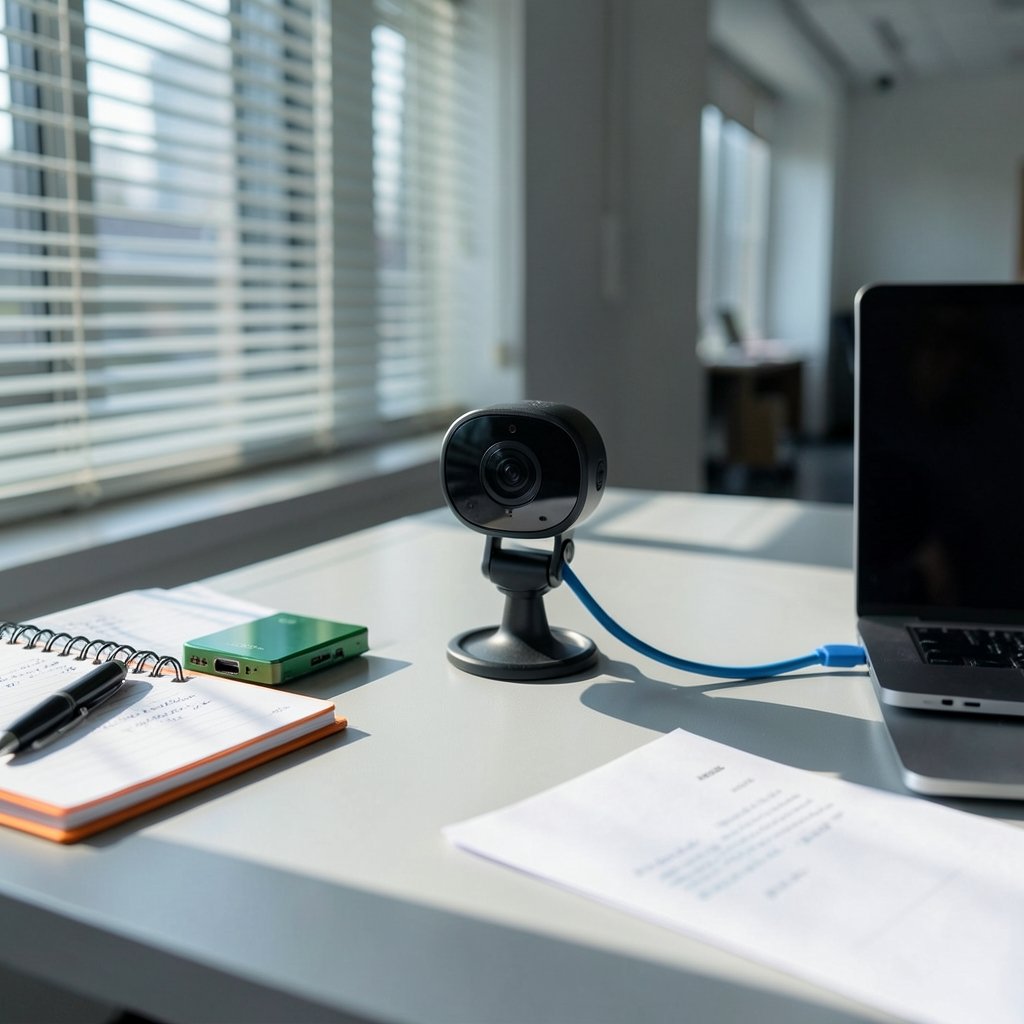
Quick Answer: How do i update webcam safely without losing data?
Updating a webcam safely means downloading firmware or software only from the manufacturer’s official support page, backing up any saved recordings or settings first, and keeping the device connected and powered until the process finishes. Most webcams update through a vendor app or companion software rather than a standalone file, so the exact route depends on your model and brand. (Webcam)
Driver updates are a separate matter. On Windows, camera drivers often arrive automatically through Windows Update, while firmware almost always requires the vendor’s own tool. Before starting, check your exact model and revision number, whether the vendor offers a rollback, your current driver version in Device Manager, and which apps currently hold the camera.
Why Webcam Updates Deserve More Caution Than You Think
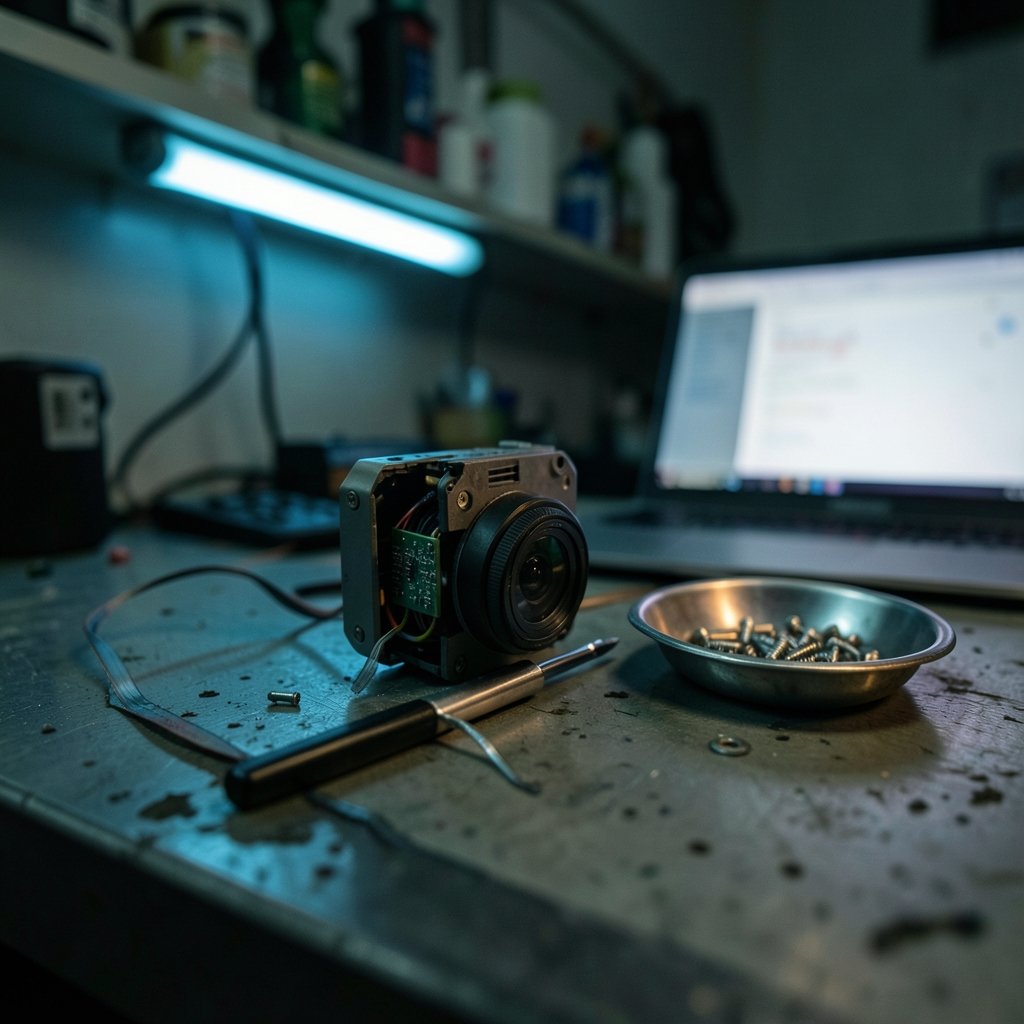
Here’s a number worth sitting with: a single interrupted firmware write can turn a perfectly good webcam into a plastic paperweight in under thirty seconds. There’s no undo button, no “restore to factory settings” menu that survives a corrupted bootloader. That’s the whole reason this topic matters.
Most people treat a webcam like a plug-and-play accessory. Plug it in, join the call, forget about it. Fair enough. But webcams are small computers now, complete with firmware, privacy features, and sometimes their own onboard processing. When a manufacturer pushes an update, it’s usually fixing something real: a security flaw, a microphone glitch, an autofocus bug, or compatibility with newer conferencing platforms.
The catch is that the update process itself is where things go wrong. Not the software, not the hardware, but the human steps around it. Someone closes their laptop mid-flash. Someone downloads a “firmware updater” from a sketchy mirror site. Someone forgets they had custom exposure presets saved and loses them. All avoidable.
The safest update is a boring one. No drama, no shortcuts, no “I’ll just quickly do this while the meeting starts.”
Know What You’re Actually Updating
Before touching anything, it helps to separate three things people constantly mix up.
| What it is | Where it comes from | What it affects |
|---|---|---|
| Firmware | Manufacturer’s official tool or companion app | The camera’s internal operating code |
| Driver | Often Windows Update, sometimes vendor site | How the operating system talks to the camera |
| Companion software | Vendor download page | Settings, effects, profiles, privacy controls |
Firmware lives on the device itself. Drivers live on your computer. Companion software is the app you use to tweak brightness, field of view, or a privacy shutter. Updating one doesn’t automatically update the others, and that confusion causes a lot of unnecessary panic.
A practical tip from experience: check Device Manager first to see your current driver version, then check the vendor’s support page for firmware. If the vendor page doesn’t list your exact model, that’s often a sign the camera doesn’t support user-applied firmware at all. Many consumer webcams simply don’t. In that case, your “update” is really just a driver refresh or a software reinstall, which is far lower risk.
If you’re the type who likes automating the boring parts of tech maintenance, the same discipline applies to other tools. Setting up systems that handle routine tasks for you, like learning how to use AI for data analysis to spot patterns in logs, is a useful habit. It’s the same mindset: verify before you act.
Back Up Before You Begin
This is the step almost everyone skips, and it’s the one that actually protects your data.
Webcam firmware updates rarely touch your personal files. That’s true. But “rarely” isn’t “never,” and there are three categories of data worth protecting:
- Locally saved recordings and snapshots. If your camera software stores clips on your drive, copy them somewhere else first.
- Configuration profiles. Custom exposure, white balance, framing presets, and privacy shutter positions sometimes reset after a firmware flash.
- Companion app settings. Some apps sync profiles to the cloud; others don’t. Know which one you’re using.
The backup itself takes two minutes. Create a folder, drag your recordings in, and take a screenshot of your settings panels so you can restore them by eye afterward. That screenshot trick has saved more people than any official documentation ever has.
If you’re running a small office or home setup with multiple cameras, this is also a good moment to think about your broader security posture. Cameras are network devices, and firmware updates often patch vulnerabilities that matter. The same logic applies to the best outdoor security cameras without subscription, where local storage and update support matter far more than flashy app features.
The Safe Update Sequence, Step by Step
Here’s the sequence that actually works in practice.
- Identify your exact model and revision. Flip the camera over. Read the label. Revision numbers matter because firmware is often built for one specific hardware revision.
- Go to the manufacturer’s official support page. Not a download aggregator, not a forum mirror, not a “driver pack” site. The vendor’s own domain.
- Read the release notes. Look for anything mentioning settings resets, privacy shutter behavior, or changes to companion app profiles.
- Close every app that uses the camera. Video call software, streaming tools, browsers with camera tabs open. Locked devices cause failed flashes.
- Connect directly, not through a hub. A flaky USB hub or an unpowered dock is a classic cause of mid-update disconnects.
- Plug in your laptop’s power adapter. Sleep mode during a firmware write is the single most common way people brick devices.
- Run the official updater and don’t touch anything. No alt-tabbing, no checking email, no unplugging “just to see if it’s done.”
- Wait for the confirmation message, then reboot. Not before.
- Recheck your settings. Restore your presets from that screenshot you took.
- Review OS-level camera permissions. On Windows and macOS, privacy settings sometimes need re-approval after a hardware change.
That’s it. Ten steps, maybe fifteen minutes, and the risk drops to near zero.
Common Mistakes That Cost People Their Data
Some patterns show up again and again. Here’s what to avoid.
Downloading from third-party sites. A firmware file from an unofficial mirror is an unverified binary with full access to a device that sits in your bedroom or office. That is a security problem; treating it as a minor inconvenience misses the risk. The broader point about infrastructure trust appears in other debates too, including the Google data center India backlash 2026, where public concern about who controls hardware and data runs deep.
Updating on a dying battery. Obvious in hindsight, catastrophic in the moment.
Skipping the release notes. Some updates change default behavior. If your privacy shutter used to start closed and now starts open, you want to know that before your next call.
Assuming rollback exists. Many consumer webcams offer no official downgrade path. If you’re on a stable setup and the update offers nothing you need, waiting is a legitimate strategy. Not every update is mandatory.
Forgetting the driver layer. People flash firmware, see no change, and get frustrated. Sometimes the actual fix was a driver update sitting in Windows Update the whole time.
Never updating at all. The opposite mistake. Cameras that never receive firmware patches accumulate known vulnerabilities. If your model hasn’t seen an update in years, that’s worth factoring into your next purchase.
When Things Go Wrong: Recovery Basics
If the update fails, don’t panic and don’t start unplugging things randomly.
First, check whether the device still appears in Device Manager or your system’s USB device list. If it does, the firmware may have partially applied, and re-running the official updater often completes the job. Second, try a different USB port, ideally one directly on the motherboard rather than a front-panel or hub connection. Third, look for a vendor-specific recovery mode. Some manufacturers publish a recovery utility for exactly this situation.
If the camera doesn’t appear anywhere, the bootloader may be corrupted. At that point, your options are the vendor’s recovery tool or warranty support. This is precisely why the “plug in your laptop” step exists.
One more angle worth mentioning: if your camera feeds into a larger automated workflow, like a monitoring setup or a content pipeline, a failed update can break more than one thing at once. Understanding the hardware layer helps, and concepts like what is an AI data center illustrate how much of modern infrastructure depends on firmware behaving correctly at scale. Small devices, big dependencies.
Privacy Settings to Revisit After Any Update
Firmware updates occasionally reset privacy behavior. Take five minutes afterward to confirm:
- The privacy shutter or physical cover is in the position you expect.
- OS camera permissions are set correctly for each app.
- Companion app profiles match your previous setup.
- Indicator lights still activate when the camera is live.
That last one sounds trivial until you realize an indicator light is often the only signal that a camera is recording. If an update breaks it, you’ve lost a useful check. (Secure Our World)
Should You Update at All? A Quick Decision Framework
Not every situation calls for an immediate update. Use this rough guide.
| Situation | Recommended action |
|---|---|
| Security patch in release notes | Update promptly |
| Camera working perfectly, no security notes | Optional; update when convenient |
| New OS version causing camera issues | Update driver first, then firmware |
| Model not listed on vendor support page | No user firmware update exists; refresh drivers only |
| Update requires a tool you can’t verify | Wait and confirm with vendor support |
The pattern here is simple: act on security, be patient with features, and never install anything you can’t trace back to the manufacturer.
Conclusion
Updating a webcam safely comes down to a handful of habits rather than any technical wizardry. Use the manufacturer’s official tools, back up your recordings and settings first, keep the device powered and connected throughout, and read the release notes before you click anything. Those four moves eliminate almost every realistic failure mode.
The data-loss fear around webcam updates is mostly overstated, but not entirely. Firmware flashes don’t typically touch your files, yet they can reset settings you’ve tuned carefully over months. A two-minute backup and a screenshot of your configuration panels make that concern disappear.
And if your camera turns out not to support user-applied firmware at all, that’s useful information too. It means your maintenance routine is simpler than you thought: keep drivers current, keep the companion app updated, and leave the hardware alone. Boring, predictable, and exactly right.
FAQ
Does updating webcam firmware delete my saved videos?
Almost never. Firmware lives on the camera, while your recordings live on your computer’s drive. The two are separate storage locations. That said, some companion apps store clips in proprietary folders that can be affected by a software reinstall, which is why copying recordings to a backup folder first remains the sensible move regardless.
Do I need to unplug my webcam before updating it?
No. The opposite, in fact. The camera must stay connected and powered for the entire firmware write. Unplugging mid-update is the most reliable way to corrupt the device. Leave it plugged in, close any apps using it, and wait for the updater to confirm completion before touching the cable.
How do I know if my webcam even has updatable firmware?
Check the manufacturer’s official support page and search for your exact model number, including the revision if one is printed on the label. If no firmware section exists, the camera likely updates only through drivers or companion software. Many consumer webcams fall into this category, and there’s nothing wrong with that.
What happens if my webcam stops working after an update?
Start by checking whether the device still appears in Device Manager or your system’s USB list. If it does, re-running the official updater often finishes the job. Try a direct USB port instead of a hub. If the camera is completely invisible to the system, look for a vendor recovery utility or contact warranty support.
Is it safe to skip a webcam update?
Sometimes, yes. If the release notes mention only minor fixes and your camera works fine, waiting is reasonable. But if the update addresses a security vulnerability, skipping it leaves a known weakness in a device that sits in your home or office. Read the notes, then decide.
Can I roll back to an older firmware version?
It depends entirely on the manufacturer, and often the answer is no. Many consumer webcams provide no official downgrade path, which is why confirming the update suits your model and revision before starting matters so much. Check the vendor’s support documentation for your specific model rather than assuming rollback is available.



