
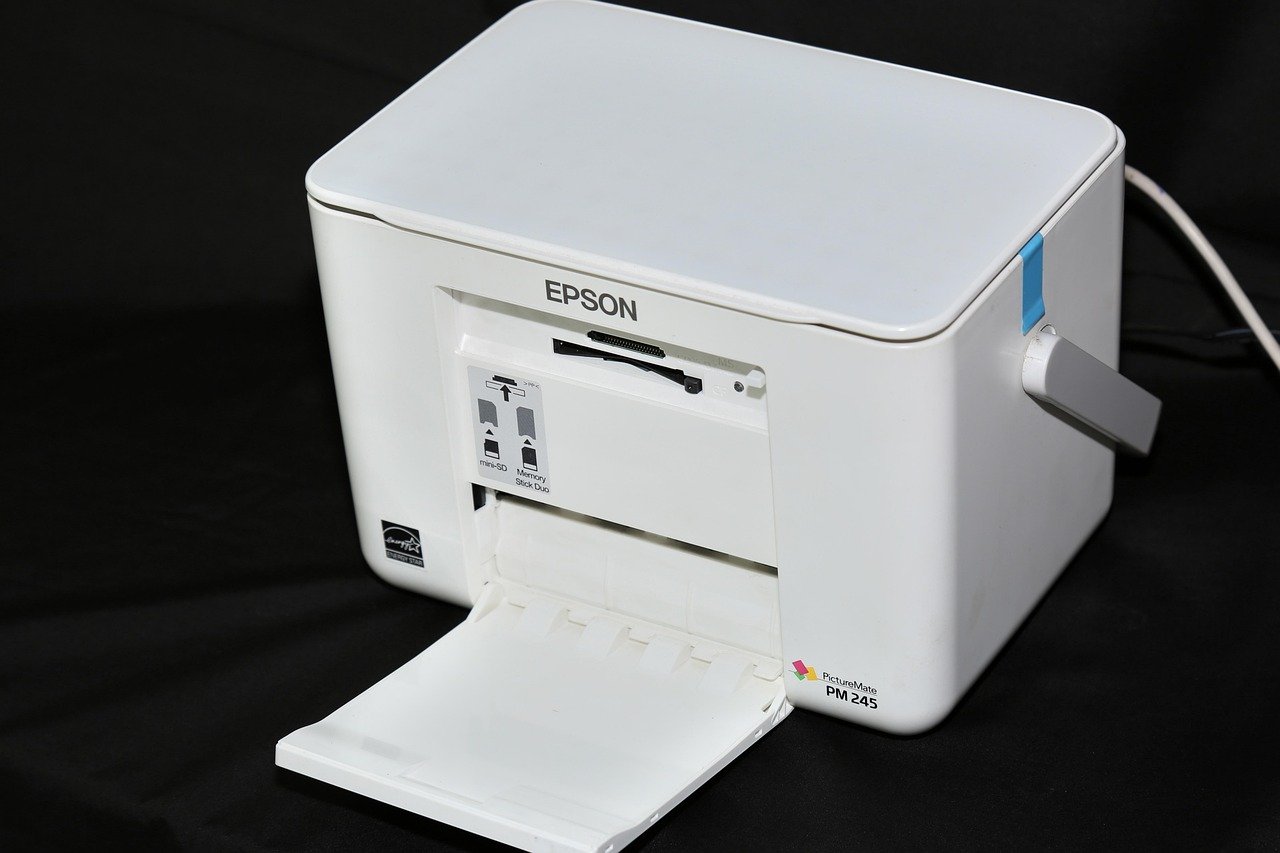
Roughly three out of four office help-desk tickets in a typical workplace trace back to a printer that won’t cooperate, and the fix is often something you can do in under five minutes. Printers are strange machines: they combine mechanical parts, wet chemistry, firmware, and network drivers, so there are a dozen ways for a job to fail before a single page appears. The good news is that the same handful of faults cause most of the misery, and each one has a reliable troubleshooting path. (Decky loader not working steam deck fix 2026)
Quick Answer: What are the most common problems with printer and how do i fix them?
The most common printer problems are paper jams, streaks or faded output, “printer offline” errors, stuck print queues, garbled text, and wireless dropouts. Most of them trace back to four culprits: overfilled paper trays, empty or clogged consumables, a jammed print spooler, and a stale or corrupted driver.
You can fix the majority yourself by clearing the paper path, running the built-in cleaning cycle, restarting the print spooler service, and reinstalling the manufacturer’s driver. Hardware faults like a worn fuser or a failed printhead are rarer and usually need a service call.
Laser and inkjet models fail in different ways, so the fix depends on the technology: laser printers clog on toner and drums, while inkjets dry out and smear. Before you start, check the error code on the display, the consumable levels, the cable or Wi-Fi connection, the driver version, and whether the printer is set as the default device.
Paper jams top the list of printer complaints by a wide margin. They’re mechanical, messy, and almost always preventable. The usual suspects are a tray loaded past its fill line, paper guide tabs that don’t sit snug against the stack, torn scraps left behind from an earlier jam, and worn pickup rollers that can no longer grab a sheet cleanly.
The fix follows a simple sequence. Turn the printer off, open every access door, and pull the sheet slowly in the direction the paper travels. Yanking it backward tears fragments that stay lodged and cause the next jam. Check the rear access panel and the duplex unit too, since half the jams hide there. Then fan the stack, square it on a flat surface, and reload without exceeding the tray’s maximum mark. If the same tray jams weekly, the rollers are probably glazed; a lint-free cloth dampened with water restores grip, and replacement roller kits are cheap.
Streaks, banding, and faint pages are the second-biggest headache, and they split cleanly by printer type. On a laser printer, vertical white stripes usually mean low toner or a scratched drum, while a repeating smudge points to a dirty fuser. On an inkjet, missing lines in the nozzle check pattern mean clogged printhead nozzles, which happens whenever the machine sits idle for weeks.
Start with the software: most manufacturers ship a cleaning or printhead-cleaning utility in the driver settings, and running it two or three times clears mild clogs. For stubborn inkjet clogs, a overnight soak of the printhead (on models where it detaches) works better than repeated cleaning cycles, which waste ink. On laser units, gently rocking the toner cartridge redistributes the powder and buys you a few more days, but a genuine drum scratch means a new cartridge. Always print a test page after each fix so you know whether the problem improved.
“Printer offline” is the error that makes people want to throw the machine out the window, mostly because the printer is often perfectly fine. The computer has simply lost its handshake with the device. Check the obvious first: is the printer powered on, is the USB cable seated at both ends, and is the Wi-Fi light solid rather than blinking? (Best beginner 3d printer) (Printer (computing)))
If the hardware checks out, the problem lives in Windows or macOS. Set the printer as the default device, then remove it from the device list and add it back. For network printers, a changing IP address breaks the connection regularly; assigning a static IP in the router settings prevents it from happening again. On Wi-Fi, weak signal and router “client isolation” settings are frequent culprits. Printing a network configuration page from the printer’s own menu gives you the current IP, which you can compare against what the computer expects.
A print queue stuffed with old jobs can freeze an otherwise healthy printer. Symptoms include jobs that sit at “printing” forever, documents that vanish and reappear, and a printer that ignores new work entirely. The cause is usually the print spooler, the Windows service that manages the queue.
The fix takes about a minute. Open Services, find Print Spooler, and restart it. If jobs refuse to clear, stop the service, delete the files inside the spool folder, and start the service again. On macOS, open the printer’s queue window and hit Resume or delete the stuck job. A queue that jams repeatedly often points to a corrupted driver rather than the printer itself, so reinstalling the driver is the next step. (How to fix antimalware service executable high cpu usage)
Garbled output, pages of random symbols, or documents that print in the wrong size all point to a driver mismatch. This happens after a Windows update, after swapping printers between computers, or when the wrong model’s driver was installed by mistake. The universal driver Windows picks automatically is convenient but occasionally wrong.
The reliable fix is to download the exact driver for your model from the manufacturer’s site, remove the old printer entry completely, and install fresh. If the garbled pages come from a PDF, try printing as an image instead, which routes around font and rendering conflicts. It’s also worth checking that the paper size in the driver matches the paper in the tray; a mismatch produces scaled, clipped, or blank output that looks like a hardware fault but isn’t.
Wireless printers drop off networks for predictable reasons: weak signal, band steering that pushes the printer onto a 5 GHz channel it handles poorly, and routers that reassign IP addresses. The printer then becomes unreachable even though it’s powered on and showing no error.
Practical fixes that actually work include moving the printer closer to the router or adding a mesh node, connecting the printer to the 2.4 GHz band specifically, and reserving a fixed IP address in the router’s DHCP settings. If the printer supports Wi-Fi Direct, that creates its own network and bypasses router issues entirely, which is handy for guests and quick phone prints. Wired Ethernet, where available, remains the most stable option for a shared office machine.
| Symptom | Most likely cause | First fix |
|---|---|---|
| Paper jam | Overfilled tray, torn scraps, worn rollers | Clear paper path slowly, reload below fill line |
| Faint or streaky pages | Low toner, clogged nozzles, dirty drum | Run cleaning cycle, rock cartridge, replace consumable |
| Printer offline | Lost connection, changed IP, wrong default | Reconnect, set as default, assign static IP |
| Jobs stuck in queue | Crashed print spooler | Restart Print Spooler service, clear queue |
| Garbled text | Wrong or corrupted driver | Reinstall exact model driver |
| Wireless dropouts | Weak signal, IP change, band mismatch | Move closer, use 2.4 GHz, reserve IP |
Mistakes That Make Printer Problems Worse

The most common self-inflicted wound is yanking jammed paper backward with force. It feels efficient and it guarantees a return visit, because torn corners stay inside the feed path and jam the next sheet. Pull with the paper’s direction of travel, and always check for scraps with a flashlight before closing the doors.
A second mistake is ignoring consumables until the printer stops dead. Toner and ink behave badly near empty: streaks appear, colors shift, and inkjets suck air into the lines. Keeping a spare cartridge on hand avoids the panic order. Third, people reinstall drivers without removing the old entry, which leaves two conflicting queues fighting over one device. And fourth, many users never install the manufacturer’s full software, missing the cleaning utilities and status monitors that would have flagged the problem early.
There’s a broader lesson in all this. Most printer faults are maintenance debt rather than sudden failures, and a machine that jams weekly has usually been asking for attention for months. A five-minute monthly routine, covering the paper path, a nozzle check, and a driver update, prevents the majority of breakdowns. If you’re setting up a new machine for a home office or a child’s schoolwork, the same maintenance habits apply, and choosing a model with cheap consumables and reliable drivers matters more than raw print specs.
Some faults genuinely need a technician: a failed fuser, a broken carriage belt, error codes that persist after a power cycle, or a printhead that won’t recover after repeated cleaning. Before you pay for a repair, compare the quote against a replacement. Entry-level lasers now cost less than a typical service visit, and if the machine is more than six or seven years old, replacement is usually the smarter economics. For anyone weighing an upgrade, comparing running costs per page matters more than the sticker price, since consumables dominate long-term spend.
When to Repair and When to Replace
The decision usually comes down to three numbers: the repair quote, the cost of a comparable new printer, and the annual consumable spend. If the repair exceeds half the price of a replacement, replace it. If the machine is under warranty, always go through the manufacturer first, since third-party repairs can void coverage. Keep the receipt and note the error code before calling support; it shortens the conversation dramatically.
FAQ
Why does my printer keep going offline?
The connection between computer and printer has dropped, usually because the printer’s IP address changed, the Wi-Fi signal weakened, or the driver lost its port assignment. Reconnect the printer, set it as the default, and reserve a fixed IP address in your router so the address stops moving.
How do I clear a stuck print queue?
Restart the Print Spooler service in Windows, or use the printer’s queue window on macOS to delete the stuck job. If jobs keep returning, stop the spooler, delete the files in the spool folder, and restart the service. Persistent queue jams usually mean a corrupted driver.
Why are my prints faded or streaky?
On laser printers, low toner or a worn drum is the usual cause; rocking the cartridge helps briefly, but replacement is the real fix. On inkjets, clogged nozzles from sitting idle produce missing lines, and running the cleaning utility two or three times usually restores them.
Can I fix a paper jam without damaging the printer?
Yes, if you pull the sheet slowly in the direction it feeds and check every access panel for torn scraps. Never yank backward, and never use metal tools inside the paper path. Reload the tray below its maximum fill line and square the stack before printing again.
Why is my printer printing garbled text?
Garbled output almost always means the wrong or corrupted driver is installed. Remove the printer completely, download the exact driver for your model from the manufacturer, and reinstall. For PDFs, printing as an image often bypasses rendering conflicts.
Is it worth repairing an old printer?
Compare the repair quote against the price of a comparable new model and your annual ink or toner spend. If the repair costs more than half a new printer, or the machine is over six years old, replacement is usually the better value.
Conclusion
Printer problems feel chaotic, but they follow patterns. Jams come from paper handling, streaks from consumables, offline errors from connections, stuck jobs from the spooler, and garbled pages from drivers. Work through those five categories in order and you’ll solve most faults without a service call. The real secret is maintenance: keep the paper path clean, run the cleaning cycle monthly, install the proper driver, and pin your network printer to a fixed address. Do that, and the printer becomes the boring appliance it was always meant to be.



