
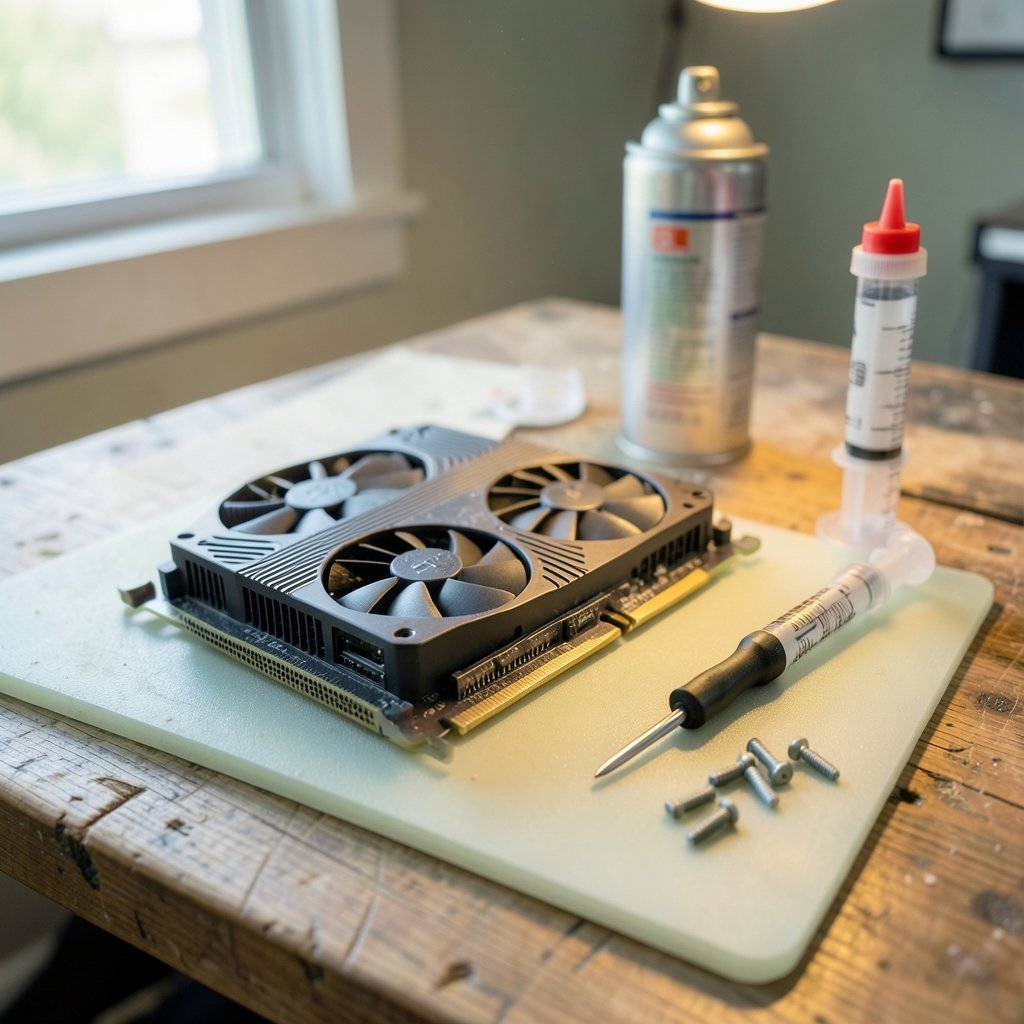
Quick Answer: What are the most common problems with graphics card and how do i fix them?
The most common graphics card problems are driver failures, overheating, unstable power delivery, loose PCIe seating, screen artifacts, and black-screen or no-signal errors. Most of them get fixed at home with a clean driver reinstall, a thorough dust clean, a PSU and cable check, and a careful reseat of the card in its slot.
Some faults look identical but have very different causes. A black screen can come from a dead card, a bad cable, or a monitor set to the wrong input, so the order of diagnosis matters more than the fix itself. Meanwhile, artifacts often point to memory or heat rather than drivers, which changes the repair path entirely.
Before acting, check the driver version and update history, GPU temperatures under load, PSU wattage and connector condition, card seating and sag, monitor cable and input source, and any overclock or tuning software running in the background.
A graphics card is one of the few PC parts that can fail in a dozen different ways while showing almost the same symptom. A black screen might mean a dead card, a loose cable, or a monitor stuck on the wrong input. Flickering artifacts might be dying memory or a dusty heatsink. That overlap is why so many people replace a perfectly healthy GPU, or spend hours reinstalling Windows when the real culprit was a $9 DisplayPort cable.
The good news: the overwhelming majority of GPU problems trace back to a short list of causes, and nearly all of them can be diagnosed at home with no special tools. This guide walks through what actually goes wrong, what to try first, and where people typically waste time. If you are also planning to swap hardware rather than repair it, the GPU upgrade and graphics card install guide covers the physical steps in detail. (Graphics processing unit)
Driver Problems: The Number One Suspect

Ask any technician what they check first, and the answer is almost always drivers. Outdated, corrupted, or mismatched graphics drivers cause crashes, stuttering, artifacts, and black screens. Windows Update sometimes installs a generic driver that fights with the vendor’s own package, and the result is a card that works fine in benchmarks but crashes in games.
The fix is a clean reinstall, not a simple update. Remove the old driver completely, reboot, then install the latest package directly from NVIDIA, AMD, or Intel. Skipping the removal step is the most common mistake people make; layering a new driver over a broken one often leaves the same faults in place.
A few practical notes from experience:
- Safe Mode removal catches stubborn driver files that refuse to uninstall normally.
- Laptop users should always use the manufacturer’s driver page, not the generic chip vendor package.
- After a major Windows feature update, re-check the driver even if nothing seemed to change.
If your system feels slow overall and you suspect background processes rather than the GPU, it helps to rule out system-level culprits early. High CPU usage from security services, for example, can masquerade as graphics stutter; this guide to fixing antimalware service executable high CPU usage walks through that check.
Overheating and Thermal Throttling
Heat is the second great destroyer of GPU performance. Dust-clogged heatsinks, dried thermal paste, and failing fans all push temperatures up until the card throttles itself to survive. The symptoms are subtle at first: lower frame rates after twenty minutes of play, fan noise that ramps up and never settles, or sudden shutdowns under load.
The fix is physical. Power down, remove the card, and blow out the fins with compressed air, holding fans still so they don’t spin up and damage the bearings. Check that every fan spins freely by hand. On cards more than four or five years old, replacing the thermal paste can drop temperatures noticeably, though it usually voids the warranty, so weigh that carefully.
Monitoring software is your friend here. Watch the GPU temperature during a real workload, not at idle. If it climbs past the mid-80s Celsius and keeps going, airflow is the problem, not the chip. Case ventilation matters as much as the card itself.
Power Delivery and PSU Problems
Underpowered or failing power supplies cause some of the most confusing GPU faults, because the card may work fine at idle and crash only under heavy load. A loose PCIe power cable, a splitter pushing too much current through one rail, or a PSU that has aged past its rated output will all produce random shutdowns and driver timeouts.
The 12VHPWR connector used on some recent high-end cards deserves a specific mention. Reports of melted connectors circulated widely, and while the true prevalence is disputed between user reports and vendor statements, the practical lesson is simple: seat the connector fully until it clicks, avoid sharp bends right at the plug, and never use adapters of unknown quality.
Check your PSU wattage against the card’s recommended minimum, count the separate PCIe cables rather than daisy-chaining, and reseat every power connector firmly. If the system shuts down instantly under load with no blue screen, the PSU is the first thing to test.
Physical Seating, Sag, and Contact Issues
A card that isn’t fully seated in its PCIe slot produces no display, intermittent detection, or crashes that come and go when the case is bumped. Heavy cards also sag over time, and that slight droop can lift the contacts just enough to cause trouble.
Reseating takes two minutes and solves a surprising number of cases. Power off, unplug, release the slot latch, pull the card straight out, and inspect the gold contacts for dust or wear. Push it back until the latch clicks, screw down the bracket, and consider a support bracket for anything large. Cleaning the contacts with isopropyl alcohol on a lint-free cloth is a reasonable extra step on older hardware.
Artifacts, Screen Corruption, and Black Screens
These two symptoms get grouped together because they look dramatic but often have mundane causes.
Artifacts (checkerboard patterns, colored squares, flickering lines) usually point to VRAM faults or overheating, though cables and monitors can mimic them. Test with a different cable and display first, then monitor temperatures, then stress test. If artifacts persist across displays and temperatures are normal, the card’s memory is the likely culprit.
Black screens and no-signal errors are more often cable, port, or driver related than a dead card. Swap the cable, try a different port on both the card and monitor, and confirm the monitor input is set correctly. Testing the card in another system is the definitive check.
Software Conflicts and Unstable Overclocks
Factory overclocks are not always stable, and a card that shipped with an aggressive profile can crash in specific games while passing every benchmark. Background utilities that control fan curves, lighting, or clock speeds can also conflict with each other.
Reset everything to stock clocks, close or uninstall overlapping tuning tools, and retest. If the crashes stop, you have found the cause. Stability beats a few extra frames every time.
Comparing the Main Causes at a Glance
| Symptom | Most likely cause | First fix to try |
|---|---|---|
| Crashes in games, driver errors | Corrupted or mismatched driver | Clean driver reinstall |
| Throttling, loud fans, shutdowns | Dust, dried paste, poor airflow | Physical cleaning |
| Instant shutdown under load | PSU or power connector | Check wattage and reseat cables |
| No display, intermittent detection | Card not seated properly | Reseat in PCIe slot |
| Artifacts, colored squares | VRAM or overheating | Test other display, check temps |
| Black screen, no signal | Cable, port, or monitor input | Swap cable and input source |
When the Problem Is Not the GPU at All
Plenty of “graphics card problems” turn out to be something else entirely. A failing monitor, a bad cable, a corrupt Windows install, or even a misbehaving application can produce symptoms that look exactly like GPU failure. Before buying a replacement, test the card in another machine or try a known-good card in yours. That single step saves more money than any other diagnostic.
Display and image issues sometimes extend beyond the PC itself. If you regularly share screenshots of error messages or benchmark results with support forums, it is worth knowing how to verify images before sharing them so you don’t spread misleading captures.
A Step-by-Step Diagnostic Order That Works
Randomly trying fixes wastes hours. Follow a sequence instead:
- Confirm the monitor, cable, and input source are correct.
- Reseat the card and every power connector.
- Clean the cooler and check fan operation.
- Monitor temperatures and clock speeds under load.
- Perform a clean driver reinstall.
- Reset all overclocks and close tuning utilities.
- Test the card in another system, or another card in yours.
- Only then consider replacement.
This order moves from cheapest and fastest to most expensive and slowest, which is exactly how professional technicians approach it. Most problems are solved by step five.
Conclusion
Graphics card problems feel catastrophic because the symptoms are so visible, but the underlying causes are usually ordinary: a stale driver, a dusty heatsink, a half-seated connector, or a cable that has quietly given up. Working through the list in order, starting with the simplest checks, resolves the large majority of cases without spending a cent on new hardware.
The pattern to remember is that symptoms overlap and causes do not. A black screen and a crash can share a single fix, or they can have nothing in common. Diagnose methodically, test one change at a time, and resist the urge to replace the card until you have ruled out everything around it. That discipline is what separates a ten-minute fix from an unnecessary purchase.
Frequently Asked Questions
How do I know if my graphics card is dying?
The strongest signs are artifacts that appear across multiple displays and cables, crashes that persist after a clean driver reinstall, and temperatures that stay normal while faults continue. A card that fails in a second system is almost certainly faulty. Random crashes alone are not proof, since drivers and power supplies cause identical symptoms.
Can a bad power supply damage my graphics card?
A failing PSU can cause instability, shutdowns, and in rare cases damage through voltage spikes. More often it simply cannot deliver enough current under load, which triggers crashes rather than permanent harm. Using a quality unit rated above your card’s recommended wattage is the simplest protection.
How often should I clean my GPU?
Every six to twelve months in a typical home, and more often in dusty environments or homes with pets. Dust buildup is gradual, so performance loss creeps in without notice. A quick visual check of the heatsink fins tells you whether a cleaning is due.
Is it safe to replace thermal paste on a graphics card?
It is safe if done carefully, but it usually voids the warranty on newer cards. On older cards past their warranty period, fresh paste can meaningfully lower temperatures. If the card is still covered, contact the manufacturer first rather than opening the cooler. (NVIDIA GeForce Graphics Cards)
Why does my graphics card crash only in some games?
Specific games stress different parts of the card, and some are far more sensitive to unstable factory overclocks or driver bugs. Crashes limited to one title usually point to that game’s settings, a known driver issue, or an overclock that is stable elsewhere but not there. Resetting to stock clocks is the fastest test.
Do I need to reinstall drivers after moving a card to a new PC?
Yes, especially if the new system previously used a different GPU brand. Old driver remnants cause conflicts that look like hardware failure. A clean removal followed by a fresh install from the vendor’s site prevents that whole category of problem, and pairing it with a careful physical install, as covered in the graphics card install walkthrough, gives the card the best possible start in its new home.



