

Quick Answer: How do i set up playstation 5 for the best performance?
Getting the best performance from a PlayStation 5 comes down to four areas: giving the console proper ventilation, switching to a wired internet connection, matching the video settings to your TV’s capabilities, and choosing Performance mode inside each game. Most of these changes live in the PS5’s Settings menu under Screen and Video, Network, and System.
There is no single “boost” switch. Instead, the console performs best when nothing is throttling it: not heat, not Wi-Fi interference, not a mismatched HDMI setting, and not a display mode that quietly caps frame rates.
A secondary consideration is storage. Games installed on a compatible M.2 NVMe SSD load at speeds close to the internal drive, while games on an external USB drive load more slowly and cannot run PS5-native titles.
Before changing anything, check your TV’s HDMI version and game mode, your router’s location and band, the free space on your SSD, and whether the game itself offers a Performance or Fidelity toggle.
Why the Default Setup Rarely Delivers Peak Performance
Here is a fact that surprises a lot of new owners: the PS5 ships with settings designed to be safe for every TV, not optimal for yours. Out of the box, the console does not know whether it is plugged into a 2015 budget set or a modern HDMI 2.1 panel with variable refresh rate support. So it plays it cautious.
That caution costs you. A console tucked into a closed media cabinet can run warmer and louder. A console on Wi-Fi in a crowded apartment building can stutter in online matches. A console left on default video output may never send a 120 Hz signal to a TV that handles it beautifully.
The good news is that fixing all of this takes about twenty minutes. The better news is that most of it is free. You are not buying a new console; you are removing handcuffs the factory put on it for safety’s sake.
Think of it the way enthusiasts think about a gaming PC build: the hardware is only half the story, and the configuration is the other half. Console owners tend to skip that second half, which is exactly why a well-tuned PS5 feels noticeably snappier than a stock one.
Step 1: Give the Console Room to Breathe
Heat is the quiet killer of sustained performance. When a console cannot move air, it does two things: the fan spins harder and louder, and in extreme cases the system can slow itself down to protect the chip.
Practical rules that actually work:
- Stand the console upright or lay it flat, whichever your furniture allows, but keep at least a few inches of open space on every vented side.
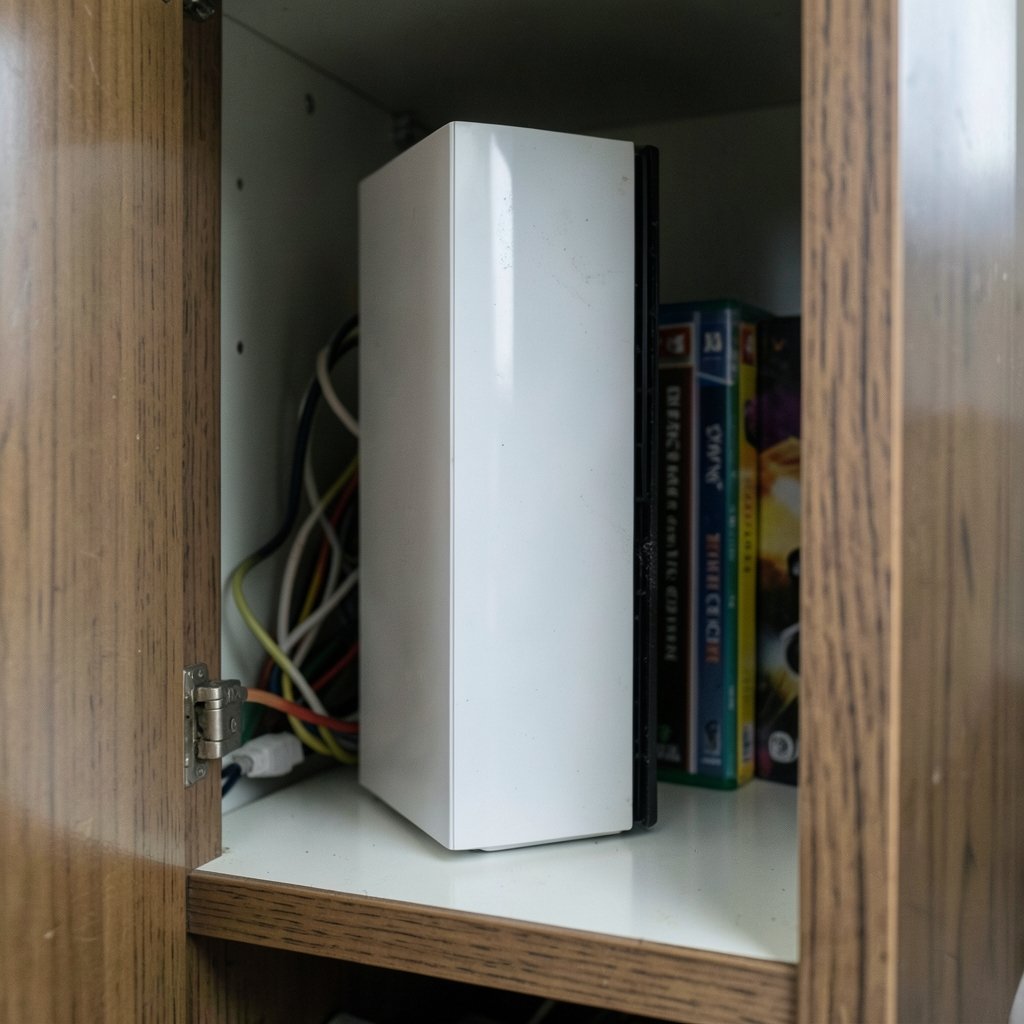
- Avoid closed cabinets, especially ones with glass doors and no rear cutout. If you can feel warm air pooling behind the console, it is trapped.
- Keep it away from radiators, direct sun through a window, and the exhaust of a receiver or cable box.
- Dust the vents every few months with short bursts of compressed air. Hold the fan still so it does not spin freely.
A common mistake is placing the PS5 inside a stylish TV stand cubby because it looks tidy. It will run, sure, but it will run hotter and louder than it needs to. Another mistake is stacking it under another device that dumps heat downward.
If you want a benchmark for how much airflow matters, consider that modern consoles are essentially small computers with tightly packed components. The same physics that govern a desktop tower apply here.
Step 2: Choose Wired Over Wireless Whenever You Can
For online play, latency matters more than raw download speed. Wi-Fi introduces jitter, and jitter is what makes a match feel “off” even when your speed test looks great.
The PS5 has a Gigabit Ethernet port. Running a cable from your router to the console is the single most reliable upgrade for online gaming, and it costs the price of a cable. If a direct run is impossible, a powerline adapter or a mesh node with an Ethernet out port is the next best thing.
If you must stay on Wi-Fi, a few settings help:
- Use the 5 GHz band rather than 2.4 GHz when the console is in the same room as the router.
- Keep the console out of line-of-sight obstruction where possible; metal shelving and fish tanks are notorious signal killers.
- Pause large downloads while playing competitive games. Background downloads compete for bandwidth and can spike ping.
It is worth separating two goals here. For single-player games, connection quality barely matters beyond updates. For shooters, racing games, and fighting games, a stable wired link is the difference between reacting and guessing.
Step 3: Match Video Settings to Your TV
This is where most of the perceived “performance” gains live, and also where most people get confused. Open Settings, then Screen and Video, and work through these in order.
Resolution and frame rate
Set the output to Automatic and let the console handshake with your TV. If your display supports 120 Hz, enable 120 Hz Output. Then, inside each game’s own menu, look for a Performance or Fidelity toggle. Performance mode typically targets a higher frame rate at a lower resolution; Fidelity mode pushes resolution and visual effects at 30 or 40 fps.
For fast-paced games, Performance mode almost always feels better. For slower cinematic titles, Fidelity mode can be the richer experience. There is no universal right answer, which is why the toggle exists.
VRR and ALLM
If your TV supports Variable Refresh Rate, turn it on. VRR lets the display refresh in step with the console’s frame output, which smooths out frame pacing dips. Auto Low Latency Mode switches your TV into its low-latency picture mode automatically when a game starts.
On the TV side, enable Game Mode for the HDMI input the console uses. This is not optional. Game Mode typically cuts input lag dramatically compared with a standard or cinema picture preset, and no console setting can compensate for a sluggish display pipeline.
HDR calibration
Run the built-in HDR adjustment flow and follow the on-screen prompts literally. Stop adjusting the moment the sun symbol becomes barely visible. Overbrightening HDR to “make it pop” crushes highlight detail and makes dark scenes muddy.
| Setting | Where to find it | What it does |
|---|---|---|
| 120 Hz Output | Settings > Screen and Video | Allows high frame rate output on capable TVs |
| VRR | Settings > Screen and Video | Syncs display refresh to frame output |
| ALLM | Settings > Screen and Video | Auto-switches TV to low-latency mode |
| Game Mode | Your TV’s picture menu | Cuts input lag on the display side |
| Performance mode | In-game graphics menu | Trades resolution for frame rate |
One more practical note: use the HDMI cable that came with the console, or a certified high-speed cable. A random old cable from a drawer is a frequent culprit behind missing 120 Hz options. If a feature is greyed out, suspect the cable or the TV input before suspecting the console.
Step 4: Expand Storage the Right Way
Modern games are enormous, and a full drive forces constant deleting and reinstalling. The PS5 accepts an M.2 NVMe SSD meeting Sony’s published specifications, including a heatsink. A drive that meets the spec runs games at speeds comparable to the internal storage, which means no meaningful load-time penalty.
External USB drives are fine for storing and playing PS4 titles, but PS5-native games must run from internal or M.2 storage. Putting a PS5 game on a slow external drive is not an option the system offers, and that is by design.
A mistake people make is buying the cheapest NVMe drive they can find without checking the heatsink requirement. A drive without adequate cooling can throttle under sustained load, which defeats the purpose. Buy once, buy to spec.
Step 5: Tune System Settings That Affect Responsiveness
A handful of system-level settings shape day-to-day feel:
- Rest Mode keeps downloads and updates flowing while the console sleeps. Enable automatic updates so patches install overnight rather than when you sit down to play.
- Performance-focused power settings are worth reviewing, though the console manages power automatically.
- Controller polling and vibration do not affect frame rate, but turning off HD rumble in competitive games reduces distraction and slightly extends battery life.
- Keep system software current. Features like VRR arrived via firmware updates, so an out-of-date console may simply lack options you have read about.
If you are weighing a hardware upgrade instead of a settings tune-up, the differences between console generations are worth understanding before spending. The gap between the standard and Pro models is real but narrower than marketing suggests, as this comparison of the playstation 5 vs playstation 5 pro explains. Budget-minded buyers should also track the playstation 5 price increase trend, since timing a purchase around promotions can save real money. (PlayStation 5)
Subscription costs factor into the value equation too. If online play and a game catalog matter to you, it helps to know how much does playstation plus cost before committing to a tier, and whether the playstation plus premium price is justified by the classics catalog you would actually use. Cross-shopping consoles? This breakdown of xbox vs playstation price puts the two ecosystems side by side.
Common Mistakes That Undermine Performance
Even careful owners trip over the same handful of issues. The most frequent is leaving the console in a closed cabinet and then blaming the game for stutter. The second is playing on a TV input that is not in Game Mode, which adds input lag the console cannot fix. The third is assuming a fast internet plan guarantees low latency; it does not, because latency depends on routing and Wi-Fi conditions, not headline speed.
Another common one: enabling every visual enhancement on the TV, including motion smoothing. Post-processing filters add delay. For games, less processing is almost always better.
Finally, people forget that the game’s own settings menu often matters more than the console menu. A console set to 120 Hz output does nothing if the game is locked to 30 fps in Fidelity mode. Check both layers.
Conclusion
Setting up a PlayStation 5 for peak performance is less about secret tricks and more about removing bottlenecks. Cool air, a wired connection, a TV in Game Mode with VRR and 120 Hz enabled where supported, in-game Performance mode selected, and storage that meets spec. Do those five things and the console will behave the way it was engineered to.
The settings take twenty minutes. The improvement lasts the whole generation. Start with ventilation and the network cable, since those are free, then work through the video menu with your TV’s manual open beside you. That order saves the most frustration, because every later setting depends on the display handshake being correct first.
Frequently Asked Questions
Does Performance mode actually look worse?
It can, yes. Performance mode usually lowers resolution or trims effects to hit a higher frame rate. On a 4K TV viewed from a normal distance, the difference is often subtle in motion and obvious only in side-by-side screenshots. Most players prefer the smoother feel once they try it.
Is a wired connection really better than fast Wi-Fi?
For latency and stability, almost always. Wi-Fi speed tests can look impressive while still delivering inconsistent packet timing, which shows up as rubber-banding or delayed hits. A cable removes that variable entirely. If cabling is impossible, a 5 GHz connection close to the router is the next best choice.
Do I need an M.2 SSD, or is an external drive enough?
For PS5-native games, an M.2 NVMe drive meeting Sony’s specs is the only expansion option that runs them at full speed. External USB drives work well for PS4 titles and for archiving. If you mainly play current-generation releases, the M.2 route is the practical one.
Why is the 120 Hz option greyed out?
Usually one of three reasons: the TV does not support 120 Hz at the current resolution, the HDMI cable is not certified for the required bandwidth, or the correct TV input is not enabled for high frame rate signals. Check the cable first, then the TV’s input settings.
Should I leave the console in Rest Mode?
Rest Mode is convenient because it lets updates and downloads finish while the console sleeps. The trade-off is modest standby power use. If you play online regularly, leaving it on keeps your library patched and ready.
Can I improve performance without buying anything?
Yes. Ventilation, Game Mode, VRR, 120 Hz output, and in-game Performance mode are all free. Together they account for most of the difference between a stock setup and a well-tuned one. Hardware upgrades help, but only after the free settings are right.
