
A modern NVMe drive can move data at several gigabytes per second, yet a single misconfigured setting or an outdated firmware build can drag it down to speeds that feel slower than an old hard disk. That gap between advertised performance and real-world behavior is where most user frustration lives. The good news: nearly every common NVMe problem has a known cause, and most fixes take less than ten minutes once you know where to look.
This guide walks through the failures people actually hit, from thermal throttling and missing drives to Linux suspend hangs and Windows timeout errors. Each section pairs the symptom with a practical fix, plus the mistakes that make things worse.
Why NVMe Drives Fail Differently Than SATA Drives
NVMe drives talk to the CPU over PCIe lanes, not through a legacy storage controller. That architecture is the source of both their speed and their quirks. A SATA drive either works or it doesn’t; an NVMe drive can work perfectly in one slot and behave erratically in another because of lane allocation, power states, or driver differences.
Three structural facts explain most problems:
- Heat is a performance lever. NVMe controllers throttle aggressively when they hit temperature limits, and many drives have no heatsink at all.
- Power states are negotiated. The drive and the operating system continuously agree on how much power to draw, and that negotiation occasionally goes wrong.
- Firmware matters more. NVMe firmware handles complex command queues, and bugs in that firmware surface as hangs, dropped drives, or data errors.
Understanding these three pillars makes diagnosis far faster than random troubleshooting.
Problem 1: The Drive Runs Hot and Slows to a Crawl
Symptom
Large file copies start fast, then drop from 3,000 MB/s to a few hundred MB/s within a minute or two. Benchmarks look great on short runs and terrible on long ones.
Cause
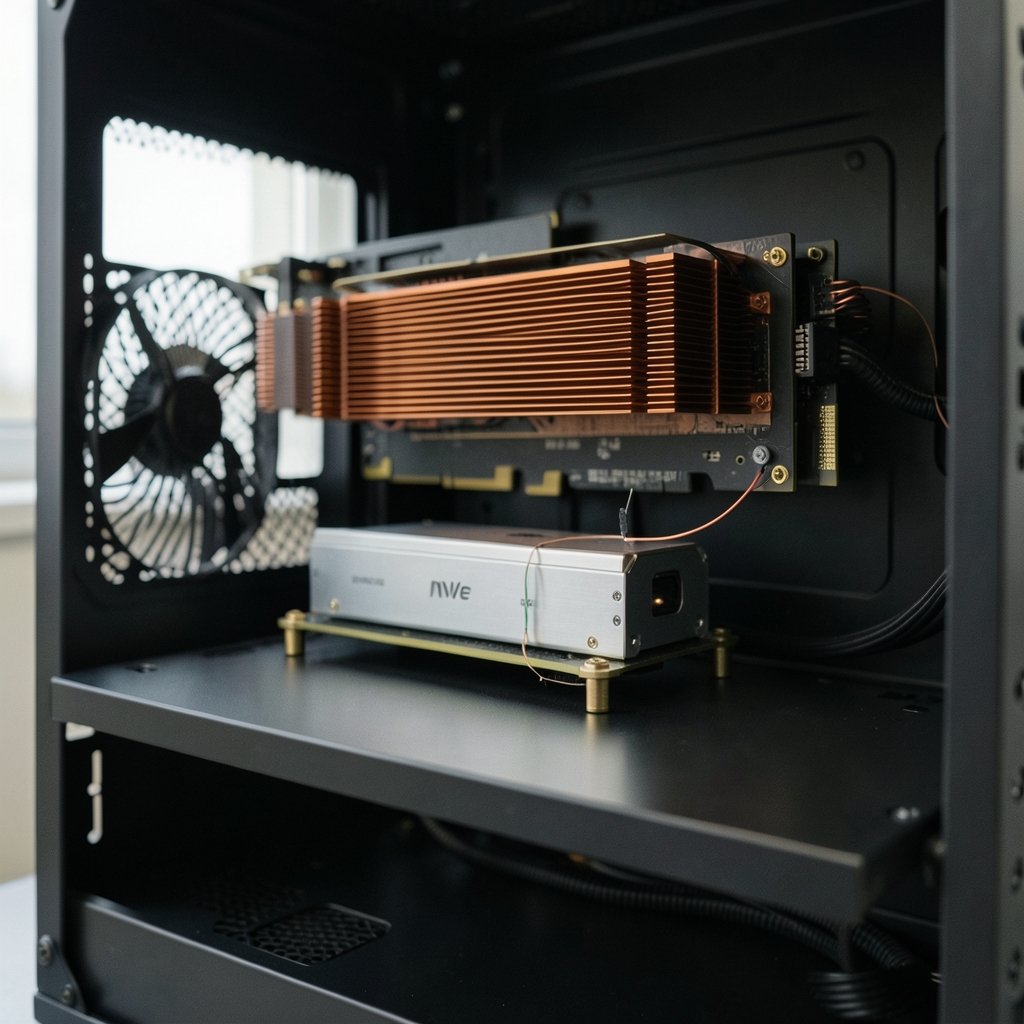
Thermal throttling. The controller hits its temperature ceiling and reduces speed to protect the NAND flash. This is by design, not a defect, but it means sustained performance depends heavily on cooling.
Fix
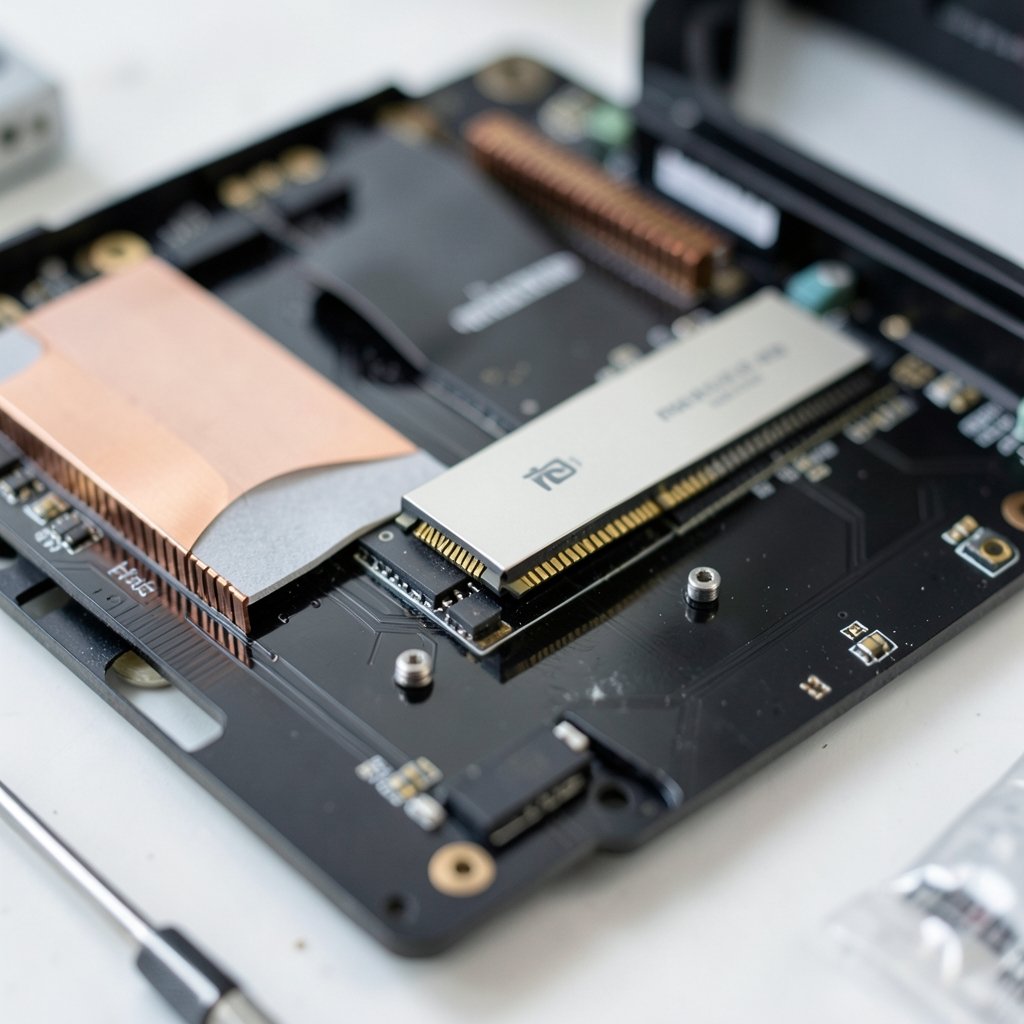
- Add a heatsink with decent thermal pads. Motherboard M.2 shields often work, but check that the pad actually contacts the controller.
- Improve case airflow. A drive sitting under a hot graphics card will throttle no matter what heatsink you bolt on.
- Move the drive to a slot away from the GPU if the board allows it.
- Check temperatures with a monitoring tool before assuming the worst. Idle temperatures in the 40s Celsius are normal; sustained loads above roughly 70°C usually trigger throttling on consumer drives.
Common Mistake
Benchmarking a drive for ten seconds and declaring it healthy. Sustained workloads are where thermal problems appear.
Problem 2: The Drive Isn’t Detected at All
Symptom
The BIOS doesn’t list the drive, or Windows Disk Management shows nothing.
Cause
Usually one of four things: the M.2 slot shares lanes with a SATA port, the drive isn’t seated fully, the slot supports only PCIe x2 or SATA M.2 drives, or the drive needs a BIOS setting changed.
Fix
- Reseat the drive firmly and confirm the retention screw is tight.
- Check the motherboard manual for lane sharing. Many boards disable SATA ports or a second M.2 slot when certain combinations are populated.
- Verify the slot’s supported interface. A PCIe-only drive in a SATA-only M.2 slot will never appear.
- Update the BIOS. Early firmware on new platforms frequently ships with M.2 detection bugs.
- Confirm the drive appears in BIOS before troubleshooting the operating system. If it’s missing there, no software fix will help.
Problem 3: Windows Throws Disk Timeout or Reset Errors
Symptom
Event Viewer logs warnings about the disk being reset, or the system freezes for several seconds during heavy I/O.
Cause
The standard NVMe driver in Windows occasionally struggles with aggressive power state transitions, particularly on laptops. Older firmware compounds the issue.
Fix
- Update the drive firmware using the manufacturer’s tool.
- Update the chipset drivers from the motherboard vendor.
- In the power plan, set PCI Express Link State Power Management to off as a test. If stability returns, the power state negotiation was the culprit.
- Check whether the drive has a known erratum. Vendor release notes are the authoritative source here. (Solid-state drive)
If the errors persist after firmware and driver updates, back up immediately and test the drive in another system. Repeated timeouts can precede failure.
Problem 4: Linux Hangs on Suspend or Resume
Symptom
The machine fails to wake from sleep, or the drive disappears after resume with timeout messages in the kernel log.
Cause
APST (Autonomous Power State Transition) lets the drive manage its own power states. On some controller and kernel combinations, the drive enters a deep state and fails to come back. (Solid-State Drives (SSD) Overview)
Fix
- Update the kernel first. APST handling has improved substantially in recent releases.
- As a workaround, disable APST via the kernel parameter `nvme_core.default_ps_max_latency_us=0`. This costs some idle power but restores stability.
- Check the drive’s firmware version. Several vendors released fixes specifically for resume failures.
Common Mistake
Applying the APST workaround permanently on a laptop and then wondering why battery life dropped. Treat it as a diagnostic step, not a permanent setting, unless the vendor confirms no firmware fix exists.
Problem 5: Performance Is Far Below the Rated Spec
Symptom
The drive is rated for 7,000 MB/s but delivers 1,500 MB/s in benchmarks.
Cause
The most common culprit is PCIe lane allocation. A drive in a chipset-linked slot, or a slot wired for x2 instead of x4, is bandwidth-limited regardless of what the drive can do. Other causes include an older PCIe generation, a full drive with poor over-provisioning, or a benchmark that tests the wrong queue depth.
Fix
- Confirm the slot’s lane count and PCIe generation in the motherboard manual.
- Check link width and speed with a system information tool. It should report x4 at the expected generation.
- Keep at least 10 to 15 percent of the drive free. Full drives slow down because the controller runs out of spare blocks.
- Use a benchmark that tests sequential and random workloads separately. Single-number results hide a lot.
| Symptom | Likely Cause | First Fix |
|---|---|---|
| Fast then slow transfers | Thermal throttling | Add heatsink, improve airflow |
| Drive not detected | Lane sharing or seating | Reseat, check manual |
| Random freezes | Power state transitions | Update firmware, test power settings |
| Low benchmark scores | PCIe x2 slot or old generation | Verify link width |
| Slow after resume | APST bug | Update kernel or firmware |
Problem 6: The Drive Wears Out Faster Than Expected
Symptom
Health monitoring shows a rising percentage used value far sooner than the warranty period suggests.
Cause
Write amplification, heavy sustained writes, or a workload that constantly rewrites the same blocks. Consumer drives have finite endurance measured in terabytes written (TBW).
Fix
- Check the drive’s TBW rating against your actual workload.
- Enable TRIM. On Windows it’s on by default; on Linux, run `fstrim` periodically or mount with discard enabled.
- Leave free space for the controller’s wear leveling.
- For write-heavy workloads like video editing or databases, consider a drive rated for higher endurance rather than a consumer model.
The same discipline that keeps a laptop healthy applies here: small maintenance habits prevent big failures. If you’re already optimizing your machine’s storage, the same mindset behind cloning a hard drive to an SSD in 2026 applies to NVMe upkeep, where planning the migration properly avoids half the problems covered in this article.
Problem 7: Data Loss After Power Cuts
Symptom
Files written just before a power loss are missing or corrupted.
Cause
Many consumer NVMe drives have a volatile write cache, meaning recently written data sits in fast memory before reaching the NAND. A sudden power cut can lose it. Drives with power loss protection (PLP) avoid this, but they’re typically enterprise models.
Fix
- Use a UPS for desktops holding important data.
- Enable write caching policies that flush more conservatively if the risk matters to you.
- Keep backups. No setting substitutes for a second copy of the data.
Problem 8: Firmware Bugs You’d Never Guess
Firmware issues are the hardest category because they’re model-specific and often invisible until they bite. Symptoms range from drives vanishing after a reboot to SMART data reporting nonsense.
Practical approach: check the vendor’s support page for your exact model and revision, read the release notes, and update if a fix matches your symptom. Don’t update firmware casually on a drive holding the only copy of important data. Back up first, and update from a stable power source.
For anyone managing storage across multiple machines, the lessons from solving 100 math problems in 24 days apply oddly well: systematic, incremental progress beats heroic fixes. Document what you changed, one variable at a time.
Prevention: What Actually Works in Practice
Most NVMe failures are preventable with a short routine:
- Monitor SMART data monthly. Watch percentage used, available spare, and media errors.
- Keep firmware current but not bleeding-edge. Wait a week or two after release unless the notes address your exact bug.
- Cool the drive properly. A five-dollar thermal pad prevents most throttling complaints.
- Leave free space. Under 10 percent free is asking for trouble.
- Back up. This is the only fix that works for every failure mode.
If you’re also dealing with sleep quality issues caused by a noisy machine, there’s a certain irony in fixing your PC’s cooling and then tackling how to stop snoring at night with home remedies. Both come down to removing an obstruction and improving airflow.
When to Replace Instead of Repair
Replace the drive when you see any of these:
- Available spare dropping below the threshold set by the manufacturer.
- Media errors climbing steadily.
- Repeated drive resets that persist after firmware updates.
- The drive disappears intermittently across multiple systems.
A failing NVMe drive often gives warning, but not always. If SMART data looks clean and problems persist, test the drive in a different slot and system before buying a replacement. Sometimes the slot, not the drive, is the problem. And if you’re shopping for a replacement, comparing options carefully matters as much as the install itself, much like choosing the best external SSD for backups requires matching the drive to the job rather than chasing the biggest number on the box.
Conclusion
NVMe drives are fast, reliable, and far less mysterious than they seem once you understand the three forces behind most failures: heat, power state negotiation, and firmware. Thermal throttling explains the disappointing sustained speeds. Lane allocation explains the benchmarks that never match the label. Firmware and power management explain the freezes and resume failures. None of these require a technician. They require knowing which symptom points to which cause.
The practical rule is simple: check the physical layer first (seating, slot, cooling), then the firmware, then the operating system settings. Work in that order and you’ll solve most problems in a single sitting. And whatever else you do, keep backups. Every fix in this article assumes your data is safe somewhere else.
FAQ
Why does my NVMe SSD slow down after a few minutes of copying?
That’s almost always thermal throttling. The controller reaches its temperature limit and reduces speed to protect the flash memory. Adding a heatsink and improving case airflow usually restores sustained performance.
How do I know if my NVMe drive is failing?
Watch the SMART health indicators: percentage used, available spare, and media errors. Rising media errors or a spare capacity that keeps dropping below the manufacturer threshold are the clearest warning signs. Repeated drive resets that survive a firmware update also point to hardware trouble.
Can a BIOS update really fix a missing NVMe drive?
Sometimes, yes. New motherboard platforms often ship with early firmware that has M.2 detection bugs. Before updating, though, reseat the drive and check the manual for lane sharing, since those two causes are far more common.
Is it safe to disable APST on Linux permanently?
It’s safe but not ideal. Disabling APST stops resume hangs, but it also prevents the drive from entering low-power states, which hurts laptop battery life. Use it as a diagnostic step and revert once a firmware or kernel fix is available.
Does an NVMe drive need TRIM enabled?
Yes. TRIM lets the controller know which blocks are no longer in use, which keeps write performance steady and reduces wear. It’s enabled by default on Windows; on Linux, run fstrim periodically or enable discard in the mount options.
How much free space should I leave on an NVMe SSD?
Aim to keep at least 10 to 15 percent free. Below that, the controller runs short of spare blocks for wear leveling and garbage collection, and write performance drops noticeably, especially on drives without DRAM cache.
