

Quick Answer: What are the most common problems with steam deck and how do i fix them?
The most common Steam Deck problems are battery drain in sleep mode, loud fan noise, microSD card errors, Wi-Fi drops, thumbstick drift, and game crashes caused by Proton compatibility. Most of these fix themselves with a SteamOS update, a settings change, or a quick recalibration, while a smaller number point to genuine hardware faults that need a repair or warranty claim.
Some issues are software quirks that Valve patches over time, and others vary by hardware revision, so two owners with the same complaint may need very different solutions. A few problems, like stick drift or audio crackling, sometimes require a replacement unit rather than a settings tweak.
Before acting, check your SteamOS version, whether the fault appears in every game or just one, your Wi-Fi band and router, the age and brand of your microSD card, and whether the device is still under warranty.
Valve’s handheld has sold in the millions, and with that scale comes a very public stream of complaints. Some are real design trade-offs, some are software bugs that get patched, and a few are simply the noise of a passionate community diagnosing a device they love. The good news: the vast majority of Steam Deck problems have a fix you can do at home in under ten minutes.
This guide walks through the issues owners report most often, what actually causes them, and the steps that reliably work. Where a fix is a settings change, it is spelled out plainly. Where the honest answer is “contact support,” that is said too, because wasting an afternoon on a workaround for a dying fan helps nobody.
Battery drain while the Deck is asleep
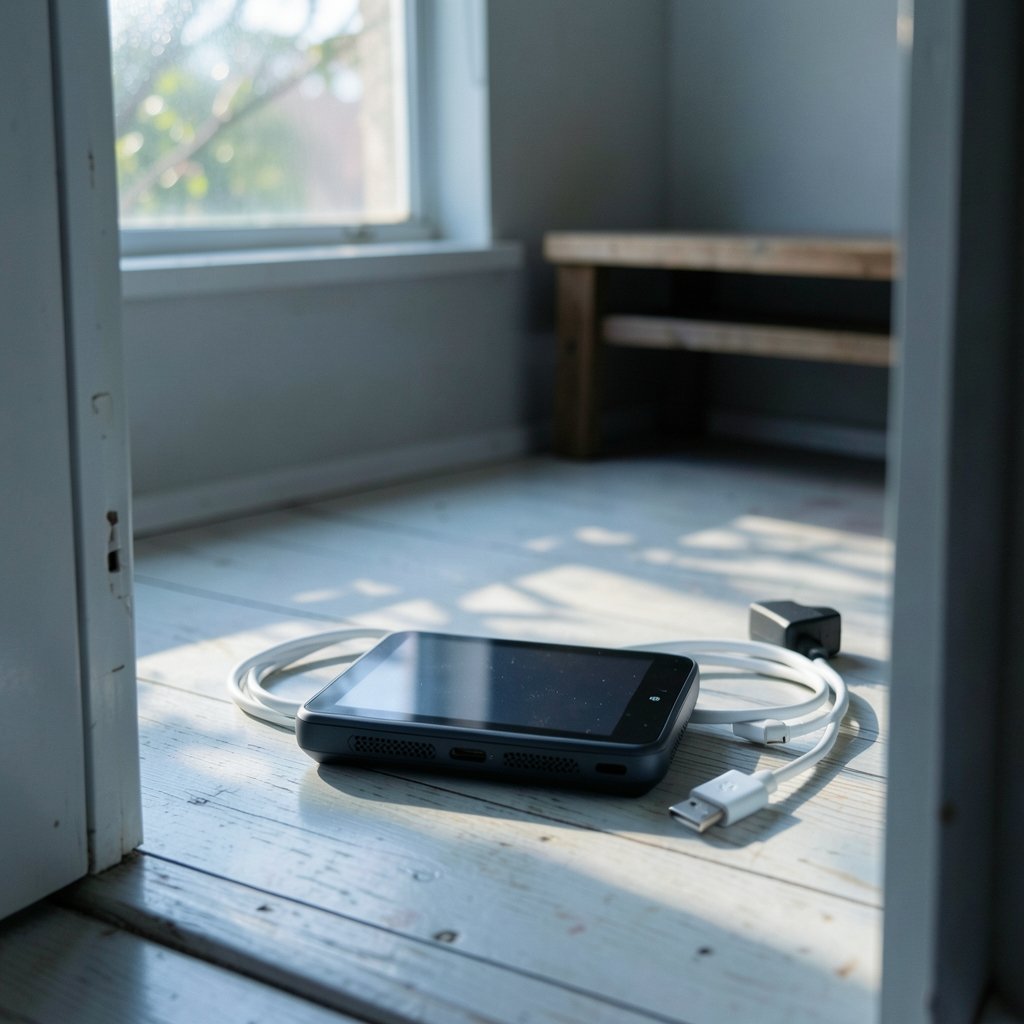
This is arguably the most-complained-about behavior. Owners suspend the Deck, come back a day later, and find the battery noticeably lower. The cause is usually background activity: Wi-Fi staying on, a game still running in memory, or downloads continuing in the background.
What works in practice is to disable Wi-Fi before suspending, make sure nothing is downloading, and fully shut down rather than suspend if the Deck will sit unused for days. A system update is always worth installing first, since power management has been refined repeatedly over the device’s life. If the battery drains dramatically even when powered off, that points to a hardware fault and a support ticket.
Fan noise and heat
Early units drew loud complaints about fan whine, and Valve responded by sourcing different fans and shipping fan-curve updates through SteamOS. If the fan is loud but the Deck stays cool, an update is the first thing to try. If the fan rattles, grinds, or the device gets hot while idle, that is a hardware issue worth an RMA.
A practical tip: avoid running demanding games on a soft surface like a bed or cushion, which blocks the rear vents. Owners often blame the Deck for overheating when the real culprit is airflow.
microSD card problems
Cards that vanish, dismount during sleep, or arrive corrupted after a hot-swap are a recurring theme. The most common mistake is pulling the card while the Deck is powered on. Always power off before removing it, and format new cards inside SteamOS rather than on a PC. If a card keeps disappearing, try a different brand, update the system, and test the card in another device to rule out a failing card rather than a failing slot.
Wi-Fi drops and slow downloads
Dropped connections and crawling download speeds show up often, particularly on 5 GHz networks and with certain routers. Switching to the 2.4 GHz band, moving closer to the router, and installing the latest SteamOS build solve most cases. If downloads stall, pausing and resuming them, or changing the download region in settings, frequently kicks them back into gear.
Thumbstick drift and unresponsive sticks
Stick drift is the classic handheld aging problem, and the Deck is not immune. Before assuming the worst, recalibrate the sticks in the settings menu, which resolves a surprising number of cases. If drift persists, cleaning around the stick base can help. Beyond that, the options are replacing the stick module or filing a warranty claim. Anyone weighing a Deck against rivals should know this is a shared weakness across handhelds, a point covered in this Legion Go S vs Steam Deck comparison. (Steam Deck Official Site)
Games that crash or refuse to launch
Many “broken” games are actually Proton compatibility issues. The fix is usually simple: open the game’s properties, force a specific Proton version, and verify the game files. Community databases that track per-game compatibility are invaluable here. Crashes that appear only in one title almost always trace back to compatibility rather than the hardware itself.
Display, audio, and docking quirks
A handful of owners report backlight bleed, dead pixels, or audio crackling. Dead pixels are handled case by case through support, so photograph the screen and open a ticket. Audio crackling sometimes clears after toggling audio settings or rebooting; if it persists, it is a hardware fault. Docking problems, especially external monitors not being detected, usually come down to the dock, the cable, or an outdated system.
When to fix it yourself and when to contact support
| Symptom | Likely cause | First step | Escalate if |
|---|---|---|---|
| Battery drains in sleep | Background Wi-Fi or game | Disable Wi-Fi, update | Drains when powered off |
| Loud or grinding fan | Fan curve or faulty fan | Update SteamOS | Rattling or overheating at idle |
| microSD not detected | Improper removal or bad card | Reformat in SteamOS | Card fails in other devices |
| Wi-Fi drops | Band or router conflict | Switch to 2.4 GHz | Drops on every network |
| Stick drift | Wear or calibration | Recalibrate in settings | Drift returns after calibration |
| Game crashes | Proton compatibility | Change Proton version | Every game crashes |
| Audio crackling | Software or hardware | Toggle audio, reboot | Persists after reboot |
The pattern is clear: software fixes come first, hardware claims come second. That order saves time and avoids unnecessary returns.
Prevention beats repair
A little care goes a long way. Install SteamOS updates promptly, power off before touching the microSD card, keep the vents clear, and store the Deck in a case. If you are still deciding whether the device is worth it, this breakdown of the Steam Deck cost helps frame the investment, and a look at the Steam Deck price across models shows what you are paying for. Owners comparing it to Nintendo’s handheld will find the trade-offs in this Switch 2 vs Steam Deck piece useful, while performance-focused buyers can weigh the Rog Ally X vs Steam Deck OLED matchup. (Steam Deck)
Conclusion
Most Steam Deck problems are minor, fixable, and well documented. Battery drain, fan noise, Wi-Fi hiccups, and game crashes usually yield to an update or a settings change, while stick drift and audio faults are the cases most likely to need a warranty claim. Start with the simplest fix, confirm whether the fault is software or hardware, and contact support early if the device is still covered. Handled that way, the Deck remains a remarkably repairable handheld, and the community knowledge around it keeps growing.
Frequently Asked Questions
Why does my Steam Deck battery drain when it is turned off?
A small drain over weeks is normal for any lithium-ion device, but a dramatic drop while powered off suggests a hardware fault. Try a full shutdown rather than sleep, and if the battery still empties quickly, contact support.
Can I fix thumbstick drift without replacing the stick?
Sometimes. Recalibrating the sticks in settings resolves many cases, and cleaning around the stick base can help. If drift returns after calibration, the module likely needs replacing or a warranty claim.
Is a loud fan on the Steam Deck normal?
Some fan noise under load is expected, but a constant whine or rattling is not. Install the latest SteamOS update first, since fan curves have been adjusted over time, and seek a repair if the noise persists.
Why do some games crash on the Steam Deck?
Most crashes trace back to Proton compatibility rather than faulty hardware. Forcing a different Proton version in the game’s properties and verifying the files fixes the majority of cases.
Should I format my microSD card on a PC or on the Deck?
Format it inside SteamOS. Cards formatted on a PC can behave unpredictably, and always power the Deck off before removing the card to avoid corruption.
How do I know if my Steam Deck problem is hardware or software?
A useful test is whether the fault follows one game or app. If it appears only in a single title, it is almost certainly software. If it shows up across every game and menu, suspect hardware and open a support ticket.
What about battery health and long-term wear?
Lithium-ion batteries age, and a Deck that has seen two years of daily charging will not hold the same charge it did on day one. Owners sometimes mistake ordinary capacity loss for a fault. A few habits slow the decline: avoid leaving the Deck plugged in at 100% for weeks at a time, do not game in a hot car or direct sun, and let the battery run down occasionally rather than keeping it topped up constantly. If the battery swells — you will notice the rear shell bulging or the device rocking on a flat surface — stop using it and contact support immediately, because a swollen cell is a safety issue, not a performance one.
Do I need to worry about the fan and vents getting dusty?
Yes, eventually. The Deck pulls air through the rear vents, and dust accumulates over months of use, especially in a home with pets. A can of compressed air aimed at the intake, used briefly and at an angle, clears most of it. Do not open the shell unless you are comfortable with the process and past your warranty, since prying the back panel risks damaging clips. If temperatures climb steadily and the fan runs constantly at idle even after a cleaning and an update, that is the point to open a ticket.
Are there settings that prevent problems before they start?
A handful of defaults are worth changing early. Cap the frame rate in demanding titles to keep heat and fan noise down, enable the performance overlay so you can actually see temperatures instead of guessing, and keep a little free storage on the internal drive, since a full drive slows the whole system. Turn off background downloads before suspending, and set the Deck to shut down rather than sleep if it will sit for days. None of these are dramatic, but together they head off a large share of the complaints in this guide.
The bottom line
The Steam Deck is a capable, repairable handheld with a well-documented set of quirks, and almost none of them are reasons to regret the purchase. Work from software to hardware, use the table above to sort symptoms from causes, and lean on the warranty while you have it. Do that, and the Deck keeps doing what it was bought to do.
Keeping the internal drive tidy also helps: delete shader caches for uninstalled games and clear old Proton prefixes, which reclaim space and reduce stutter. If a fix in this guide does not stick after a reboot, note your SteamOS version and the exact steps you tried before contacting support — that record speeds up diagnosis and strengthens any warranty claim you file.



