

Sony has sold more than 50 million PlayStation 5 consoles since the November 2020 launch, and if you spend any time in owner forums, one pattern jumps out fast: the same handful of complaints come up again and again. Rest mode that won’t wake up. A DualSense stick that drifts on its own. A screen that flickers at 4K. None of these are rare, and most of them have a fix you can do at home in under ten minutes. Here’s a practical rundown of the PS5 problems people actually hit, what causes them, and which fixes genuinely work versus which ones just get repeated online.
Rest Mode Problems: The Console That Won’t Wake Up
Rest mode is supposed to be the PS5’s best trick. It downloads updates, charges your controller, and lets you jump back into a game instantly. In practice, it’s one of the most common sources of frustration, especially for launch-era consoles.
Typical symptoms include the console failing to wake from rest mode, the light bar pulsing but nothing appearing on screen, or games crashing immediately after resuming.
What actually works
- Turn off “Feature to Keep in Rest Mode” for USB ports. Go to Settings > System > Power Saving and disable power to USB ports. Drives that lose power mid-download are a frequent culprit.
- Disable HDMI Device Link. Settings > System > HDMI lets you turn this off. It’s a known cause of the console waking or sleeping at odd times when your TV changes input.
- Rebuild the database. Hold the power button until you hear two beeps, connect a controller by USB, and choose Rebuild Database from Safe Mode. This is Sony’s own documented step for storage and corruption issues, and it’s safe for your save data.
- Test with rest mode downloads off. Settings > System > Power Saving > Features Available in Rest Mode. If the crashing stops, the problem was almost certainly a network or storage hiccup during background downloads.
The mistake most people make is factory resetting the console first. That wipes hours of setup and rarely fixes rest mode issues, because the root cause is usually a setting or a failing USB drive, not the system software itself.
External Storage and SSD Woes
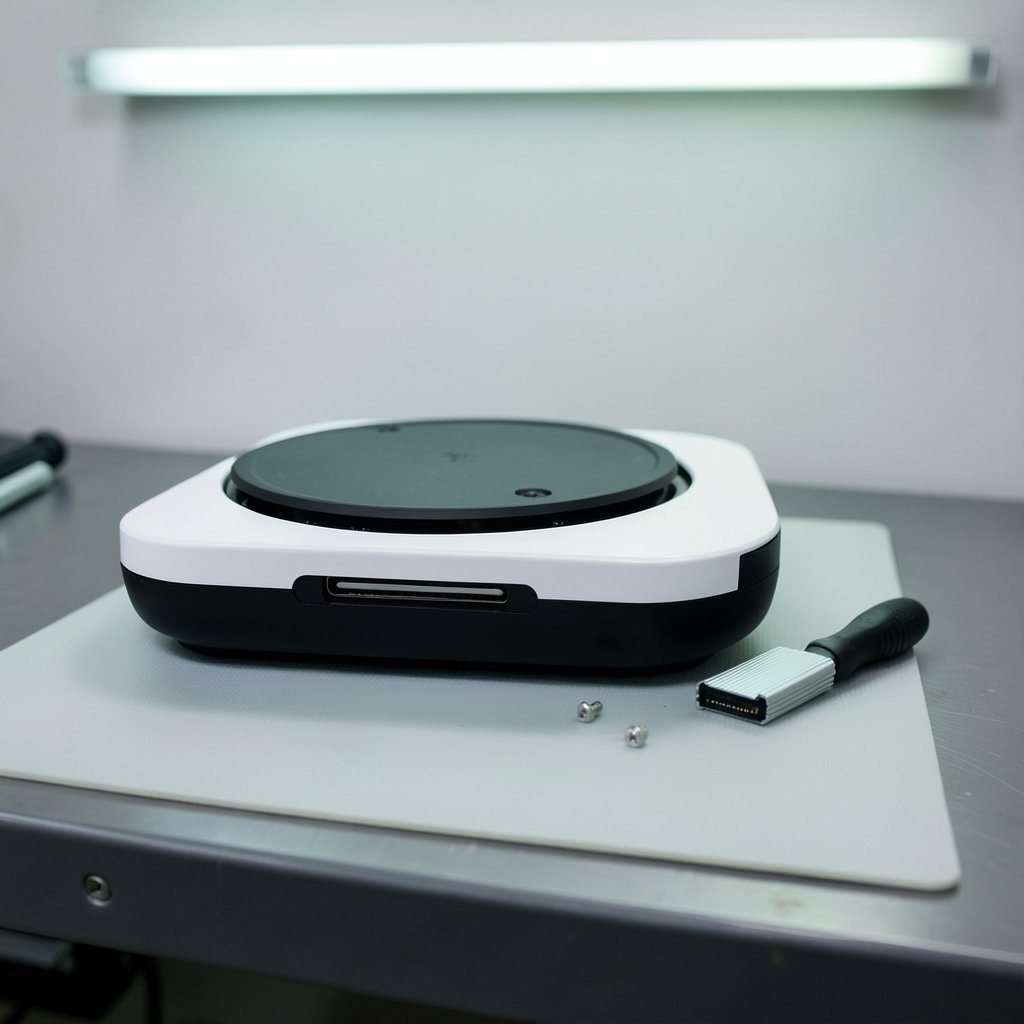
The PS5 ships with 825GB of internal storage, and after system files you’re left with roughly 667GB. That fills up fast. Sony added M.2 SSD expansion support in a September 2021 system update, and USB extended storage has been there since launch for PS4 games. Both are reliable when set up correctly, and both cause headaches when they aren’t.
Common symptoms and fixes
| Symptom | Likely cause | Fix |
|---|---|---|
| Drive not recognized | Wrong USB port or cable | Use the rear USB-A ports, not the front USB-C |
| “Repair” prompt every boot | Drive pulled while powered on | Always eject via Settings before unplugging |
| PS5 games won’t launch from USB | By design | PS5 games must run from internal or M.2 storage |
| M.2 SSD not detected | Missing heatsink or loose screw | Reseat the drive and check the heatsink clearance |
A detail people miss: the PS5 requires an M.2 drive with a heatsink, and the expansion bay only accepts specific lengths. Buying a bare drive and cramming it in without a heatsink is a recipe for thermal throttling and random crashes. If you’re weighing whether the upgrade is worth it against a newer console, it’s a similar calculus to the one in this breakdown of the PlayStation 5 vs PlayStation 5 Pro — the storage question gets expensive either way. (PlayStation Hardware Support)
Overheating, Fan Noise, and the Vertical vs. Horizontal Debate
The PS5 runs hot. That’s not a defect; it’s a design consequence of pushing high clocks in a slim chassis with liquid metal thermal interface material on the APU. What matters is whether your console can breathe.
Practical fixes that make a real difference
- Give it clearance. Sony’s own safety guidance calls for a well-ventilated area. Stuffing the console into a closed media cabinet is the single most common cause of overheating shutdowns.
- Clean the vents every few months. Compressed air, short bursts, console off and unplugged. Dust buildup on the intake is cumulative and quiet until it isn’t.
- Stand it however you like, but be consistent. The vertical-versus-horizontal argument generates endless forum threads. Community claims about liquid metal pooling in vertical orientation are unverified — there’s no confirmed statement from Sony either way. What is confirmed is that the stand should be attached properly in either orientation so airflow isn’t blocked.
If your console shuts down mid-game with a warning about temperature, don’t ignore it. Repeated thermal shutdowns are one of the few PS5 problems that can genuinely shorten hardware life.
HDMI and Display Issues: Black Screens and Flicker
Few things are more annoying than a black screen right as a boss fight starts. HDMI handshake problems are widespread, and they’re almost always a settings or cable issue rather than a dead console.
The troubleshooting order that saves time
- Swap the cable first. Use the one in the box or a certified high-speed HDMI 2.1 cable. Cheap cables cause more 4K/120Hz failures than anything else.
- Turn off HDCP temporarily when testing. Settings > System > HDMI. Some capture setups and older TVs choke on it.
- Drop the resolution to 1080p and see if the flicker stops. If it does, the problem is bandwidth, not the console.
- Disable “Enable 120Hz Output” if your TV claims support but flickers. Plenty of sets accept the signal and then struggle with it.
- Try a different TV input. Some TVs only run full bandwidth on specific ports, usually labeled for gaming.
A pattern worth knowing: display issues spike after system updates that change HDMI behavior. If a problem appears the same week you installed an update, check your video settings before you assume hardware failure.
DualSense Drift and Controller Problems
Stick drift — where the character moves without you touching the stick — has been reported widely since 2021, and it drew enough attention to prompt a US class-action lawsuit that year. There’s no official failure-rate data, so treat prevalence claims with caution, but the symptom itself is real and common.
What you can do
- Clean around the stick base with isopropyl alcohol and a cotton swab. Dust and skin oils cause more drift than people realize.
- Recalibrate in Settings if your controller supports it, and test in the console’s accessory menu.
- Reset the controller with the small pinhole button on the back for pairing or input glitches.
- Check your warranty. Sony’s coverage for the DualSense varies by region, and drift repairs are often covered.
Other DualSense complaints worth mentioning: adaptive triggers that feel stuck (usually debris), and Bluetooth dropouts (usually interference from a router or USB 3.0 device sitting too close).
Disc Drive Noise and Read Errors
The disc drive is loud. That’s normal. What isn’t normal is grinding, clicking, or games failing to install from disc.
- Check disc orientation. PS5 discs insert label-up, which trips up people coming from older consoles.
- Clean the disc with a microfiber cloth, straight strokes from center to edge.
- Listen for the spin-up pattern. A brief loud whir at launch is fine; constant grinding is not.
- Try a different disc. If one game fails and others work, the disc is the problem, not the drive.
Network and Download Problems
Slow downloads and “cannot connect” errors round out the top complaints. The PS5’s Wi-Fi is capable, but it’s not magic.
- Use Ethernet if you can. It’s the single biggest download speed improvement available.
- Pause and resume a stalled download before you restart the console. It reconnects the session without losing progress.
- Check PSN status before you troubleshoot your own network. Outages happen.
- Set a static DNS if you get repeated connection failures. It’s a five-minute change with a surprisingly high success rate.
Error Codes and Safe Mode: The Last Resort
When the console throws a cryptic error code, look it up individually rather than assuming the worst. Safe Mode offers five options: Restart, Change Resolution, Update System Software, Rebuild Database, and Reset. Work down that list in order. Reset is the nuclear option — it wipes the console — so it should be your last step, not your first.
One more practical note: cloud saves are your friend here. If you’re going to experiment with Safe Mode, make sure your saves are synced first. That’s especially true if you’re a PlayStation Plus subscriber, since cloud storage is part of what you’re paying for. If you’re unsure whether the subscription is worth renewing, this breakdown of how much PlayStation Plus costs covers what each tier includes. Console ownership costs add up in ways people don’t plan for, and the same is true across the aisle — the Xbox vs PlayStation price comparison shows how quickly accessories and subscriptions stack up on both sides. (PlayStation 5)
What Actually Works vs. What Just Gets Repeated
After sorting through the noise, a few things stand out. The fixes that work most often are boring: check the cable, clean the vents, rebuild the database, turn off a setting. The fixes that get repeated most often are the risky ones: factory reset first, open the console, buy a new controller immediately.
Resist the urge to escalate. Most PS5 problems resolve at the settings level. Hardware failures exist, but they’re a minority of complaints, and the console’s warranty should be your first call before any screwdriver comes out.
Frequently Asked Questions
Why does my PS5 keep turning on by itself?
The most common cause is HDMI Device Link, which lets your TV wake the console when it powers on or switches inputs. Disable it under Settings > System > HDMI. A stuck power button or a faulty surge protector can also cause phantom wake-ups.
Is it safe to rebuild the PS5 database?
Yes. Rebuild Database scans the drive and rebuilds the system’s file index. It doesn’t delete games, saves, or media. It’s Sony’s documented troubleshooting step for storage-related errors and takes a few minutes on a full drive.
Why is my PS5 so loud?
Fan noise rises when the console works harder or when airflow is restricted. Check that it has clearance on all sides, clean the vents, and make sure it isn’t sitting on carpet or inside a closed cabinet. If the noise started suddenly and sounds like grinding, that’s a different problem and worth a warranty call.
Can I fix DualSense stick drift myself?
Sometimes. Cleaning around the stick base with isopropyl alcohol resolves mild cases. If drift persists, the stick module is worn, and replacement requires soldering on most models. Check your warranty before attempting a repair, since opening the controller can void it.
Do PS5 games run from an external USB drive?
No. PS5 games must run from the internal SSD or an installed M.2 expansion drive. USB extended storage works for PS4 games and for storing PS5 games, but you’ll need to move them back to internal storage to play.
How often should I clean my PS5?
Every three to six months is a reasonable baseline for most homes, more often if you have pets or live in a dusty area. Unplug it, use short bursts of compressed air on the vents, and avoid opening the case unless you’re comfortable with the process.
Conclusion
The PlayStation 5 is a reliable console, but it isn’t a maintenance-free one. Rest mode quirks, storage confusion, HDMI handshakes, and controller drift are the four problems that account for the vast majority of complaints, and each has a fix that doesn’t require a repair shop. Start with the cheapest, least destructive step — a cable swap, a settings toggle, a database rebuild — and work outward from there. Keep the vents clear, keep your saves backed up, and treat factory reset as the last tool in the box rather than the first. Do that, and most PS5 problems turn out to be a twenty-minute inconvenience instead of a dead console.
