
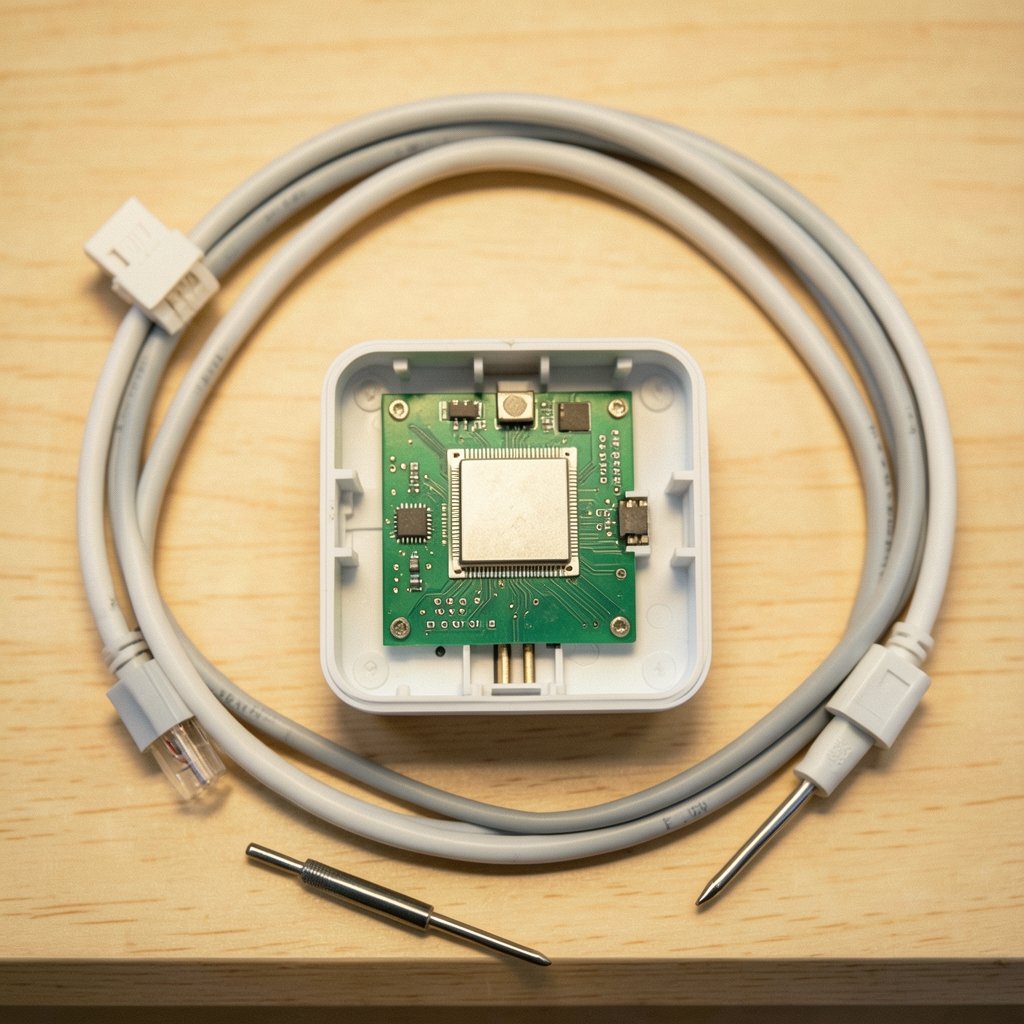
Ever wondered why a $60 router can push nearly a gigabit of traffic while a beefy desktop CPU stumbles when you route packets through it in software? The answer sits in a small, specialized chip that quietly handles the boring work so the main processor can rest. That trick is called hardware offloading, and once you understand it, a lot of confusing router behavior suddenly makes sense.
This guide breaks down what hardware offloading actually does, where it helps, where it bites you, and how to tell whether it is working on your own network. No hand-waving. Just the mechanics, the trade-offs, and the practical checks that separate a smooth setup from a mysterious slowdown.
What Hardware Offloading Actually Means
Every router has a brain. In most consumer gear, that brain is a general-purpose CPU running a Linux-based firmware. In theory, that CPU can do everything: read each packet’s header, decide where it goes, rewrite the address, update a counter, and send it out the right port. In practice, doing that for every single packet is exhausting. At a million packets per second, the CPU spends all its time on repetitive chores.
Hardware offloading moves that repetitive work off the CPU and onto dedicated silicon. That silicon might be a switch ASIC, a network processor, or a built-in accelerator engine inside the router’s system-on-chip. Instead of inspecting every packet in software, the hardware learns a flow once, then forwards matching packets at wire speed with almost no CPU involvement.
Think of it like a highway toll booth. The first car has to stop, pay, and register. Every car behind it with the same pass just rolls through a dedicated lane. The software path handles the “first packet” problem; the hardware fast path handles the flood that follows.
The Fast Path and the Slow Path
Networking folks split this into two lanes:
- Slow path: the general CPU inspects the packet, applies firewall rules, runs NAT, and makes a forwarding decision. Flexible but slow.
- Fast path: a flow table in hardware remembers that decision. Subsequent packets in the same connection skip the CPU entirely.
This flow-cache design is the heart of most offloading. The router pays the software cost once per connection, then coasts. For a web browsing session made of thousands of short connections, that first-packet tax adds up. For a big file transfer or a video stream, the fast path dominates and throughput soars.
Why Router Makers Lean on It So Hard

Here is the uncomfortable truth about cheap routers: the CPUs inside them are not fast. A modest dual-core chip clocked around 1 GHz cannot software-route a gigabit of small packets without melting. So vendors lean on offloading to hit the numbers on the box.
The economics are simple. A switch ASIC that forwards at wire speed costs less than a CPU powerful enough to do the same job in software. Offloading lets a budget router advertise gigabit routing without a flagship processor. It also keeps power draw and heat down, which matters in a fanless plastic box sitting on a shelf.
This is why the same hardware can behave very differently depending on firmware. A router that hits 900 Mbps with offloading enabled might crawl at 300 Mbps with it switched off. The silicon did not change. The path did.
If you have ever compared router specs and wondered why raw clock speed tells you so little, this is the reason. The best modem router combo for a fast connection is rarely the one with the biggest CPU number. It is the one whose offload engine and firmware actually cooperate. (Router (computing)))
What Gets Offloaded, and What Quietly Does Not
Not every feature rides the fast path. This is where things get messy, and where most troubleshooting stories begin.
| Feature | Usually offloaded? | Practical effect |
|---|---|---|
| Basic routing and NAT | Yes, on most modern gear | Full wire-speed throughput |
| Simple bridging / switching | Yes | LAN traffic stays fast |
| Stateful firewall filtering | Often, with limits | Rules may be bypassed on fast path |
| Traffic shaping / QoS | Rarely | Enabling it can drop throughput sharply |
| Per-connection logging | Rarely | Logs may miss fast-path flows |
| Some VPN paths | Sometimes | Behavior varies by driver and firmware |
Read that table again, because it explains a classic frustration. You enable QoS to prioritize video calls, and suddenly your download speed collapses. Nothing broke. You just pushed traffic off the fast path and back onto the CPU, which now has to inspect and schedule every packet. The feature works, but it costs you the offload.
The same trap catches people who turn on detailed firewall logging or complex traffic rules. The router honors the rule, but performance takes the hit because the hardware can no longer shortcut the decision.
The Trade-Offs Nobody Puts on the Box
Offloading is not free. It is a bargain, and like any bargain, you should read the fine print.
First, visibility suffers. When packets bypass the CPU, software tools that count, log, or shape traffic may not see them. A flow that never touches the main processor cannot be measured by a process running on that processor. Network monitoring on offloaded traffic can therefore undercount.
Second, feature parity is not guaranteed. A rule enforced in software might not be enforced identically in hardware. Vendors try to keep them in sync, but driver and firmware maturity vary wildly. Some features silently fall back to software, which produces confusing benchmark results: fast in one test, slow in another, with no obvious cause.
Third, offload support depends on the driver. The hardware may have the capability, but the firmware has to program it correctly. Immature drivers can cause stalls, dropped flows, or features that work until they do not. This is why community firmware often exposes offload toggles that the stock firmware hides.
Fourth, debugging gets harder. When something misbehaves only on the fast path, standard troubleshooting tools may show nothing wrong. You are chasing a ghost the CPU never saw.
How to Tell If Offloading Is Working on Your Router
You do not need a lab. A few practical checks will tell you a lot.
- Run a throughput test with offloading on and off. Use a wired connection and a local speed test server if you can. A large gap between the two runs confirms the fast path is doing real work.
- Watch CPU load during a big transfer. If the main CPU stays near idle while throughput is high, offloading is almost certainly active. If it pins at 100 percent, you are on the slow path.
- Toggle one feature at a time. Turn on QoS, then logging, then a VPN, testing after each change. The feature that tanks throughput is the one fighting the fast path.
- Check your firmware’s documentation for the exact toggle name. It varies: flow offloading, hardware acceleration, NAT acceleration, fast path. The label differs, the concept does not.
- Test with many small connections alongside one big one. Offloading shines on sustained flows and struggles with connection churn. A single large download can flatter a router that chokes on a busy household.
A common mistake is benchmarking over Wi-Fi and blaming the router. Wireless overhead and interference swamp the offload difference. Always test wired first. Another mistake is leaving offloading on while running a strict firewall policy and assuming every rule is enforced. Verify the rules on fast-path traffic specifically, or temporarily disable offload while you audit.
Where Offloading Fits in the Bigger Hardware Picture
Offloading is one piece of a broader trend: pushing specialized work onto dedicated silicon. The same logic shows up across the tech world. Companies design custom chips to handle workloads that general processors do inefficiently, whether that is packet forwarding, encryption, or AI inference. The pattern is consistent. General-purpose hardware is flexible; specialized hardware is fast. The trick is knowing which jobs to hand off.
You can see the same hardware-bet thinking in how companies plan multi-year product lines around custom silicon, as explored in this look at Tesla’s 2026 hardware bets across robotaxi, semi, and roadster. The lesson transfers neatly to networking: the chip you choose shapes what the product can do, and the software has to keep up.
Cloud providers make the same calculation at massive scale. Splitting workloads between general compute and specialized accelerators is now standard practice, a theme that runs through reporting on Apple’s private cloud compute and its Google Cloud ties in 2026. Routers are just the small, cheap end of that same spectrum.
For anyone building a home network, the practical takeaway is to think in layers. The router’s offload engine handles the bulk forwarding. The CPU handles the clever stuff. Your job is to keep the clever stuff from overwhelming the bulk path. If you are also upgrading storage on the machines behind that router, this guide on how to clone a hard drive to an SSD in 2026 follows the same principle: match the tool to the job.
When You Should Turn Offloading Off
Offloading is not always the right call. Consider disabling it when:
- You run strict firewall or parental-control rules and need guaranteed enforcement on every packet.
- You rely on detailed per-connection logging for auditing.
- You use heavy traffic shaping and the throughput loss from the slow path is acceptable.
- You are troubleshooting a strange bug and need the CPU to see every packet.
For most households streaming video and gaming, leave it on. The speed gain is real and the trade-offs rarely matter. For a small office with compliance needs, the calculus flips. Match the setting to the job.
Conclusion
Hardware offloading is one of those invisible features that shapes your entire network experience without ever announcing itself. It is the reason a modest router can saturate a gigabit line, and the reason enabling one innocent checkbox can halve your speed. The concept is simple: let dedicated silicon handle the repetitive forwarding, and let the CPU handle the decisions that need judgment.
The practical wisdom is equally simple. Know which features ride the fast path and which drag traffic back to the slow path. Test wired, toggle one setting at a time, and watch CPU load as your honest signal. Treat offloading as a tool with a clear job, not a magic switch. Do that, and your router stops being a mystery box and starts being a machine you actually understand.
Frequently Asked Questions
What is router hardware offloading in plain terms?
It is a way to move routine packet forwarding off the router’s main processor and onto a dedicated chip. The CPU makes the routing decision once per connection, then the hardware remembers it and forwards matching traffic at full speed. The result is higher throughput with less CPU strain.
Does enabling hardware offloading make my internet faster?
It can raise throughput, especially on fast connections and budget routers, because the CPU stops being the bottleneck. But it will not exceed your internet plan’s speed. It removes a ceiling inside the router; it does not add bandwidth from your provider.
Why did my speed drop after I turned on QoS?
Traffic shaping and QoS usually run in software, so enabling them can push traffic off the fast path and back onto the CPU. The router now inspects and schedules every packet, which costs throughput. The feature works, but the offload benefit shrinks or disappears.
Is hardware offloading a security risk?
Not inherently, but it can create blind spots. Rules enforced only in software may not apply identically to fast-path traffic, and logging tools may miss offloaded flows. If you depend on strict filtering or auditing, verify enforcement on fast-path traffic or disable offload while you check.
How do I know if offloading is active on my router?
Run a wired throughput test with the setting on and off, and watch CPU load during a large transfer. Near-idle CPU with high throughput points to an active fast path. Check your firmware docs for the exact toggle name, since labels like flow offloading and NAT acceleration mean the same thing.
Should I leave offloading on all the time?
For most homes, yes. Streaming, gaming, and everyday browsing benefit, and the trade-offs rarely matter. Turn it off temporarily when you need guaranteed rule enforcement, detailed logs, or when you are debugging a problem and need the CPU to see every packet.



