
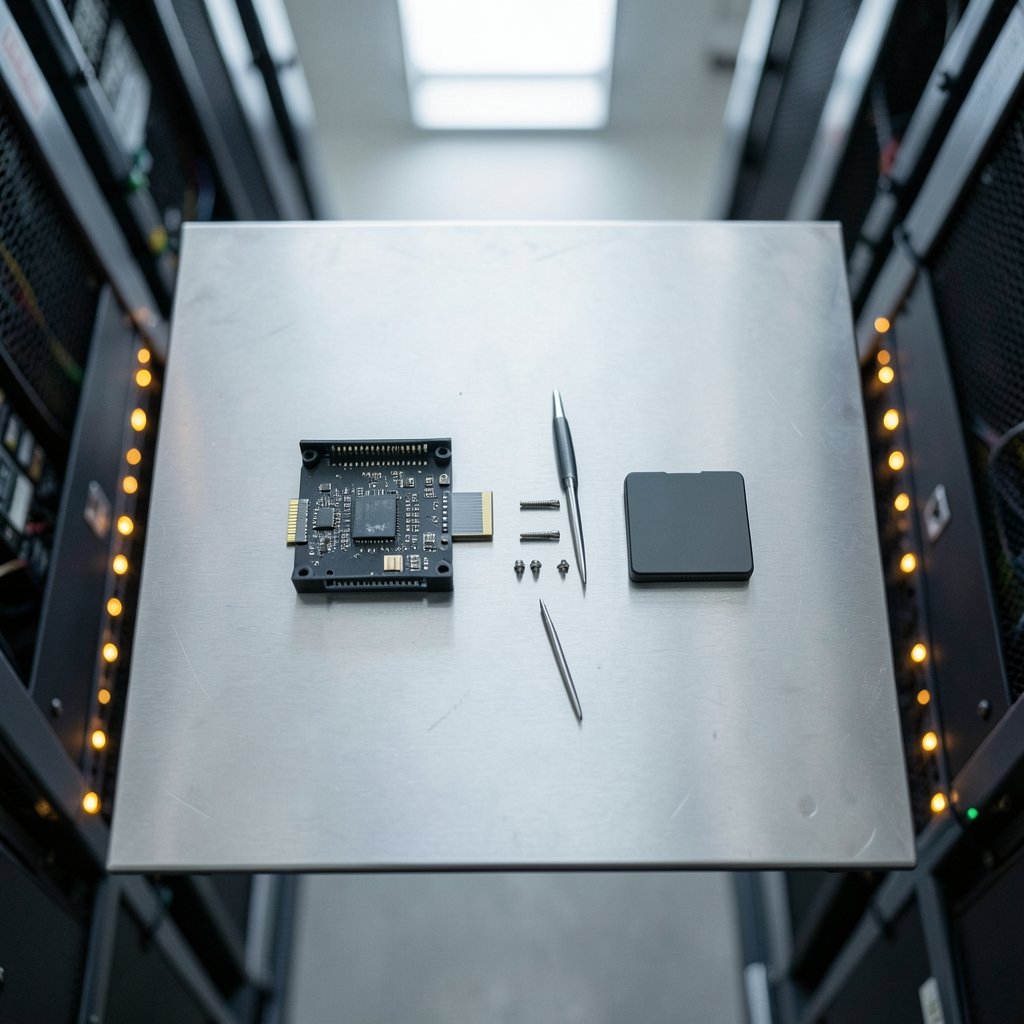
What if the cheapest way to add fast portable storage is also the one most likely to fail on you? That is the awkward question in the M.2 enclosure versus prebuilt portable SSD debate. One path costs less per gigabyte and lets you reuse hardware. The other costs more but works the moment you plug it in. Before anyone spends money on a 2027 upgrade, it helps to know which trade-offs actually matter and which compatibility checks catch the expensive mistakes.
Why the Cost Gap Exists in the First Place
A bare M.2 enclosure is a shell, a bridge chip, and a USB connector. Nothing else. You supply the drive. A prebuilt portable SSD is the same idea, except the manufacturer has already married a drive to a controller inside a sealed case, tested it, and packaged it with a cable.
That difference explains the price spread. Enclosures typically sit in a modest low-to-mid price band depending on chipset and speed class, while a bare M.2 drive adds the real cost on top. Prebuilt drives bundle both, plus warranty support and a finished product. Whether the bundle is worth it depends on what you already own and how much patience you have for troubleshooting.
The catch is that prices for both paths move with memory chip pricing cycles, which are famously volatile. Any dollar figure quoted today can look wrong in six months. So instead of chasing a specific number, focus on the structural cost logic: enclosures reward people who already have a spare drive or who buy carefully, and prebuilt drives reward people who value certainty.
The Compatibility Checks That Actually Matter
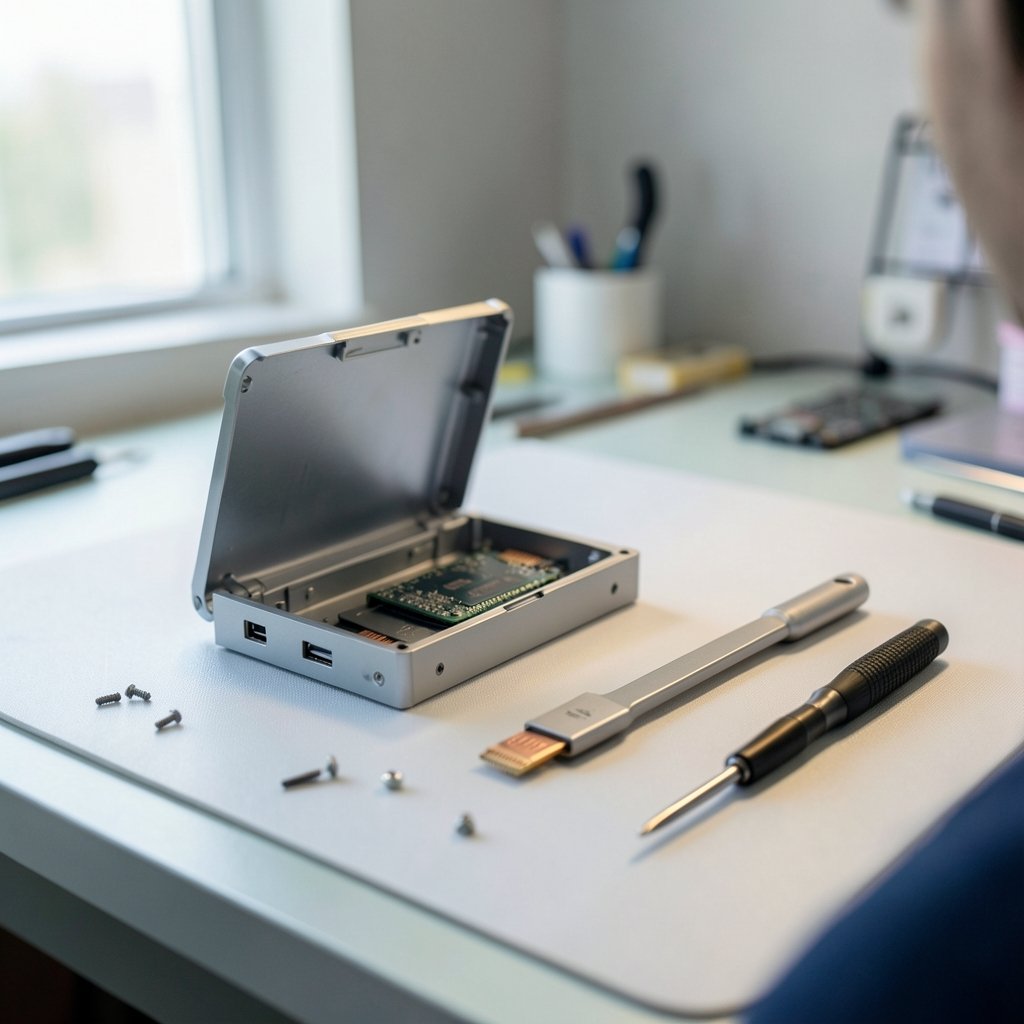
Most failed enclosure projects trace back to one of six checks. Run them in order before buying anything.
1. NVMe or SATA?
This is the single most common mistake. Many inexpensive M.2 enclosures are SATA-only, using bridge chips built for SATA drives. Drop an NVMe drive into one and it simply will not appear. The enclosure listing must say NVMe or PCIe explicitly. If it only says “M.2,” treat that as a warning sign until you confirm the protocol.
2. Form factor length
M.2 drives come in lengths measured in millimeters, and the naming follows the dimensions. A 2280 drive is 22 mm wide and 80 mm long. A 2242 drive is 42 mm long, and a 2230 drive is just 30 mm. A 2280 drive will not physically fit a 2242-only enclosure. Some enclosures include adjustable mounting for multiple lengths; many do not.
3. Keying
M.2 slots and drives use notches called keys. An M-key slot takes NVMe PCIe drives. B-key and B+M-key arrangements show up on SATA drives and some others. Mismatched keying means the drive will not seat, or will seat and not work. This is a physical compatibility issue, not a software one, and no adapter fixes it cleanly.
4. Bridge chip and USB generation
The enclosure’s bridge chip, not the SSD, is usually the real bottleneck. Common bridge chips have documented throughput and thermal limits, and a fast drive behind a slow bridge runs at the bridge’s pace. Match the enclosure’s rated USB generation to what your computer’s port can actually deliver. A 20 Gbps enclosure plugged into a 10 Gbps port runs at 10 Gbps.
5. Port generation on the host
USB-C is a connector, not a speed. A USB-C port might be USB 2.0, USB 3.2 Gen 1, Gen 2, Gen 2×2, or USB4. The cable matters too. A charge-only cable will not carry data at full rate no matter how good the enclosure is. Check both ends of the chain.
6. Power draw
Bus-powered enclosures draw current from the port. High-capacity, high-performance drives can exceed what a weak port supplies, leading to dropouts during long transfers. If reliability matters, prefer enclosures with solid power handling and avoid daisy-chaining through unpowered hubs.
If the drive itself is the question, a broader walkthrough of NVMe vs SATA compatibility checks covers the protocol differences in more depth than an enclosure guide can.
Real-World Speed Expectations
Marketing numbers and real numbers live in different worlds. Protocol overhead eats into every link, and the drive, bridge, cable, and host all take a bite.
| Link type | Rated speed | Realistic sequential throughput |
|---|---|---|
| USB 3.2 Gen 2 (10 Gbps) | 10 Gbps | Roughly 900 to 1,000 MB/s |
| USB 3.2 Gen 2×2 (20 Gbps) | 20 Gbps | Roughly double the 10 Gbps figure |
| USB4 / Thunderbolt 3 or 4 (40 Gbps) | 40 Gbps | Needed to approach NVMe drive limits |
The practical lesson: buying a flagship NVMe drive for a 10 Gbps enclosure wastes money. The bridge caps you long before the drive does. Spend on the bridge and the port first, the drive second.
Where Prebuilt Drives Win
Prebuilt portable SSDs save assembly time and solve several problems at once.
- They work out of the box. No assembly, no firmware surprises, no bridge chip lottery.
- Warranty covers the whole unit. With an enclosure plus bare drive, you have two warranties and a finger-pointing problem if something fails.
- Thermals are engineered. Sealed designs are tuned as a system rather than assembled from parts.
- Support exists. When something misbehaves, there is a number to call.
The trade-off is real, though. Many branded portable SSDs solder the drive to the board or use proprietary controllers, which means they are not user-upgradable and often not repairable. Teardown documentation shows this pattern across a lot of models. When the drive inside fails or the capacity feels small, the whole unit becomes e-waste.
Where Enclosures Win
An enclosure plus a standard M.2 drive is modular by design. If the drive dies, swap it. If a faster drive arrives, swap it. If the bridge chip proves flaky, replace the enclosure and keep the drive. Over a multi-year horizon, that modularity often pays for itself.
Enclosures also shine for people with spare drives. An old 2280 drive pulled from a laptop upgrade becomes instant portable storage for the price of a shell. That is a genuinely cheap path to fast external storage, and it keeps working hardware in service.
There is a repair angle too. A standard drive in a standard enclosure can be moved to a new enclosure or read directly in a desktop slot if the bridge fails. A sealed prebuilt unit usually cannot offer that escape route.
The 2027 Angle: What Changes and What Doesn’t
Here is a truth worth stating plainly: the compatibility rules do not change because the calendar flips. USB4, M.2, and NVMe are stable standards. A checklist built today remains valid for a 2027 upgrade because it is built on standards, not on product cycles.
What does change is the hardware landscape around those standards. New bridge chips appear. Port configurations shift. Drive prices swing. So the smart approach is to build a forward-compatible checklist rather than a 2027-specific one.
A Practical Pre-Purchase Checklist
- Confirm the drive is NVMe, not SATA.
- Confirm the length: 2280, 2242, or 2230.
- Confirm the key: M versus B+M.
- Confirm the enclosure bridge supports your target USB generation.
- Confirm the host port matches or exceeds that generation.
- Confirm the cable is rated for data transfer as well as charging.
- Confirm power draw is within what your port supplies.
- Check whether the bridge supports UASP and TRIM passthrough for long-term drive health.
That last point deserves emphasis. Some USB-to-NVMe bridges pass TRIM commands through and some do not. Without TRIM, a drive’s long-term health and sustained write performance can degrade. It is not a headline feature, but it is the kind of detail that separates a storage setup that lasts from one that frustrates.
Common Mistakes People Make
The same errors show up again and again in enclosure builds.
Buying the drive first. People snap up a deal on an NVMe drive, then discover their enclosure is SATA-only. Buy the enclosure to match the drive, or buy both together.
Trusting the USB-C shape. A USB-C port that charges a phone at full speed may still be a slow data port. Check the spec sheet, not the connector shape.
Ignoring thermals. Sustained large transfers through a bus-powered enclosure can throttle. Aluminum-bodied enclosures with thermal pads handle heat far better than plastic shells. If you move big files regularly, this matters more than peak benchmark numbers.
Skipping the cable. The bundled cable is sometimes the weak link. A certified data cable rated for the target speed costs little and removes a variable.
Assuming all M.2 drives are equal. NVMe and SATA drives look identical from across the room and behave nothing alike in an enclosure.
How the Cost Math Usually Breaks Down
Rather than quote prices that may not survive the next memory pricing cycle, think in terms of structure.
| Factor | Enclosure plus bare drive | Prebuilt portable SSD |
|---|---|---|
| Upfront cost | Enclosure cost plus drive cost | Single bundled price |
| Upgrade path | Swap drive or enclosure independently | Replace whole unit |
| Repair path | Modular, often fixable | Often sealed and non-serviceable |
| Warranty | Two separate warranties | One warranty for the unit |
| Setup effort | Assembly and testing required | None |
| Best for | Spare drives, tinkerers, long-term value | Plug-and-play buyers, warranty priority |
The enclosure path usually wins on cost per gigabyte when a spare drive is already on hand. The prebuilt path usually wins on time and certainty. Neither is universally cheaper; the answer depends on what is already in the drawer.
Checking the Rest of the Upgrade
Storage rarely upgrades alone. A 2027 refresh often touches the CPU platform, the GPU, and the cooling solution at the same time, and each brings its own compatibility traps. If a processor change is on the table, it is worth running an AMD vs Intel CPU compatibility check before committing, since socket and chipset support decide what actually boots. Graphics upgrades carry similar risks, so a RTX 4090 vs RTX 5080 comparison helps confirm power, slot, and driver expectations before a card is ordered. And if the plan involves moving a drive between machines, a DIY NVMe enclosure vs portable SSD comparison covers the edge cases that trip people up.
Conclusion
The enclosure versus prebuilt question has no single winner, and anyone who claims otherwise is selling something. What matters is matching the tool to the situation. If a spare M.2 drive is sitting in a drawer, an enclosure turns it into fast portable storage for very little money, provided the protocol, length, keying, bridge, port, cable, and power all line up. If certainty and warranty matter more than modularity, a prebuilt drive earns its premium.
The compatibility checks are the real work. Run them before buying, not after the drive fails to appear in the file manager. Standards like USB4, M.2, and NVMe are stable enough that a checklist built today will still serve a 2027 upgrade well. The hardware around those standards will shift, prices will swing, and new bridge chips will arrive. But the fundamentals, protocol, form factor, keying, and port generation, will not move. Get those right, and the cost question mostly answers itself.
FAQ
Is an M.2 enclosure cheaper than a prebuilt portable SSD?
It depends on whether a bare drive is already on hand. An enclosure plus a standard M.2 drive is often cheaper per gigabyte than a prebuilt unit of similar capacity, especially when reusing a spare drive. Without a spare, the drive cost narrows the gap considerably.
Can I put any M.2 drive in any M.2 enclosure?
No. The enclosure must support the drive’s protocol (NVMe versus SATA), its length (2280, 2242, or 2230), and its keying. A SATA-only enclosure will not recognize an NVMe drive at all, and a 2280 drive will not fit a 2242-only shell.
Why is my enclosure slower than the drive’s rated speed?
The bridge chip inside the enclosure and the host port generation are usually the bottleneck. A 10 Gbps link realistically delivers roughly 900 to 1,000 MB/s after overhead, no matter how fast the drive is. Reaching NVMe drive limits requires USB4 or Thunderbolt-class links.
Does USB-C guarantee fast transfer speeds?
No. USB-C is a connector shape, not a speed rating. A USB-C port may be USB 2.0, USB 3.2 Gen 1, Gen 2, Gen 2×2, or USB4. The cable must also be rated for data at the target rate, since charge-only cables will not deliver full throughput.
Are prebuilt portable SSDs repairable?
Often not. Many branded units solder the drive to the board or use proprietary controllers, making them non-upgradable and difficult to repair. An enclosure with a standard M.2 drive is modular, so a failed drive or bridge can usually be replaced on its own.
Do I need different compatibility checks for a 2027 upgrade?
The standards themselves, USB4, M.2, and NVMe, are stable, so the checklist does not change because of the year. What changes is the hardware around them: new bridge chips, shifting port configurations, and volatile drive pricing. A standards-based checklist stays valid.



