
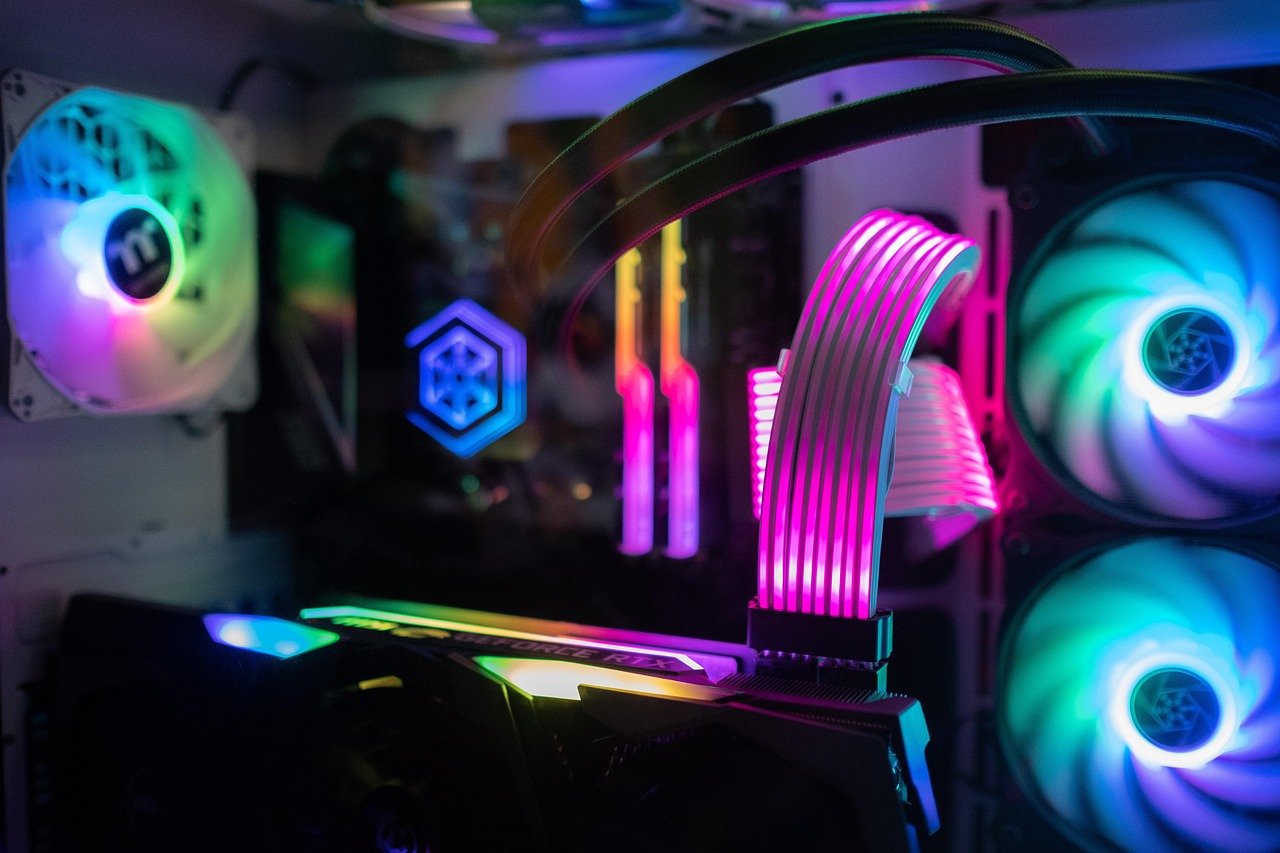
What if the shiniest tower on the shelf is hiding the weakest part of the whole build? That happens more often than most buyers realize, and it is the single biggest reason people regret a prebuilt purchase.
Quick Answer: How do I choose prebuilt gaming PCs?
Start by matching the graphics card and processor to the games and resolution you actually play, then verify the exact model numbers rather than trusting a family name on the listing. Work through the power supply, memory configuration, storage type, and upgrade path in that order, because those parts decide whether the machine stays good for years or becomes a dead end. Buying from a retailer with a clear return window and a written warranty turns a risky purchase into a manageable one.
Custom-built and barebone kits are the main alternatives, and they trade convenience and a single warranty for lower parts cost and full control over every component. Refurbished and open-box units sit in between, offering better value if you accept shorter coverage.
Before you pay, compare the graphics card tier, processor generation, power supply brand and wattage, RAM capacity and channel setup, SSD type and free slots, case and motherboard standard, warranty length, and return policy.
Buying a prebuilt gaming PC looks simple from the outside. You pick a tower, pay, plug it in, and play. Then you read the listing again and notice it says “RTX 4060” without a model number, “16 GB RAM” without a speed, and “fast SSD” without saying which kind. That is where the research begins.
The good news is that choosing well does not require deep hardware knowledge. It requires knowing which five or six details actually change how a machine performs and how long it stays useful. Everything else, from RGB lighting to the shape of the case, is decoration. This guide walks through the decisions in the order that matters, plus the mistakes that catch people after the box arrives.
Start With the Games, Not the Spec Sheet

The most common mistake is shopping by budget first and game library second. A machine tuned for competitive shooters at 1080p has very different needs from one running large open-world titles at 1440p. Before comparing any listings, write down three things: the resolution of your monitor, the frame rate you want, and the two or three games you play most.
That list immediately narrows the field. A high-refresh 1080p setup leans on the processor as much as the graphics card. A 1440p or 4K setup leans heavily on the graphics card. Buyers who skip this step often overspend on a processor they will never stress while underspending on the part that does the heavy lifting.
It also helps to match the display to the machine. A panel that cannot show the frames a PC produces wastes money, and a great PC chained to a slow screen feels broken. There is a practical guide to pairing hardware with a screen in this breakdown on how to choose a gaming monitor that matches the panel you actually play, and it is worth reading before you fix a budget.
Verify the Exact Graphics Card and Processor
Prebuilt listings love family names. “RTX 4060” and “RTX 4060 Ti” are different products with different performance, and some manufacturers ship lower-tier or OEM-only variants that are hard to compare directly. Always ask for the full model number and check it against an independent specification database rather than the seller’s marketing page.
The same rule applies to processors. A current-generation chip and the previous generation with a similar name can differ meaningfully in efficiency and platform support. If a listing will not state the exact model, treat that as a warning sign rather than a minor omission.
One more habit worth building: read independent benchmark reviews instead of spec sheets. Spec sheets list numbers. Benchmarks show what those numbers do in real games at real settings, which is the only comparison that matters.
The Power Supply Is the Part Nobody Checks
Ask any technician what fails first in a budget prebuilt and the answer is usually the power supply. Many affordable systems ship with unbranded units of unclear wattage, and a weak or low-quality supply is the top reliability risk in the whole machine. It can also limit future upgrades, since a graphics card swap may exceed what the unit can deliver.
Look for a named brand and an efficiency certification. The 80 PLUS program is a voluntary efficiency standard, and a certified unit is a reasonable signal that the manufacturer did not cut the most boring corner in the build. Wattage matters too, but headroom for a future graphics card is more valuable than a big number on a box with no brand behind it.
| What to check | Good sign | Warning sign |
|---|---|---|
| Power supply brand | Named manufacturer listed | No brand, no model |
| Efficiency rating | 80 PLUS certified | Rating omitted entirely |
| Wattage headroom | Room for a future GPU | Barely enough for current parts |
| Motherboard standard | Standard ATX or clearly stated | Proprietary, unlisted form factor |
| Case compatibility | Standard sizes, documented clearance | Sealed design, no specs |
Memory and Storage: Small Details, Big Difference
RAM capacity gets all the attention, but configuration matters just as much. Sixteen gigabytes is a sensible baseline for gaming, and dual-channel setups using two sticks generally outperform a single stick of the same total capacity in many titles. Confirm whether the slots are populated and whether you can add more later without replacing what is already there.
Storage is where listings get vague. An NVMe solid-state drive loads games noticeably faster than a mechanical hard drive, and a SATA SSD sits somewhere in between. Check the capacity, the type, and whether there is a free M.2 slot for expansion. A machine with a small drive and no free slot forces you to swap drives later, which is annoying on a desktop and worse on a compact case.
A practical tip from people who buy often: budget for one storage upgrade in the first year. Game installs have grown steadily, and a 500 GB drive fills faster than most buyers expect. If the prebuilt includes a free M.2 slot, that upgrade is a five-minute job.
Upgrade Path and Proprietary Parts
This is the quiet trap. Some manufacturers use non-standard motherboards or power supplies, which means the case, board, and supply are effectively locked together. You can still upgrade memory and storage, but a graphics card or processor upgrade may hit a wall.
Before buying, check whether the case accepts standard parts and whether the power supply follows a standard form factor. If a listing does not say, ask support directly and keep the answer. A machine with a standard layout costs a little more today and saves a lot of frustration in three years.
The same logic applies to compact and small-form-factor systems. They look great on a desk and can be genuinely well built, but they often use custom parts and offer limited clearance. Buy one because you want the size, not because it was the cheapest option on the page.
Warranty, Returns, and Where to Buy
Coverage varies widely. Prebuilt warranties commonly run from one to three years, and consumer protection rules differ by country, so check what applies where you live rather than assuming. Two details matter more than the headline length: what the warranty covers, and how long you have to return the machine if something is wrong out of the box.
Open-box and refurbished units can offer strong value, but the coverage terms are usually shorter and change from retailer to retailer. Read them before you commit. A refurbished machine with a clear 90-day return window is a different risk from one sold as final sale.
Buying from a retailer with a physical presence or a well-documented support process also helps. If a fan starts rattling in week two, you want a phone number and a return label, not an email chain.
Set a Realistic Budget and Know What It Buys
Prebuilts typically cost more than the equivalent parts bought separately. You are paying for assembly, testing, a single warranty, and support. That premium is real, and it is often worth it for buyers who do not want to troubleshoot a build themselves.
The honest trade-off looks like this:
| Route | Strength | Weakness |
|---|---|---|
| Prebuilt from a major brand | One warranty, ready to run, support line | Higher cost, sometimes proprietary parts |
| Prebuilt from a specialist builder | Better part transparency, standard components | Higher price, longer lead times |
| Custom build from parts | Lowest cost per unit of performance | You assemble, test, and troubleshoot |
| Refurbished or open-box | Best value if you accept shorter coverage | Limited warranty, stock varies |
A sensible approach is to set a ceiling, then decide which single component you refuse to compromise on. For most gamers that is the graphics card. Protect that one part, accept a mid-tier processor, and put the savings toward a certified power supply and a larger drive. If a laptop fits your life better than a tower, the same logic applies, and there is a practical budget breakdown in this guide to gaming laptops under 1000 that actually fit the budget.
Mistakes That Catch Buyers After Delivery
A few problems show up only once the machine is on your desk. Watch for these.
- Judging by the case and lighting. RGB and aggressive styling say nothing about performance. A plain black box with good parts beats a light show with a weak supply every time.
- Trusting a single review score. Look for reviews that test thermals and noise, rather than only frame rates on day one.
- Skipping the thermal check. Run a demanding game for an hour and listen. Loud fans and hot exhaust can mean a cramped case or a budget cooler.
- Forgetting the peripherals budget. A great tower paired with a mushy keyboard feels worse than it should. The choice between switch types matters in practice, and this comparison of mechanical vs membrane keyboards for gaming and everyday use helps you decide where to spend.
- Not registering the warranty. Missing the registration window can leave a buyer without coverage.
If you would rather compare complete builds side by side before committing, this roundup of the best prebuilt gaming PCs in 2026 for a rig that will not disappoint is a useful cross-check against the checklist above.
Conclusion
Choosing a prebuilt gaming PC comes down to a short list of decisions made in the right order. Match the hardware to the games and screen you actually use, verify exact model numbers instead of family names, and treat the power supply as a reliability question rather than an afterthought. Confirm the memory configuration and storage type, check whether the case and board accept standard parts, and read the warranty and return terms before you pay.
The premium you pay for a prebuilt buys convenience, testing, and a single point of support. That is a fair trade for most buyers. What is not a fair trade is paying that premium for a machine with an unbranded power supply and no upgrade path. Ask the boring questions, keep the answers in writing, and the tower on your desk will still feel like a good purchase three years from now.
FAQ
Is a prebuilt gaming PC worse than building one yourself?
Not automatically. A prebuilt with standard parts and a certified power supply performs the same as an equivalent custom build. The trade-off is cost and control, not raw performance. You pay a premium for assembly and a single warranty, and you give up the ability to pick every component.
How much RAM do I need for gaming in a prebuilt?
Sixteen gigabytes is a sensible baseline for most gaming setups, and it is enough for the large majority of titles. Confirm the machine uses two sticks rather than one, since dual-channel configurations generally perform better in many games. Check whether slots remain free for a future upgrade.
Should I worry about the power supply in a budget prebuilt?
Yes, it is the part most worth checking. Many affordable systems ship with unbranded units, and a weak supply is the top reliability risk in the machine. Look for a named brand and an efficiency certification, and check whether the wattage leaves room for a future graphics card.
What does it mean if a prebuilt uses proprietary parts?
It means the motherboard or power supply may not follow standard sizes, so future upgrades are limited or impossible. You can usually still change memory and storage, but a graphics card or processor swap may not fit. Ask support whether the case and supply accept standard components.
Is buying a refurbished or open-box prebuilt a good idea?
It can offer better value, but the coverage terms are usually shorter and vary by retailer. Read the return window and warranty length before committing, and avoid final-sale listings unless the discount is large enough to justify the risk. A clear return policy makes a refurbished unit far less risky.
How long should a prebuilt gaming PC last before I need to upgrade?
Three to five years is a realistic expectation for a well-chosen machine, with memory or storage upgrades along the way. Longevity depends more on the upgrade path than on the parts you buy on day one. A standard case and power supply with headroom will keep the machine useful far longer than a sealed design with no room to grow.



