Learning how to automate repetitive tasks with AI starts with a simple shift: stop doing the same small job by hand, and let a workflow do it instead. You can automate repetitive tasks with AI, without writing code, by connecting the apps you already use — email, forms, spreadsheets and calendars — and adding an AI step that drafts, sorts or summarises in between.
Start with one small, frequent, low-risk task in Zapier, Make or Power Automate, test it, and keep a human check at the end.
Key takeaways:
- Start with one task you do at least three times a week, that follows the same steps every time, and that would not cause serious harm if it ran imperfectly once.
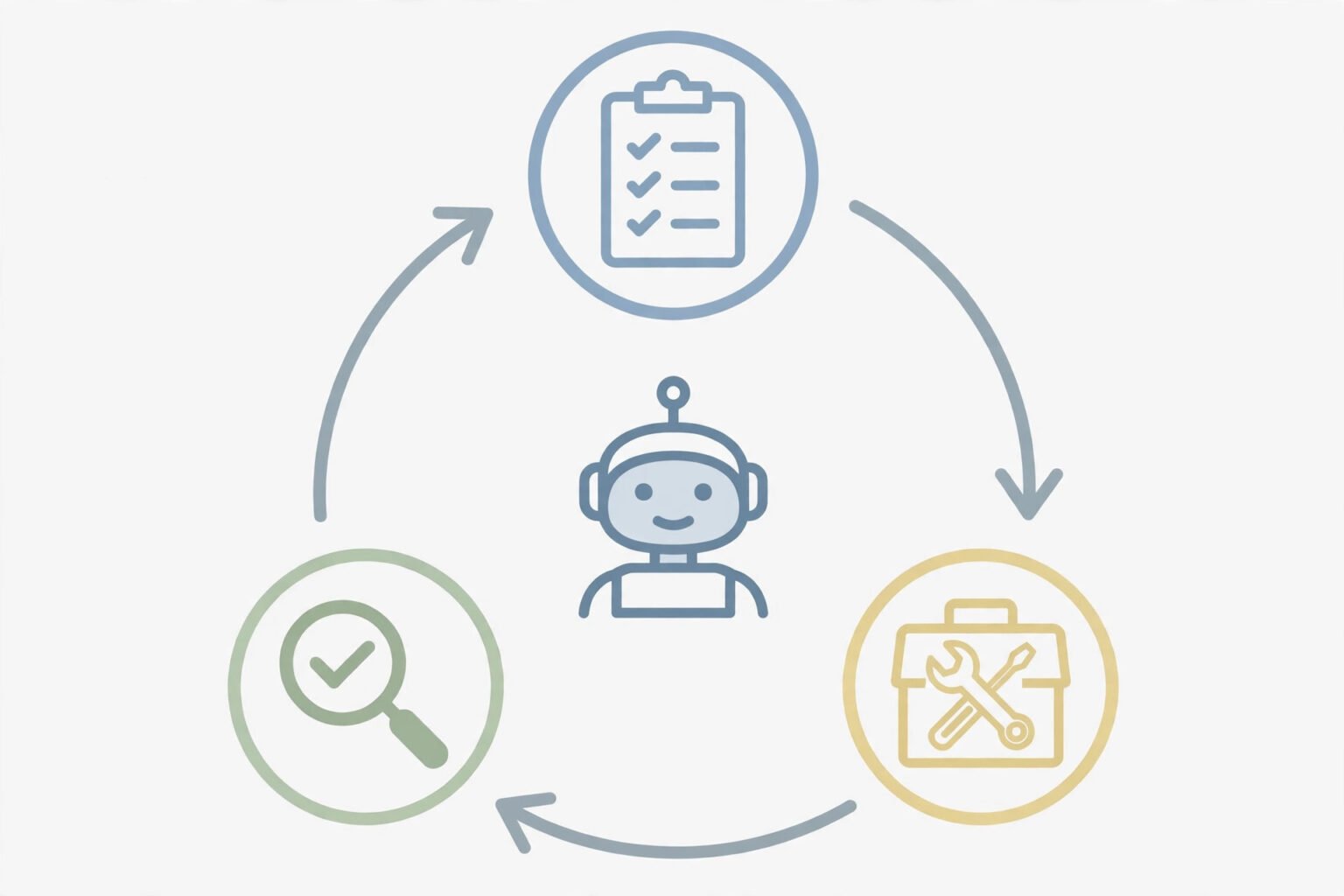
- No-code automation is trigger, action, AI step: something happens, the workflow reacts, and AI drafts, classifies or extracts the useful part.
- Zapier is the easiest start, Make gives more control, n8n is the self-hosted option, and Power Automate fits Microsoft 365.
- AI should draft and sort, not decide alone. Keep a human approval step for anything sent to a customer, a payment or a contract.
What AI automation actually is
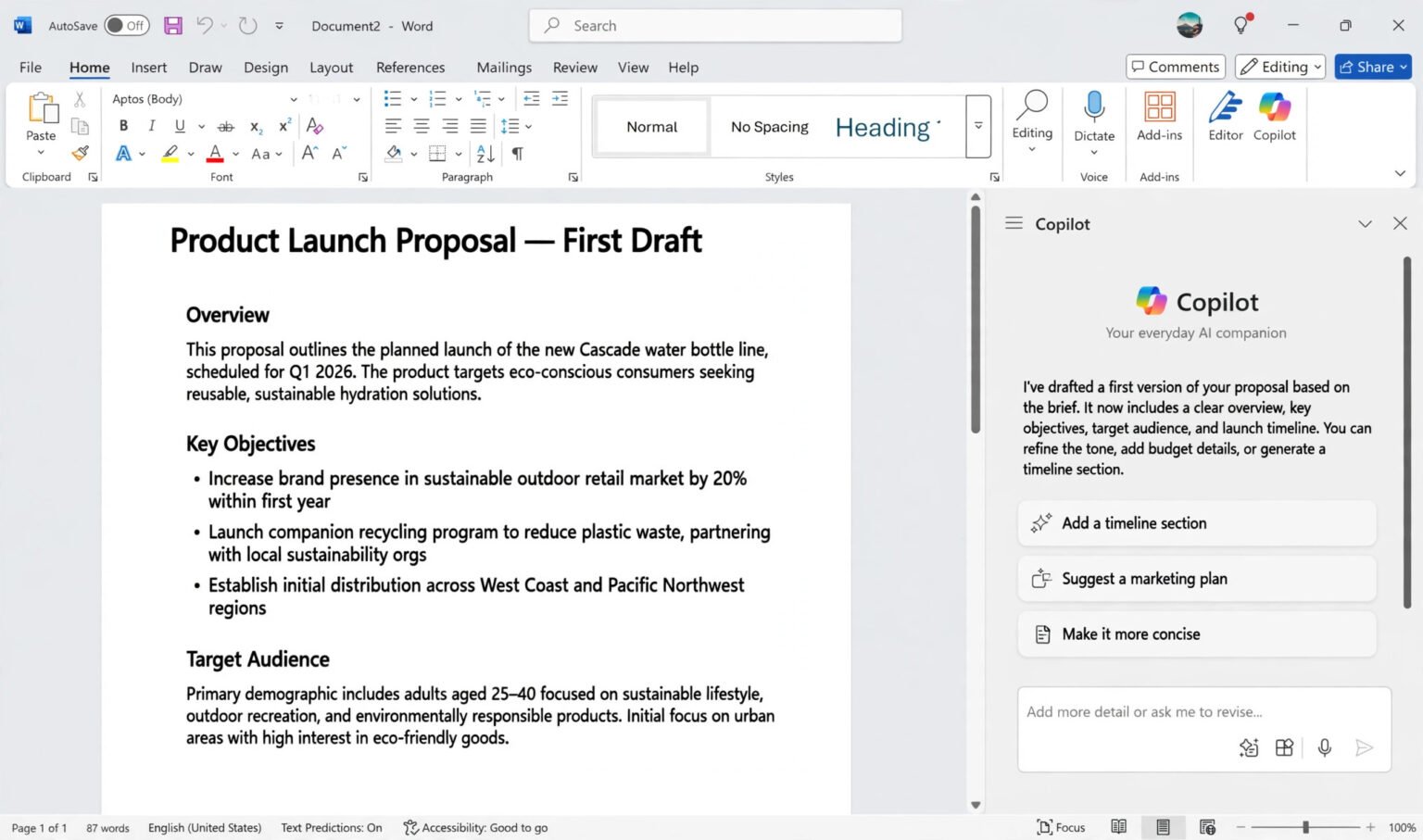
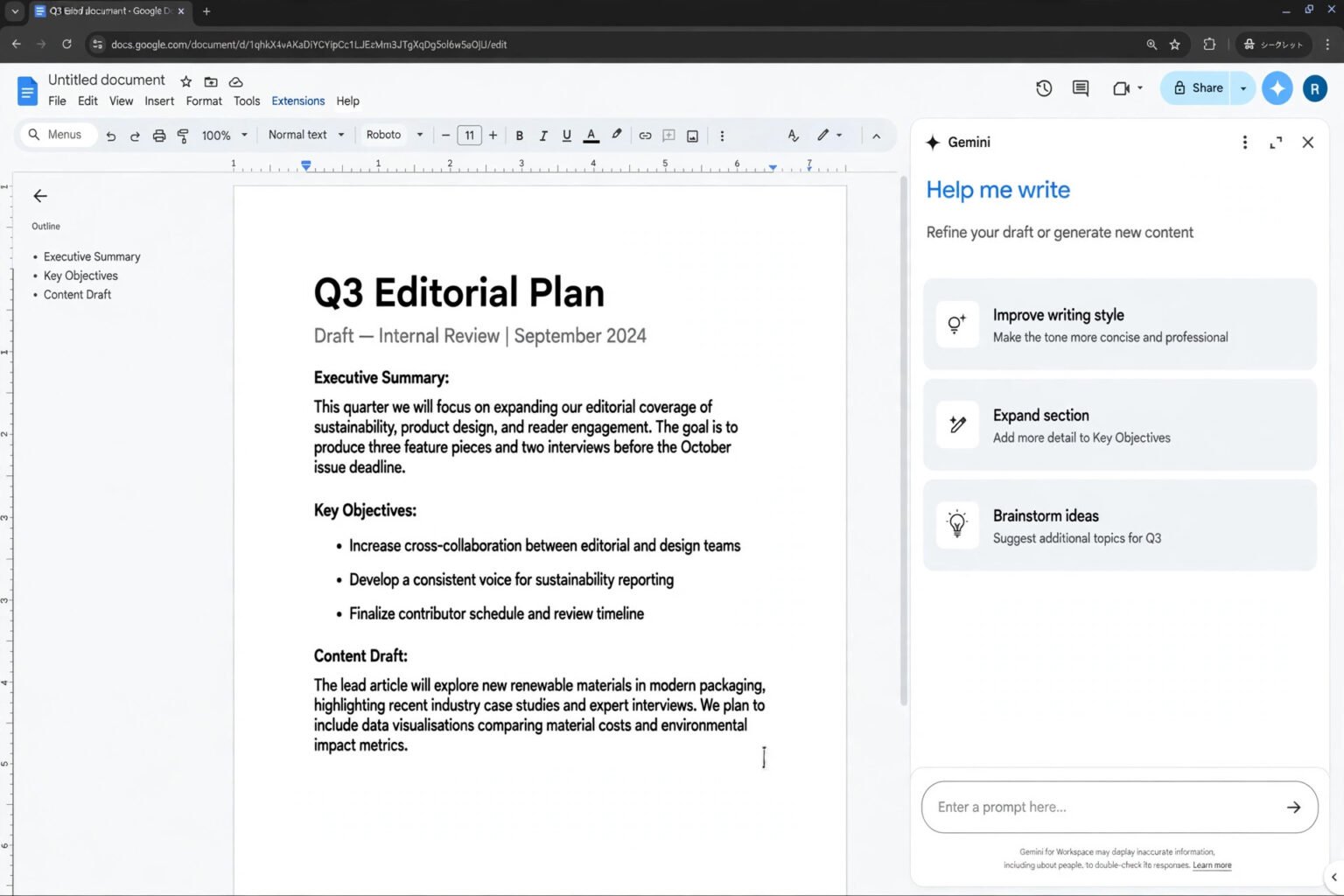
An automation has three parts. A trigger starts it, such as a new form submission or a new email. Actions follow, such as creating a task or updating a record. An AI step sits in the middle when judgement is needed: reading an email and deciding what it is about, drafting a reply, or pulling dates and amounts out of a document. That AI step separates modern automation from the old kind. A plain automation could copy form answers into a spreadsheet; an AI automation can read them, work out which are urgent, draft a different reply for each type, and flag the case that needs a person. You describe the rules in plain English — no code. Zapier Copilot, Make Maia and Power Automate Copilot each draft a first version from a plain-language description. You still check it, connect accounts, and test it.
Which tasks are worth automating first
The best first tasks are boring, frequent and predictable. If a task changes every time, automation will fight you. If it happens once a month, the time saved will not repay the time spent building it. Look for work that follows the same pattern, uses the same apps, and takes five to fifteen minutes each time. Good candidates include sorting enquiries, saving attachments, turning form submissions into tasks or spreadsheet rows, sending meeting reminders, drafting first replies, and summarising meeting notes. A freelancer, for example, can turn a new enquiry into a draft proposal in minutes — see how freelancers can use AI to write client proposals faster for a practical version of that workflow. Leave money, legal commitments, hiring decisions and financial advice alone at first. Automate the preparation, not the decision: let AI draft the invoice reminder, and let a person press send.
A quick test before you build anything: Does it happen at least three times a week? Can I describe it in five sentences? Would a mistake be fixable? If all three answers are yes, build it. If any is no, pick a smaller task.
How to automate a repetitive task, step by step
- Write down the task as it happens today: Write out every step, including the small ones you do without thinking: where the information arrives, what you check first, what you copy and paste, and who needs to know when it is done. Miss a step here and you will miss it in the build.
- Choose one tool and stay with it: Do not compare tools for a week. Pick the one that fits where your work lives: Gmail, Slack and Sheets point to Zapier or Make; Outlook, Teams and SharePoint point to Power Automate; your own server points to n8n.
- Build the simplest version first: Start with the trigger and one action, and nothing else. A new form submission creates a row in a spreadsheet. A starred email creates a task. Run it with real examples, then add the AI step. A simple workflow that works beats a clever one that fails quietly.
- Add the AI step with clear instructions: Give AI the instructions you would give a careful colleague — input, output, and what it must never do. For example: “Read this enquiry, write a two-sentence summary, label it Sales, Support or Billing, and draft a polite reply under 80 words. Do not promise a price or a date.” Short, specific instructions produce better results than long, vague ones.
- Test it with messy real examples: Test the awkward cases: a typo, a blank field, an email with two questions. If the category is unclear, send it to a person instead of guessing.
- Add a human check, then switch it on: For anything that leaves your organisation, add an approval step: draft the reply in your drafts folder, or post it to a private Slack channel for review. Run it for a week with that check in place. Find more guides in the AI Atlas hub.
Zapier vs Make vs n8n vs Power Automate
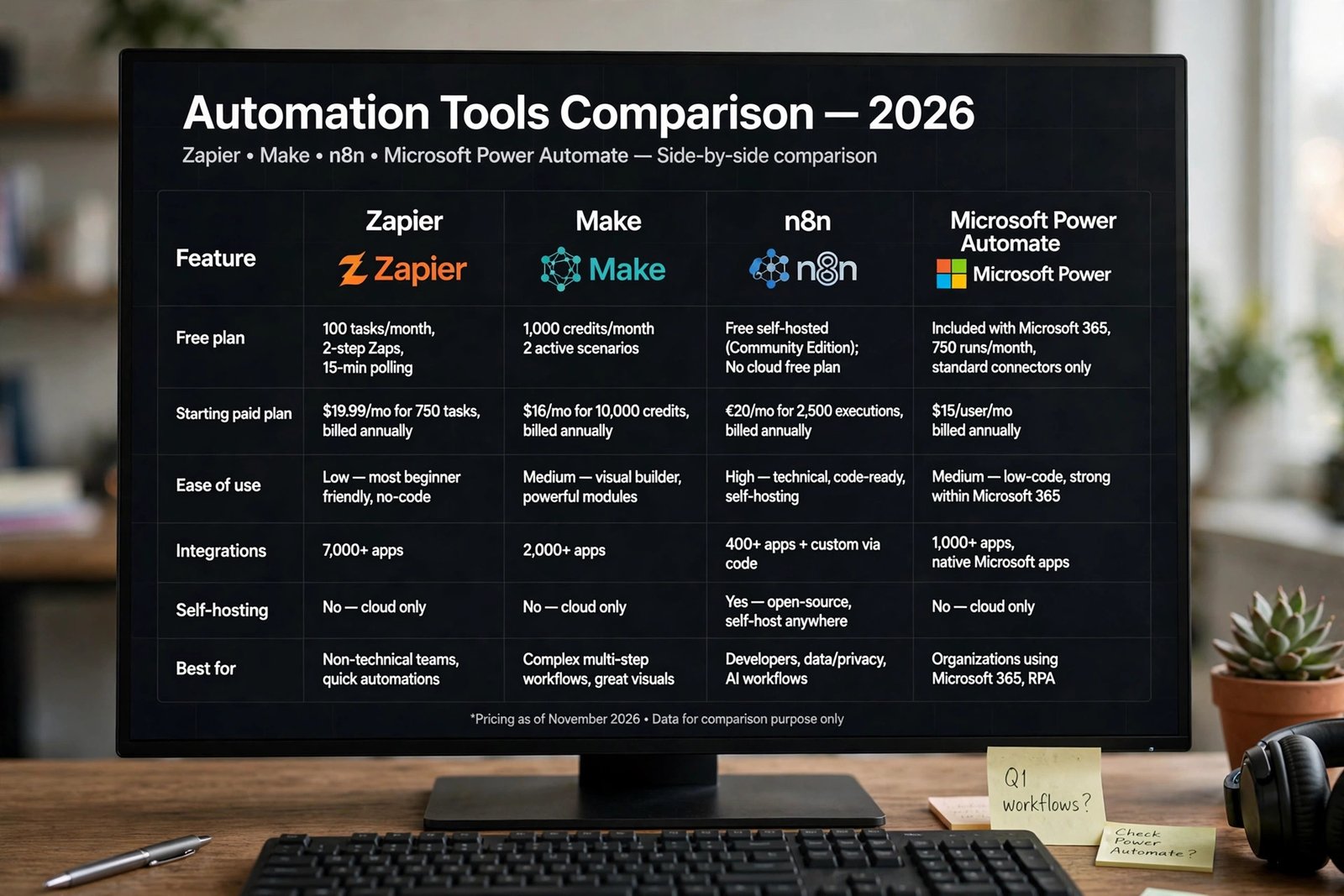
There is no single best tool, only a best fit for your apps and budget. The table uses free or included plans as published in late 2026; check current pricing before you buy.
| Tool | Best for | Free or included plan | No-code AI help | Watch out for |
|---|---|---|---|---|
| Zapier | Easiest first workflow | Free: 100 tasks a month, two-step Zaps, 15-minute polling | Copilot builds workflows from a description | Free plan is small; multi-step Zaps need a paid plan |
| Make | Branching workflows | Free: 1,000 operations a month, two active scenarios, 15-minute interval | Maia builds a first scenario from a conversation | A five-step scenario run 200 times uses 1,000 operations |
| n8n | Self-hosting, full control | Self-hosted version is free on your own server; cloud charges per execution | AI nodes connect to language models | You look after updates, security and backups |
| Microsoft Power Automate | Microsoft 365 teams | Included with most Microsoft 365 plans for standard connectors only | Copilot builds flows from plain language; AI Builder is premium | Premium connectors and AI Builder need Premium, about $15 per user per month |
Best for most beginners: Zapier. Best for a growing small business: Make. Best for privacy and control: n8n self-hosted. Best inside Microsoft 365: Power Automate.
Where AI adds real value — and where it does not
AI is most useful in the middle of a workflow, where the input is messy and the output needs judgement. It can read an email and decide whether it is a complaint, a sales enquiry or a job application. It can also extract details from a PDF, turn a meeting transcript into action points, or draft a first reply for a person to check. AI is least useful where the answer must be exact every time. Do not let it calculate a price or decide who gets a refund or what a contract means. For those jobs, use a lookup or a fixed rule, and use AI only to draft the message. AI drafts and sorts; rules and people decide. Privacy matters more as automation grows: a workflow can quietly send customer details to a third-party AI service with every run. Before automating a task that touches personal data, check what the tool sends and where it is stored. If you run a small business, start with how to write an AI policy for a small business — it covers the decisions that should come first.
A decision framework: should I automate this task?
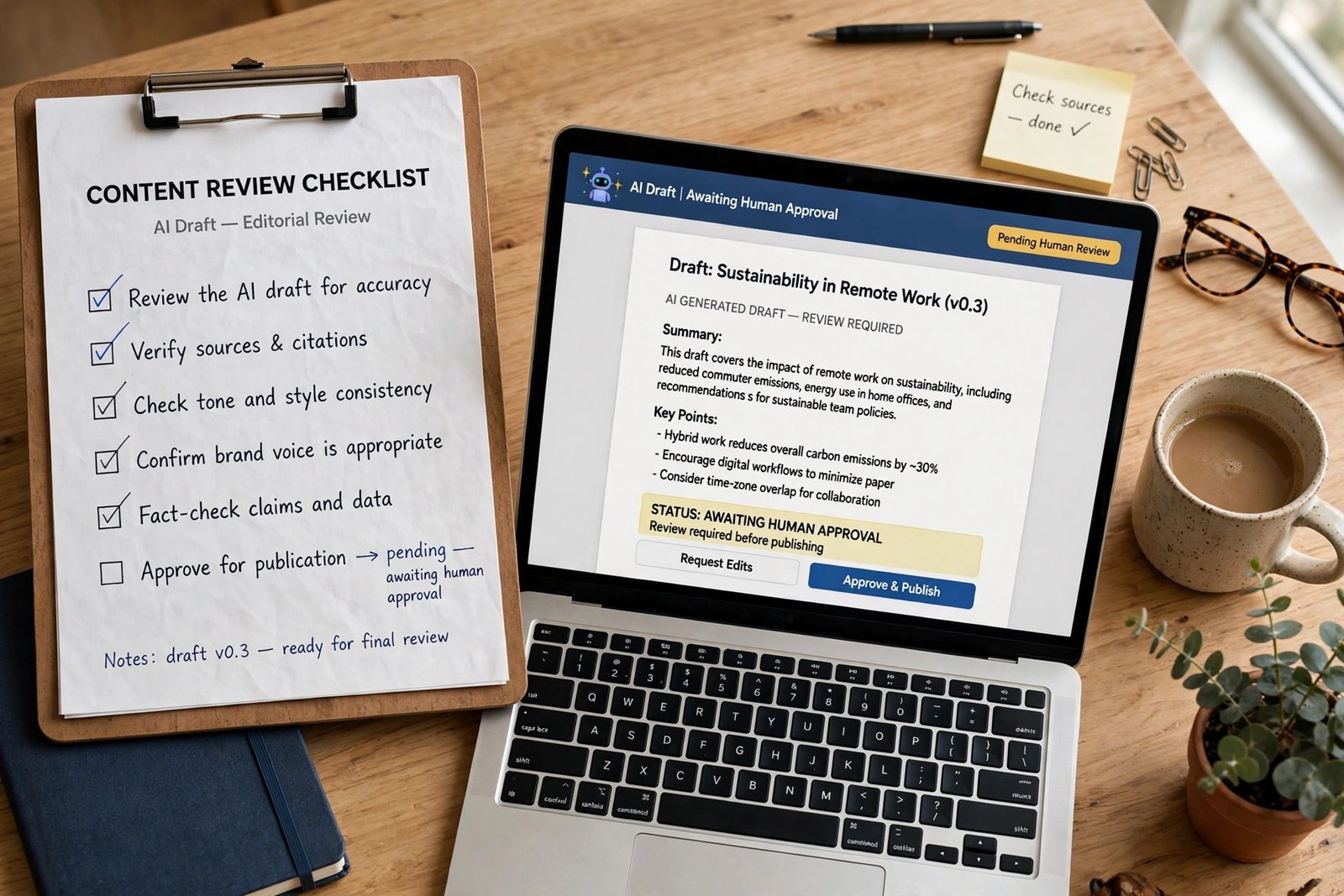
Use this checklist before you build. Only build when you can answer yes to at least five of these seven questions.
- Does it happen often? At least three times a week, or twenty times a month.
- Is it predictable? The steps are the same, or nearly the same, every time.
- Is the input digital? It arrives by email, form, chat or spreadsheet.
- Is the cost of a mistake low? A wrong draft or a misfiled task is fixable in minutes.
- Can I describe the outcome? You can say in one sentence what “done” looks like.
- Will it save at least 30 minutes a week?
- Is there a human check I can add? Someone can review the output before it reaches a customer.
Score five or more, build it. Score three or four, simplify first. Score two or fewer, keep doing it by hand — a bad automation costs more than the manual work it replaced.
Frequently asked questions
Can I automate tasks with AI if I cannot code at all?
Yes. Zapier, Make and Power Automate are built for people who do not code: you pick apps and events from menus, connect your accounts, and describe the workflow in plain language. Their AI assistants — Zapier Copilot, Make Maia and Power Automate Copilot — can draft a first version.
How much does no-code AI automation cost to start?
You can start free: Zapier allows 100 tasks a month, Make allows 1,000 operations a month, Power Automate is included with most Microsoft 365 plans, and n8n is free if you self-host it. Paid plans start from about $9 to $20 a month.
What is the easiest repetitive task to automate first?
Saving form submissions to a spreadsheet, or turning them into tasks, is the easiest useful first workflow: a clear trigger, one action, and no customer-facing message to get wrong. Once it runs reliably, add an AI step that summarises each submission.
Is it safe to let AI send emails or messages for me?
It is safe only with a human check in place. Let AI draft the message, and let a person approve it before it is sent, at least for the first few weeks. For anything to a customer, keep the approval step.
What should I do when an automation breaks?
Check the tool’s run history: it shows each run, which step failed, and what data it received. Common causes are a changed password, a renamed column, a blank field, or a limit reached on a free plan. Fix the cause, rerun the failed item by hand, and add a notification for next time.
The bottom line
Learning how to automate repetitive tasks with AI is not about replacing your judgement. It is about removing the small, repeated jobs that fill your day, so the judgement is left for the work that actually needs it. Start with one task, build the simplest version, add one AI step, and keep a person in charge of anything that leaves your business. Pick that task this week. Write down its steps, choose the tool that fits the apps you already use, and build the two-step version first. If it saves thirty minutes a week, that is a real win — and the proof you need before you automate the next one.