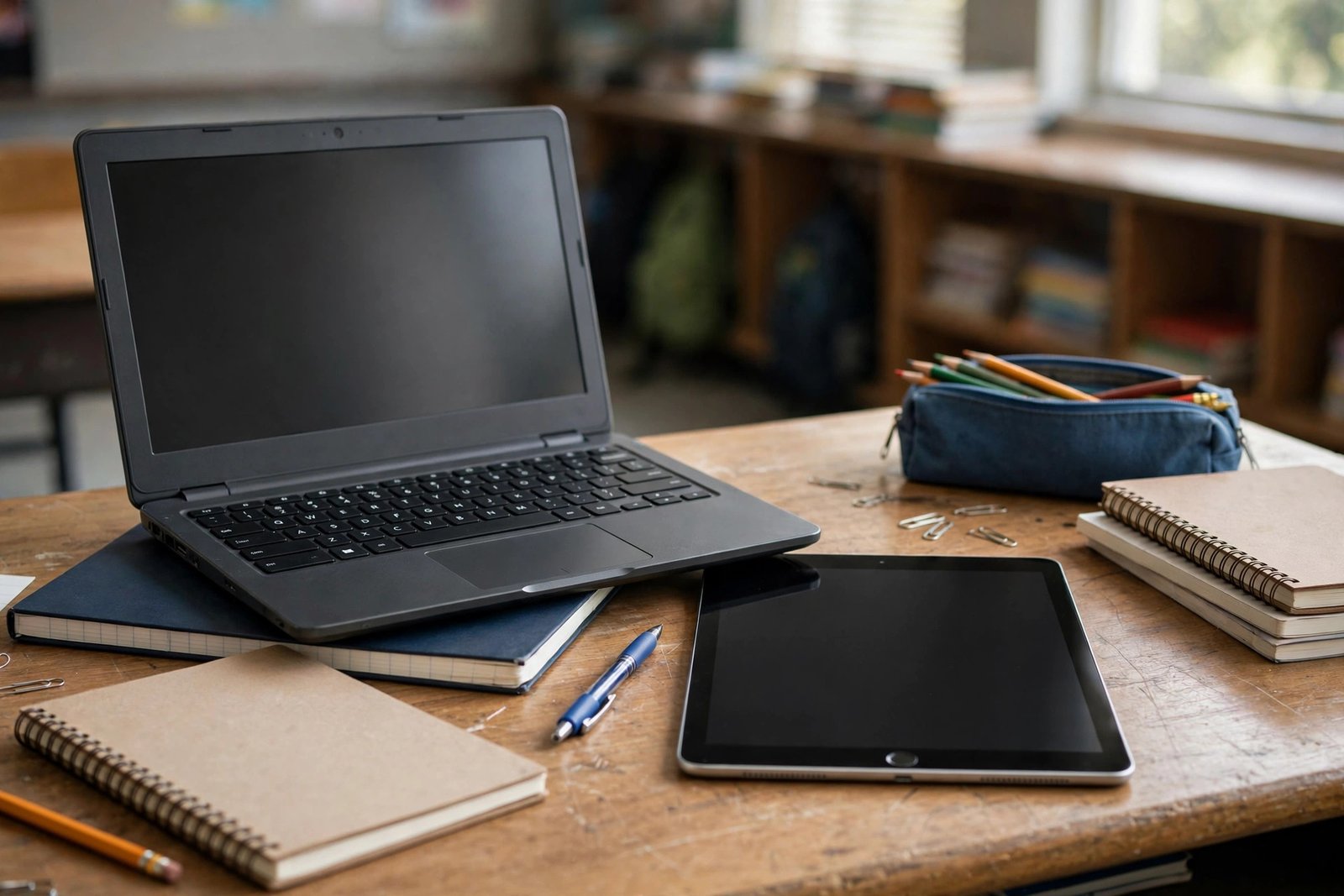
Choosing a Chromebook vs iPad for school is less about which device is better in general and more about which one fits your child’s school day. The Chromebook vs iPad for school question has a clear answer once you know how the school works: if most lessons run through Google Classroom and involve long typed assignments, a Chromebook usually wins, while an iPad usually wins for drawing, handwriting, video and touch-first apps.
The wrong choice is not a small inconvenience. A child with an iPad and no keyboard will struggle through a long essay, and a child with a Chromebook will struggle through an art lesson built around Apple Pencil. Ask the school which platform its lessons, logins and tests are built for, then match the device to that answer.
Key takeaways
- Ask the school first. Its learning platform, test software and device rules matter more than any spec sheet.
- Chromebooks are usually cheaper, easier for schools to manage, and come with a built-in keyboard.
- iPads are stronger for drawing, handwriting and touch-first apps, but a keyboard and case are usually extra.
- For heavy typing and Google Classroom, a Chromebook is the simpler pick. For creative and younger primary-age work, an iPad often fits better.
- Check the update support date on a Chromebook and the management setup on an iPad before you buy.
The short answer: it depends on the school
A Chromebook is a laptop running ChromeOS, Google’s browser-centred system, with a keyboard, trackpad and desktop-style file system. An iPad is a tablet running iPadOS, with a touch screen, the App Store and optional accessories such as Apple Pencil and a keyboard case. Both can open Google Docs and join video calls. The difference is what each does without extra spending.
If the school uses Google Workspace for Education, the Chromebook is the native device. Pupils sign in with a school Google account, open Classroom, Docs and Slides in the browser, and hand work in without converting files. If the school uses Apple tools, or its art, music and early-years teaching is built around iPad apps, the balance shifts. Apps such as GarageBand and Keynote are designed for touch and stylus first, while a Chromebook’s Android apps are often a compromise.
Price and total cost
Price is the Chromebook’s strongest case. Education-grade Chromebooks are commonly sold at lower prices than iPads, and they arrive with a keyboard and trackpad included. The real comparison is tablet plus keyboard plus case against laptop. Once you add a keyboard case and a protective case to an iPad, the gap widens.
That does not make the iPad poor value in every case. A base iPad can serve for several years, and families who already own Apple accessories may get more from it. Check current pricing from the school’s supplier and from Apple and Google education stores before deciding. Also ask about repairs: a cheaper device that costs a lot to fix, or sits unused for three weeks, is not the cheaper option over a school year.
Keyboard and typing
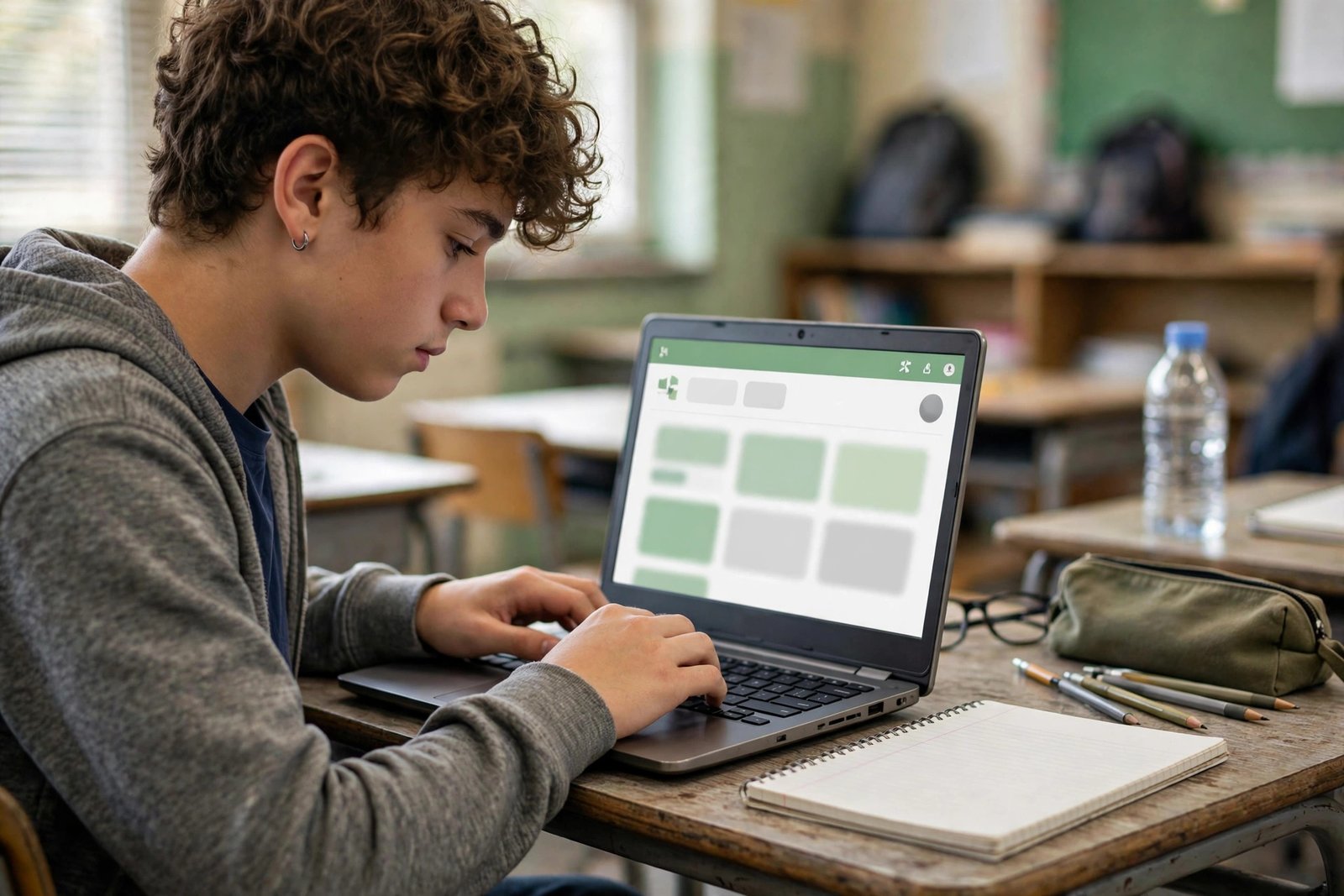
Most schoolwork after the early primary years involves typing. Essays, reports and online tests all reward a real keyboard. A Chromebook has one built in, with full-size keys and a trackpad, and there is nothing to charge separately or pair.
An iPad has an on-screen keyboard, fine for short answers but slow and tiring for long writing. A keyboard case closes that gap, and the best ones are genuinely good, but they add cost and weight, and must fit the exact iPad model. A pupil writing two or three long pieces a week will notice the difference every day. A younger child writing short sentences will not.
Apps and classroom tools
Google Classroom works on both devices, but it works most smoothly on a Chromebook, where Docs, Sheets, Slides and Drive open in the browser and save automatically. Pupils can keep several tabs open and research beside their draft. That multi-window workflow is closer to how older pupils will work later.
The iPad answers with depth rather than breadth. Its App Store has a large catalogue of education apps designed for touch, handwriting and creative work. Apple Classroom and Schoolwork let teachers guide pupils through lessons and collect finished work. Check the specific apps the school requires, since some assessment tools only support certain browsers or systems. If neither platform is specified, our guide to the best Android tablets is worth a look for a household that lives in Google services but wants a touch screen.
Durability and battery
School devices live hard lives. Education-grade Chromebooks are often built for this, with rubberised edges, spill-resistant keyboards and screens tested to survive drops from desk height. They are not indestructible, but they assume they will be knocked about.
An iPad is a sheet of glass with a thin aluminium back. It needs a rugged case in school use, with raised edges and corner protection, plus a screen protector. Our roundup of the best iPad cases explains what to look for, including a holder for Apple Pencil. Budget for the case as part of the iPad’s price. Battery life is a draw: both are designed to last a school day with ordinary use.
Management: what school IT deals with
For a school with hundreds of devices, management decides whether the programme works. Chromebooks are managed through the Google Admin console, where IT can set policies, push apps and wipe a lost device from one place. Google states that Chromebooks released from 2021 onwards receive 10 years of automatic updates, with each model’s expiry date published, so schools can plan replacements years ahead.
iPads are managed through Apple School Manager and a mobile device management system, or MDM. Apple School Manager is free, but most schools also pay for an MDM service to enrol devices and apply restrictions at scale. For parents, the question is who manages the device you buy: ask what the school can see and control, and what happens to the device and its data when your child leaves.
Creativity, handwriting and age
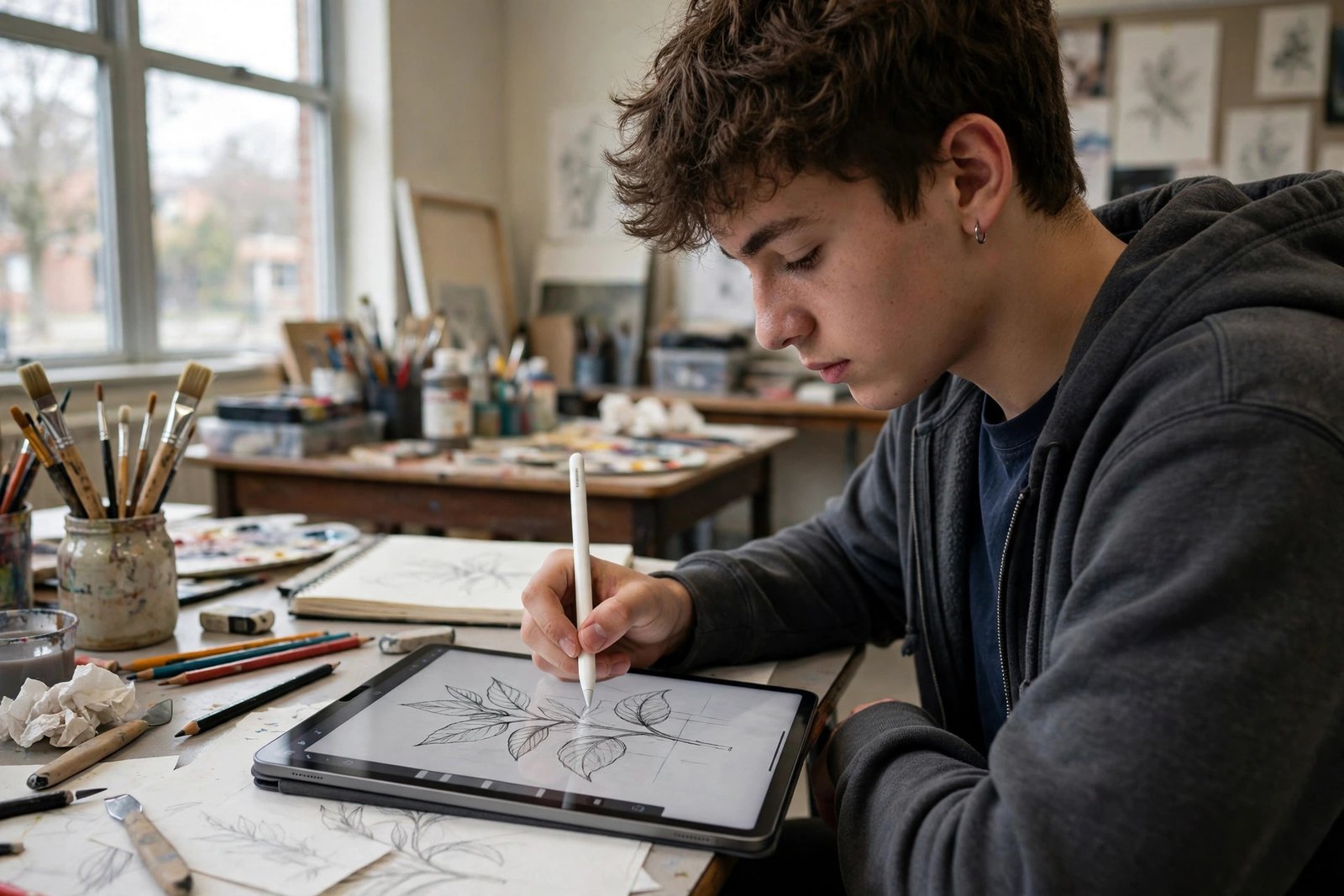
This is the iPad’s strongest ground. Drawing with Apple Pencil, annotating a PDF by hand, recording a short video and composing music all feel natural on a tablet. For art, design and media lessons, and for younger children still developing fine motor skills, touch and stylus input are easier than a mouse and keyboard.
Chromebooks have improved, with touch screens and stylus support on many models, but the app catalogue is thinner. Age is a useful guide: younger primary pupils, roughly five to nine, often benefit most from touch and drawing, while pupils from around ten upwards usually benefit more from a Chromebook’s keyboard. If you are comparing two Apple tablets for an older pupil, our iPad Air vs iPad Pro for students comparison covers the size and performance trade-offs.
| Feature | Chromebook | iPad |
|---|---|---|
| Built-in keyboard | Yes, full keyboard and trackpad included | No, on-screen keyboard; a keyboard case is extra |
| Classroom platform | Google Classroom and Google Workspace, native in the browser | App Store apps, Apple Classroom and Schoolwork |
| Best for | Typing, research, multi-window work, school-managed fleets | Drawing, handwriting, video, music and touch-first apps |
| Management | Google Admin console; 10 years of updates on models from 2021 | Apple School Manager plus an MDM service |
| Durability | Education models often ruggedised with spill-resistant keyboards | Needs a rugged case and screen protector |
| Battery | Designed to last a school day with ordinary use | Designed to last a school day with ordinary use |
| Price shape | Usually lower upfront, keyboard included | Higher once a keyboard case and rugged case are added |
Table: Chromebook vs iPad for school at a glance. Check current pricing and your school’s required apps before buying, since both can change the answer.
How to decide: a five-minute checklist
Run through these questions in order, and the right device usually becomes clear.
- What does the school require or recommend? If it names a platform or app, follow that first.
- How much typing does your child do each week? Daily long-form writing points to a Chromebook.
- How much drawing, handwriting or video work is involved? A heavy creative load points to an iPad with Apple Pencil.
- What is the full price, including case, keyboard, stylus and damage cover? Compare complete setups, not headline prices.
- Who manages the device, and what happens to it at home and after your child leaves the school?
- How long will it be supported? Check the Chromebook model’s update expiry date and the iPad model’s likely iPadOS support.
- Can your child try both? A short session typing a paragraph and drawing a picture on each is worth more than an hour of reviews.
Frequently asked questions
Is a Chromebook or iPad better for school?
It depends on the school. A Chromebook is usually better for Google Classroom, heavy typing and school-managed fleets, while an iPad is usually better for drawing, handwriting and touch-first creative work. Check the school’s required apps first.
Can an iPad replace a Chromebook for schoolwork?
Yes, if it has a good keyboard case and the school’s apps are available on iPadOS. Without a keyboard, long essays are slow. With one, an iPad can handle most schoolwork, though file management stays easier on a Chromebook.
Can a Chromebook replace an iPad for creative work?
Partly. Touch-screen Chromebooks with a stylus can handle drawing and web-based creative tools, but the iPad’s app catalogue for art, music and video is broader. For a pupil whose main subjects are creative, the iPad is the safer choice.
Which is better for primary school children?
An iPad often suits younger primary pupils better, because touch, drawing and simple apps match how they learn. From around age ten, when writing gets longer, a Chromebook’s keyboard and browser workflow usually become more useful.
Do schools prefer Chromebooks or iPads?
Many state schools prefer Chromebooks for cost and central management, while schools with a strong creative, music or early-years focus often prefer iPads. The school’s existing platform and IT setup decide it.
How long will each device last at school?
Google states that Chromebooks released from 2021 onwards receive 10 years of automatic updates, though batteries and keyboards may wear sooner. iPads typically receive several years of iPadOS updates, depending on the model. Check support dates before buying.
The verdict: buy the device the school day needs
For most families whose school runs on Google Classroom and whose children write long assignments, a Chromebook is the better buy. It is cheaper, types well out of the box, is easy for schools to manage, and its long update support makes replacement planning simple. That is the practical choice for most secondary pupils and older primary pupils.
For families whose school is built around iPad apps, or whose child spends most of the day drawing, annotating, filming or making music, an iPad is the better buy, provided you also buy a keyboard case and a rugged case. The tablet itself is only half the purchase. If you are still torn, let the school decide, and check its rules on screen time, device use at home and personal accounts before you hand over a device.