Learning how to clear cache on iPhone without losing data is worth doing before you delete anything important: the cache is temporary, and your photos, messages and logins do not have to go with it. In most cases, you can free up a useful amount of space by clearing Safari’s website data, switching on automatic offloading, and clearing the cache inside individual apps that offer the option.
Apple does not give the iPhone a single “clear all cache” button. Instead, the cache is spread across Safari, individual apps, and the system itself, and each one is cleared in a different place. This guide explains what the cache is, which methods free space without losing data, and what not to delete.
Key takeaways
- There is no single “clear all cache” button on iPhone. Safari, apps and the system each hold their own temporary data.
- Clearing Safari website data removes history, cookies and stored files, and signs you out of websites.
- Offloading an app removes the app but keeps its documents and data, so reinstalling it restores everything.
- Many apps have a clear-cache option inside their own settings — use that before deleting the app.
- Deleting and reinstalling an app clears its cache, but also removes data stored only on the phone.
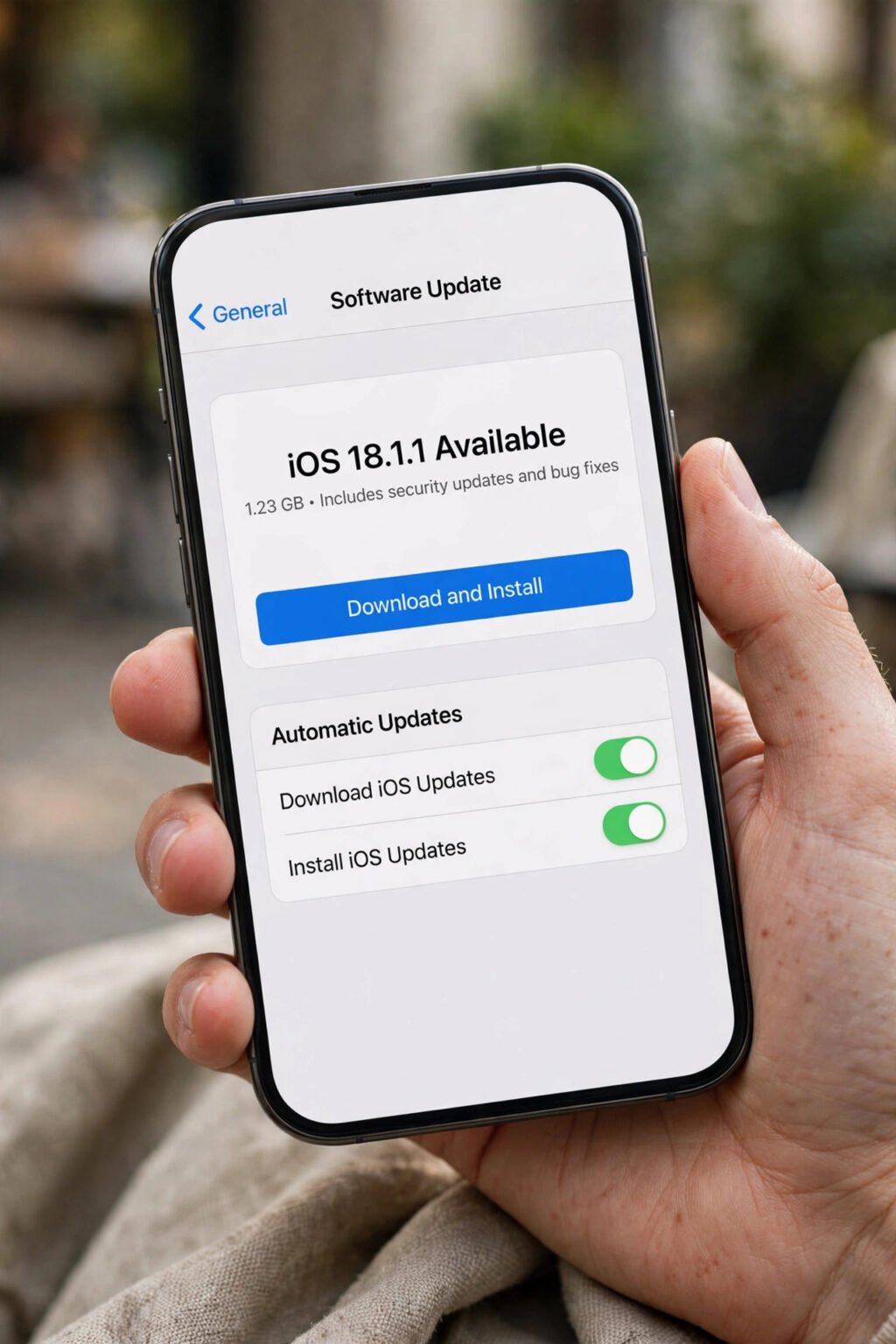
- Menu names can vary slightly between iOS versions.
What is the cache on an iPhone?
The cache is a store of temporary files that apps and the system keep so they can work faster: Safari keeps copies of website images and pages, and apps keep thumbnails, preview images and downloaded content.
None of this is your data. Your photos, messages, contacts, notes and documents are stored separately, and clearing a cache does not touch them. Over time, though, it can quietly take up several gigabytes on a phone with limited storage.
Clearing a cache is maintenance, not a repair: it will not fix a worn battery or a phone that is short of storage because of photos and videos. If storage is the real problem, start by seeing what is actually using it, in Settings, under General and then iPhone Storage. If the battery is the concern, our guide to checking your iPhone battery health will tell you whether the battery itself is part of the story.
Before you start
Two quick checks will save you trouble later. First, make sure you know the passwords for the websites and apps you use most, because clearing Safari’s website data signs you out of websites. If your passwords are saved in iCloud Keychain or a password manager, this is a minor inconvenience.
Second, check that your important data is backed up or synced: photos in iCloud Photos, messages in iCloud, and documents in iCloud Drive. Clearing a cache does not delete these, but a backup means you never have to worry about the difference between temporary data and real data.
Method 1: Clear Safari website data
Safari is usually the biggest single source of cache on an iPhone, so it is the best place to start.
Open Settings, tap Safari, then tap Clear History and Website Data. Choose All History to clear everything, then confirm. This removes your browsing history, cookies and cached website files, and signs you out of websites.
For a more targeted option, tap Advanced, then Website Data, in the same screen. This shows how much data each website has stored, and lets you remove data for individual sites while keeping your browsing history.
The exact wording of these screens can vary between iOS versions. If you cannot find an option exactly as described, look for the same wording nearby, or search Settings for “Safari”.
Method 2: Offload apps you do not use
Offloading is the safest way to free a large amount of space. When you offload an app, the iPhone deletes the app itself but keeps its documents and data, so reinstalling it later restores everything exactly as it was.
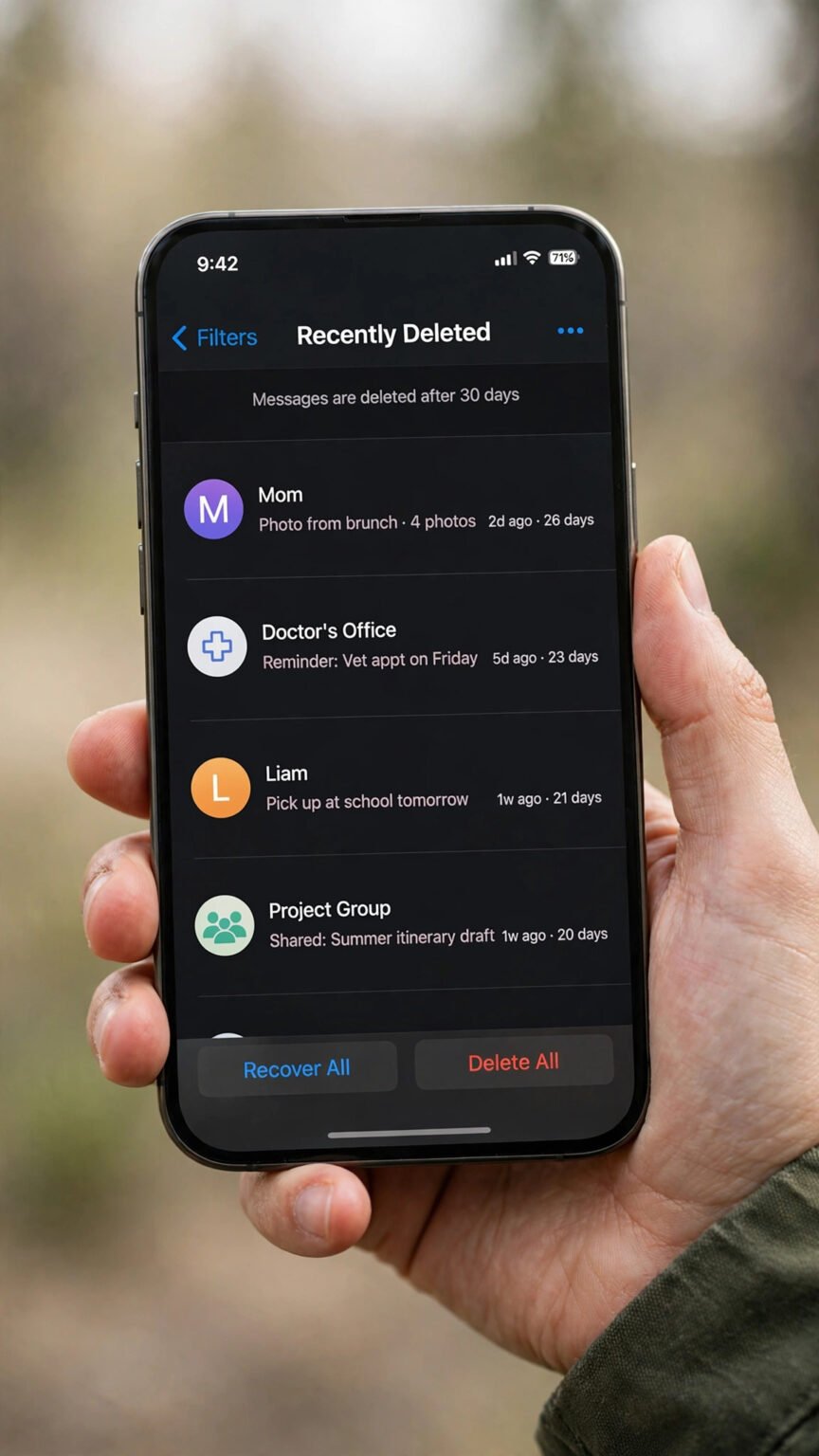
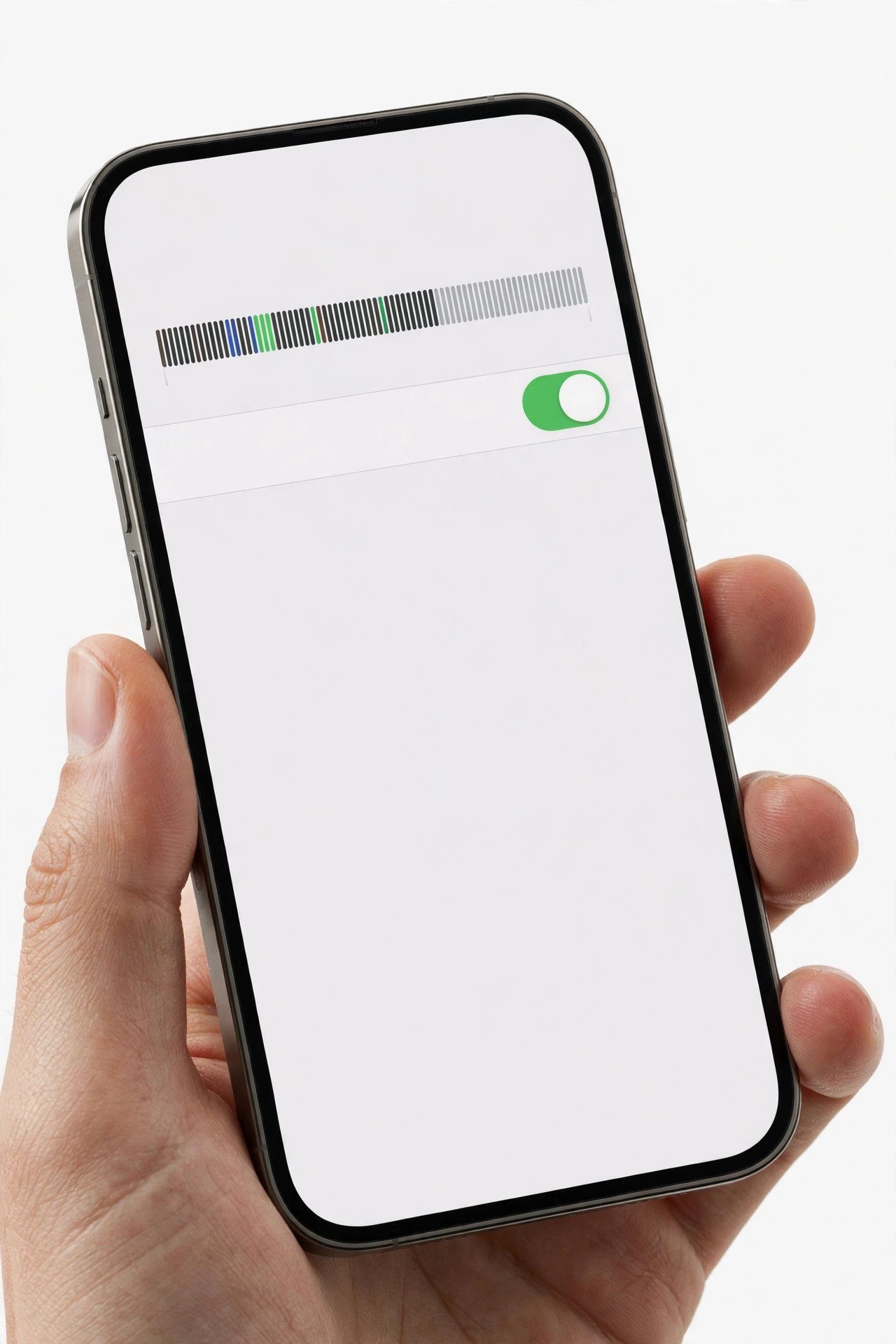
To switch it on for all apps, open Settings, then General, then iPhone Storage, and turn on Offload Unused Apps. The iPhone will then offload apps you have not used in a while when storage runs low. It is a good setting to leave on: it only acts when space is needed, and it never touches your data.
You can also offload a single app: in the same iPhone Storage screen, tap an app to see how much space it uses, and tap Offload App if it is large and rarely used. Its icon stays on your home screen with a small download symbol, and tapping it reinstalls the app with your data intact. Offloading is different from deleting, which removes the app and its data together. For more ways to keep an iPhone running well, our guide to extending your iPhone battery life also covers the settings that quietly drain power in the background.
Method 3: Clear the cache inside individual apps
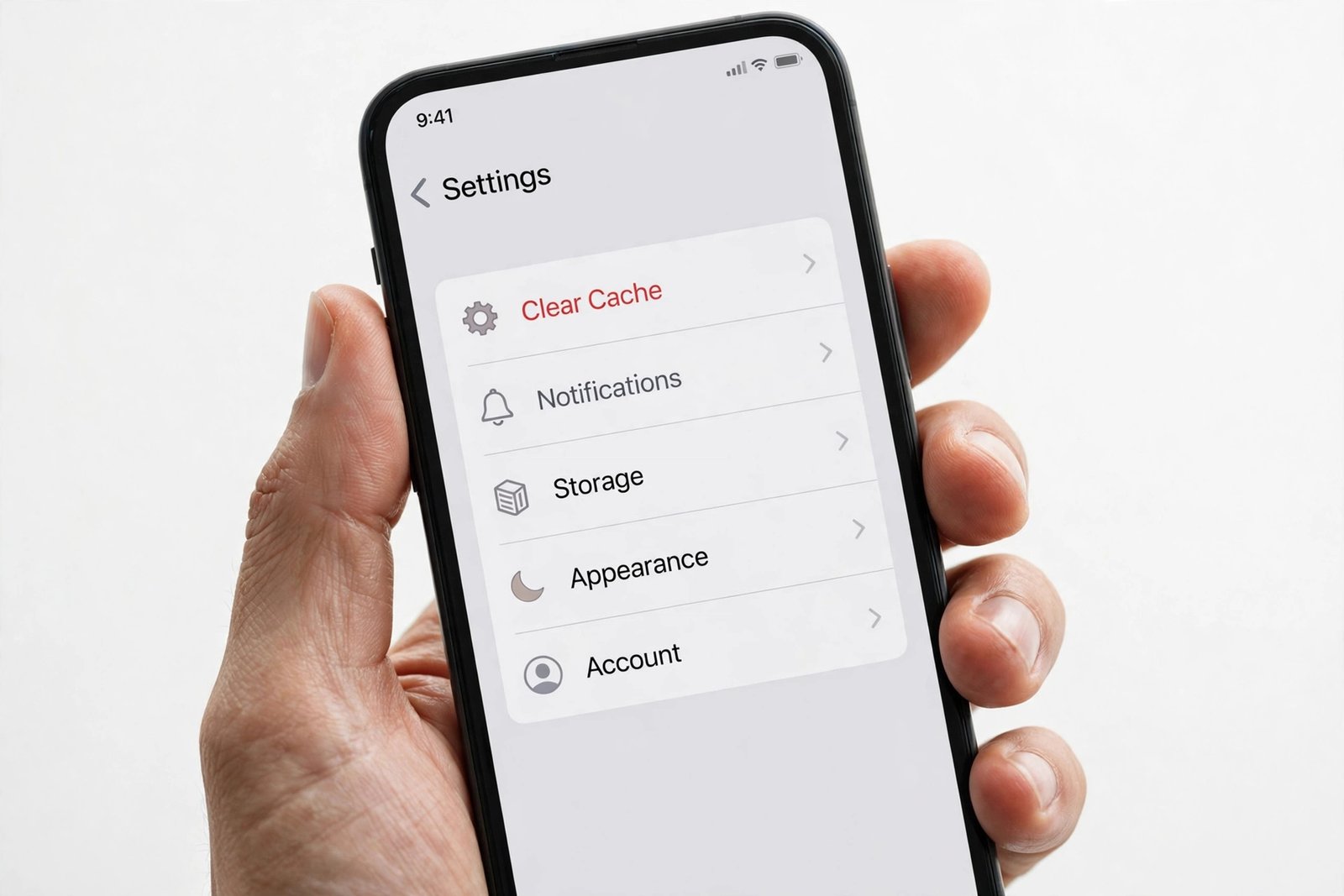
Unlike Safari, most apps have no cache setting in the iPhone’s Settings app. The option, where it exists, is inside the app itself, usually under its own settings or storage section, so there is no single path that works for all of them.
Start with the apps that use the most space. In iPhone Storage, look for apps where the app itself is large, or where the documents and data figure is much bigger than expected. Open the app and look for words like Cache, Storage, Data usage, or Clear cache in its settings. Social, streaming and messaging apps are the most likely to offer this.
In a streaming app, check for downloaded content you no longer need. In a messaging app, look for a storage section that lets you clear cached media. If an app offers no such option, that is normal. Clearing a cache from inside an app is safe: it removes temporary files, not your account, messages or saved content.
Method 4: Delete and reinstall an app, only when it is safe
If an app is taking up a large amount of space and offers no way to clear its cache, deleting and reinstalling it will clear the cache completely. It is the most thorough method, and the riskiest.
Only delete an app if you are sure your data is stored somewhere other than the phone: the app syncs to an account or a cloud service, such as a streaming service or a social network. If the app holds data that exists only on your phone, such as a notes app that does not sync or a game with unsaved progress, deleting it will lose that data.
To delete an app, press and hold its icon on the home screen, tap Remove App, then Delete App. Reinstall it from the App Store and sign in again: the app will download fresh, with no accumulated cache, and your synced data will return. If you are unsure whether an app’s data is synced, do not delete it. Offload it instead.
Which method to use
| Method | What it clears | What you keep | Best for |
|---|---|---|---|
| Clear Safari website data | History, cookies and cached files | Photos, messages and documents | Freeing space quickly, and fixing sites that load old pages |
| Offload unused apps | The app itself | All of the app’s documents and data | Freeing lots of space without losing anything |
| Clear cache inside an app | Temporary files and thumbnails | Your account and saved content | A single app that is using too much space |
| Delete and reinstall an app | The app and all of its cache | Only data synced to the cloud | An app with no cache option, when data is backed up |
Table: four ways to clear cache on iPhone.
The order matters. Start with Safari, because it is quick and safe. Then switch on automatic offloading, which protects you the next time storage runs low. Then work through the apps that use the most space, clearing their caches from inside the app. Only delete and reinstall an app if nothing else works and you are sure its data is synced.
What NOT to delete
Clearing cache is safe, but deleting the wrong thing is not. Do not delete apps that hold data only on your phone, such as a notes app that does not sync or a game with local progress. Offload those instead. Do not delete photos, videos or messages unless you have checked they are backed up, because deleting them from the phone also deletes them from iCloud if syncing is on.
Do not remove an app you need for two-factor authentication, or a banking app, without making sure you can sign in again. Do not clear Safari website data if you rely on staying signed in and cannot remember the password. And do not use third-party “cleaner” apps: Apple does not give them access to the system cache, so they cannot do what they claim.
Finally, do not expect clearing the cache to fix a phone that overheats while charging. Cache and heat are different problems: if your phone runs hot while charging, our guide to fixing a phone that overheats while charging explains the causes and the safe fixes.
Frequently asked questions
Will clearing the cache on my iPhone delete my photos?
No. Clearing Safari website data, offloading apps, or clearing an app’s cache does not touch your photos, which are stored separately. Make sure they are backed up before you delete anything else, though, because deleting a photo from the phone also removes it from iCloud if syncing is switched on.
Does clearing Safari cache sign me out of websites?
Yes, because it removes the cookies that keep you signed in. You will need to sign in again, so check you know your passwords first. To clear the cache for one site only, use the Website Data screen in Safari settings.
Is offloading an app the same as deleting it?
No. Offloading removes the app but keeps its documents and data, so reinstalling it restores everything. Deleting removes the app and its data together.
How often should I clear the cache on my iPhone?
There is no fixed schedule. Clear Safari’s website data when a site misbehaves or storage is tight, and leave automatic offloading switched on. Clearing cache every few months is enough for most people.
Will clearing the cache make my iPhone faster?
It can help, particularly if storage is nearly full, because iPhones need free space to work well. But it will not fix a slow phone if the real problem is an old battery, too many photos and videos, or a misbehaving app. Check what is actually using your storage before you assume the cache is the cause.
Conclusion
Clearing the cache on an iPhone is less convenient than it should be, but it is not difficult, and it is safe as long as you know what each method removes. Safari first, offloading second, and individual apps third will free the most space with the least risk.
The next step is a small one: open Settings, check iPhone Storage, and note what Safari and your apps are actually using. Clear Safari’s website data, switch on automatic offloading, and clear the cache inside the two or three apps at the top of the list.