Your iPhone dies before dinner again, and you want to know how to extend iPhone battery life in 2027 without buying a new phone or carrying a power bank everywhere. The good news is that most battery drain comes from a handful of settings and habits you can change in an afternoon, and the fixes cost nothing.
Key takeaways
- Low Power Mode, lower screen brightness and limiting Background App Refresh deliver most of the benefit.
- Keep Optimised Battery Charging switched on and avoid heat while charging to slow long-term wear.
- Check the battery usage screen first, so you fix the real drain instead of guessing.
Start With the Real Culprit: Your Usage
Before changing any setting, find out what is actually draining your battery. Open Settings, tap Battery, and scroll down to the list of apps ranked by battery use over the last 24 hours or the last 10 days. A single social or video app can account for a third of daily drain, and no settings tweak will fix that as effectively as simply using the app less.
Signal strength matters too. When your phone has a weak signal, its radio works harder to stay connected, and that burns charge fast. If your battery drops quickly in the same place every day, such as a basement office or a rural commute, the cause is probably the signal, not the battery. Switching to Wi-Fi where available, or turning on Airplane Mode in a genuine dead zone, can save more power than any brightness adjustment.
Temperature plays a part as well. iPhones are designed to work best in normal room temperatures, and extreme heat in particular accelerates battery wear. A phone left on a car dashboard in summer sun will drain faster and age faster.
Low Power Mode: The Single Biggest Switch
Low Power Mode is the fastest way to stretch a dying battery, and it is built into every modern iPhone. Turn it on from Settings, then Battery, or add it to Control Centre for one-tap access. It reduces background activity, lowers the screen refresh rate on models that support it, pauses automatic downloads and mail fetch, and dims some visual effects.
Use it strategically rather than permanently. Switching it on at 20% will buy you hours, but running it all day, every day, means giving up background refresh and timely notifications for a saving you may not need. A better habit is to switch it on when you know you will be away from a charger for a long time, such as a travel day, and switch it off when you are back near power.
You can also let the phone do it for you. iOS offers to turn on Low Power Mode automatically when the battery falls to 20%, and again at 10%. Accepting that prompt is sensible, and the mode switches itself off once the phone charges past 80%.
Screen Brightness: The Drain You Can See
The screen is the single biggest consumer of power on most iPhones, and brightness is the lever that controls it. Lowering brightness manually is the most direct saving you can make, and Auto-Brightness, found in Settings under Accessibility, then Display & Text Size, adjusts it for you as light conditions change.
Screen timeout matters too. In Settings, then Display & Brightness, then Auto-Lock, choose the shortest interval you can live with, such as 30 seconds. Every minute the screen stays lit while the phone sits untouched on a desk is wasted charge.
Dark Mode can help on iPhones with OLED screens, which includes most recent models, because black pixels on an OLED display use very little power. The saving is modest unless you spend hours in apps with dark backgrounds, so treat it as a bonus rather than a strategy.
Background App Refresh and Location: Tame the Quiet Drain
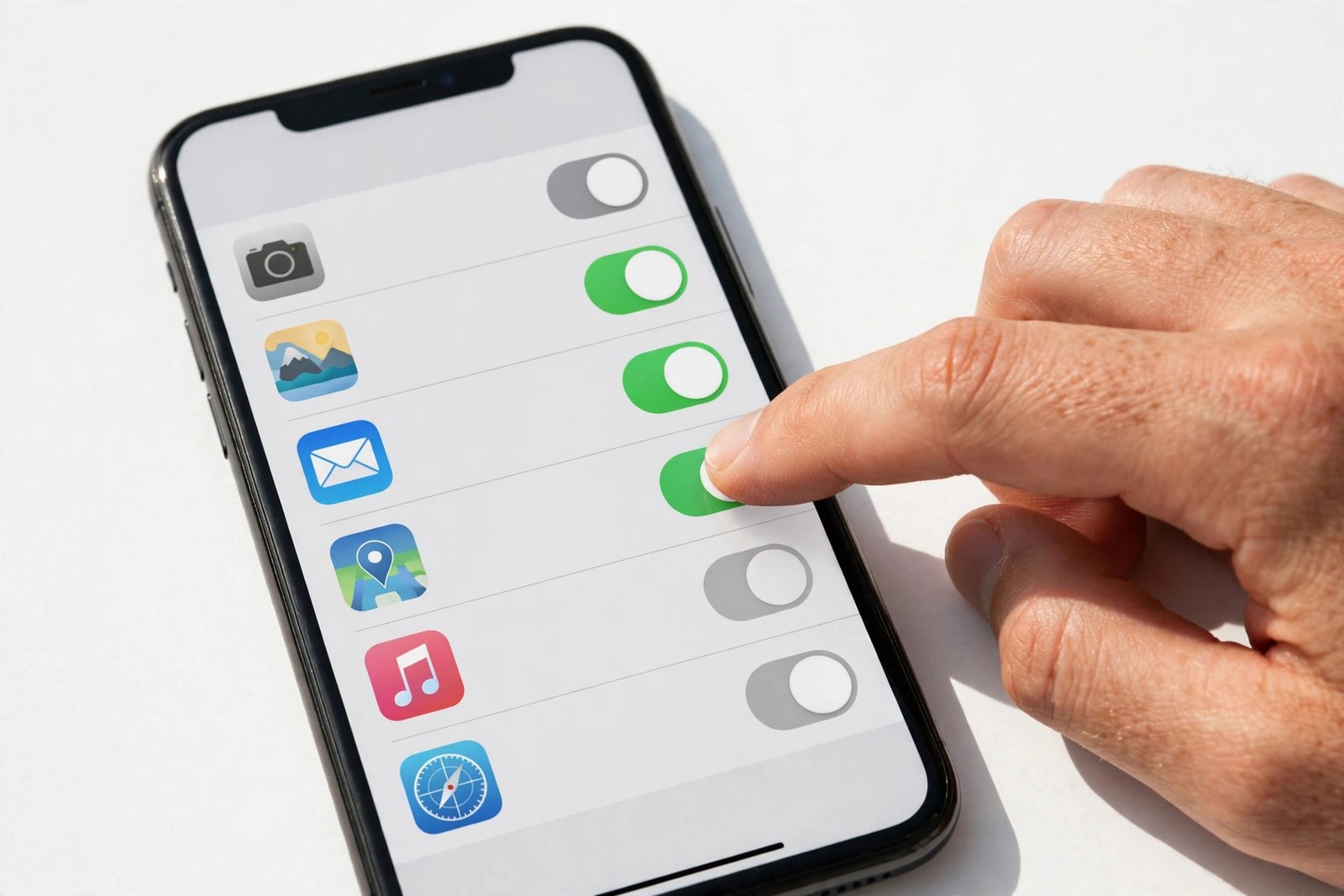
Background App Refresh lets apps update their content while you are not using them, so your feed is fresh when you open it. That convenience costs battery. In Settings, then General, then Background App Refresh, you can switch it off entirely, limit it to Wi-Fi only, or turn it off app by app. The app-by-app approach is the smart one: keep it on for messaging and email, and switch it off for games, shopping apps and anything else that does not need to be current the moment you open it.
Location Services is the other quiet drain. Many apps ask for your location and then keep checking it. In Settings, then Privacy & Security, then Location Services, review which apps have access and change the ones that do not need it to Never or While Using the App. Apps set to Always are the ones to look at first.
Notifications deserve a quick pass as well. Every notification lights the screen, and a phone that buzzes a hundred times a day is spending real power on alerts you may not need. In Settings, then Notifications, turn off notifications for apps that interrupt you without adding value.
The Settings That Matter Most, Ranked
Not every tip is equal. The table below ranks the most useful changes by impact and effort.
| Change | What it does | Impact | Effort |
|---|---|---|---|
| Low Power Mode | Cuts background activity and visual effects | High | One tap |
| Lower screen brightness | Reduces the biggest single power draw | High | One slider |
| Background App Refresh off per app | Stops apps updating while idle | Medium to high | A few minutes |
| Location Services review | Stops apps tracking location unnecessarily | Medium | A few minutes |
| Shorter Auto-Lock | Screen switches off sooner when idle | Medium | One setting |
| Dark Mode on OLED iPhones | Black pixels use less power | Low to medium | One toggle |
| Reduce notifications | Fewer screen wake-ups | Low to medium | A few minutes |
| Optimised Battery Charging | Slows long-term battery wear | Long-term | One toggle |
Table: the battery-saving settings ranked by impact and effort.
Start at the top of the table and work down. The first three rows deliver most of the benefit, and everything below them is refinement. If you only have five minutes, turn on Low Power Mode, lower your brightness, and switch off Background App Refresh for your hungriest apps.
Charging Habits That Protect Your Battery
How you charge matters as much as how you use the phone. The single most useful feature is Optimised Battery Charging, found in Settings, then Battery, then Battery Health & Charging. It learns your routine and holds the charge at 80% overnight, topping up to 100% shortly before you usually wake. Leaving it on reduces the time your battery spends at full charge, which is one of the main drivers of long-term wear. Menu names can vary slightly by iOS version, but the feature sits in the same Battery area.
Avoid running the battery flat to zero every day. Lithium-ion batteries prefer shallow cycles, so topping up during the day is kinder than draining to empty and charging to full. You do not need to obsess over keeping the charge between 20% and 80%, but regular top-ups are gentler than deep discharges.
Heat during charging is worth avoiding. Charging generates warmth on its own, and adding a thick case, a pillow, or direct sunlight makes it worse. If your phone feels hot while charging, take the case off and move it somewhere cooler. Wireless charging is convenient but generates more heat than a cable, so if your phone runs warm on a wireless pad, a wired charger is the cooler option.
Fast charging is fine in moderation. It is designed into the phone and the battery, and occasional fast top-ups will not ruin your battery. Save the fastest charger for when you actually need a quick top-up and use a standard charger overnight.
If your phone runs hot while it charges, that is a separate problem worth ruling out before blaming your habits. Our guide to fix phone overheating while charging walks through the causes and fixes. It is also worth checking the battery itself first: our guide on how to check iPhone battery health shows you how to read the Maximum Capacity figure in Settings. And if the battery is too far gone to save, the best phones for battery life round-up compares the handsets that last longest between charges.

The Daily Battery Routine
Settings alone will not fix battery life if your daily habits work against them. This checklist turns the advice above into a routine you can actually follow.
Morning
- Charge overnight with Optimised Battery Charging on, so the phone finishes at 100% just before you wake
- Check the battery usage screen once a week and look for any app that has suddenly jumped up the list
- Leave Low Power Mode off at home, where a charger is nearby, so notifications and background refresh work normally
During the day
- Keep brightness on Auto-Brightness and resist pushing the slider to maximum indoors
- Use Wi-Fi where available instead of mobile data, especially for video
- Switch on Low Power Mode before a long stretch away from power, such as travel or an all-day event
- Top up opportunistically at your desk or in the car rather than waiting for the battery to run flat
Evening
- Review any app that used an unusual share of battery and consider limiting its background refresh or notifications
- Plug in before bed rather than letting the phone die overnight
- Keep the phone out of direct heat while it charges, and take a thick case off if it feels warm
Weekly
- Glance at Location Services and remove Always access from any app that does not need it
- Check for an iOS update, since software updates often include battery and efficiency improvements
- Restart the phone if battery drain suddenly worsens, as a stuck process is sometimes the cause
FAQs
How can I extend my iPhone battery life in 2027?
Start with Low Power Mode, lower screen brightness, and Background App Refresh limited to the apps that need it. Then review Location Services, shorten Auto-Lock, and keep Optimised Battery Charging switched on.
Does Low Power Mode damage the battery?
No. Low Power Mode only reduces background activity and some visual effects while it is on. It does not harm the battery, and it switches itself off once the phone charges past 80%.
Should I charge my iPhone to 100% every time?
You can, and Optimised Battery Charging handles the timing for you by holding the charge at 80% overnight. Topping up during the day is gentler on the battery than draining to zero and charging to full.
Does Dark Mode save battery on iPhone?
It can help on iPhones with OLED screens, because black pixels use very little power. The saving is modest unless you spend hours in apps with dark backgrounds, so treat it as a bonus rather than a main strategy.
Why does my iPhone battery drain overnight?
Usually an app refreshing in the background, poor signal forcing the radio to work hard, or notifications waking the screen. Check the battery usage screen in Settings to see which app used charge overnight.
Is it bad to use my iPhone while it is charging?
No, normal use while charging is fine. Heavy gaming or video recording while charging generates extra heat, which is harder on the battery, so pause demanding tasks while the phone charges if it feels warm.
Small Changes, Longer Days
Extending your iPhone battery life in 2027 does not require a new phone, a new charger, or a new routine. It takes a few minutes in Settings, a weekly glance at the battery usage screen, and charging habits that keep the battery out of the heat and away from empty. Start with Low Power Mode, brightness and Background App Refresh, the three changes that deliver most of the benefit.