The best video editing apps for iPhone 2027 has to offer are the ones that turn footage shot on your phone into a finished video without ever touching a computer — and for most people that means CapCut for quick social videos, LumaFusion for serious multi-track editing, and iMovie as the free starting point. The iPhone is now a capable camera and a capable editing machine in one device, and the apps have caught up: you can cut, colour, caption and export a polished video from your pocket. This guide compares the leading iPhone editors on features, ease of use, price and export quality.
Key takeaways
- CapCut is the best all-round iPhone editor for social video, with templates and auto-captions.
- LumaFusion is the most powerful iPhone editor, with multi-track editing and professional tools.
- iMovie is free, simple and genuinely good for beginners and quick projects.
- VN and InShot are strong free alternatives for quick edits and social formats.
- Check current pricing — in-app purchases and subscriptions change, and free tiers vary.
What makes a great iPhone editing app
Touch-first design is the first test. An iPhone editor should feel natural with your fingers: trimming by dragging, tapping to add text, pinching to zoom the timeline. Apps that simply shrink a desktop interface onto a phone screen are frustrating to use, while apps designed for touch make editing feel fast and intuitive.
Export quality is the second test. A good app exports in high resolution without a watermark on its free tier, or makes the paid upgrade clearly worth it. Check the maximum resolution, frame rate and format options, and whether exports preserve the quality of footage shot on a modern iPhone.
Features that matter on a phone are different from those on a desktop. Auto-captions, templates, music libraries and one-tap effects save the most time, because phone editing is usually done in short bursts. Multi-track editing, colour tools and keyframing matter when you want more control. Finally, consider how the app handles storage and sharing: projects should sync or export easily, and sharing to social platforms should be one tap.
1. CapCut
Best for: Quick social videos, Shorts and creators who edit on the go.
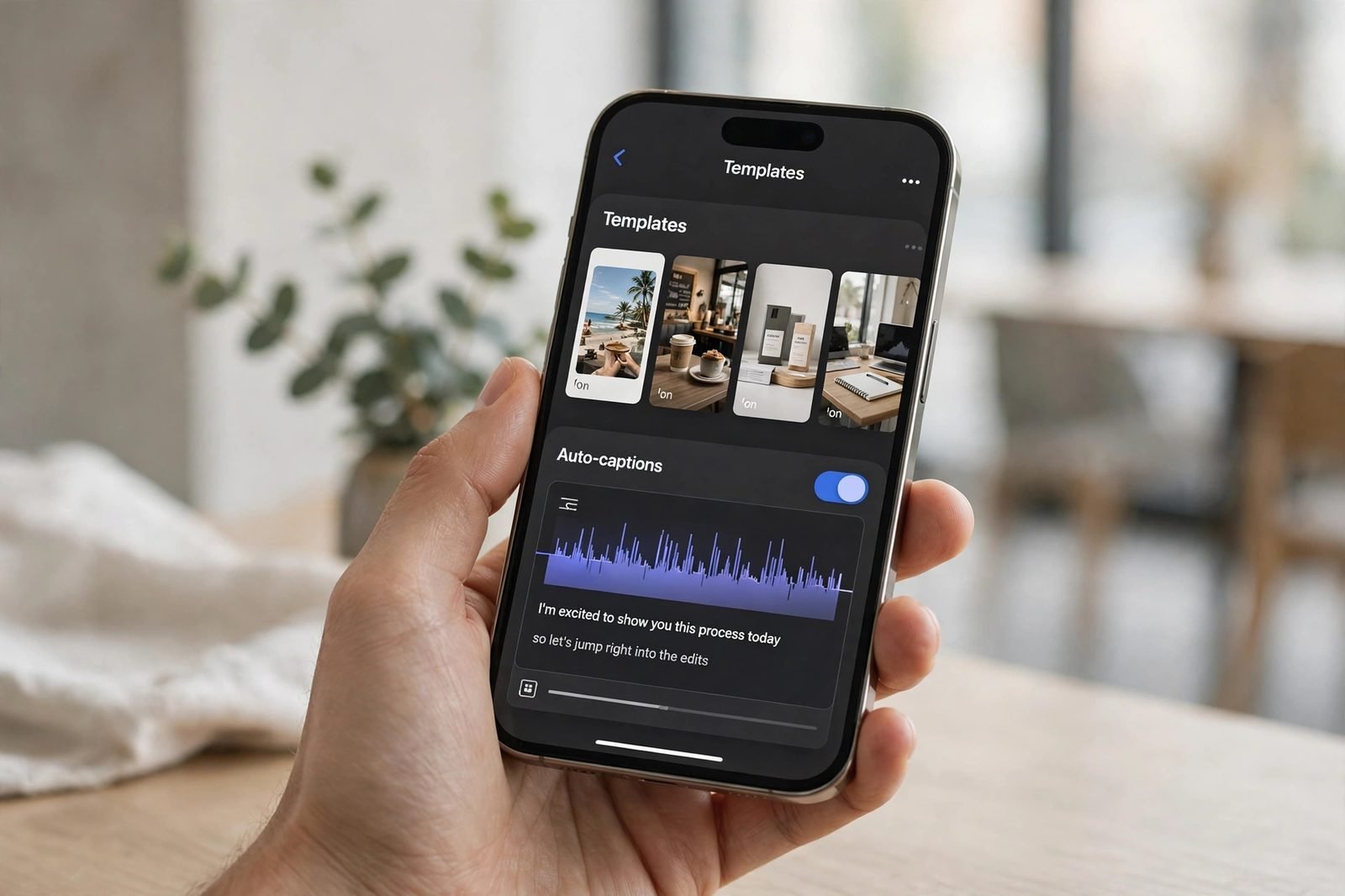
CapCut is the most popular iPhone video editor for good reason: it is fast, free to start with, and built for the short-form content that dominates social media. Its templates, auto-captions, trending effects and music library let you turn raw footage into a finished TikTok, Reel or Short in minutes, all from your phone.
Auto-captioning is the standout feature. CapCut generates captions quickly and styles them in the bold, animated formats that perform well on social platforms, which saves the most tedious part of mobile editing. The template library means you rarely start from a blank timeline, and the desktop app syncs projects if you want to finish on a computer.
The free tier is generous, with a Pro plan that adds premium templates, effects and cloud storage. CapCut is not built for long-form or professional projects — its colour, audio and effects depth are limited — but for social video on iPhone, it is the editor to beat. Check current pricing for the Pro plan.
2. LumaFusion
Best for: Serious multi-track editing on iPhone and iPad.
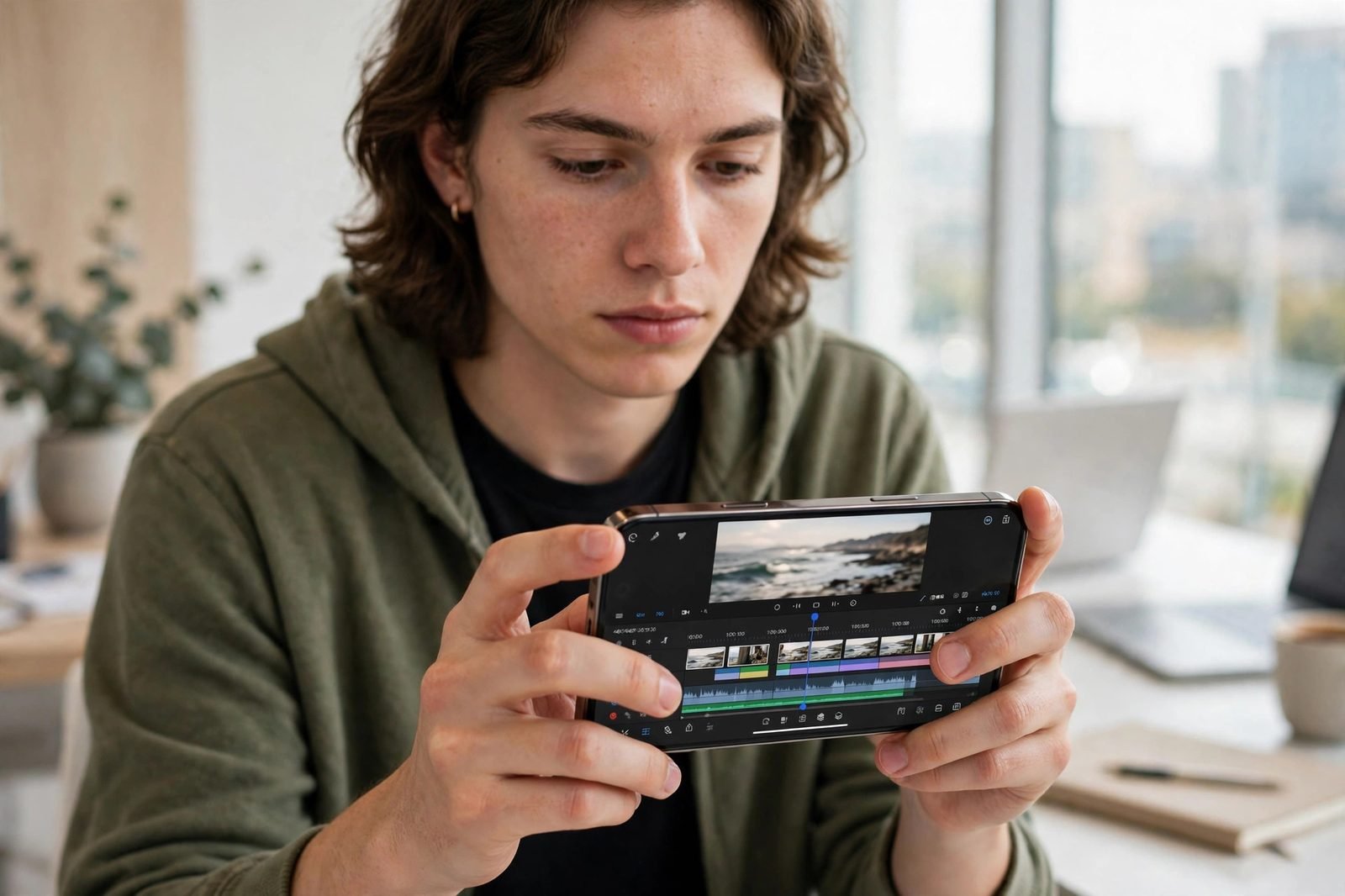
LumaFusion is the most powerful video editor on iOS, and it is the closest thing to a desktop editor on a phone. It offers multi-track editing with up to six video and audio tracks, keyframing, colour correction, audio mixing and a wide range of effects, all in an interface designed for touch. For creators who want professional control on a mobile device, LumaFusion is unmatched.
The app handles 4K footage well, supports external drives and a range of formats, and exports in high quality without a watermark. Its one-off purchase price — rather than a subscription — makes it good value, and the companion features for titles, effects and audio are genuinely useful. LumaFusion also works on iPad, where the larger screen makes complex editing more comfortable.
The learning curve is steeper than CapCut’s, and the interface is dense on a phone screen. But for YouTubers, journalists and filmmakers who edit in the field, LumaFusion is the professional choice. Check current pricing on the App Store.
3. iMovie
Best for: Beginners and quick projects, free on every iPhone.
iMovie comes free with every iPhone, and it is far better than its reputation suggests. Its interface is simple and approachable, its templates and themes produce polished results quickly, and its integration with Photos means your footage is already there. For family videos, quick social clips and first edits, iMovie is genuinely good.
The editor covers the essentials — trimming, titles, transitions, music and basic colour — and the trailer templates are fun for beginners. Projects started on iPhone can be continued on Mac, which suits creators who film on their phone and finish on a computer. There is no learning curve to speak of: most people can make a finished video in their first session.
iMovie’s limits are clear: no multi-track complexity, limited colour and audio control, and no advanced export options. When you outgrow it, LumaFusion or Final Cut Pro for iPad are natural next steps. For getting started, though, iMovie is the right app.
4. VN Video Editor
Best for: Free, watermark-free editing with multi-track support.
VN is a free video editor with a surprising amount of depth: multi-track timelines, keyframing, speed curves, colour tools and a music library, all without a watermark on exports. For iPhone users who want more control than iMovie without paying, VN is an excellent choice.
The interface is clean and approachable, with a curve-based speed editor that is genuinely useful for smooth slow-motion and speed ramps. Templates and effects cover the basics, and the app handles 4K footage well. VN’s free tier is generous, with optional paid features for those who want them.
VN’s template and effect libraries are smaller than CapCut’s, and its community is smaller too. But for creators who value a free, watermark-free editor with real multi-track control, VN is one of the best options on iPhone. Check current pricing and in-app purchases on the App Store.
5. InShot
Best for: Fast social edits, aspect ratio changes and quick exports.
InShot is built for speed and social formats. Its strength is resizing: it makes it easy to adapt a video for Instagram, TikTok, YouTube and other platforms, with backgrounds, blur and framing tools that handle the conversion cleanly. Trimming, text, stickers, music and filters are all quick to apply, and the interface is friendly for beginners.
InShot suits creators who publish across platforms and need to reformat the same video several times. The free tier is usable, though it adds a watermark and shows ads; the paid plan removes both and unlocks more features. The app is also good for quick photo edits, which makes it a handy all-rounder.
InShot’s depth is limited: it is not a multi-track professional editor, and its colour and audio tools are basic. For fast social edits and reformatting, though, it is one of the most efficient apps available. Check current pricing for the Pro plan.
6. Splice
Best for: Guided editing with music sync and simple, polished results.
Splice, from the makers of GoPro, is designed to make good videos quickly. Its interface is clean, its music library is strong, and its auto-sync features match cuts to the beat of a song. Templates and effects cover the essentials, and the app is particularly good for travel videos, action clips and montages.
The editor covers trimming, transitions, text, filters and speed control, with a focus on making the process feel effortless rather than powerful. The free tier is usable, with a paid plan that unlocks more music, effects and features. Splice’s simplicity is its appeal: you can make a polished video in minutes without learning an editor.
Splice’s limits are its simplicity — it is not built for complex projects or professional control. For quick, music-driven videos, though, it is a pleasant and fast option. Check current pricing on the App Store.
Comparison table
| App | Best for | Pricing model | Standout feature |
|---|---|---|---|
| CapCut | Quick social videos | Free, paid Pro plan | Templates, auto-captions |
| LumaFusion | Serious multi-track editing | One-off purchase | Six tracks, keyframing, 4K |
| iMovie | Beginners, quick projects | Free with iPhone | Simplicity, Photos integration |
| VN | Free watermark-free editing | Free, optional paid features | Multi-track, speed curves |
| InShot | Fast social edits, resizing | Free with watermark, paid Pro | Aspect ratio tools |
| Splice | Guided music-driven videos | Free tier, paid plan | Music sync, templates |
How to choose: a practical checklist
- Decide what you edit: Shorts, vlogs, travel videos, family clips or professional work.
- Check export quality: resolution, frame rate and whether the free tier adds a watermark.
- Test the app on a real video, not a demo — trimming, captions and export.
- Consider the screen size: complex editing is easier on iPad or with an external display.
- Check storage: 4K projects use space quickly, so look at project management and cloud options.
- Compare the paid plans only if the free tier limits something you actually need.
- Look at sharing: one-tap export to your platforms matters for daily posting.
- Think about growth: will this app still suit you in a year, or will you need to switch?
FAQs
What is the best free video editing app for iPhone?
CapCut is the best free option for social video, with templates and auto-captions. iMovie is the best free option for beginners and simple projects. VN is the best free option for watermark-free multi-track editing.
Can I edit YouTube videos on an iPhone?
Yes. LumaFusion handles long-form YouTube videos well, and CapCut suits Shorts and quick uploads. For a broader comparison, see our best video editing software for YouTube guide.
Is LumaFusion worth paying for?
If you edit seriously on iPhone or iPad, yes. Its one-off price buys professional multi-track editing, colour and audio tools that no free app matches. For casual social video, CapCut or iMovie may be enough.
Does CapCut add a watermark on iPhone?
CapCut’s free tier generally exports without a watermark on most formats, though some templates and effects may require the Pro plan. Check the current terms in the app before you rely on it.
Can I edit 4K video on an iPhone?
Yes. Modern iPhones shoot and edit 4K footage, and apps like LumaFusion, CapCut and VN handle it well. Storage fills quickly, so manage your projects and free up space regularly.
Which iPhone editor is best for TikTok and Reels?
CapCut, in most cases. Its templates, auto-captions and vertical video tools are built for short-form content, and it is the fastest route from footage to a finished post.
The bottom line
The best video editing apps for iPhone in 2027 are the ones that fit the way you shoot and publish. CapCut owns quick social video, LumaFusion owns serious mobile editing, and iMovie is the free place to start. Your phone is already a capable camera — the right app makes it a capable editing suite too. Your next step is simple: shoot a short video today, edit it entirely on your phone in your chosen app, and see how close you get to a result you would be happy to publish. The answer will tell you whether you need anything more.