How to Build a Website With Bolt AI
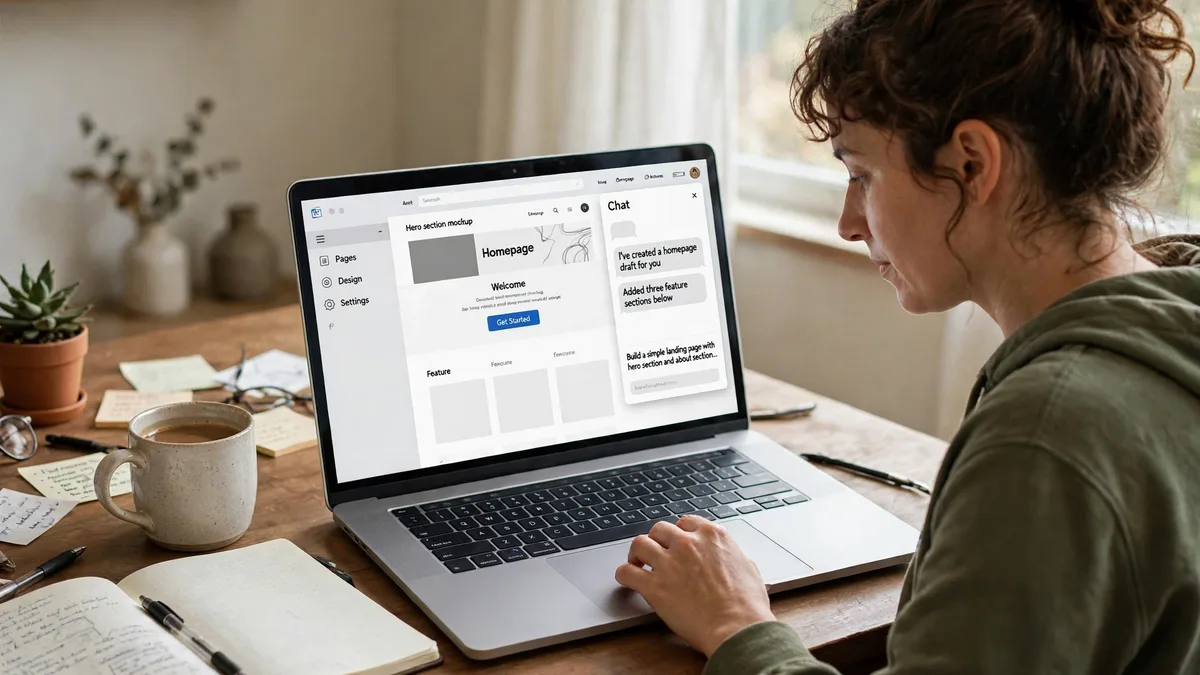
Learning how to build a website with Bolt AI is one of the fastest ways for a beginner to get a real site online in 2027. Bolt AI is an artificial intelligence website builder that turns a plain-language description into a working website, complete with pages, styling, and interactive features. Instead of choosing a template and dragging blocks around for hours, you describe what you want, and the tool writes the code and shows you a live preview within minutes.
That speed is why so many small business owners, freelancers, and hobbyists are trying AI website builders for the first time. You do not need to know HTML, CSS, or JavaScript to start, and you do not need to hire a developer for a simple site.
This guide walks you through the whole process, from writing your first prompt to publishing your finished site. You will learn how to plan your pages, how to ask Bolt AI for changes, how to fix the problems that come up most often, and how to decide whether an AI-built site is right for your project.
Key takeaways
- Bolt AI builds a working website from a plain-language prompt, so you can start without coding skills.
- A specific prompt with your business, audience, pages, and style produces far better results than a vague one.
- Always preview on mobile, test every button and form, and proofread every word before publishing.
- AI-generated sites still need your input: real photos, accurate prices, and correct contact details.
- Check current pricing before choosing a plan, because free tiers have real limits on projects and hosting.
| Item | What to expect |
|---|---|
| Time to first preview | Usually a few minutes after your first prompt |
| Coding needed | None to start; optional for fine-tuning later |
| Best for | Landing pages, portfolios, small business sites, prototypes |
| Cost | Free tier available; paid plans add projects and features — check current pricing |
| Biggest risk | Generic text, placeholder images, and untested forms |
Step 1: Plan Your Website Before You Prompt
Good AI-built websites start on paper, not in the prompt box. Before you open Bolt AI, write down the purpose of your site in one sentence. Are you selling a service, showing a portfolio, or collecting email sign-ups? That sentence shapes every decision the AI makes, from the headline to the layout.
Next, list the pages you need. Most small sites work well with five: home, about, services or work, pricing or gallery, and contact. For each page, note the one action you want visitors to take. Then gather your real content: business name, tagline, services, prices, and contact details, plus a few real photos. For supporting tools, see our guide to the best AI tools for small business in 2027.
Step 2: Create Your Account and Start a New Project
Sign up for Bolt AI with an email address and choose a plan that fits your project. The free tier is a good place to learn, but it usually limits how many projects you can create and how much you can build each day. Read the plan details before starting a site you intend to publish.
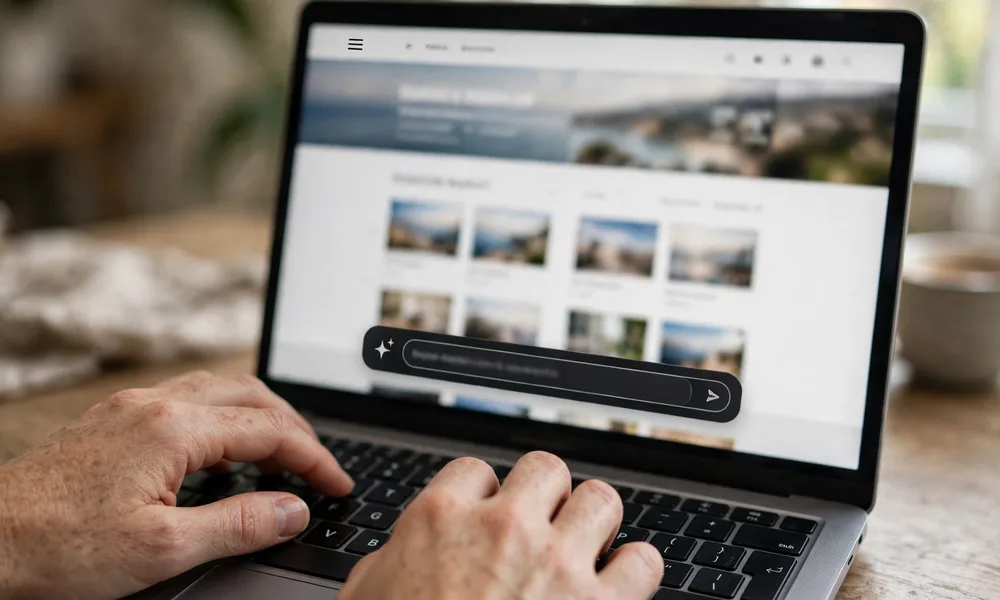
Once you are signed in, start a new project and give it a clear name that matches your site, so you can find it again among test projects. Before you type anything, decide on the tone and look you want: clean and modern, or warm and colourful. Pick two or three colours you like. Bolt AI can follow style directions, but it cannot guess your taste.
Step 3: Write a Detailed Prompt
Your prompt is the brief you would give a human web designer, so treat it that way. A weak prompt such as “make a website for my business” gives the AI almost nothing to work with, and the result will be generic. A strong prompt names the business, the audience, the pages, the style, and the action you want visitors to take.
Include the facts the AI must not invent. If your prices are fixed, state them. If you serve only one town or region, say so. If your business hours matter, include them. Good written content matters here too, and the best AI writing tools in 2027 can help you polish the text you feed into your prompt.
Step 4: Review the First Version Carefully
When Bolt AI finishes your first build, resist the urge to publish it right away. Open the live preview and read it as if you were a first-time visitor. Does the headline say what you do? Is your business name spelled correctly? Are the services, prices, and contact details accurate? Check every page, not just the home page.
Next, test the site on a phone. Most visitors will arrive on mobile, and a layout that looks fine on a laptop can break badly on a small screen. Scroll through every page, tap every menu item, and check that text does not overlap and images do not stretch.
Step 5: Ask for Changes in Small Rounds
Editing an AI-built site works best as a conversation, not a single giant request. Ask for one change at a time, or a small group of related changes, and check the result before moving on. For example, ask the AI to make the headline shorter and bolder, then check it, then ask it to add your phone number to the header.
Be specific when you ask for a change. Instead of saying “make it better,” say exactly what you want: “Change the hero headline to ‘Fresh Cakes Baked Daily,’ make the booking button dark green, and move the contact form above the footer.” If a change does not work, say so plainly and describe what you see.
Step 6: Add Your Real Content and Images
Once the layout is close to what you want, replace the remaining placeholder text with your own words. Read every paragraph out loud and ask whether it sounds like something you would actually say to a customer. Cut jargon, shorten long sentences, and remove any claim you cannot back up.
Upload your own images and give each one a short, descriptive file name and alt text. Add the practical details visitors need: your address or service area, your hours, your prices, and the best way to reach you. If you plan to answer enquiries with an AI assistant, learning how to use ChatGPT can help you draft quick, helpful replies.
Step 7: Publish and Connect Your Domain
When the preview looks right on desktop and mobile, you are ready to publish. Bolt AI usually offers a free hosted address for your site, which is fine for testing, but a custom domain looks far more professional for a real business. If you already own a domain, follow the builder’s instructions to connect it, and allow some time for the change to take effect.
After publishing, visit the live site from a different device or browser and click through it once more. Check that the domain loads, that images appear, and that forms still work on the live version. Share the link with one or two trusted people and ask them to try it on their phones.
Troubleshooting Common Bolt AI Problems
The most common problem is a layout that breaks on mobile, usually because a section is too wide or text overlaps an image. Ask the AI to make that specific section responsive, naming the section and the device size where you see the problem. If the fix does not work, ask for a simpler layout, because a clean single-column layout on mobile almost always beats a clever multi-column one that does not fit.
Another frequent issue is the AI changing something you did not ask it to change. This happens when a prompt is vague, because the AI rebuilds more than it needs to. The fix is to be narrower: name the exact section, describe the exact change, and add that nothing else on the page should change.
How to Choose the Right Plan and Setup
Choosing a plan comes down to how serious the site is. A free tier is enough for learning, testing an idea, or building a simple personal page. A paid plan usually makes sense when the site represents your business, because it adds custom domains, more projects, and higher usage limits. Compare the plans on the Bolt website and check current pricing, then pick the lowest plan that covers your real needs.
Think about what happens after launch, too. Will you update the site often, add new pages, or run a blog? Make sure the plan supports the number of projects and edits you expect. Use the AI for speed, and use your own judgement for everything that builds trust.
Pre-Launch Checklist
- Business name, services, prices, hours, and contact details are accurate on every page.
- Every page works on a phone: no overlapping text, no stretched images, no broken menus.
- All buttons and links work, and the contact form sends a test message successfully.
- Placeholder text and generic images are replaced with real content and real photos.
- Page titles, descriptions, and image alt text are written for each page.
- Your custom domain loads correctly, and a friend has tested the live site on their device.
Frequently Asked Questions
Can I build a website with Bolt AI without any coding?
Yes. You describe the site in plain language, and Bolt AI writes the code and builds the layout for you. You can publish a simple site without touching code at all.
How long does it take to build a website with Bolt AI?
A first preview usually appears within a few minutes, and a simple site can be ready to publish in a day. The time goes mostly to reviewing, editing, and adding your real content.
Is Bolt AI free?
There is usually a free tier for learning and small projects, but it has limits on projects, usage, and hosting features. Paid plans add more capacity and a custom domain.
Can I use my own domain with a Bolt AI website?
Yes, paid plans normally let you connect a custom domain you already own, or buy one through the platform. Follow the builder’s domain instructions carefully and allow time for the change to spread across the internet.
Will a website built with Bolt AI rank on search engines?
It can, but the AI alone does not guarantee it. Search performance depends on useful content, clear page titles, fast loading, and a site that works well on mobile. Write original, accurate text, use descriptive titles, add alt text to images, and keep the site updated.
What should I do if Bolt AI makes a mistake?
Describe the problem in a short, specific follow-up prompt and name the exact section involved. Ask for one fix at a time and check the result before continuing. If a change makes things worse, check whether the builder keeps earlier versions and restore the version you liked.
The Bottom Line
Building a website with Bolt AI in 2027 is a practical way to go from an idea to a live site in a day, as long as you treat the AI as a fast assistant rather than a finished designer. Plan your pages, write a detailed prompt, review the result on desktop and mobile, fix problems in small rounds, and replace placeholder text and images with your own real content before you publish.
Start small, publish something real, and improve it from there. Your first version does not need to be perfect; it needs to be accurate, easy to use, and easy to find. Once it is live, watch how visitors use it, fix what confuses them, and add the pages your customers actually ask for.