A distracting object or mismatched backdrop can turn a usable photo into one more job on your to-do list. An online editor can help with common changes, even if you have no advanced software skills. You still need to review what it creates, since a quick fix can leave odd edges or details behind. The right first project is small, clear, and easy to judge. You can use a photo for social media, a product listing, or a personal project. A short prompt can guide the change, though a learning curve may come with new tools. Start with one small change you can judge at a glance.
Key Takeaways
- AI can help with common photo changes without advanced editing software.
- Choose a tool that fits the specific edit you need.
- A focused prompt gives the editor a clearer direction.
- Review the result before using or sharing it.
- Keep the original image until you approve the edited version.
What can an AI image editor change?
A photo editor can use AI to remove a passerby, replace a plain backdrop, or extend a cropped scene. It can also change selected details or improve image clarity, depending on its tools. Generative fill means AI-generated content inserted into a selected part of an image to add or replace visual elements.
AI edits work best when the selected area matches the change you want. A tight selection can keep nearby details from changing, while a broad request may alter more of the image.
Remove distractions and replace backgrounds
Object removal targets an unwanted item, such as a sign, cable, or person in the distance. Canva Magic Eraser removes selected elements, while a background remover cuts away the backdrop. Canva Background Remover is made for that second task.
Background replacement adds a new scene behind the subject. The result depends on how well the editor separates hair, clothing, and other fine edges from the original background. For a clean product shot, a simple replacement can be easier to inspect than a busy setting.
Select only the intended area when you want a local change. A wider selection gives the editor more room to alter nearby image details.
Add, extend, or refine image content
Generative fill can add an object or replace a selected detail. Image expansion creates new content beyond the current edges, which can help when a crop feels too tight. These are different from removal: they add pixels and visual information where the original image had none.
Text changes are another task. Canva Grab Text can update text in an image, while Canva Magic Grab isolates an element for resizing or repositioning. Canva Image Upscaler enhances low-resolution images, though enhancement does not guarantee that every fine detail becomes accurate.
For a small correction, select only the area that needs changing rather than asking the tool to remake the whole image.
AI Image Editor: How to Edit Photos With AI Step by Step
A portrait photo with an unwanted sign in the background is a good first practice edit. You can edit photos with AI online by uploading an image in a browser, making a focused change, and downloading the result. Keep the process simple until you know how the editor handles your image.
Work on a copy so your original stays available. The five steps below take you from a suitable upload to a file you can inspect.
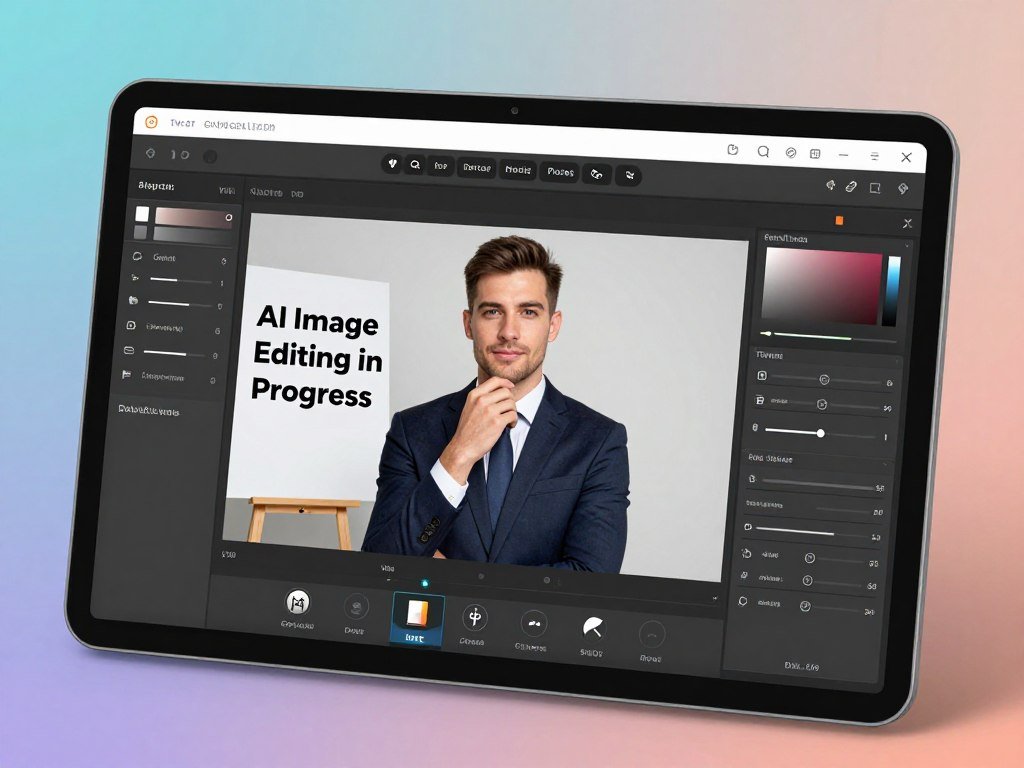
- Choose an editor and upload a suitable image. Canva supports JPG, PNG, HEIC or HEIF, WebP, and SVG uploads. Adobe Firefly accepts JPEG or JPG, PNG, and WebP files up to 100MB. Firefly requires images of at least 512 by 512 pixels and accepts one file at a time.
- Make a copy or keep the original untouched. Save the duplicate with a clear name so you can tell the working image from the source.
- Select or brush over the target area. Keep the selection close to the sign, but include enough nearby sky or wall for a natural result.
- Describe the change clearly and generate. For example, write, “remove the power lines from the sky.” A more specific instruction can narrow the intended change.
- Inspect the result, refine it if needed, and download the edited file. Compare the change with the untouched image before using it.
The editor may offer a browser-based upload, selection, and generation flow, but accepted file types differ. Firefly recommends prompts of at least five words, so a short, clear instruction can be more useful than a vague phrase.
A browser editor can return a file for use without requiring a separate editing app. For a first attempt, choose an image with a clear subject and a background that is easy to assess.
Keep the original file until you have checked the edited version at full size.
Which AI editor fits common photo edits?
For a mix of browser-based AI edits, Pixlr offers several kinds of removal, expansion, and enhancement in one editor. Pixlr is a browser-based option for a broad set of AI edits, while Snapseed fits manual iPhone adjustments rather than generative AI.
Free access and limits differ by tool and task. A free online editor may include some AI features, while another tool may limit specific edits or ask you to start a trial.
| Tool | Useful editing tasks | Free-access detail | Practical consideration |
|---|---|---|---|
| Canva | Selected-area edits, erasing, background removal, text changes | Free plan includes limited AI uses | Some tools may require a paid plan or trial |
| Adobe Firefly | Generative fill and prompt-based image changes | Free access includes daily generations | Accepts one image file at a time |
| Pixlr | Removal, fill, expansion, upscaling, noise reduction | Free online editor includes AI photo editing and 20-plus tools | Upscaler supports resolutions up to 25 megapixels |
| Picsart | Background and object removal, retouching, expansion | App is free to use with in-app purchases | Some features may have paid limits |
| Snapseed | Healing, curves, selective edits, perspective | Core iPhone tools are free | Manual adjustments, not generative AI |
Pixlr can suit you if one image needs several kinds of AI editing tools. Its free online editor includes more than 20 tools, and its paid plans start at $1.99 per month.
Canva offers selected-area editing and background tools, while Firefly focuses on prompt-based changes. Picsart includes AI functions in its mobile apps. Snapseed gives you direct control over edits such as curves and healing, but it does not add AI-generated content.
A comparison of AI image generator tools can help if you also need to create images from scratch. Try the tool on a copy of a representative image before building it into a repeat workflow.
How much do popular AI photo editing plans cost?
A free plan can cover occasional edits, while recurring image or video generation may make a paid allowance more useful. Adobe Firefly offers daily free generations across image, video, and audio, but Adobe does not publish the daily count.
Firefly paid credits reset on the billing date, and unused credits do not roll over. In 2026, Firefly Image 5 generations cost 10 credits each, while a five-second 1080p Firefly video costs 500 credits.
| Plan | US price and billing period | Included credits or AI uses | Other included feature or storage detail |
|---|---|---|---|
| Adobe Firefly Standard | $9.99 per month | 2,000 monthly generative credits | Unlimited Generate Image, Generative Fill, Generative Expand, and Text to Vector Graphics, except in Firefly Graph |
| Adobe Firefly Pro | $19.99 per month | 4,000 monthly generative credits | Photoshop on web and mobile, plus Adobe Express Premium |
| Adobe Firefly Pro Plus | $49.99 per month | 10,000 monthly generative credits | Monthly credits reset on the billing date |
| Adobe Firefly Premium | $199.99 per month | 50,000 monthly generative credits | Monthly credits reset on the billing date |
| Canva Pro | $144 per year for one person | Up to 200 Premium or 20 Ultra AI uses per month | 100GB storage and five Brand Kits |
Firefly Standard, Pro, Pro Plus, and Premium cost $9.99, $19.99, $49.99, and $199.99 monthly in the United States in 2026. Standard includes 2,000 monthly credits. Pro includes 4,000, Pro Plus includes 10,000, and Premium includes 50,000.
Canva Free includes up to 20 Standard or Premium AI uses monthly and no Ultra uses in 2026. Its allowance resets at 12:00 a.m. UTC on the month’s first day. Standard AI tools share that limit. Free storage is 5GB with one Brand Kit.
Canva Business costs $250 yearly per person in 2026. It includes up to 400 Premium or 40 Ultra AI uses monthly, 500GB storage, and 100 Brand Kits.
Google AI Plus costs $4.99 monthly and gives twice the free Gemini usage in 2026. Google AI Pro costs $19.99 monthly, gives four times the free usage, and includes 5TB storage.
Picsart Pro displays at $10.50 per month billed yearly, and Picsart Ultra displays at $24.50 per month billed yearly. Free access can cover occasional edits, but frequent generation or video can use an allowance quickly.
Free AI image generator options can help you compare no-cost access for different projects. Check whether unused monthly credits roll over before relying on them for a deadline.
Which AI photo editor works on iPhone or Android?
On Android, Picsart offers AI removal, retouching, and expansion in its app. The iPhone and iPad app has similar AI editing functions, while a mobile browser can open Firefly. Pick the route that supports the change you need.
Generative AI creates or replaces image content; Snapseed relies on manual edits. Snapseed includes healing, curves, and selective adjustments, not prompt-driven generative fill.
| Device or route | Option | Supported editing approach | Access detail |
|---|---|---|---|
| Android app | Picsart | AI background and object removal, enhancement, retouching, expansion | Free to use with in-app purchases |
| iPhone or iPad app | Picsart | AI background and object removal, enhancement, retouching, expansion | Free to download with in-app purchases |
| Mobile browser | Adobe Firefly | Browser-based generative editing | Available in desktop and mobile browsers |
For manual iPhone edits, Snapseed’s core tools are free, with no ads or in-app purchases. It includes healing, selective edits, curves, brush, perspective, and RAW support. These tools let you make direct changes rather than ask a model to generate new content.
Picsart is an option when you want AI removal or expansion on a phone. Firefly provides another route if you prefer a browser and do not want to move the project into an app.
A guide to free AI image tools can help you compare browser and app choices by task. Check that the selected app supports the specific edit you need before moving a phone project into it.
How do you write prompts that produce cleaner edits?
“Remove the power lines from the sky” gives an editor a clearer task than “fix this photo.” A useful prompt names the target, the requested change, and details that should stay consistent. Specific words narrow the task without asking the model to rethink the whole image.
Name what should change and what should remain unchanged. “Make it better” gives little direction, while an object, color, light, or background detail can guide the result.
Describe the change and keep the rest intact
For a product photo, try “remove the label glare and keep the bottle color unchanged.” For a portrait, ask to “add warm sunlight and a soft glow, keeping the face natural.” The prompt gives both the action and a detail to preserve.
Firefly Prompt to Edit accepts natural-language instructions, and Firefly recommends starting with at least five words. Canva Magic Edit also uses a text prompt to change selected areas. If a result misses the target, refine one detail rather than adding several new requests.
A simple prompt formula for image edits can help you organize the subject, change, and constraints. Focused instructions also make it easier to tell which detail the model misunderstood.
Select an area when the edit should stay local
Use a brush or lasso-style selection when one part needs changing and the rest should remain stable. Leave a small margin around the object, so the editor has room to blend its edges into nearby pixels. A selection that is too tight can leave a visible outline.
If you change the aspect ratio, use generative expansion to create new edges around the existing photo. That differs from stretching the image, which can distort people or products.
Check a prompt against this short list before generating:
- Does it name the exact object or area?
- Does it state the change in plain words?
- Does it name a color or lighting detail when needed?
- Does it say which important feature should stay the same?
Generate one change at a time when you need to identify which instruction caused an unwanted result.
What should you know about image privacy and commercial use?
Before uploading a private portrait or client image, check what the service says about processing and retention. A service’s upload rules are separate from the data used to train its model. Those are different checks, even when the same company offers both.
Model training material alone does not clear a specific image for commercial use. Adobe says its first-party Firefly models train on licensed Adobe Stock and public-domain content whose copyright has expired.
Check how uploads and edit history are handled
ZenCreator says uploaded images are encrypted end-to-end and automatically deleted after processing. Those practices describe that service’s handling of uploads, not the training data or rights attached to every output.
For client work, review the tool’s rules for uploads, saved edits, and deletion. A privacy statement can explain how a service handles a file, but it does not settle whether you may use the resulting image in an ad.
Adobe’s first-party model training details do not establish terms for partner models or every edited image. Check the terms for the specific tool, model, and asset before using an output commercially.
Understand watermarks and image provenance
Content Credentials are records attached to an image about its origin or edits. Adobe attaches Content Credentials to outputs from its first-party models. Google Gemini’s free plan includes image generation and editing, and edited images carry visible and invisible SynthID watermarks.
The C2PA technical standard describes how provenance claims can be linked to digital content. Its validation checks the association and integrity of that record, not image quality or usage rights. The C2PA specification explains how those checks work.
Content Credentials and SynthID act as provenance or watermark signals. Neither one guarantees that an image is accurate, high quality, or cleared for a particular use.
Keep a copy of the applicable usage terms with the project when an image is headed for paid promotion.
How can you spot problems before downloading?
A removal can look convincing at thumbnail size and still leave a broken edge or repeated texture when enlarged. Inspect the image both fit to screen and at full size. Small defects can hide around a face, shadow, or patterned wall.
Check the changed area and the scene around it before accepting the result. Look for subject edges, shadows, reflections, repeated patterns, faces, and gaps in background continuity.
Edges may look cut out if the fill misses a few pixels near hair or a sleeve. A missing object can also leave a shadow or reflection behind. Repeated bricks, leaves, or grass can reveal a copied texture.
In an October 12, 2026 Firefly test, one Remove run erased a wooden pergola from a garden photo in about 20 seconds. Two people looked unchanged by eye in that single result.
The downloaded file was a 1122 by 1402 WebP, with no visible watermark and a C2PA Content Credentials marker. That one test does not show how every removal will work or whether people will always remain unchanged.
In an October 12, 2026 Canva test, Background Remover and Magic Eraser opened a Canva Pro trial prompt instead of running. That response can depend on the tool’s access conditions, not just the image itself.
If the fill looks implausible, try another generation or correct the area manually. A repeated pattern or a strange reflection often gives the defect away faster than the main subject does.
A practical guide to checking AI results can help you build a review habit for other generated work. Compare the edited result with the original before keeping a change that affects a face or product detail.
How can you prepare edited images for listings and social posts?
A product image that looks polished in a square listing may need different framing for a vertical social post. Match the canvas to the place where the image will appear. One crop rarely fits every channel.
Check the frame, safe margins, file type, and resolution before export. Canva supports image downloads in multiple file types and sharing to Facebook, Instagram, TikTok, and LinkedIn.
Keep the product and key text inside safe margins. A crop that trims a label or caption can make a polished image harder to use.
Use this checklist before you save a listing image or social post:
- Match the canvas to the destination, such as a square listing or vertical post.
- Keep products and key text inside safe margins.
- Export a suitable file type and resolution for the platform.
- Compare a small batch for consistent color and framing.
Canva supports offline manual edits such as cropping, flipping, filters, and effects. That can help when you need a quick framing change without generating new content.
Some services offer batch editing. ZenCreator’s premium plan supports batches of up to 50 images, and Picsart Pro includes bulk editing for up to 50 images. Batch editing can save time, but each image may need its own settings.
ZenCreator accepts JPEG, PNG, WebP, and BMP uploads and supports edited-image exports up to 4K. A 4K export option does not guarantee that every source image gains real detail.
An online editor can provide a downloadable file without a separate app download. Open the exported file on the device where it will be published and confirm that the crop and text remain legible.
Conclusion
A useful first AI edit is small enough to judge and specific enough to improve the photo. Start with one clear change, then review the result before using it. That gives you a practical way to see how an editor handles your image without asking it to remake the whole scene.
Choose a tool based on the task and the way you plan to export. A quick removal, a new background, and a larger crop may call for different features.
Choose one image, make one focused change, and save the result only after checking it at full size.
FAQ
How many free image edits do you get with Adobe Firefly each day?
Adobe Firefly’s free allowance refreshes daily across image, video, and audio generations, but Adobe does not publish the daily count. The number of edits you can make depends on the types of generation you use and the allowance available that day. Since the count is not published, do not plan a deadline around a fixed number of free edits.
Do Adobe Firefly generative credits roll over each month?
No, Adobe Firefly generative credits do not roll over. Credits reset on your plan’s billing date, and unused credits expire at that point. A monthly credit balance may cover occasional edits, but repeated image or video generation can use it quickly. Check the balance during the month if you have several projects to finish.
How many AI uses does Canva Free include?
In 2026, Canva Free includes up to 20 Standard or Premium AI uses per month and no Ultra uses. The allowance resets at 12:00 a.m. UTC on the first day of each month. Standard AI tools share that monthly pool, so using one feature can reduce the uses left for another.
Does Google Gemini add a watermark to edited images?
Yes, edited images made with Google Gemini carry visible and invisible SynthID watermarks. The visible mark may be easier to spot, while the invisible signal is designed to identify AI-made or edited content. A watermark is a provenance signal, not a quality check or permission to use an image for a specific purpose.
How many credits does a five-second 1080p Firefly video use?
A five-second 1080p Firefly video costs 500 generative credits in 2026. That cost applies to the specified video length and resolution, so several generations can use a large share of a monthly balance. Firefly credits reset on the billing date, and unused credits do not roll over.
Can a Firefly image be used commercially just because its model was trained on licensed content?
No, the training material alone does not clear a specific image for commercial use. Adobe says its first-party Firefly models train on licensed Adobe Stock and public-domain content whose copyright has expired. You still need to check the terms for the exact tool, model, and assets in your project, especially when partner models are involved.



