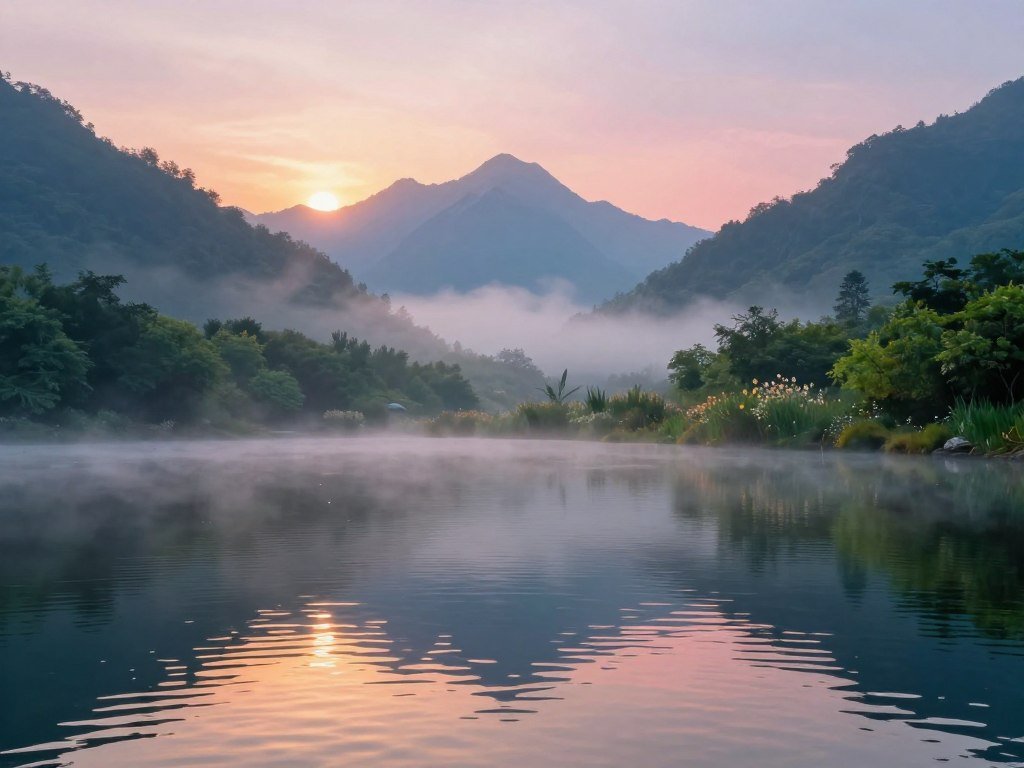
A strong landscape image can begin with a single scene idea, even if you have no drawing skills. A text-to-image generator can turn that idea into a draft you can shape into digital art. Your experience can range from game maker to curious beginner, and your goal may be a strange new world or a calm natural scene.
Aspect ratio is the relationship between an image’s width and height. It helps you match your canvas to a game screen, wallpaper, or print. The right tool also depends on whether you want an imagined scene or a preview based on a real outdoor photo. This page helps you move from an early idea to a more polished image, with room to test mood and style along the way.
Key Takeaways
- Start with a clear scene and a visual goal.
- Use a prompt to guide the setting, viewpoint, and mood.
- Choose a generator that suits your art and editing needs.
- Refine one visible issue at a time.
- Use a landscape design tool when you want to preview a real yard.
Start by deciding whether you want an imagined world or a visual take on a real place.
How Do You Write a Prompt for a Landscape Image?
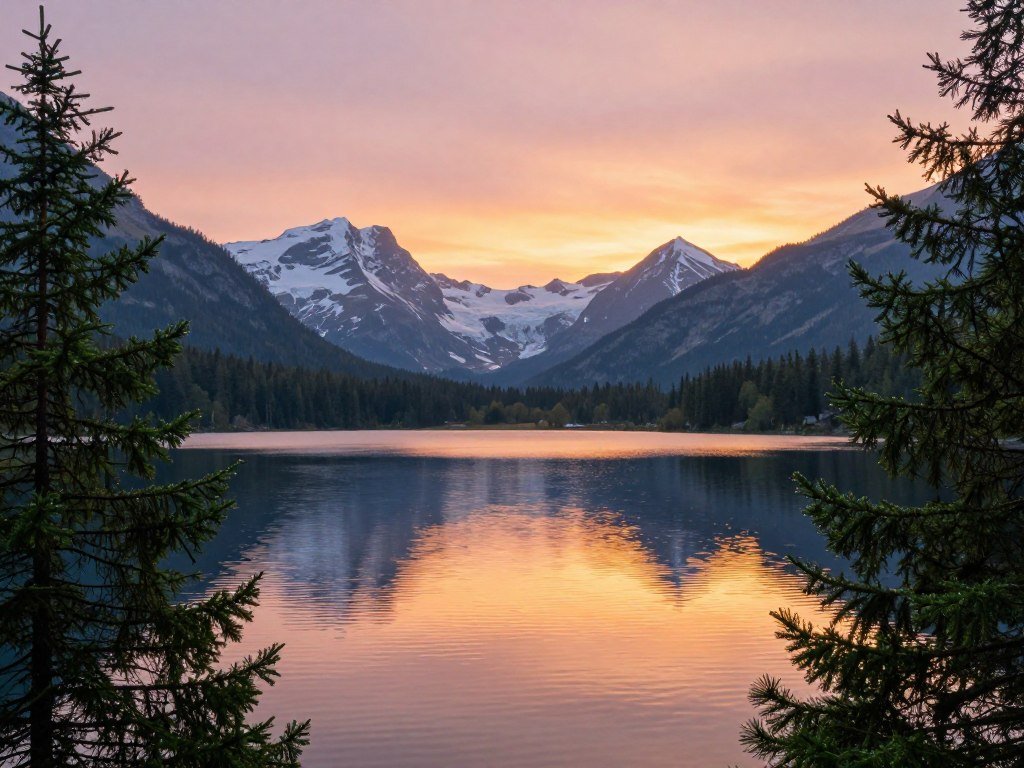
A prompt such as “a quiet alpine lake at dawn” gives the generator a subject, but not yet a clear composition. Add a few specific details to guide the image, then let the model fill in the scene. A useful prompt names the setting, view, and feeling you want the image to convey.
Build the scene from subject to atmosphere
Build the prompt in a steady order so the main idea stays clear. Choose details that support the same mood instead of crowding the scene with unrelated elements.
- Main subject and terrain, such as a lake in a steep valley.
- Vegetation and distinctive elements, such as pines, a footbridge, or a stone tower.
- Time of day and weather, such as late afternoon with light rain.
- Lighting direction and mood, such as warm side light and a quiet mood.
- Foreground, midground, and background, so the image has depth.
Name the focal point and viewing angle before adding decorative details.
Outdoor scenes can include paths, patios, decks, water, and furniture. Add only the features that matter to your image, then describe how they fit the space.
Set the viewpoint and art direction
Camera position changes how large a mountain, tree, or building feels. A low viewpoint can make a cliff seem imposing, while an aerial view can show the shape of a garden or shoreline.
State the aspect ratio when your canvas needs a wide or tall shape. A medium or render reference can also guide the visual treatment. Terms such as matte painting and Unreal Engine 5 render give the model a clearer style target.
For example: “Tropical shoreline at golden hour, matte-painting style, foreground rocks, distant island, wide view, soft reflections.” The simple prompt-writing formula can help you order similar details. A beginner AI image workflow also covers basic generation and edits.
A survey of controllable text-to-image models reviews ways to guide images through layouts, depth maps, and other controls. Name the focal point and viewing angle before adding decorative details.
Which AI Landscape Generator for Digital Art Fits Your Workflow?
For a cinematic, highly detailed scene, Midjourney is a strong first choice; Leonardo AI suits finer model control, while Firefly suits a Photoshop-centered workflow. Match the tool to your work, since each offers a different mix of image style and editing options. For the best AI landscape generator for digital art, match the choice to your main need: cinematic scene detail, model control, or Photoshop integration.

Choose a model for the image you want
Midjourney works well for high-detail, painterly, or cinematic scenery. Leonardo AI gives you more model and style controls, which can suit varied art direction. Its free plan gives you an AI landscape generator for digital art for free, with 150 fast tokens refreshed daily.
Adobe Firefly fits an existing Adobe workflow. Standard features include text-to-image, background generation, and Photoshop Generative Fill, Expand, and Background tools. Premium features add third-party models, AI video and audio, and high-resolution upscaling. Some actions can use multiple credits, and credits reset monthly without rolling over.
Compare these choices with a broader AI image generator guide or a comparison of free image generators if access limits matter most.
Compare the plans and generation limits
Midjourney’s 2026 plans include Fast GPU hours for quicker image generation. Standard, Pro, and Mega add unlimited Relax mode, while Pro and Mega also include Stealth Mode. Basic has neither feature.
| Plan | Monthly price | Annual price | Fast GPU hours per month | Relax and Stealth |
|---|---|---|---|---|
| Basic | $10 | $96 | 3.3 | No Relax, no Stealth |
| Standard | $30 | $288 | 15 | Unlimited Relax, no Stealth |
| Pro | $60 | $576 | 30 | Unlimited Relax and Stealth |
| Mega | $120 | $1,152 | 60 | Unlimited Relax and Stealth |
Annual billing saves 20%, and unused Fast GPU time resets monthly. Extra Fast GPU time costs $4 per hour on every plan. A set of four images uses about one minute of Fast GPU time. See the Midjourney plan details for its current allowance structure.
Leonardo’s free plan offers 150 fast tokens each day and allows one concurrent generation. Commercial use is included on its free and paid plans.
| Plan | Monthly price | Monthly tokens | Concurrent generations |
|---|---|---|---|
| Essential | $12 | 8,500 | 2 |
| Premium | $30 | 25,000 | 3 |
| Ultimate | $60 | 60,000 | 6 |
Before paying, compare the included generation allowance with how often you expect to rerun an image.
How Do You Refine and Finish an AI Landscape Image?
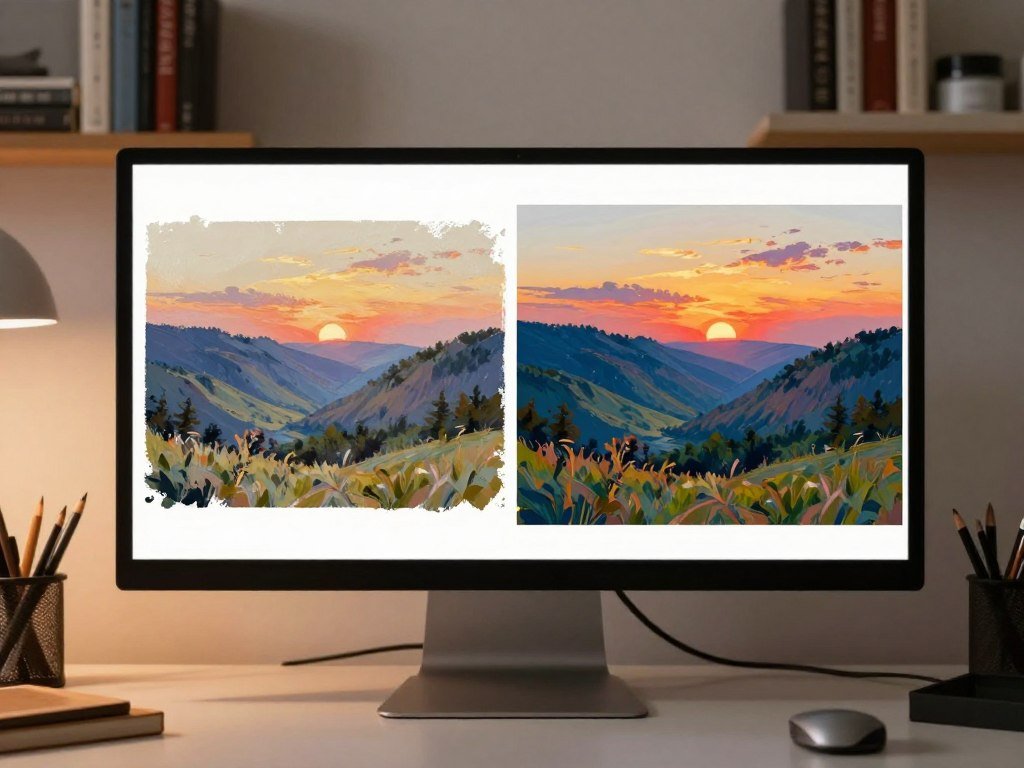
Treat the first result as a draft, then change one visible issue at a time. Small edits make it easier to see which prompt change helped. Every retry uses generation resources, so review the image before asking for another version.
Iterate without wasting generations
Use a simple review loop to keep each change focused:
- Generate a small set of variations.
- Identify one specific problem, such as a crooked bridge.
- Change the relevant prompt detail or use an editing control.
- Review text and small elements at full size before another retry.
Leonardo Phoenix generations cost 12-50 tokens per image, depending on settings. Each retry costs the same as a new generation. Phoenix can render legible text, but proofread signs and lettering before you keep an image.
Leonardo also has fine-tuned models for anime, photorealism, and 3D. Choose the model that fits your intended style before you spend tokens on repeated attempts. A free text-to-image generator comparison can help you weigh access and editing features.
Upscale and prepare the final file
Use an upscaler when the chosen image looks right but needs more pixels for display or print. The needed pixel dimensions depend on the final size and viewing distance. A large print viewed close up needs more detail than a small image on a phone.
Midjourney’s Creative or Subtle upscale takes about two minutes of Fast GPU time. Topaz Gigapixel supports upscaling up to 16× and output sizes up to 30,000 pixels through its Photoshop plugin.
Upscaling adds pixels, but it cannot restore detail that the original image never had. Check the final image at its intended viewing size, since an enlarged file can reveal artifacts that were hard to spot in a thumbnail.
When Do You Need a Landscape Design Tool Instead?
A photo-based landscape design tool is the better fit when you want to see a new planting or patio idea on your own property. It uses a photo, sketch, or 3D export as a starting point, then previews changes against the existing setting. Your actual yard gives the concept more context than an imagined scene. A preview can show an idea, but it cannot confirm that the idea will work on site.

Preview ideas on a real outdoor photo
Photo-based tools can test planting, paths, patios, decks, water, furniture, and lighting. Some also let you change the time of day or weather. These controls help you compare styles while keeping the house, trees, and yard in view.
OutdoorBrite starts at $29 per month for 25 redesigns with HD output. Plus costs $49 for 100 redesigns and 2K output. Pro costs $149 for 200 redesigns and 4K output. Each design or AI edit uses one credit, and paid plans include commercial rights.
| Plan | Monthly price | Redesigns per month | Output | Commercial rights |
|---|---|---|---|---|
| Starting plan | $29 | 25 | HD | Included |
| Plus | $49 | 100 | 2K | Included |
| Pro | $149 | 200 | 4K | Included |
GenRoom gives you 6 free credits, equal to 3 designs, plus one free 4K output. Its Start pack costs $9.99 for 36 credits, about 18 designs and edits. Basic costs $19.99 for 100 credits and free 4K output. Pro costs $39.99 for 300 credits, free 4K output, and private designs.
HomeDesigns AI gives you 3 free credits daily for landscape and exterior redesigns. DreamYard costs about $15 monthly for paid access and offers limited free generations. Neighborbrite offers free concept renders, with Pro at about $15 monthly.
The GenRoom free allowance offers a way to try a few photo-based designs before choosing a paid option.
Know when a visual concept is not a site plan
A render can help you pick a direction, but construction-ready planning needs site checks. Drainage, irrigation, materials, local code, and plant suitability can change what works. The ASLA public practice overview describes professional work that includes site assessment, grading, drainage, and code review.
Yardzen offers higher-touch design packages: Essential costs $995, Classic costs $1,395, and Signature costs $1,995. Front-yard plans start at $295, while full-yard plans cost $1,295-$2,495. Use a render to start a project conversation, then have site conditions checked before choosing materials or plants.
What Should You Check Before Using AI Landscape Art Commercially?
Before using a generated landscape in a paid project, check the tool’s commercial-use terms and the rules for your own business. Permission to use an image, copyright protection, and indemnification are separate questions. Do not treat a commercial-use license as proof that you own copyright or have legal protection.
Midjourney requires companies with more than $1,000,000 in gross annual revenue to use Pro or Mega for commercial use. A small studio and a large company may face different plan rules, even when they create similar art.
Adobe says Firefly models use licensed content, including Adobe Stock, and public-domain content whose copyright has expired. Adobe also says it does not train Firefly on personal content from Creative Cloud or Adobe Experience Cloud subscribers.
Adobe says you can use non-beta outputs commercially. You can also use beta outputs unless the product clearly says otherwise. Some qualifying Adobe plans may make customers eligible for intellectual-property indemnification, subject to the plan terms. The Firefly training and use terms explain those stated limits.
Commercial permission, copyright protection, and indemnification answer different questions.
OpenArt requires attribution and a backlink for commercial use of images created on its platform. Stable Diffusion images found on OpenArt can be used commercially without licensing, a different rule from images made there.
In the United States, copyright protection for AI-assisted work depends on human authorship and the human-authored contribution. Adding meaningful human choices matters more than simply running a prompt. A guide to earning with AI work also covers why tool terms matter when you sell creative services.
Keep a record of the tool, plan, and edits used for any image you intend to publish or sell.
Conclusion
The quickest route to a stronger landscape image is to start with one clear scene, then refine what matters most. A focused idea gives you a useful first draft, while a few deliberate revisions can bring the mood and style closer to your goal.
Choose a generator that fits how you work, whether you want a fictional world or a draft for a real garden. Keep your first attempt simple enough to judge, then make one focused change when the image misses the mark.
Write a short prompt, generate a first version, and try a focused variation today.
FAQ
Do I need to upload a photo to make digital landscape art?
No, a text prompt can create an imagined scene without an uploaded photo. You can describe a forest, distant planet, or mountain town from scratch. A photo helps when you want a redesign preview of a real outdoor space, since the tool can place new paths or plants against the existing home and yard.
How can I keep a landmark consistent across several generated versions?
Keep the landmark’s key description and viewpoint fixed, then change one other detail at a time. A reference image or editing control can help when the generator offers one. For example, keep a red lighthouse on the left edge of the frame while testing different skies, rather than changing its size and position too.
Can an AI landscape generator create readable signs or lettering?
Yes, some models, including Leonardo Phoenix, can render legible text. Results can still contain spelling errors or distort small letters, especially on distant signs. Zoom in and proofread the lettering at full size before you publish or use the image. For a key sign, keep a clean version without text for later editing.
What aspect ratio should I use for a landscape wallpaper?
Choose an aspect ratio that matches the target screen, then check the device’s dimensions before you generate or crop. A wide monitor and a tall phone need different canvas shapes. Matching the shape early can help keep important parts of the scene visible and reduce the amount of cropping after generation.
Does a free AI landscape image automatically have commercial rights?
No, free access does not automatically grant commercial rights. Terms differ by tool and plan, and some platforms set attribution rules for images made on their service. Check the exact plan terms for your image, including any rule for platform-hosted models. Keep a copy of the terms that apply when you create the work.
Can I use an AI landscape image as a game background?
Yes, you can use an AI landscape image as a game background if the generator’s terms allow that use. Match the canvas shape and resolution to the game’s target screen. Leave room for interface elements if the scene will sit behind menus or text, and test the image in the game before final export.



