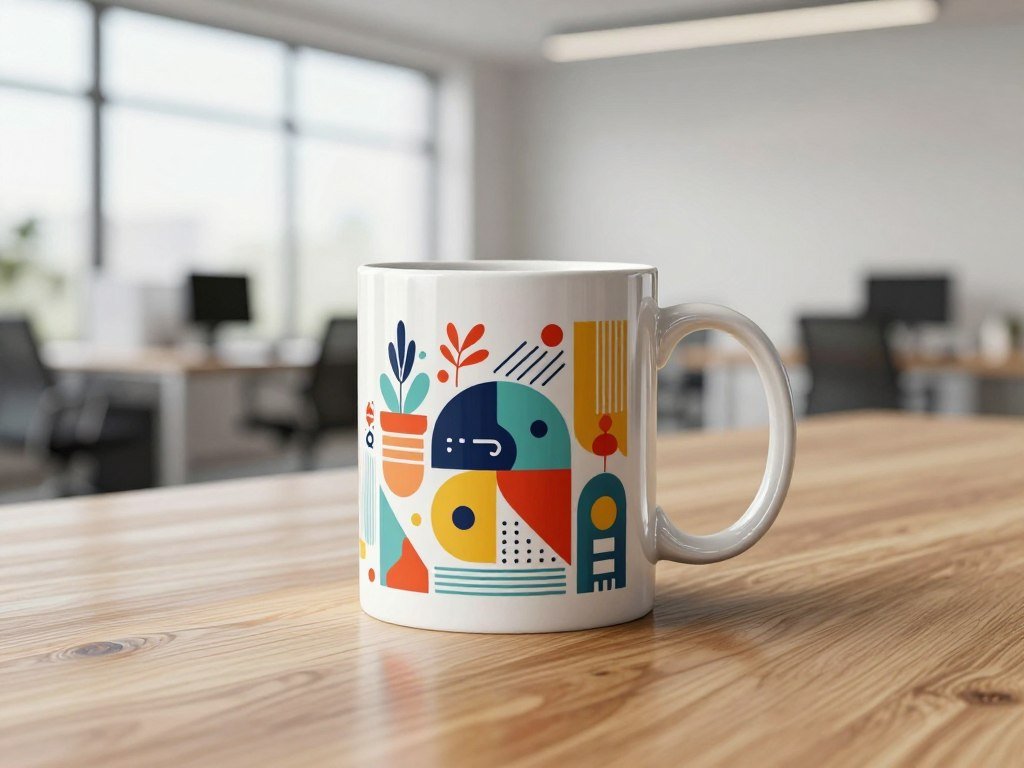
A product mockup lets you see how an idea may look in context before you publish it or send it to a client. Product teams can turn artwork or an early idea into a visual preview for a pitch, online listing, or campaign. That can save time when you need to compare visuals before making a larger commitment.
An AI Mockup Generator for Product Design can help you move from a rough concept to a scene that feels ready to share. The right tool depends on what you need next: custom scenes, ready-made templates, a website prototype, or a 3D view. Each workflow serves a different job, so choose based on the file or image you need to deliver.
You can use a product image to explain an idea to a client, check a brand direction, or give shoppers a clearer sense of an item. A polished visual can help people picture the design, but it does not replace the files needed to make a physical product or build a working site.
Start by deciding whether you need a quick presentation image or a file that will guide real production.
Key Takeaways
- Choose a template for quick placement in a familiar product scene.
- Use a prompt-led workflow when the scene needs a custom look.
- Try an interactive prototype to explore a website or app flow.
- Use a 3D view when one flat angle does not show enough.
- Keep presentation visuals separate from files made for production.
What does a product mockup show?
A mockup shows a design in a setting that helps someone picture how it could look in use. A mockup is a visual preview of how a design could look on a product, interface, or real-world scene before production or publication. It helps people judge the idea, not the finished item.
A presentation image is not the same as a finished product or working website. For example, a logo on a mug can help a client picture a gift item. A book cover in a pitch deck can make a publishing concept feel more concrete.
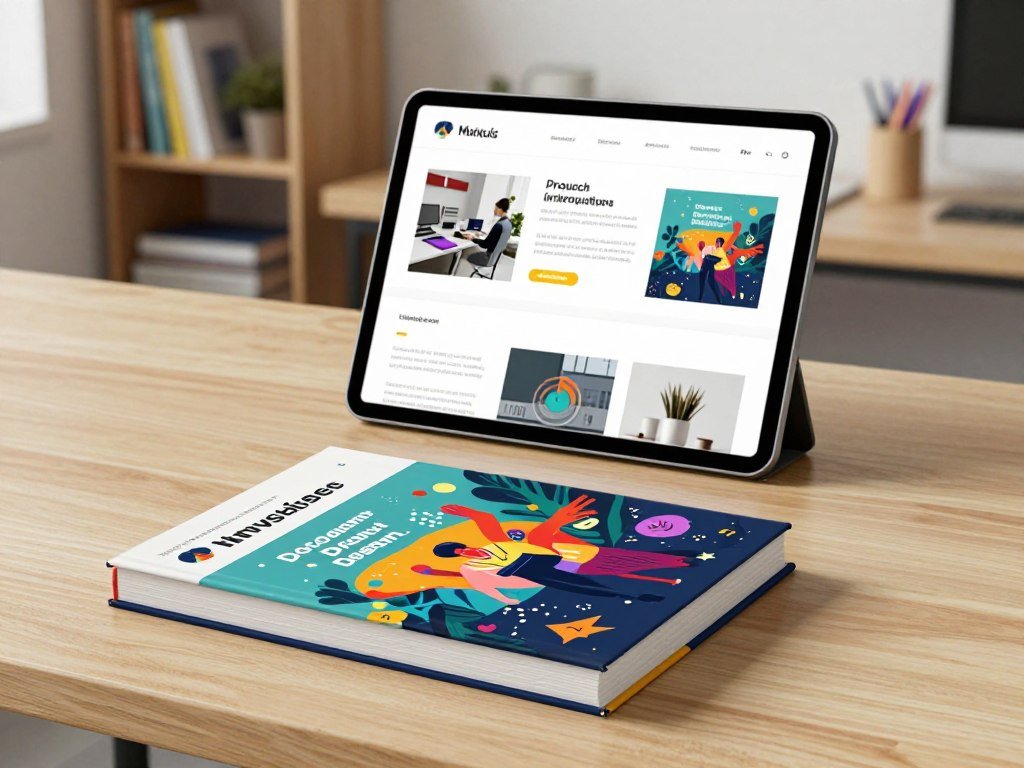
Canva mockup examples include T-shirts, posters, websites, and mobile apps. A website screen in a portfolio can show the look of a page without proving that its buttons work. The image gives viewers a shared point of reference for feedback.
Treat the preview as a communication aid, not as proof that the product or interface is finished.
A client can comment on the color, layout, or brand feel before a team spends time on later steps. A customer can picture how a product might appear on a shelf or in a room. Those reactions can guide the next design change.
A mockup can also hide problems that only appear in use, such as a label wrapping around a curved bottle. A still image cannot confirm how a website responds to clicks or screen sizes. Treat the preview as a communication aid, not as proof that the product or interface is finished.
How does an AI Mockup Generator for Product Design fit your workflow?
Choose a preset template when you already know the product and want a quick, controlled placement. Preset scenes make it easy to compare a design across familiar product views. A prompt-led workflow offers more freedom when the scene itself matters.
An AI mockup generator for product design online can support either workflow, depending on the tool. Traditional mockups use fixed templates, while AI tools may generate a scene or background and adapt a design to a surface. The difference affects how much control you get before reviewing the result.
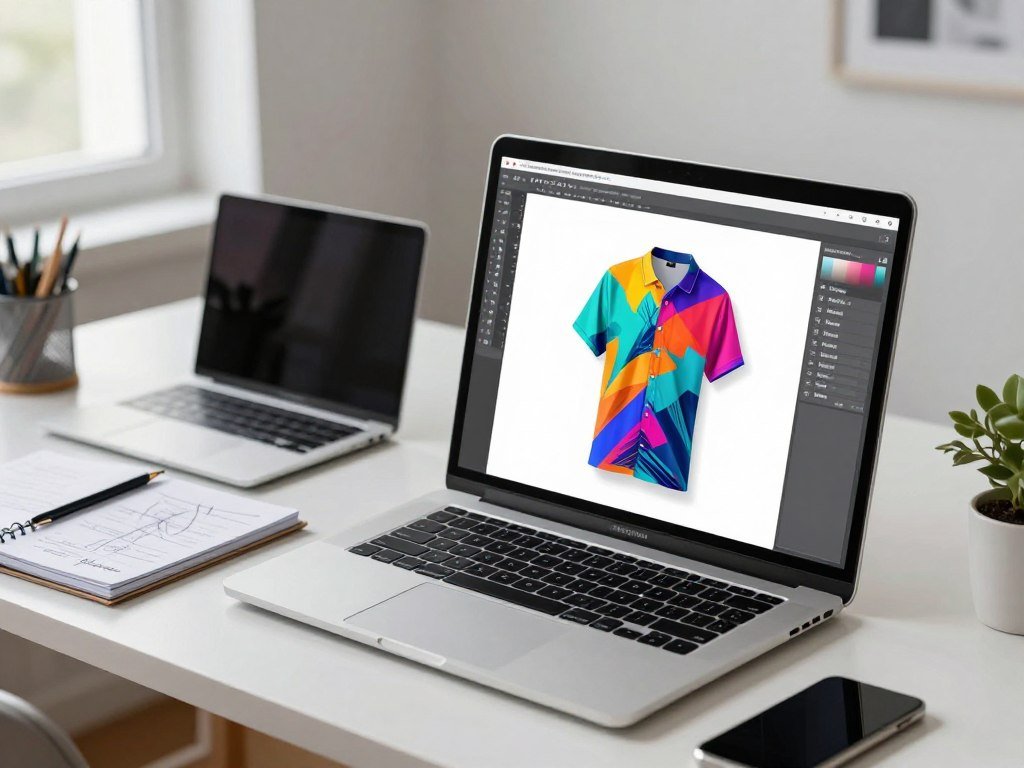
Template-based tools place artwork in preset scenes
A template gives you a product, angle, and setting that are already arranged. You add your artwork and choose a scene that fits the item. That makes templates useful when you need a fast visual for a familiar product.
The fixed setup can keep comparisons consistent. If you want to compare two logo colors, placing both on the same shirt scene avoids changes in lighting or angle. You spend less time describing a scene and more time judging the design.
Templates may feel limiting when your idea needs an unusual background or a very specific brand setting. In that case, a preset scene can still help you make an early draft. You can use it to check placement before making a more tailored image.
Prompt-led tools can create or adapt a scene
Prompt-led tools can create or change a scene from written instructions. Some can also adapt artwork to a product surface. That gives you more creative freedom, but the result needs a careful review.
Recraft, Artboard Studio, Media.io, Pixelcut, and Mockupgenerator.ai suit custom-scene creation. Mockey AI and Canva Mockups suit people who want ready-made selections. You can explore an AI image generator by workflow if you also need to compare broader image tools.
A generated background may shift the mood, props, or light around your product. That can help when the setting is part of the concept, such as a bottle on a spa shelf. Use a generated scene when the setting itself is part of the concept you need to present.
How can you create a custom product scene?
A custom scene can begin with either a finished design file or a short description of the visual you want. You can upload a logo or artwork, or generate a design before placing it. Either starting point can lead to a product image that fits your idea.
Choose the product and setting first, then give the generator clear visual direction. Recraft lets you upload artwork or make it with AI, then place it on items such as T-shirts, posters, book covers, headwear, mugs, packaging, and devices in 2026.
Start with uploaded artwork or a generated design
Use an existing logo or design file when exact brand details matter. You can also begin with a text prompt and generate a new visual direction. Fotor supports text-to-image and image-based mockup creation, so you can start with words or an image.
When you generate artwork first, keep the first idea simple. A clear subject gives you a cleaner starting point for the product scene. For more help shaping the image itself, see these beginner steps for creating AI images.
Set the product and scene direction
Natural-language instructions can guide the product, setting, light, and style. Fotor lets you adjust texture, color, lighting, angle, and background with prompt changes. Change one element at a time so you can tell which instruction shaped the result.
A short prompt can name the item and the scene without trying to control every detail. Include these four controls in the brief:
- Product: name the object, such as a glass bottle or cotton T-shirt.
- Setting: describe a studio shelf, kitchen counter, or outdoor scene.
- Lighting: choose soft window light, a bright studio, or a warm glow.
- Style: state whether the image should feel clean, playful, or premium.
A useful prompt tells the image generator what must stay clear, such as the label facing forward. More prompt ideas appear in this simple guide to writing AI image prompts. Keep the generated scene focused on the product so the design remains easy to judge.
Which ready-made mockup libraries cover the most use cases?
A ready-made library is the quickest fit when you want to choose a product scene rather than describe one from scratch. Mockey AI, Artboard Studio, and Canva cover different mixes of product mockups and design tasks. The useful measure is whether a library has the product and output you need.
Mockey AI lists more than 30,000 templates across more than 60 product categories in 2026. It suits broad searches, including packaging, and adds new packaging mockups every week. The service also lists video and multi-angle mockups.
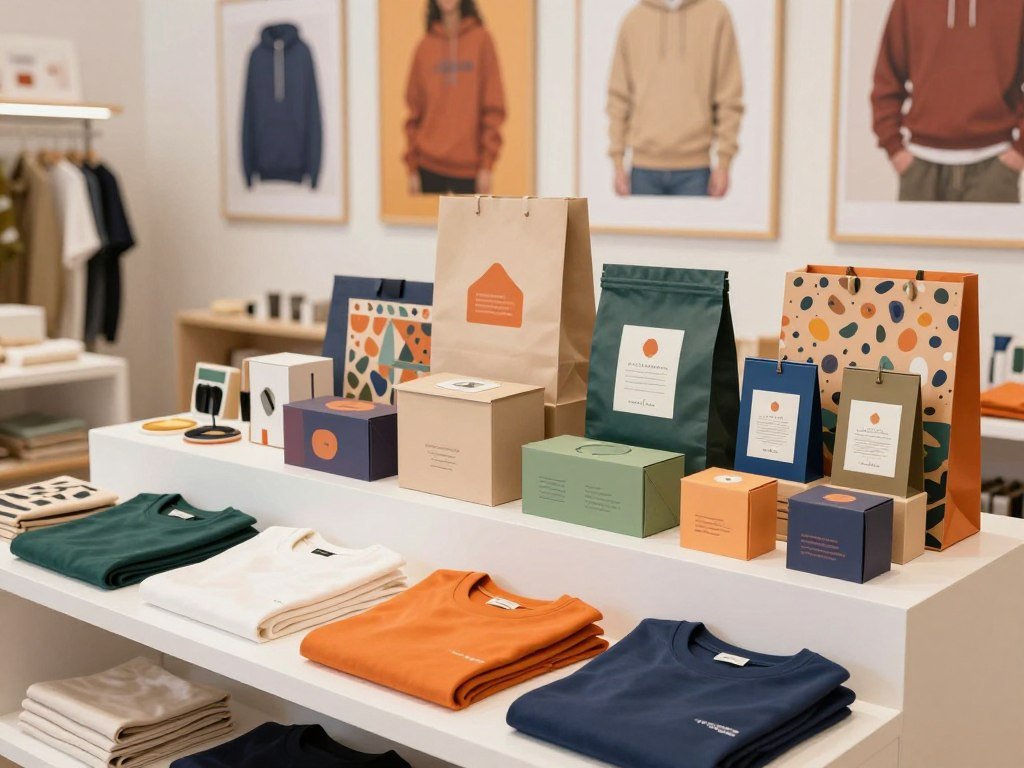
Mockey AI has broad product and packaging coverage
Mockey AI can be a practical starting point when you need to try several product types. Its library includes apparel, product scenes, and packaging. It lists more than 3,500 packaging mockups, with new packaging options added weekly in 2026.
The large selection can help when you are still deciding how a design might appear on different items. Check that the view matches your actual product, not just a nearby category. A pouch and a carton need different artwork placement.
Artboard Studio spans several design categories
Artboard Studio lists more than 5,000 mockups across devices, apparel, packaging, print, and branding in 2026. That range can help when one project includes a phone screen, a shirt, and printed materials. It supports PNG, JPEG, WEBP, MP4, and WEBM exports.
The video formats matter if your delivery needs movement rather than a still image. Check which export suits the place where you plan to share the design. A static deck and a social clip do not need the same file.
Canva keeps mockups inside a wider design editor
Canva supports mockups for T-shirts, websites, posters, devices, mugs, and book covers. You can place a mockup into a wider design rather than moving between separate apps. That can suit a quick presentation or social graphic.
The platforms differ in range and output, as this table shows:
| Tool | Categories | Distinctive library or output detail |
|---|---|---|
| Mockey AI | 60+ product categories | 30,000+ templates, weekly packaging additions, video and multi-angle mockups |
| Artboard Studio | Devices, apparel, packaging, print, branding | 5,000+ mockups; PNG, JPEG, WEBP, MP4, WEBM exports |
| Canva | T-shirts, websites, posters, devices, mugs, book covers | Places mockups inside a wider design editor |
Mockey AI’s 30,000+ templates and 60+ categories give you breadth, while the other libraries offer different design and export options. Compare the actual product category you need, not just the total size of a library.
How do AI packaging mockup generators handle artwork?
Packaging mockups help you judge how a logo, label, and color palette work together on a package shape. An AI packaging mockup generator can place artwork on a box, bottle, pouch, or other package form. A useful preview lets you inspect the design from more than one view.
Packaging scenes help you present a concept, but the artwork still needs a separate production layout. Mockey AI lists more than 3,500 packaging mockups in 2026, including boxes, pouches, tubes, cosmetics, bottles, paper bags, dropper bottles, and perfume packaging.
Packaging mockups help visualize a design
Tools can adjust artwork on varied package shapes. Mockey AI supports repositioning, product-color changes, warping, and front, side, and close-up views. Its packaging exports are high-resolution JPG or PNG files in 2026.
Those controls can help you check whether a logo stays clear as a label curves around a bottle. For a quick category check, consider these package groups:
- Boxes and cartons
- Pouches and bags
- Bottles and tubes
- Cosmetics and perfume packaging
Packify supports boxes, bottles and jugs, food packaging, pouches and bags, apparel, and containers and cups. That range can help you find a starting scene for different kinds of goods. A scene should still show the package form that matches your item.
A mockup is not automatically a manufacturing file
A visual packaging preview shows how artwork may appear on a package. A dieline is a flat packaging layout with production marks. A mockup does not automatically provide that layout or confirm that a package can be made.
A product view can hide how the artwork fits across folds or joins. Keep the preview for discussion, and treat production files as a separate job. Review small text and logo placement at every view before using a packaging image in a customer-facing listing.
Can AI generate website and app mockups?
Yes, AI tools can create website mockups, and some can make the result interactive enough to test a flow. Figma Make can generate responsive website mockups and refine them through follow-up prompts or visual edits in 2026. Interactive work lets you test more than the look of a screen.
Figma Make can create landing pages, marketing sites, pricing pages, product pages, and multi-page flows. It can also connect mockups to external APIs and databases for testing with live information in 2026.
An interactive mockup lets you move through a path, such as opening a product page from a landing page. A static screenshot shows only one moment. It cannot show whether a control responds or whether a user can reach the next screen.
A generated layout is still a prototype, not a promise that the website is ready to publish. Use it to explore page order, content, and user paths before deciding what needs a full build. You can refine a screen with a prompt or make visual edits as the design changes.
External data can help you test how a mockup handles live information, but that does not make every feature ready for customers. Keep the test focused on the part of the experience you need to assess. Use a prototype when you need to explore a user path, and a static image when you only need a visual presentation.
What can a 3D mockup generator create and export?
A 3D mockup is useful when a single front-facing image does not show enough of the product. Meshy can use a photo of your own product to generate a 3D mockup and show different angles in 2026. Multiple views can help you inspect the shape beyond one flat scene.
Meshy supports GLB, USDZ, FBX, OBJ, and STL exports. STL and 3MF exports include auto-repair in 2026. Meshy also has a free tier with monthly credits, so free access does not mean unlimited generation.
Turn a product photo into an angled 3D view
A product photo can be a starting point for a model you can turn and inspect. This differs from a flat product image, which presents one fixed view. An angled model can reveal details on the side or back.
Meshy’s Decal Tool accepts PNG, JPG, or WebP files. You can use those files to add artwork to a model, then check how the design sits across its surface. Saving texture edits requires a paid plan in 2026.
The model may help you present a shape or concept, but an export format still needs to fit your next step. For example, a file used in a 3D editor may not suit a phone-based preview. Choose the format based on the software or device you plan to use.
Check file formats and texture-edit limits
GLB, USDZ, FBX, OBJ, and STL each serve as model export options in Meshy. The right choice depends on the program or device that will open the file. Meshy includes auto-repair for STL and 3MF exports in 2026.
The free tier uses monthly credits, which gives you a way to test the workflow without unlimited runs. Consider whether you need a viewable model or editable surface details before you start. Match the export format to the software or device that will open the model.
How do you prepare artwork and prompts for better results?
A clear design file and a specific scene brief give the generator less room to misread your intent. A clean upload helps preserve the logo and text, while a concise prompt explains the product and scene. Clear inputs make review easier.
Use a separate logo or artwork file when exact brand details matter. Packify recommends a clear, high-resolution image, a readable logo, and a front-facing reference with little perspective distortion.
Make the uploaded design easy to read
Small logos and fine text can become hard to read when the source image is blurry. A separate artwork file gives the tool a cleaner reference than a photo where the design is already bent around an object. Keep the brand mark simple and easy to see.
Use a front-facing reference when you can. Strong perspective can hide parts of a logo or make the product shape harder to read. A flat reference helps the tool understand where the artwork belongs.
Describe the product and scene clearly
Write a short brief that names the product, setting, lighting, and style. For example, ask for a paper coffee cup on a bright cafe counter with soft morning light and a clean retail look. State which colors, text, or logo details must stay unchanged.
Use this four-point preflight list before generating:
- Use a clear image.
- Make the logo legible.
- Choose a front-facing reference with minimal perspective.
- State what must stay unchanged.
For a wider review of AI image creation and editing, focus on the details that affect your design. If the result changes one small feature, revise that instruction rather than rewriting the whole brief. Inspect the result for altered wording, spacing, and brand colors before you share it.
Which free AI mockup tools offer enough to get started?
Free access is useful for testing a workflow, but compare what the plan lets you generate, edit, and export. An AI mockup generator for product design free can mean free generations, credits, or limited editing. The allowance varies by platform.
Free access does not mean the same number of images or features in every app. Recraft offers up to 30 free image generations per day in 2026. Figma Make Starter includes 150 AI credits per day, up to 500 per month in 2026.
Artboard Studio’s free plan limits items, exports, and uploads. Its paid plans start at $9 per month when billed annually in 2026. Canva has free mockup features, while some custom mockup and editing features require Canva Pro.
Mockup AI free access can also mean a limited set of templates and edits. Mockupgenerator.ai offers free templates for more than 25 products, PNG files, and free color and custom-background changes in 2026. The table compares five ways to start.
| Tool | Free access | Stated limit or paid condition | Best starting use |
|---|---|---|---|
| Recraft | Up to 30 image generations daily | Daily generation allowance | Custom product scenes and generated artwork |
| Figma Make | 150 AI credits daily | Up to 500 credits monthly | Interactive website and app flows |
| Artboard Studio | Free plan available | Limited items, exports, and uploads; paid plans start at $9 monthly, billed annually | Mockups across design categories |
| Canva | Free mockup features | Some custom mockup and editing features need Canva Pro | Mockups placed inside a wider design |
| Mockupgenerator.ai | Free templates for 25+ products and PNG files | Free color and custom-background changes | Quick product scenes with background edits |
Fotor offers a free plan for text-to-image mockup generation in 2026. Packify gives new users 100 one-time free credits. Flair AI has limited free image generations, and commercial use requires the appropriate paid plan in 2026.
Compare a finished export, not only the image generator’s preview. Confirm the current plan and commercial-use terms before building a repeatable client or sales workflow. You can also compare free text-to-image generators by use when you need broader image creation.
Which mockup tool fits your product workflow?
The right starting tool is the one whose workflow matches the result you need to deliver. Choose a prompt-led option for a custom scene, a template library for speed, Figma Make for an interactive website flow, or Meshy for a photo-based 3D view. Task fit matters more than a general ranking.
Pick by deliverable, then test the tool on one real item. Recraft, Artboard Studio, Media.io, Pixelcut, and Mockupgenerator.ai suit custom scenes. Mockey AI and Canva Mockups suit ready-made selections.
Use these task-based options as a shortlist, not a universal ranking:
- Custom scene: try Recraft, Artboard Studio, Media.io, Pixelcut, or Mockupgenerator.ai.
- Ready-made product view: start with Mockey AI or Canva Mockups.
- Interactive website flow: use Figma Make for page and screen testing.
- Photo-based 3D view: try Meshy when you need more than a flat image.
- Integrated editing: use Canva when you want mockups inside a broader design layout.
Clear uploaded designs and prompts that name the product, setting, lighting, and style can support stronger results. Your brand identity may need exact colors and logo placement, so judge the result against your own artwork. You can explore AI-assisted design work for clients when you plan to offer visuals as a service.
Use the platform that fits the final file, whether it is a presentation image, an app screen, or a model. Test the artwork at the scale and angle your audience will see. Test your own artwork on one representative product before committing a whole catalog to a workflow.
Can a mockup file go straight to print?
A mockup can look ready for print without containing the layout a manufacturer needs. A high-resolution presentation image can help you review a concept, but a production-ready dieline serves a different purpose. Appearance alone does not make a file ready for manufacturing.
Packaging artwork for manufacturing needs at least 3 mm of bleed and artwork at 300 DPI or higher. A production dieline includes cut lines, fold lines, glue tabs, and bleed areas.
Use the file that matches the task:
| Output | What it contains | Appropriate use |
|---|---|---|
| Visual mockup | Rendered product view | Reviewing a concept or presentation |
| Print image | 300 DPI and CMYK where supported | Print presentation or review |
| Production dieline | Cut lines, fold lines, glue tabs, and bleed | Manufacturer review |
Recraft mockups can export at 300 DPI and in CMYK for print, or as PNG for web, in 2026. Those settings can help with print presentation, but they do not turn every mockup into a production layout.
A rendered package view is not a production-ready dieline, even when the image is high resolution.
Pacdora lists 4K JPG or PNG downloads, MP4 video, and a print-ready dieline in 2026. Its 3D packaging mockup made from uploaded artwork is still a mockup, not itself a production-ready dieline. Keep those outputs separate when you prepare a handoff.
Have the printer or packaging supplier verify dimensions, bleed, and structural marks before production.
Conclusion
Choose the output you need first, then pick the workflow that gets you there with the fewest unnecessary steps. A product presentation needs a clear scene, while a custom concept may call for more control over the background. An interactive flow or 3D preview needs a different kind of tool.
Prepare one representative piece of artwork and test it on the product or interface that matters most. Check whether the image communicates the idea and whether the export fits your next step. Run one focused test with your own artwork before scaling the process to more products.
FAQ
Can I make a mockup from a photo of my own product?
Yes, Meshy can generate a 3D mockup from a photo of your product and show different angles. Its free tier uses monthly credits, so it does not offer unlimited generation. A clear photo gives you a useful starting view, but inspect the model for shape or surface changes before sharing it. Choose an export format that works with your next tool.
Can AI mockup generators create visuals without finished artwork?
Yes, prompt-based tools such as Packify can create a packaging direction from product and brand information without a completed design. You can describe the item, audience, and style, then use the result to explore a visual direction. Treat the generated image as a concept until your real logo, text, and final artwork are in place.
How do I keep an AI mockup from changing my logo or text?
Upload a clear, readable logo or separate artwork file, then state which details must stay unchanged. A front-facing reference can help the tool read the design without strong perspective. Review the generated image at a close view, since small wording and spacing changes can be easy to miss. Fix altered brand details before sharing the image.
Can I use a free AI mockup for commercial work?
Check the specific plan and licensing terms before using a free mockup in paid work. Free access can limit image generation, editing, or export rights. Flair AI requires an appropriate paid plan for commercial use of its images. Keep a record of the plan and terms that apply to the images you use for a client or sale.
What file formats can I export from a 3D mockup tool?
Meshy supports GLB, USDZ, FBX, OBJ, and STL exports. STL and 3MF exports include auto-repair. The best format depends on the software or device that needs to open the model, so check that before exporting. A model file is different from a flat image, and some apps may not accept every format.
Is an AI packaging mockup enough to send to a manufacturer?
No, a manufacturer needs production information such as dimensions, cut and fold lines, glue tabs, and bleed. A 3D packaging image shows how artwork may look on a package, but it does not replace a production dieline. Ask the printer or packaging supplier to review the dieline and confirm that its structural marks fit the package.



