A strong visual can make a complicated idea easier to follow, but finding the right one for every slide takes time. An AI presentation image generator can turn rough ideas into custom visuals for your audience and topic. Yet many decks still look generic, or take too long to illustrate well.
You can use a practical workflow to move from a rough idea to useful slide visuals and an editable presentation. You will still need to review the images, adjust their fit, and check the finished deck. Start with one slide that needs a clearer visual, then build from there.
Key Takeaways
- Start with the message each slide should make clear.
- Describe the audience, subject, style, and image placement.
- Compare free plans by their limits and export options.
- Check image rights, quality, and accuracy before sharing.
- Test an exported slide in the app you plan to use.
How to Use an AI Presentation Image Generator for Slides
Give the image generator the slide’s message and audience, not just its topic. A visual brief is a short description of an image’s subject, style, audience, and place in the deck. A clear brief helps the image support the point instead of competing with it.
Name the audience, main message, subject, style, and composition. Say where the image will sit, such as beside a chart or behind a headline. Open space for a title often helps more than a busy image packed with details.

Write a visual brief that gives the image a job
An AI Presentation Image Generator for Slides online can take a short prompt and return visual options. Canva’s workflow starts at Canva AI: choose “Design for me,” then “Presentation,” and enter a topic. Its Magic Design for Presentations turns that prompt into a draft with an outline and content.
- State the slide’s message.
- Describe the subject and visual style.
- Generate options.
- Place, crop, and review the chosen image.
Canva’s AI presentation maker turns a brief into an editable draft. You can create presentation slides with AI in seconds by entering a concise topic prompt, then reviewing the outline. Magic Write can revise text and generate presenter notes, while Translate supports more than 100 languages.
Fit the generated image to the slide
For more prompt ideas, see this simple image prompt formula. Add text alternatives for images that carry meaning, so people using assistive tools can access that content. The W3C text-alternative guidance explains this access need.
Leave clear space for a headline instead of asking for a visually busy image. A slide image has a job, and the message should stay easy to find.
After placing the image, adjust its crop and size in the presentation maker. Preview the slide at the size your audience will see before keeping the image.
What Should a Slide Image Prompt Include?
A useful prompt says what the image should help the audience understand and what must remain clear on the slide. Specific details give the generator a stronger design direction, while the slide editor handles exact wording. Keep small labels and data values out of generated images.
Describe the subject, setting, visual style, point of view, and color direction. Then name the composition, such as a close view or a wide scene. Tell the generator where to leave negative space for the title or other slide text.
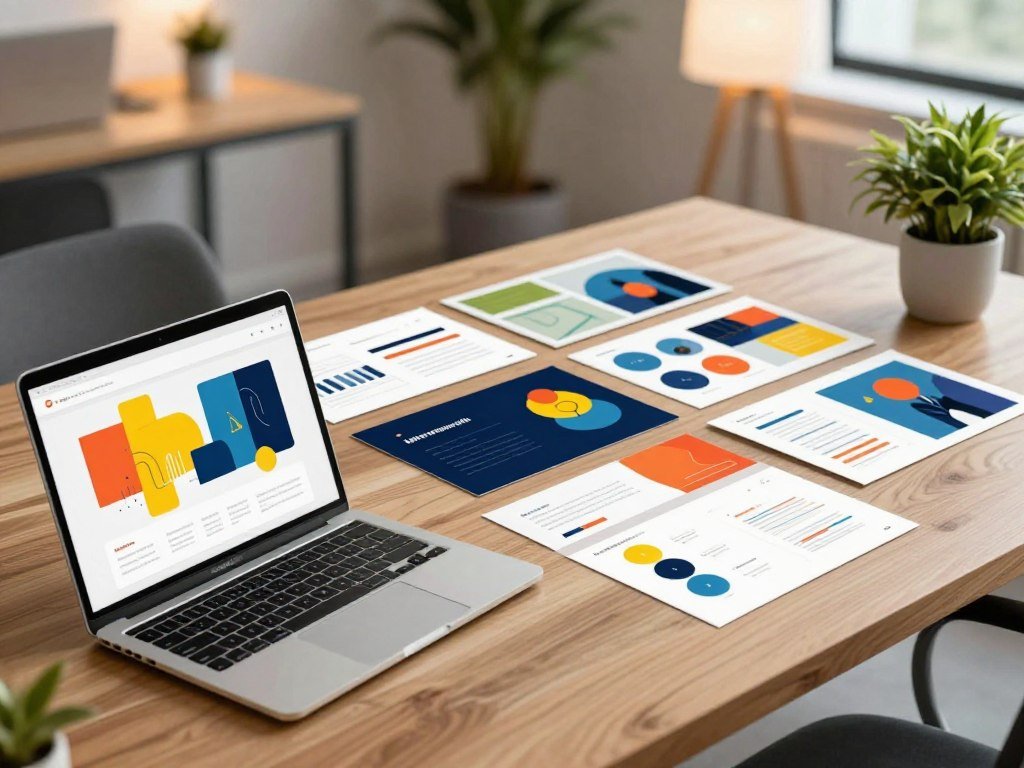
Describe subject, style, and composition
Check that each part of the prompt fits the same audience and tone. A photo-real scene may suit a business pitch, while a simple diagram-like image may work better for a lesson. This beginner guide to creating AI images covers ways to set visual direction.
Use four checks before you generate: subject and setting; intended audience and tone; visual style and colors; composition and text-safe space. Those details guide the image without turning the prompt into a long list of unrelated requests.
Keep text readable against the image
Add exact titles, labels, and data in the slide editor, where you can correct them. Text inside an image may be misspelled or hard to change. When placing text over an image, WCAG 2.2 calls for at least 4.5:1 contrast for normal text and 3:1 for large text.
The W3C contrast guidance explains those minimum ratios. Contrast, cropping, and visual hierarchy are easier to judge in the assembled slide than in an image preview. If a title competes with the main subject, regenerate with more empty space or move the title.
To compare image tools by task, review these AI image generator options. Check that the final colors, content, and crop still suit the presentation’s audience. A focused prompt can guide the draft, but the complete slide shows whether the visual truly works.
Which Free Tools Make Slides With AI Visuals?
A free tool can be enough for a first deck, but the export and usage limits determine whether it fits your workflow. Canva suits custom visuals within an editing workflow, Gamma suits prompt-to-deck generation with theme-matched images, and Slidesgo suits editable PPTX output. Choose by the file and editing control you need most.
These tools have free plans with different usage and export limits. Gamma can generate images to match a presentation theme and lets you choose an image source, including AI. Slidesgo also offers more than 800 professional template designs.

Here are four plans for a first draft. Gamma’s free credits do not refill, so its one-time allowance matters if you expect repeated revisions.
| Tool and free plan | Generation allowance | Output and condition |
|---|---|---|
| Gamma Free | 400 one-time credits | Up to 10 slides per prompt; PDF, PPTX, PNG, and Google Slides exports with Gamma branding |
| Slidesgo Free | 3 AI presentations per month | Editable PPTX compatible with PowerPoint, Google Slides, and Figma |
| Presentations.AI Starter | 200 credits | Up to 20 slides; PowerPoint and PDF exports |
| Pitch Free | 100 one-time AI credits | Unlimited presentations; free PDF exports and embeds are branded |
For a typical user, Canva is a strong choice for visual editing, Gamma for a prompt-driven deck, and Slidesgo when editable PPTX matters. For the best AI for PowerPoint presentations free, choose Slidesgo for editable PPTX or Presentations.AI when you need PowerPoint and PDF exports.
For a wider comparison, see these AI presentation makers for professionals. Check whether the exported file stays editable before building a full presentation in the tool.
What Do AI Presentation Plans Cost?
Free access exists, but a plan’s allowance and export rules matter as much as its price. An AI Presentation Image Generator for Slides can be free to use, while monthly AI allowance and downloads differ by plan. Compare the usable generations and the final file before you pay.
As of October 22, 2026, Canva Free includes 20 monthly AI uses, pooled across its AI tools and reset each month. Canva’s AI for Presentations counts as premium AI use, and its AI Pass costs extra. Canva Pro gives 10 times the Free allowance; Canva Business gives 20 times.

Canva Free does not include Ultra AI tools. If you add premium or Pro elements, you must pay, upgrade, or download a watermarked draft. That can affect the final presentation even when image generation itself was free.
| Plan | Price and billing condition | AI allowance | Notable access |
|---|---|---|---|
| Canva Pro | US$144 per year for one person | 10x Free AI allowance | Pro plan |
| Canva Business | US$250 per year per person | 20x Free AI allowance | Business plan |
| Gamma Plus | $9 per seat per month, billed annually | 1,000 monthly credits | Paid plan |
| Pitch Plus | $13 per month | 500 monthly AI credits | PowerPoint export |
| Beautiful.ai Pro | $14.50 per month, billed annually | Unlimited AI content generation | PowerPoint import and export |
Presentations.AI Pro costs $20 per month when billed annually and includes 5,000 credits. Prezi Standard costs $7 per month when billed annually and includes 500 credits; Prezi Plus and higher plans include unlimited AI generation.
Beautiful.ai has no permanent free plan. Its 14-day trial requires a credit card and charges automatically unless you cancel. Check cancellation and renewal terms before starting any paid trial.
Compare the number of usable generations and the final file you need before committing to annual billing.
Which Tools Fit PowerPoint, Google Slides, or PDF?
Choose the tool around the app where you will make final edits, not just the one that creates the quickest draft. Direct in-app assistants keep work near your existing slides, while standalone deck makers create a separate draft. “Free download” usually means exporting a file from a web tool, not installing a desktop app.
As of October 24, 2026, Gemini slide generation is not in the free Google Slides tier. Personal access requires Google AI Pro or Ultra, while eligible Workspace plans support work access. Copilot in PowerPoint is not in the free PowerPoint for the web tier; personal access requires Microsoft 365 Personal, Family, or Premium.
PowerPoint Copilot can ask about audience, deck length, design direction, and imagery, then apply a selected Brand Kit. Plus AI creates charts and images inside PowerPoint and Google Slides. SlidesAI.io works inside Google Slides and offers controls for presentation type, slide count, and colors.
MagicSlides and GPT for Google Workspace are other workflow options. Canva exports PPTX and PDF, as well as video and links. Gamma’s PPTX exports can lose interactive elements and some formatting, so a polished web draft may need repair after export.
Before moving the full deck, check four things:
- Confirm the required file format.
- Open the file in the intended app.
- Inspect fonts and layouts.
- Check interactive elements and branding.
Verify that your plan allows the file type and branding you need. Test one exported slide in the destination app before transferring the whole deck.
Can You Use AI-Generated Images in a Business Deck?
A generated image is not automatically cleared for every business use just because you can download it. Rights differ by tool and plan, so check the exact terms before adding an image to a client deck. A tool’s commercial-use statement does not replace its current license terms.
In 2026, Ideogram Free gives 10 credits per day, shows no visible watermark, and explicitly permits commercial use. Leonardo AI Free offers 150 daily credits, but most free-tier output does not include full commercial rights. ZSky AI’s current terms allow commercial use on Free, Pro, and Max plans; Free images carry a small “MADE WITH / zsky.ai” wordmark plate.
Check the tool’s license before client or commercial use
ZSky AI Max adds an explicit commercial license and a white-label license for reseller and higher-volume use. Microsoft Copilot Image Creator uses DALL-E 3. It has no daily limit that matters for normal use, but generations slow when weekly boosts run out.
The U.S. Copyright Office explains how human creative input affects copyright in its copyrightability report. That report does not grant commercial permission for any specific tool. Tool terms still control the use they allow.
Review rights, resolution, and visual accuracy
Use a three-part review: read the current license for your exact plan; inspect for accidental text, errors, or misleading details; confirm resolution and any watermark before client delivery. Free image tools compared here cap output at 1024px or 2K, while paid tiers offer native 4K.
That difference makes full-slide sharpness worth checking, especially on a large display. Ideogram’s stated commercial permission is useful, but read its current license before relying on it. Check the current license and the finished image at full slide size before sharing it with a client.
Can AI Turn Documents Into Editable Presentations?
If your key points already live in a report or set of notes, start by turning that material into an outline. Some workflows begin with a topic prompt; others accept files, produce an outline, and let you edit before building slides. Review the outline before turning source material into a deck.
Adobe Express accepts PDF, DOCX, PPT, TXT, and XLS files. You can edit its generated outline, then export PDF or PPT files. SlidesPilot accepts PDF, Word, and PPT files, links, videos, text, or a topic prompt, with a 50 MB maximum file size.
Microsoft says PowerPoint Copilot works best with Word documents smaller than 24 MB. Copilot can also use images from a Word document. Genspark supports document uploads, outline review, manual editing, and PPTX, PDF, or Google Slides export.
Prepare your files before uploading:
- Remove outdated figures.
- Label sections clearly.
- Retain necessary citations.
- Check that images belong in the final deck.
Check AI-generated claims against the source before presenting. A tidy outline can still carry an old number or a missing detail.
Keep only the context the presentation needs, then verify every figure and claim against the original document before presenting the deck.
Conclusion
The best starting point is the tool that gets you from a clear visual idea to an editable slide you can confidently share. Choose based on the app and output you need, then review each visual for fit and usage rights.
A clear first test can save time before you build the full deck. Write a brief for one slide, generate a visual, and test the result in the app you plan to present from.
FAQ
How many images should I put on one slide?
Start with one main visual per slide, then add another only when it supports a separate point. Two images can work well for a before-and-after view or a clear comparison. More than that may make the message harder to follow, especially on a small screen. Keep the key visual large enough for people at the back of a room to see.
What image shape works best for a full-slide background?
Match the image’s aspect ratio to the deck; for a widescreen deck, use a 16:9 image or crop carefully. A portrait image can lose its main subject when stretched across a wide slide. Check the crop on the actual slide, since a preview may not show how the title or other content overlaps the scene.
Can an AI tool make charts as well as pictures?
Some AI tools generate charts as well as pictures, but verify every value against the source data before presenting. Check labels, units, date ranges, and the scale on each axis. A chart can look polished while showing the wrong total or comparison. For important figures, rebuild the chart from trusted data in your slide editor.
Do AI credits renew every month?
Check the plan: some allowances renew monthly, while some free credits are one-time and do not refill. A monthly allowance may also reset on a set date or be shared across several AI features. Read the plan details before a large project, so you know whether later revisions will use fresh credits or the same balance.
Will a generated deck keep its formatting when exported to PowerPoint?
Not always; interactive elements and some formatting can be lost in a PPTX export. Fonts, spacing, charts, and image crops may also change when the file opens in another app. Open a sample export in the PowerPoint version you will use, then compare it with the original. Fix any layout issues before sharing the full deck.
Should I upload an entire report or only selected pages?
Use the smallest relevant file that keeps the needed context, and keep Word documents below 24 MB when using PowerPoint Copilot. Selected pages can reduce clutter, but include definitions and figures that explain the topic. Remove private material that the deck does not need, and retain citations for claims you plan to present.