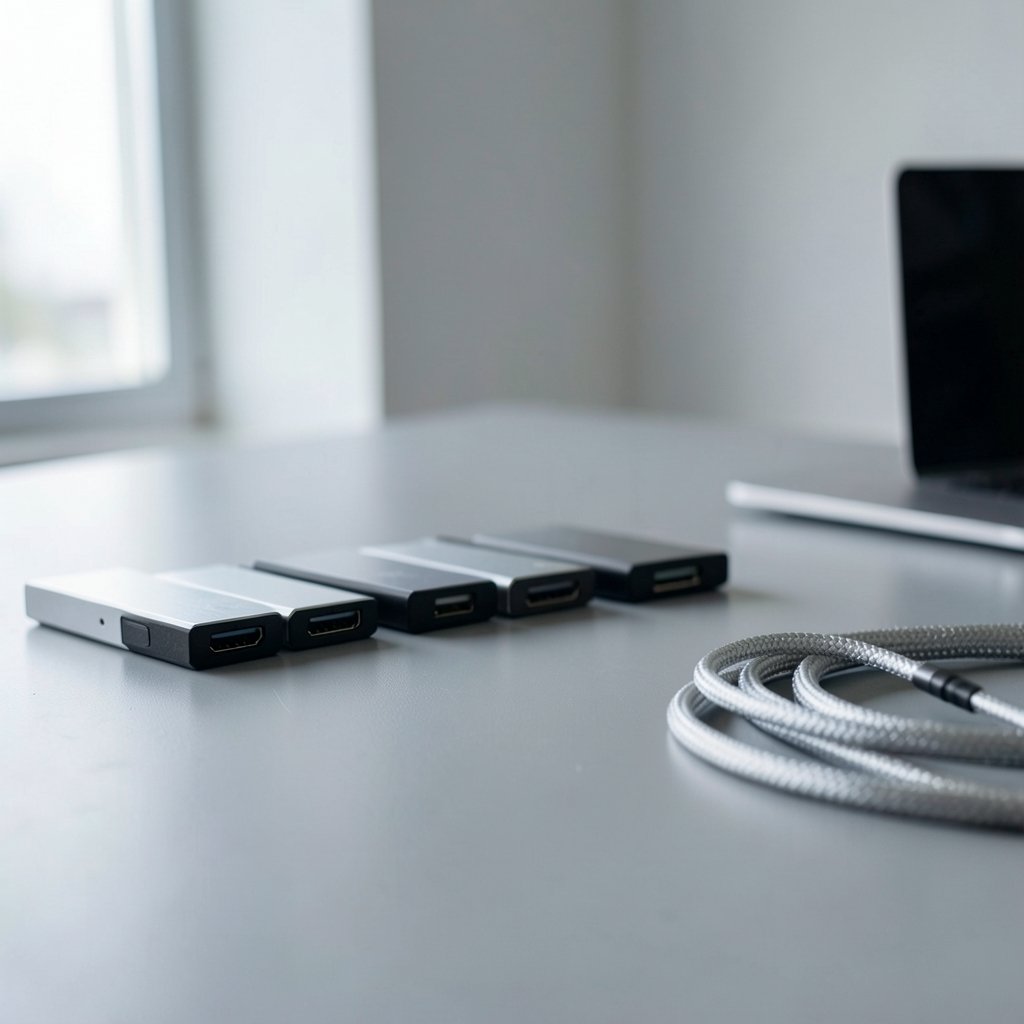
What if the slowest part of your setup isn’t your laptop, but the little metal brick plugged into it? That’s the situation a lot of people are in right now. They bought a fast machine, then paired it with a drive that stalls every time a 70 GB folder lands on it.
The good news is that 2027’s shortlist is genuinely strong. The harder part is matching the right drive to the right port, because a 2,000 MB/s SSD on a 10 Gbps laptop connection is money set on fire. Below are seven specific drives that keep showing up in serious testing, plus the one detail per drive that actually matters.
The Shortlist at a Glance
| Drive | Best for | Interface ceiling | Standout trait | Rough price signal |
|---|---|---|---|---|
| Lexar ES5 | Fast everyday transfers | USB 3.2 Gen 2×2 | Fastest in multi-file and single-file tests | Mid-range bargain |
| Samsung T9 | Balanced speed and security | USB 3.2 Gen 2×2 | Hardware encryption plus drop protection | Mid to high |
| Samsung T7 Shield | Rugged, proven, easy to find | USB 3.2 Gen 2 | Long transfer stability, IP65 | Mid |
| Samsung T7 | Sharing across old and new machines | USB 3.2 Gen 2 | Works everywhere, no drama | Entry-mid |
| Kingston XS1000 | Students and light backups | USB 3.2 Gen 2 | Under 30 g, pocket-sized | Lowest here |
| Sabrent Rocket XTRM-Q | Budget Thunderbolt editing | Thunderbolt 3 | Metal body spreads heat well | Affordable for TB3 |
| Rugged USB4 4TB class drive | Field editors and iPhone capture | USB4 | 3.1 GB/s both ways, 3 m drop rating | Very wide spread |
Lexar ES5: The Transfer-Speed Bargain
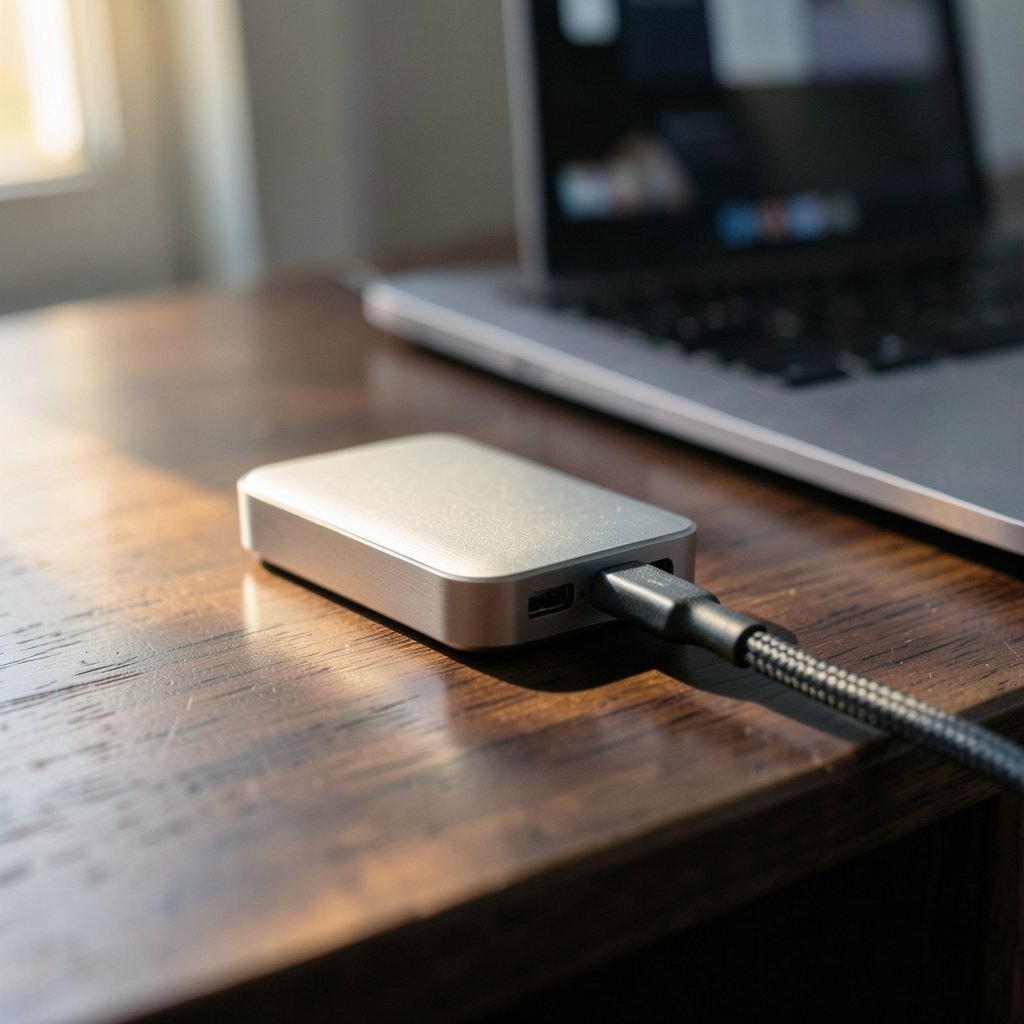
If the job is moving big folders and getting on with the day, the Lexar ES5 is the one to beat in measured testing. It posted the fastest multi-file and single-file transfer results of everything tested, and read speeds peaked at 1.15 GB/s over USB 3.2 Gen 2×2. Just as important, that speed held steady from the first file to the last, which is rare. Drives that lean on a cache tend to sprint and then crawl.
It also carries a five-year warranty and IP65 protection with 3-meter drop resistance, so it isn’t a fragile speed toy.
The limitation is the port. Gen 2×2 is a 20 Gbps mode, and plenty of laptops, including most Macs, never offer it. Plug the ES5 into a plain 10 Gbps port and you’ll see roughly half the peak. Buy it for a desktop or Windows laptop that actually lists Gen 2×2, or accept that you’re paying for headroom you can’t reach.
Samsung T9: Speed, Encryption, and a Port Caveat
The T9 is the safe all-rounder. It combines fast transfers, hardware encryption, and drop protection in one package, and it manages heat with dynamic thermal guarding so long writes don’t fall off a cliff.
The catch is identical to the Lexar’s: the T9’s headline numbers assume USB 3.2 Gen 2×2. If your machine tops out at 10 Gbps, you get a solid 1,000 MB/s class drive at a price that reflects more. Check your port spec sheet before checkout. This is the single most common buying mistake in this category, and it costs people real money.
Samsung T7 Shield: The One That Just Works
The T7 Shield has been on sale since late 2022, which in this market makes it a veteran. That’s a compliment. It handles long transfers well thanks to its heat dissipation, carries IP65 sealing, and comes in 1 TB and 2 TB sizes. Reviewers repeatedly describe it as the most proven, easiest-to-buy rugged option.
Where it falls short: if you want 4 TB in a rugged body, you’ll need to look at other drives in the category. The Shield line stops short of that.
For most people doing photo work, 1080p editing, or straight backups, the Shield is the least risky purchase on this list. It’s boring in the best way.
Samsung T7: The Drive You Hand to Anyone
The plain T7 is the adaptable choice for people who move one drive between a new laptop, an old desktop, and maybe a console. It doesn’t chase peak numbers, and that’s the point.
Its real limitation is that it’s neither the fastest nor the toughest anymore. You’re buying compatibility and predictability. If you already know your workflow is light, that trade is fine. If you’re editing 4K multicam, spend more.
Kingston XS1000: Tiny, Cheap, and Honest About It
The XS1000 measures roughly 70 × 33 × 13.5 mm and weighs under 30 grams, about four times lighter than a Samsung T9. It disappears into a jacket pocket. It’s rated up to 1,050 MB/s read and 1,000 MB/s write over USB 3.2 Gen 2, which is plenty for course files, documents, photo archives, and moving project folders around.
The limitation is durability and sustained writes. There’s no rugged rating here, and it’s not built for dumping hundreds of gigabytes in one sitting. Treat it as a fast courier, not a vault.
Sabrent Rocket XTRM-Q: Thunderbolt on a Budget
Thunderbolt drives usually cost a lot. The Rocket XTRM-Q is one of the more affordable Thunderbolt 3 SSDs, and its metal enclosure does a genuinely good job of spreading heat, which matters because a hot NVMe drive throttles.
Here’s the honest limitation, and it’s a big one. The drive ships in QLC and TLC versions. The QLC model is cheaper but weaker on endurance and speed. It uses SLC caching with a write buffer close to a quarter of capacity, but that buffer shrinks as the drive fills. Write hundreds of gigabytes sequentially and speed can collapse to 150–180 MB/s. If you move large files daily, buy the TLC version or look elsewhere.
Also note the warranty structure: registration can extend coverage from one year to five, so register it.
The Rugged USB4 4TB Class: For Field Editors
For editors who need a scratch disk that survives a bag, a car boot, and a rainy load-in, the current USB4 rugged generation is the interesting one. The fastest measured sealed drive in this class hit over 3.1 GB/s in both directions, falls back cleanly to Thunderbolt and older USB, and carries a 3-meter drop rating plus one-tonne pressure resistance at 109 g. It can even record ProRes 4K120 directly from an iPhone.
Two warnings. First, IP54 is splash resistance only, the weakest sealing in this group, so don’t mistake it for waterproof. Second, pricing for the same part spans an enormous range, so only buy at the bottom of it. If you’re weighing enclosure options, this comparison of USB4 vs Thunderbolt external SSD enclosures explains which port actually pays off.
How to Choose Without Wasting Money
Start with the port, not the drive. Everything else follows.
- Identify your exact USB or Thunderbolt mode. USB 3.2 Gen 2 gives about 1,000–1,050 MB/s. Gen 2×2 doubles bandwidth to 20 Gbps, around 2,000 MB/s. Thunderbolt 3/4 and USB4 reach 40 Gbps and can exceed 2,700 MB/s.
- Match the drive to that ceiling. A Gen 2×2 drive on a 10 Gbps port is wasted money.
- Decide between sealed and enclosure. Sealed drives are simpler; enclosures let you swap the internal drive later. Our guide to the best external SSD walks through both paths.
- Check sustained writes, not peak. Cache-heavy drives slow down when they fill. Look for reviews that test a 70 GB single file, not a 5 GB one.
- Plan for heat. Metal bodies help, but sustained writes warm any drive. If yours gets hot and slows, an external SSD overheating fix usually solves it.
- Budget for a second copy. One drive is never a backup.
A few practical notes from hands-on use. Cables matter more than people expect: a charge-only USB-C cable will cap a fast drive at USB 2.0 speeds, and that failure looks exactly like a broken SSD. Plug directly into the machine, not a hub, when transferring large projects. And if a drive keeps dropping mid-transfer, the fix is usually power delivery or cable quality, not the drive itself. This breakdown of why an external SSD keeps disconnecting during file transfer covers the common culprits.
One more thing worth knowing before you panic: a 4 TB drive showing 3.63 TB in your OS is normal, not a scam. The gap is decimal versus binary reporting plus formatting overhead. Here’s why your external SSD shows less capacity than advertised.
Matching the Drive to the Job
Video editors should prioritize sustained write performance and thermal behavior over peak read numbers. The Lexar ES5 and the rugged USB4 class drive fit best, with the Rocket XTRM-Q as a budget Thunderbolt option if you buy TLC.
Photographers and general users can save money. The T7 Shield or plain T7 will feel instant for photo catalogs and 1080p work, and both are easy to replace anywhere.
Producers running large sample libraries need sustained read speed for streaming multisampled instruments, a sturdy enclosure, and a real backup plan. Capacity and organization matter more than benchmark peaks, and keeping the library on an external drive frees the internal disk for the OS and scratch files.
Students and commuters should buy the XS1000 and put the savings toward a second backup drive.
Conclusion
The best external SSD for 2027 isn’t one drive, it’s the right drive for your port and your workload. If your machine supports USB 3.2 Gen 2×2, the Lexar ES5 and Samsung T9 deliver the fastest real-world transfers, with the ES5 winning on measured speed and the T9 winning on encryption. If it doesn’t, the T7 Shield is the most proven purchase you can make, and the XS1000 covers light duty for very little money. Thunderbolt users get a genuinely affordable entry point in the Rocket XTRM-Q, provided they buy the TLC version. And field editors who need a scratch disk that survives the job should look at the rugged USB4 generation, buy at the bottom of its price range, and remember that IP54 means splashes, not swimming.
Check the port. Then buy the drive. That order saves more money than any sale.
Frequently Asked Questions
What speed can I actually expect from an external SSD in 2027?
It depends almost entirely on your port. USB 3.2 Gen 2 delivers roughly 1,000–1,050 MB/s in the real world. Gen 2×2 doubles bandwidth to 20 Gbps and reaches around 2,000 MB/s. Thunderbolt 3/4 and USB4 push to 40 Gbps and can exceed 2,700 MB/s, with the fastest sealed USB4 drives measured above 3.1 GB/s in both directions.
Is USB4 or Thunderbolt better for an external SSD?
Both offer 40 Gbps, so the drive rarely bottlenecks either one. The practical difference is device support and fallback behavior. A good USB4 drive drops back cleanly to Thunderbolt and older USB standards, which makes it the more flexible choice if you move between machines.
Why does my new 4 TB SSD show less space than advertised?
Because drive makers count in decimal units and operating systems report in binary units, plus formatting overhead. A 4 TB drive typically shows around 3.6 TB. It’s normal across every brand and not a defect.
Should I buy a sealed drive or an enclosure?
Sealed drives are simpler, usually better sealed, and often cheaper per gigabyte. Enclosures let you swap the internal NVMe later and choose your own drive. If you upgrade often, an enclosure wins. If you want to plug in and forget, buy sealed.
Why does my SSD slow down during huge transfers?
SLC caching. Drives write fast into a cache buffer, then fall back to native speed once it fills. On some QLC drives that fallback can drop to 150–180 MB/s. The buffer also shrinks as the drive fills, so a nearly full drive slows sooner.
Do I need a special cable for full speed?
Yes. Many USB-C cables are charge-only or USB 2.0 rated, and they will silently cap a fast drive at a fraction of its speed. Use the cable in the box, plug directly into the machine rather than a hub, and swap the cable first whenever transfers crawl or disconnect.